Prototyping just got faster and smarter. By combining GPT-5.2, MUI (Material-UI), and UXPin Merge, you can create interactive prototypes directly from production-ready code. Here’s how these tools work together:
- GPT-5.2: Leverages AI to generate UI components and layouts from simple text prompts or uploaded sketches. It also refines designs using natural language commands.
- MUI: A React-based library with pre-built, customizable UI components that include interactivity, accessibility, and states.
- UXPin Merge: Connects design to development by allowing designers to use real React components in their prototypes, ensuring a seamless handoff to developers.
This workflow eliminates the need for static mockups and reduces engineering time by up to 50%. Teams can design, test, and deliver products in the same timeframe it used to take for design alone. With GPT-5.2’s AI, MUI’s flexibility, and UXPin Merge’s code-based approach, you can build prototypes that look and function like the final product.
Want to save time and improve collaboration? Keep reading to learn how to set up and use these tools effectively.
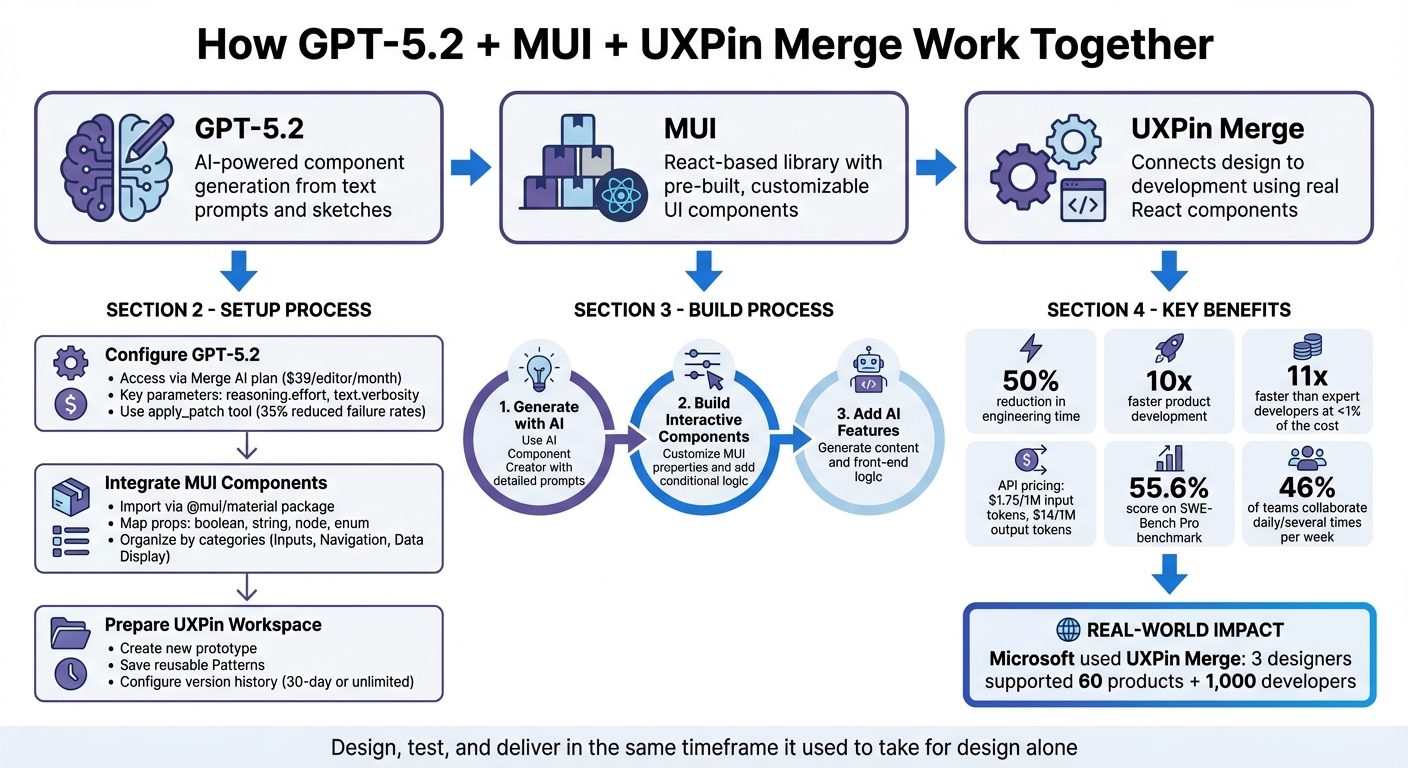
GPT-5.2, MUI, and UXPin Merge Prototyping Workflow
From Prompt to Interactive Prototype in under 90 Seconds
Setting Up Your Environment for GPT-5.2, MUI, and UXPin Merge
Get started with GPT-5.2, MUI, and UXPin Merge by following three key steps: setting up GPT-5.2, integrating MUI components into UXPin, and organizing your workspace for efficiency.
Installing and Configuring GPT-5.2
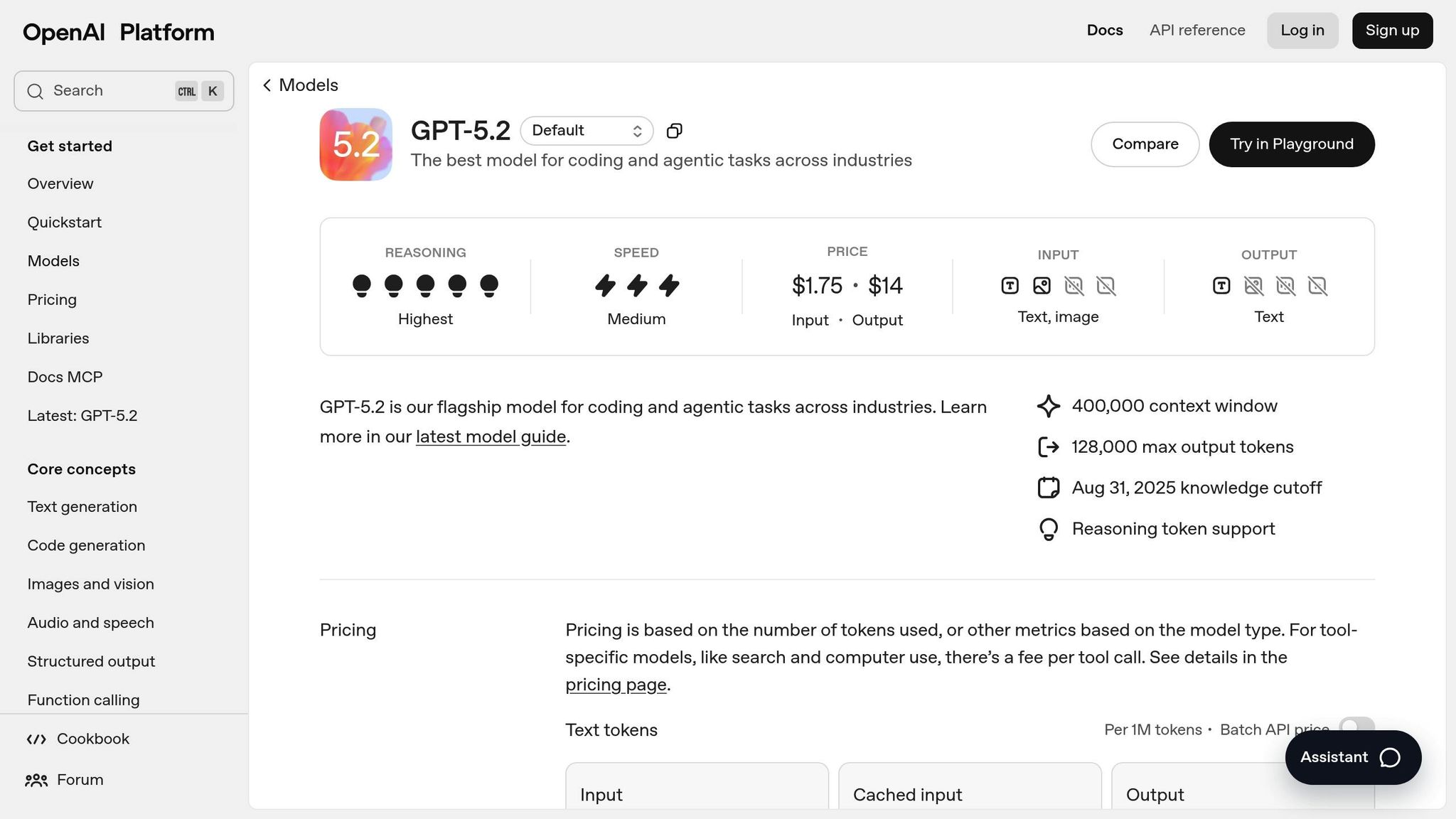
GPT-5.2 powers UXPin’s AI Component Creator and AI Helper, so there’s no need to manually install or configure API keys – these tools are built right into the platform. If you’re subscribed to the Merge AI plan ($39/editor/month), you’ll have instant access to GPT-5.2’s capabilities for generating production-ready UI layouts from simple text prompts.
For custom integrations or using GPT-5.2 outside of UXPin, the Responses API is the way to go. This API allows you to pass the "chain of thought" between interactions, which improves accuracy and reduces latency when creating complex UI code. When configuring the model, use gpt-5.2 for tasks requiring detailed reasoning and code generation. For faster iterations or cost-conscious projects, gpt-5-mini offers a good balance of reasoning and speed.
Key parameters to configure include:
reasoning.effort: Usenonefor basic components ormedium/highfor intricate layouts.text.verbosity: Set tolowfor concise output orhighfor detailed responses.
The apply_patch tool is especially useful for prototyping. Instead of rewriting entire files, GPT-5.2 provides structured diffs to update your codebase. In testing, using a named function within this tool reduced failure rates by 35%, making it a dependable option for large-scale projects.
Adding MUI Libraries to UXPin Merge
Once GPT-5.2 is ready, the next step is integrating MUI to access a full range of pre-built UI components. UXPin Merge offers a pre-built MUI 5 library, but you can also import MUI components via npm if you need custom configurations or specific versions. To get started, create a new project in your UXPin dashboard and go to the Design System Libraries tab. Select "New library" > "Import React Components" and use @mui/material as the library package name.
After connecting the package, open the Merge Component Manager to choose which components to import. Stick to CamelCase naming conventions (e.g., Button, TextField, BottomNavigation) to align with MUI’s API. This consistency ensures clear communication between designers and developers during handoffs.
Next, map React props to UXPin’s Properties Panel for customization. Common property types include:
- boolean: For toggles like
disabled. - string: For text inputs.
- node: For editable content like button labels.
- enum: For dropdown options such as
variantorcolor.
For example, to let designers edit button labels directly, configure the children React prop as a node property type with a textfield control. Once everything is set, click "Publish Changes" and then "Refresh Library" to see the updates in the design editor. To make navigation easier, organize components using the same categories as MUI’s documentation, like "Inputs", "Navigation", and "Data Display."
Preparing Your UXPin Workspace
With your libraries in place, it’s time to set up your UXPin workspace for maximum efficiency. Start by creating a new prototype in your UXPin dashboard. If you’re on the Merge AI plan or higher, you’ll notice the AI Component Creator and AI Helper tools in the left sidebar. These tools work seamlessly with your imported MUI components, allowing you to generate layouts by typing prompts like, "Create a login form with email and password fields using MUI text inputs."
To streamline your workflow, save reusable Patterns for commonly used component combinations. For instance, if your team frequently uses a specific navigation bar layout, save it as a Pattern so it can be easily dragged into new projects without starting from scratch.
Lastly, configure your version history settings based on your plan. The Company plan ($119/editor/month) includes a 30-day version history, while the Enterprise plan offers unlimited version history. This feature is invaluable for fast-paced teams, as it allows you to roll back changes or compare different prototype versions without losing progress.
Building a High-Fidelity Prototype with GPT-5.2, MUI, and UXPin Merge
Once your environment is ready, you can transform initial layouts into a polished, interactive prototype. By combining GPT-5.2’s AI capabilities, MUI’s robust component library, and UXPin Merge’s seamless design-to-code workflow, you can significantly cut down on development time.
Generating Design Ideas with GPT-5.2
Start by opening the AI Component Creator in the Quick Tools panel of your UXPin editor. This tool uses GPT-5.2 to turn text prompts into functional layouts built with MUI components. To get precise results, provide detailed prompts like: "Create a login form with MUI text fields for email and password, a primary blue submit button, and a right-aligned ‘Forgot Password?’ link."
If you already have a sketch or wireframe, you can upload it directly into the AI Component Creator. Thanks to its advanced spatial reasoning, GPT-5.2 can interpret the layout and generate a design that aligns closely with your reference.
For more intricate interfaces, break the task into smaller pieces. For example, instead of describing an entire dashboard at once, start with the navigation bar, then move to the data table, and finally the filter panel. Use the AI Helper tool (marked by the purple "Modify with AI" icon) to refine each section with instructions like "make this denser" or "change primary colors to tertiary" without having to start over. Additionally, UXPin’s Prompt Library offers pre-configured templates for common components, making the design process even faster.
Once the layouts are generated, you can further refine them into interactive elements using Adalo‘s no-code capabilities or MUI components within UXPin.
Building Interactive Components with MUI in UXPin
After GPT-5.2 creates your base layout, use UXPin’s properties panel to customize MUI components. Adjust properties like variant, color, size, and disabled directly in the editor. For instance, you can switch a button’s variant from "contained" to "outlined" or change a text field’s color from "primary" to "secondary" with just a few clicks.
To make your prototype interactive, leverage UXPin’s built-in tools like conditional logic, expressions, and variables. For example, you can create a simple login validation by setting a condition: if the email field is empty, the submit button remains disabled. For more advanced interactions, combine MUI’s onChange events with UXPin’s state management to simulate realistic user flows, allowing stakeholders to experience the prototype as if it were a finished product.
Save frequently used component combinations as Patterns to streamline your workflow. For instance, if your team regularly pairs an MUI AppBar with a specific Drawer configuration, save it once and reuse it across multiple pages. This approach ensures consistency and minimizes repetitive work.
Once the interactivity is in place, enhance your prototype with relevant content and advanced logic for a more dynamic experience.
Adding AI-Powered Features to Your Prototype
GPT-5.2 is a powerful tool for content generation and editing. Use the AI Helper to create realistic headings, labels, and text for your prototype. Instead of relying on placeholder "Lorem ipsum" text, request context-specific content. For example, type "Generate patient summary text for a cardiology appointment," and GPT-5.2 will produce medically appropriate terminology and phrasing.
The model’s front-end logic capabilities also shine when generating React code for complex UI behaviors. Scoring 55.6% on the SWE-Bench Pro benchmark for software engineering tasks, GPT-5.2 delivers code that’s closer to production quality, reducing the amount of rework needed during development.
For teams on tight budgets, GPT-5.2 offers an impressive cost-to-efficiency ratio. Its outputs are generated over 11 times faster and at less than 1% of the cost of expert developers. The API pricing is $1.75 per 1M input tokens and $14 per 1M output tokens. For projects requiring advanced reasoning or highly detailed layouts, GPT-5.2 Pro is available at $21 per 1M input tokens and $168 per 1M output tokens, offering even greater capabilities when needed.
sbb-itb-f6354c6
Collaborating and Iterating on Your Prototype
Real-Time Collaboration with UXPin Merge
With UXPin Merge, your team can work together on design, copy, and development edits simultaneously, cutting out the need for static handoffs. Picture this: a designer tweaks MUI component properties while a writer updates the text and a developer checks auto-generated specifications – all at the same time. This workflow is a game-changer, especially as 46% of designer-developer teams now collaborate daily or several times a week.
Thanks to cloud sync, updates are always current for everyone, whether they’re using Mac or Windows. No more manual file management headaches.
"It used to take us two to three months just to do the design. Now, with UXPin Merge, teams can design, test, and deliver products in the same timeframe." – Erica Rider, UX Architect and Design Leader
Collecting Feedback and Making Updates
Real-time collaboration is just the start. Gathering feedback and making updates take your prototype to the next level. With a live preview link, stakeholders can test the latest version and leave tagged, contextual feedback. Team members can also tag colleagues directly in comments, cutting down on miscommunication.
To keep things organized, User Management settings let you control permissions. Stakeholders and reviewers can leave feedback without risking accidental changes to the prototype’s structure. When updates are needed, multiple team members can jump in at once – one person might refine interactions while another updates content – making it easy to iterate quickly based on live feedback.
Maintaining Consistency Between Design and Code
The collaboration doesn’t stop at design – it extends to keeping design and production code perfectly aligned. UXPin generates production-ready HTML, CSS, and JavaScript, so any updates to components in the editor automatically reflect in the final code. When you modify an MUI component in UXPin, you’re directly editing the code developers will use.
"Imported components are 100% identical to the components used by developers during the development process. It means that components are going to look, feel and function (interactions, data) just like the real product." – UXPin Documentation
To ensure consistency across projects, save brand-specific components, colors, and text styles in Team Libraries. When you update a button style or adjust a color scheme, those changes automatically apply to all prototypes using that shared library. This creates a single source of truth, keeping design and code in sync throughout the development process. By reducing rework and streamlining workflows, UXPin Merge ensures your team stays efficient and focused.
Conclusion
Bringing together GPT-5.2, MUI, and UXPin Merge revolutionizes the prototyping process. This trio offers AI-driven design ideas, ready-to-use React components, and a smooth transition from design to code. The result? Faster development cycles and improved collaboration across teams.
By integrating these tools, engineering time can be cut by about 50%, while product development speeds up to 10 times faster compared to older methods. For example, Microsoft utilized UXPin Merge with its Fluent design system, allowing a team of just three designers to support 60 internal products and over 1,000 developers.
Start exploring these tools today. With GPT-5.2, you can refine layouts using simple natural language commands instead of tweaking properties manually. Import MUI components directly through npm to ensure your prototypes align perfectly with production code. This streamlined process enables teams to handle design, testing, and delivery within the same timeframe it used to take for design alone.
Say goodbye to endless handoffs and miscommunication. With GPT-5.2, MUI, and UXPin Merge, you’re creating prototypes that look and function like the final product from the very beginning.
FAQs
How does GPT-5.2 simplify prototyping with MUI in UXPin Merge?
GPT-5.2 takes the prototyping process in UXPin Merge to the next level with its AI Component Creator feature. By simply entering a prompt, designers can generate fully coded MUI components that align with their design system. This means less manual work and quicker creation of high-fidelity, interactive prototypes.
With automated component generation, GPT-5.2 simplifies workflows, strengthens collaboration between designers and developers, and ensures prototypes stay consistent – all while cutting down on time spent.
What are the advantages of using MUI components in prototypes?
Using MUI components in your prototypes brings a practical, code-driven approach that closely reflects the final product. These are genuine React + Material-UI elements, complete with built-in interactions, state management, and theming. This means designers can create functional, interactive prototypes without resorting to static mockups or writing custom code. On top of that, any updates to your component library automatically sync with your prototypes, keeping everyone aligned with the latest version.
MUI’s pre-designed, customizable components also help streamline the prototyping process. You can quickly piece together screens while ensuring consistency with Google’s Material Design standards. This not only simplifies the handoff to developers but also speeds up the transition from prototype to production-ready code.
What’s more, MUI’s thorough documentation and robust theming support make it easier for designers and developers to collaborate. The end result? A faster workflow, polished prototypes, and a shorter path to getting your product to market.
How does real-time collaboration boost team efficiency in UXPin Merge?
Real-time collaboration in UXPin Merge lets designers and developers work together on the same React components without the hassle of a traditional design handoff. Any updates made in the code repository are instantly synced to the editor, ensuring everyone is always working with the most up-to-date version and avoiding version-control headaches.
This integration streamlines workflows by allowing designers to use coded MUI components directly in their prototypes. At the same time, developers can verify that the UI aligns perfectly with production code. The result? Teams can dramatically shorten project timelines – from months to just weeks – while enabling quicker feedback and stronger collaboration across roles.

