Tired of design-to-development bottlenecks? Here’s a faster way to build production-ready prototypes: combine GPT-5.1, Ant Design, and UXPin Merge.
This workflow lets you:
- Use AI to create functional UI layouts from text prompts.
- Design with Ant Design’s enterprise-grade React components.
- Eliminate manual handoffs with UXPin Merge’s code-backed prototypes.
By working directly with real code, you’ll save time, reduce errors, and ensure your designs are ready for production.
How it works:
- AI-Powered Prototyping: GPT-5.1 generates layouts and adjusts designs with simple text commands.
- Ant Design Integration: Drag and drop pre-built React components with customizable properties.
- Code-First Approach: UXPin Merge syncs designs with development, removing translation errors.
This approach cuts prototyping time by up to 8.6x and ensures design consistency across projects. Let’s dive into the details.
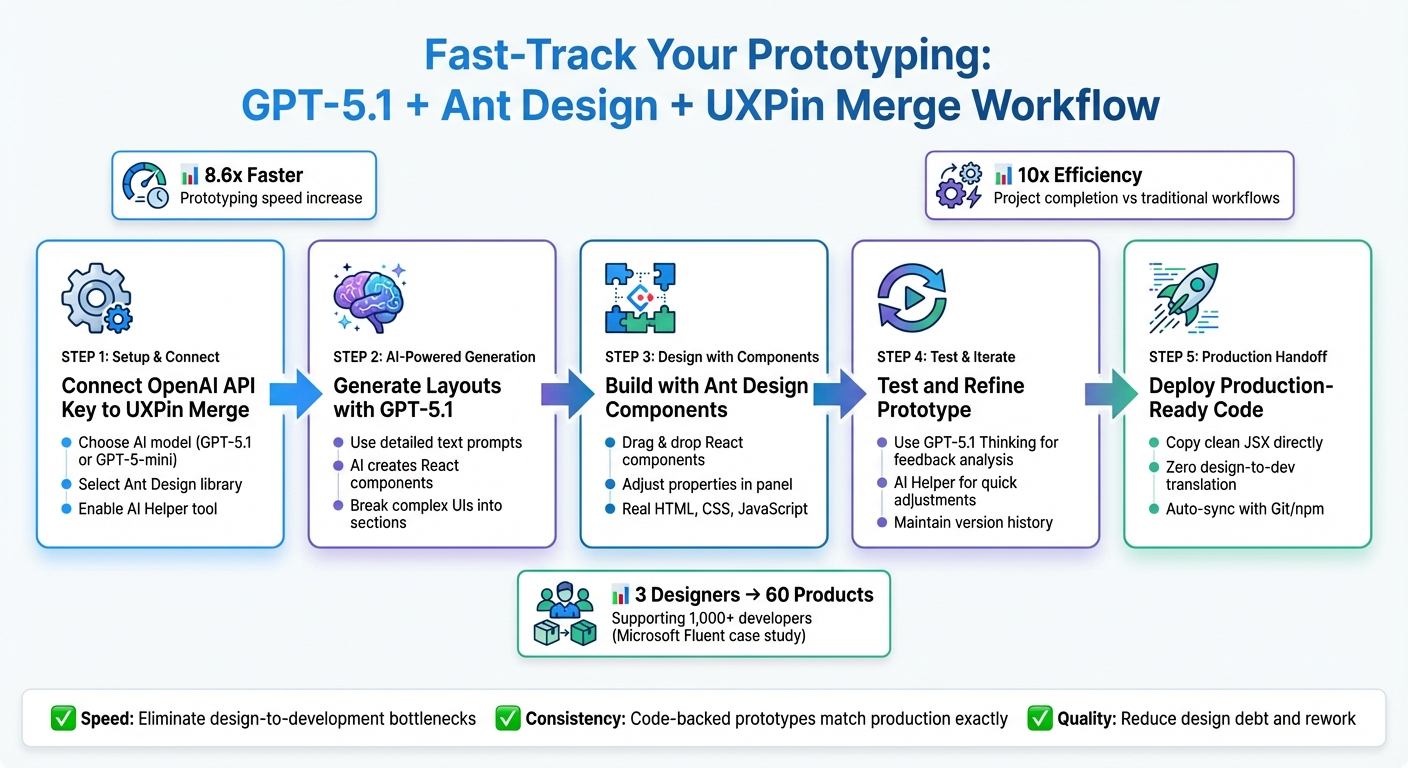
GPT-5.1 + Ant Design + UXPin Merge Prototyping Workflow
UXPin Merge AI: Smarter UI Generation That Follows Your Design System
Setting Up Your Prototyping Workflow
Ant Design integrates seamlessly with UXPin Merge, letting you dive straight into designing with production-ready components.
Connecting GPT-5.1 to UXPin Merge
To enable AI-assisted prototyping, start by connecting your OpenAI API Key to UXPin Merge. You can get your API key directly from the OpenAI website. Once you have it, open the UXPin Editor and find the AI Component Creator in the Quick Tools panel. Head to the Settings tab and paste your API key into the specified field to complete the connection.
After the connection is set up, choose your preferred AI model in the Prompt tab. For quick tests or basic layout adjustments, GPT-5-mini is a solid choice. For tackling more detailed and structured designs, GPT-4.1 is the better option. Once selected, the AI Helper tool becomes available, allowing you to modify Ant Design components with simple text commands – like "change all buttons to the danger state" or "increase spacing by 8px."
Working with Ant Design Components in UXPin Merge
When creating a new project, choose "Design with Merge Components" and select the Ant Design library from the Existing Libraries list. The components you drag onto the canvas are actual React components, complete with real HTML, CSS, and JavaScript, just like developers use in production.
Each component comes with adjustable properties, which you can tweak in the UXPin Properties Panel. For example, a Button component includes props like type, size, and loading, all of which can be modified using dropdowns, checkboxes, or text fields. These options directly correspond to React props, making it easier for developers to work with your designs.
Once your components are in place, you can configure Merge AI to generate layouts tailored to your design system.
Setting Up Merge AI for Your Design System
Using AI for detailed instructions can significantly speed up the design process. To generate layouts that align with your specific requirements, provide clear and precise prompts. For instance, instead of saying "create a form", try something more detailed like, "create an input field with a 16px bold label ‘Email’ and a blue focus border." The more specific your instructions about colors, typography, and layout preferences, the closer the AI output will align with your vision.
For more complex UI designs, break your instructions into smaller tasks. Instead of asking the AI to design an entire dashboard in one go, request individual sections – such as navigation, a data table, and a filter panel – and then piece them together. This step-by-step approach ensures greater accuracy and gives you more control over the final design. You can also use the AI Helper to tweak components with text prompts, saving time compared to starting from scratch.
Building a Prototype: Step-by-Step Process
Generating Ideas and Layouts with GPT-5.1
Once your workflow is set up, you can dive into creating detailed layouts using GPT-5.1. Start by opening the AI Component Creator from the Quick Tools panel. Assuming your API integration is ready, head over to the Prompt tab and select GPT-5.1 as your model. This version strikes a balance between precision and speed.
For the best results, use a detailed prompt. Instead of something generic like "create a dashboard", go for specifics: "Design a user analytics dashboard with a top navigation bar, a sidebar featuring menu items, a data table displaying user activity, and three metric cards showing total users, active sessions, and conversion rate." GPT-5.1 will then generate React components using the Ant Design library, ensuring consistency with the components your developers will use in production.
If the output isn’t quite right, you can refine it further using the AI Helper. For instance, you might adjust the number of table rows to 10 or switch the metric cards to a primary color scheme.
Building Prototypes with Ant Design Components
Once you have your components, you can customize them directly in the Properties Panel. This allows you to tweak properties that mirror the React props used when the components go live.
For more complex interfaces, simply drag and drop additional components onto the canvas. For example, to create a login form, combine Input fields, a "Remember me" Checkbox, and a primary Button. Since these are functional React components, you can configure features like form validation, disabled states, or loading spinners – all without writing any code.
"UXPin Merge allows you to visually design your user interfaces using components that you’re familiar with without needing to step out of your developer comfort zone." – Rachel, React Developer, UXPin
The efficiency here is a game-changer. Teams leveraging UXPin Merge and AI tools can complete projects 10 times faster than with traditional workflows. When it’s time to hand off the prototype, developers can directly copy clean JSX code from the interface, skipping the hassle of converting static designs. After assembling your prototype, move forward to testing and refining.
Testing and Iterating on Your Prototype
Before testing your prototype, define measurable success criteria, such as navigation flow, form usability, or clarity in information hierarchy. This step ensures your design aligns with production standards and user needs.
For analyzing feedback, GPT-5.1 Thinking is incredibly useful. It can process complex feedback and synthesize insights from multiple testing sessions. This model adjusts its reasoning time based on the complexity of the task, making it ideal for understanding dense feedback patterns. For quicker adjustments in real-time testing, switch to GPT-5.1 Instant, which offers faster responses.
Keep older versions of your prototype instead of overwriting them. This practice helps avoid setbacks when fixing one issue inadvertently causes another. Use the AI Helper to implement changes efficiently – just select a component, describe the update, and let the AI handle the rest while maintaining alignment with your Ant Design system.
"When GPT-5.1 makes a mistake, it adapts, continues, and succeeds." – Paweł Huryn, AI Product Manager
sbb-itb-f6354c6
Benefits of Using GPT-5.1, Ant Design, and UXPin Merge Together
Reducing Time from Design to Production
By leveraging real Ant Design components, you can generate production-ready JSX that developers can copy and implement directly. GPT-5.1 takes prototyping to the next level, creating live layouts from detailed prompts. Its AI Helper simplifies the design process even further with text-based commands like "make this denser" or "swap primary to tertiary variants", eliminating the need for manual property adjustments. This streamlined approach speeds up prototyping and aligns seamlessly with a code-driven design workflow.
Maintaining Consistency with Code-Backed Prototypes
Code-backed prototypes are a game-changer for maintaining design consistency. UXPin Merge uses actual HTML, CSS, and JavaScript, ensuring that designs behave exactly as they would in a browser by relying on production-ready code. Ant Design’s tokens for color, spacing, and typography integrate directly into the design canvas, while the Merge Component Manager maps React props to a Properties Panel. This setup limits designers to pre-approved options, like restricting a Button component to specific variants such as "primary", "default", or "dashed." The result? No unexpected styling variations.
Preventing Design Debt and Reducing Rework
Efficiency isn’t just about speed – avoiding design debt is equally important. UXPin Merge syncs directly with your Git, Storybook, or npm repository, ensuring that only the latest approved components are used. This reduces the risk of outdated designs and minimizes the need for rework.
"New AI model – You can now use GPT-5.1 in AI features across UXPin to generate more consistent results." – Andrew Martin, CEO at UXPin
In January 2026, GPT-5.1 replaced GPT-3.5 in UXPin after the older model fell short in delivering consistent results and precise layouts. Designed to respect design system constraints, GPT-5.1 ensures that AI-generated layouts adhere to your system’s rules from the start, cutting down on revisions before development begins.
Conclusion
Bringing together GPT-5.1, Ant Design, and UXPin Merge reshapes how enterprise teams handle prototyping. Instead of relying on static mockups that often require tedious manual work to translate into code, this approach uses real React components that can go straight into production. This eliminates the traditional gap between design and development.
This shift isn’t just about working faster – it’s about ensuring consistency. When prototypes are built with components directly from the antd npm package, updates to your design system automatically reflect across all projects. Plus, GPT-5.1’s component-aware AI ensures that layouts align with your design system constraints right from the start, reducing the need for revisions and avoiding design inconsistencies.
"We synced our Microsoft Fluent design system with UXPin’s design editor via Merge technology. It was so efficient that our 3 designers were able to support 60 internal products and over 1,000 developers." – Erica Rider, UX Architect and Design Leader
Studies indicate that combining AI with coded components can accelerate product development by 8.6x. Features like the AI Helper enable on-the-spot refinements and provide production-ready JSX handoff, letting teams focus less on repetitive tasks and more on addressing user needs. The outcome? Faster launches, a unified design language, and a significant reduction in design debt across your organization. For teams managing complex backend systems and data integrations alongside frontend prototyping, DreamFactory can provide governed API access to ensure your prototypes connect seamlessly to enterprise data sources.
FAQs
How does GPT-5.1 enhance prototyping with UXPin Merge?
GPT-5.1 simplifies the prototyping process in UXPin Merge by allowing teams to create and adjust components through straightforward natural language prompts. This minimizes the reliance on extensive coding, cutting down on both time and effort during the design phase.
When paired with UXPin Merge’s capability to integrate live Ant Design components, GPT-5.1’s AI-powered workflows enable teams to build functional, code-based prototypes more quickly and consistently. This combination helps enterprise product teams speed up development while ensuring top-notch UX/UI quality.
What are the advantages of using Ant Design components for prototyping in UXPin Merge?
Using Ant Design components in UXPin Merge brings a blend of speed, uniformity, and realism to your prototypes. Thanks to Ant Design’s React-based UI library, you can seamlessly incorporate pre-built, ready-to-use components like buttons, tables, and date pickers directly into your designs. These components come with built-in interactivity, meaning your prototypes will function just like the final product.
By tapping into Ant Design tokens for elements like colors, spacing, and typography, you ensure your prototypes align perfectly with your design system. This alignment reduces errors during handoff, eliminates the need to recreate mockups, and accelerates development timelines – helping teams work up to 50% faster. In short, integrating Ant Design components simplifies workflows and guarantees a smooth handoff from design to development.
How does UXPin Merge help maintain design consistency and minimize rework?
UXPin Merge streamlines the design process by allowing teams to prototype with real, production-ready React components. These are the exact components used in the final product, ensuring that design, behavior, and functionality stay consistent from start to finish.
By pulling components directly from sources like Git, Storybook, or npm, Merge eliminates the hassle of manually recreating or tweaking UI elements. This approach reduces errors and saves valuable time. Plus, any updates made by developers in the codebase automatically sync with the prototypes, ensuring designs always reflect the latest changes. This efficient workflow not only enhances collaboration but also accelerates prototyping, enabling teams to test realistic user flows and identify potential issues early in the process.

