
Use in the Editor
Using React.js Components
Merge brings real React components into the UXPin Editor. This page shows how to use them once they’re in your library: add them to the canvas, nest them, edit their properties and style them. If you’re a developer looking for the technical setup, go to Creating a Library.
How to access Merge components
Merge components live in libraries that were pushed to your UXPin account. If:
- your team has already pushed the components, keep reading this guide.
- you want to integrate your own components, follow Creating a Library.
- the components haven’t been integrated with your account and you’re not sure what to do, contact support at hello@uxpin.com.
Before you push, you can preview your own components locally in experimental mode (the Merge Dev Environment).
Adding components
Adding components works exactly like in the regular design systems library in UXPin. Drag and drop a component, adjust its position on the canvas and you’re good to go.
Note
Adjusting the size of a component depends on how it was coded. If a component has a fixed width or height set in CSS, you can’t change its size in UXPin, unless the value is passed through props to the React component. Merge uses the same code you use in production.
Nesting components
If a component allows a nested structure, you can nest components in it.

A good example is the Card component above. Once the container is on the canvas, you can add a CardImage, a CardFooter and other components to it. Double-click the container and drag and drop children from the library, or drag and drop children anywhere on the canvas and nest them in the Layers panel. To select a deeply nested component, hold Cmd (Ctrl) and click the nested element.
To rearrange the order of children inside a parent, use the Layers panel. Merge applies the component’s own CSS, so if the container uses flexbox, the children behave according to that CSS.
Editing components
Components imported from code repositories are special: you can edit them only as much as the code allows. React communicates with a component through props. Props can take any value (text, a hex code, an object with data, a number) and trigger specific styles or behaviors of the component.
Merge recognizes these props automatically and shows them in the Properties panel. That’s why, instead of the usual controls for color, text, border or shadow, you see a set of properties that come directly from the coded component.
This is perfect for design systems, because nobody can break your components with styling the system doesn’t allow.
Note
Every React component has a description in the Properties panel, including the library and branch name.
Tip
Make Merge components flexible with the Flexbox component. Select your components, then add flexbox from the Properties panel, or right-click and choose “Add flexbox”. Adjust the flex properties as needed.
The content of a component can be edited by changing its children property.
Custom styling components
If your components don’t have specific properties, you can style them with the custom CSS control. It lets you adjust colors, images, padding, margins, borders and more, with no coding.
You can also use Custom Props to add attributes, such as an id, or to define slots on the root element.
How to enable custom styles and properties
1. Make sure you use @uxpin/merge-cli 3.4.3 or newer.
2. Confirm that your library supports styles, then add this to uxpin.config.js:
settings: { useUXPinProps: true }3. Push a new version of your library to apply the change.
4. Every component now has two object properties: Custom Styles to customize the root element’s styles, and Custom Props to add attributes to the root element.
Example:
customStyles: { textDecoration: 'underline', fontSize: '20px' },
customProps: { id: 'my-id' },
Element structure:
<div>
  <h1>Hello world</h1>
  <span>span</span>
</div>
Result:
<div style="text-decoration: underline; font-size: 20px;" id="my-id">
  <h1>Hello world</h1>
  <span>span</span>
</div>
Reordering components
You can organize code-backed components with drag and drop or keyboard shortcuts:
- Drag and drop: drag components on the canvas to change their order.
- Arrow keys: press ↑ or ← to move a component forward in the layer order, and ↓ or → to move it backward.
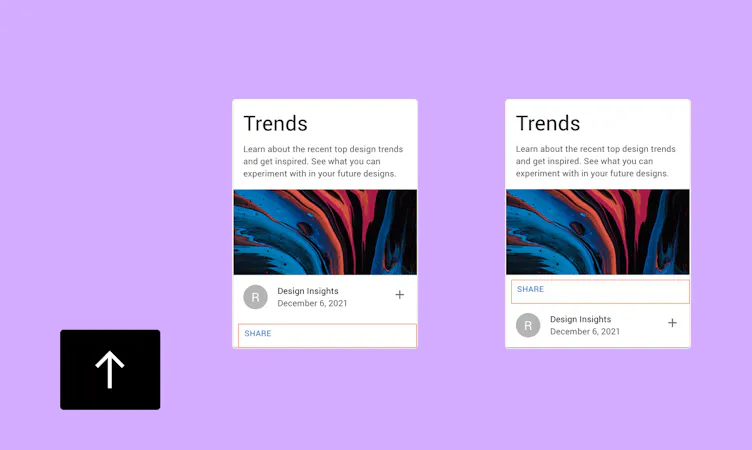
- Nesting level: press Cmd ↑ or Cmd ↓ to move a component between hierarchy levels.
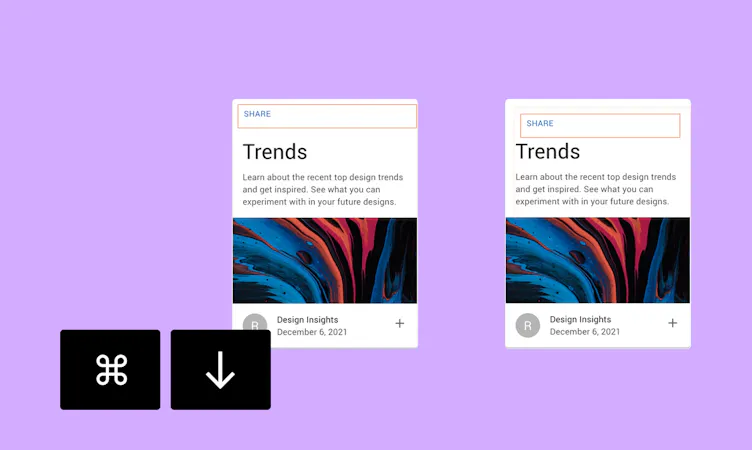
Patterns
Patterns is a Merge feature that lets you combine Merge UI elements into new components and add them to your library. Growing a design library takes time and effort across design and engineering teams. Patterns helps you skip the development phase when you add new components or their variants. You add them to a new section of your Merge library.
With Patterns you can:
- Reuse component variants. Save time setting the same properties on the same components.
- Design with advanced components even if they aren’t in your design library.
- Simplify adding new components to your design system. Combine Merge and standard elements, save the new component in the Patterns library and pass it to developers.
Note
You can still see the code of each Merge element. For now, no code is visible for the whole new component or group.
When Patterns helps
Patterns is useful when you:
- Want to design with advanced coded components but your UI library is limited to basic elements that lack the properties you need in code.
- Struggle with importing robust components to UXPin Merge.
- Often have to set the same properties for the same components.
- Lack a step in the process of creating and developing new coded components.
- Want to group and save Storybook elements into bigger components.
Merge Patterns
How to use Patterns
- Add elements or components onto the canvas.
- Set the properties you want.
- Switch to the Patterns tab, next to Components.
- Select the group or component on the canvas.
- Add it in the Patterns tab.
The components in the Patterns library are available to your team. To update them, drop the components onto the canvas, apply changes and add them to the library again.
Availability
Patterns comes as a tab in your component library. It is available on the Merge and Growth plans and works with the Git and Storybook integrations. Patterns are also available for the built-in UI libraries, including MUI, Ant Design, Bootstrap and shadcn/ui.
Limitations:
- For now, you can create Patterns using nested elements with every Merge integration except Storybook.
- For now, Patterns don’t work with symbols.
- You can have multiple Patterns libraries, one for each Merge library, because components from different libraries can’t be combined.
Merge Design System Documentation
One way to minimize design debt is to keep your design system documentation in check. Merge Design System Documentation centralizes the information about your UI libraries and their coded components. It helps you learn about all the components in the code-based library, recreate component versions and share the use cases for each element.
Connect your design system
To auto-generate the documentation for the code-based design library, first connect it with the Design System in UXPin. You can do that in two ways:
- Go to the Design System and pick the Merge category on the left. Choose your Merge library from the drop-down list to auto-generate the documentation.
- Go to the Editor and choose the library. Open the library settings (gear icon) and select Connect with the Design System. Select the Design System you want or add a new one.
All the components, their versions, properties and descriptions that are in the code are reflected in the documentation.
Edit the information
You can edit and add all the information and names in the auto-generated documentation.
Theming global libraries
Global libraries such as MUI and shadcn/ui come with a page theme. The theme controls the look of every component of that library on the page at once. You can switch between ready themes, edit the colors and fonts, and keep separate settings for light and dark mode.
Where to find the page theme
- Add a component from a global library, such as MUI v9 or shadcn/ui, to the canvas and select it.
- In the Properties Panel, find the Page Theme section.
- Select a built-in theme from a dropdown or create your own.
The theme applies to all components from this library on the page, not only to the selected one.
Switch between light and dark mode
At the top of the Page Theme section, use the sun icon (Light theme) or the moon icon (Dark theme) to choose which mode you are working on. The Theme Tokens editor keeps separate values for each mode.
Use a saved theme
Use the Saved Theme drop-down to pick a theme saved earlier.
Edit theme tokens (MUI)
- Click the pencil icon (Edit Theme Tokens) next to Theme Tokens.
- In the Theme Tokens Editor, switch between light and dark mode and change the values. You can search tokens by name.
- Save it as a new theme or save your changes to the theme you are editing.
To start over, reset the theme to defaults to go back to the default values.
Edit the theme (shadcn/ui)
For shadcn/ui you can pick one of several ready presets or use one custom theme. You can overwrite the custom theme with your own values, and you can set different token values for light and dark modes. You can change fonts, radius and colors. All shadcn/ui components on the page update after you change the theme.