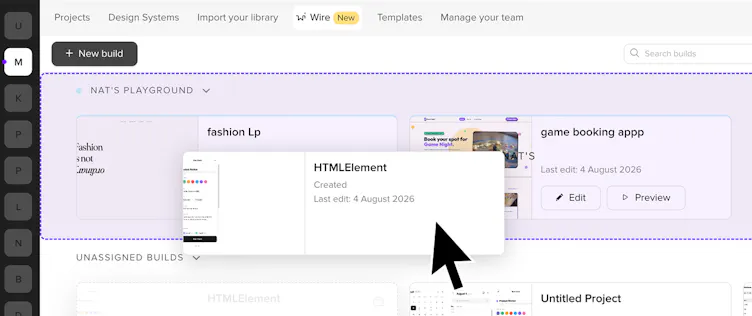
Opening Wire
From the Editor
You can open Wire from the UXPin Editor in a few ways:
From a single component
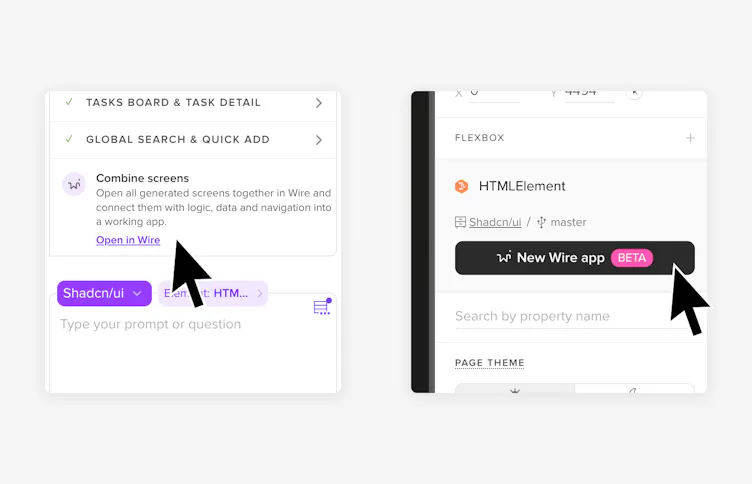
Select a Merge-based component on the UXPin canvas – for example a card, form, modal, or product tile. You'll see the New Wire app button appear in the Properties panel on the right. Click it to open that component in Wire.
Wire works with code components from Merge libraries. If you don't have your own library connected, you can use one of the built-in options: Shadcn, MUI, AntD, or Bootstrap. Native UXPin elements are not supported.
Tip
Want to use your own design system in Wire? Connect your component library to Merge first. Learn how to set up Merge
From multiple screens
If you want to connect several existing screens into one flow, make sure nothing is selected on the canvas first. Then click New Wire app in the Properties panel. Wire brings all screens from the canvas into a single container, where you can use Forge to wire them together.
Note
All elements on the canvas must be code components from the same library. You can't mix libraries or use native UXPin elements.
From Forge
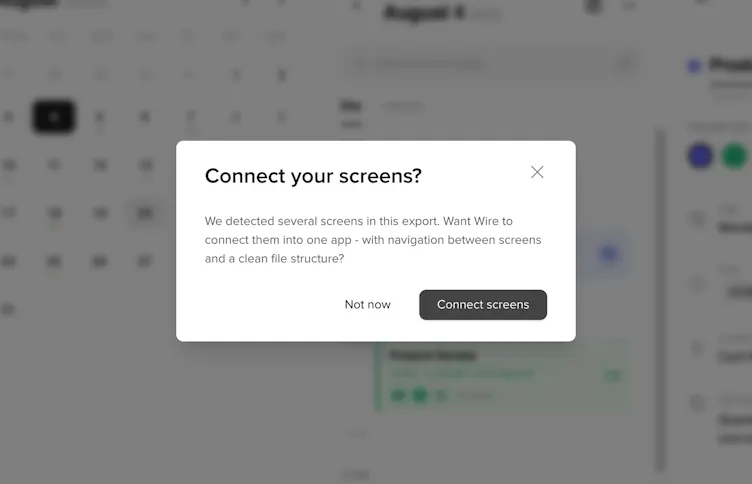
If you generate a UI using Forge in the Editor, you'll get a prompt asking whether you want to open the result in Wire. This is useful when you want to immediately connect generated screens or add logic to what Forge just built.
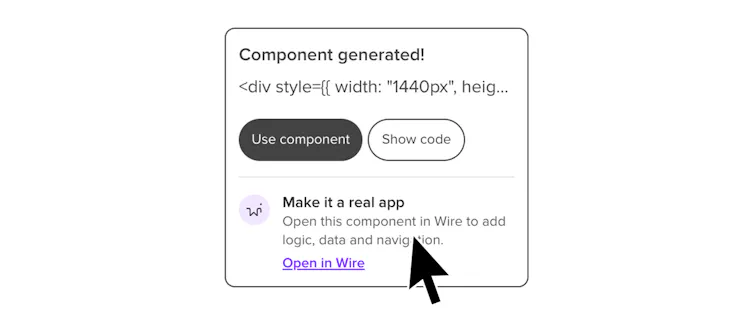
Once you're in Wire, you use Forge to add logic, connect screens, and refine the experience. You test everything live in the Playground and make edits through Forge or directly in the Code Editor.
From Wire Dashboard
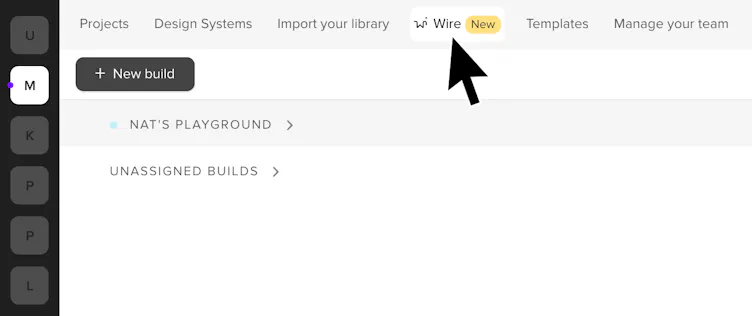
The Wire Dashboard is accessible from the main app dashboard via the Wire tab. It collects all your builds from across your account in one place.
To create a new app from the Dashboard:
- Click New build in the top left.
- Describe what you want to build.
- Choose a component library and design system.
Wire generates a full app with pages, navigation, and logic ready to edit. This is useful when you're starting from scratch rather than from an existing design.
Note
Builds created from the Dashboard are not linked to any UXPin prototype. They can only be opened and edited from the Wire Dashboard.
Every Wire app you create is saved as a build. If you open Wire again from the same component or screen and create a new app, it gets saved as a new Variant of that build – so you can explore a different direction without overwriting the previous version.
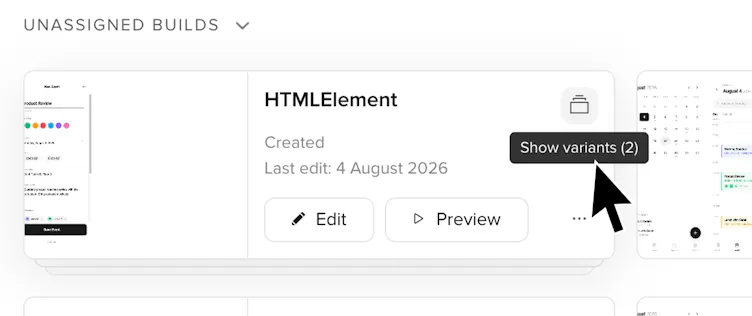
On the Wire Dashboard, each build card shows how many Variants it has. You can organize your builds into Collections to keep things tidy.