

AI App Builder That Follows Your Design System – What to Look For
Does your AI builder use the components you already have, or does it start from its own? Here are five problems to look for and how UXPin Wire handles them.
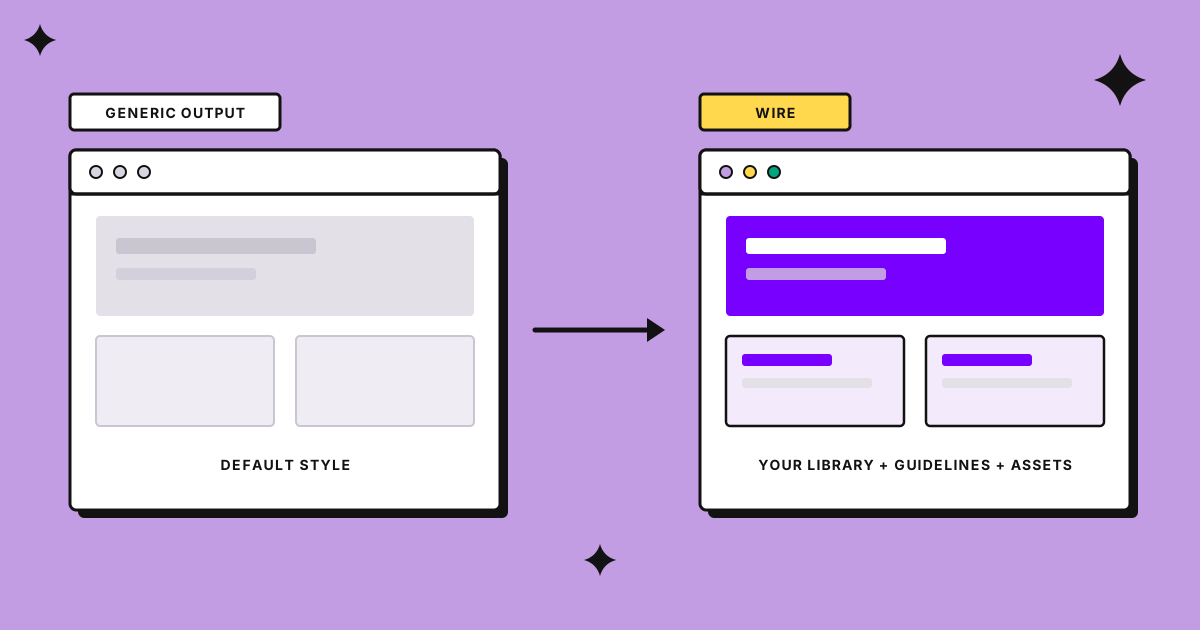
You ask an AI builder for a settings screen, and a few seconds later you have one. The buttons are not your buttons, the blue is almost your blue, and nothing happens when you click. Fixing all that by hand takes longer than building the screen yourself.
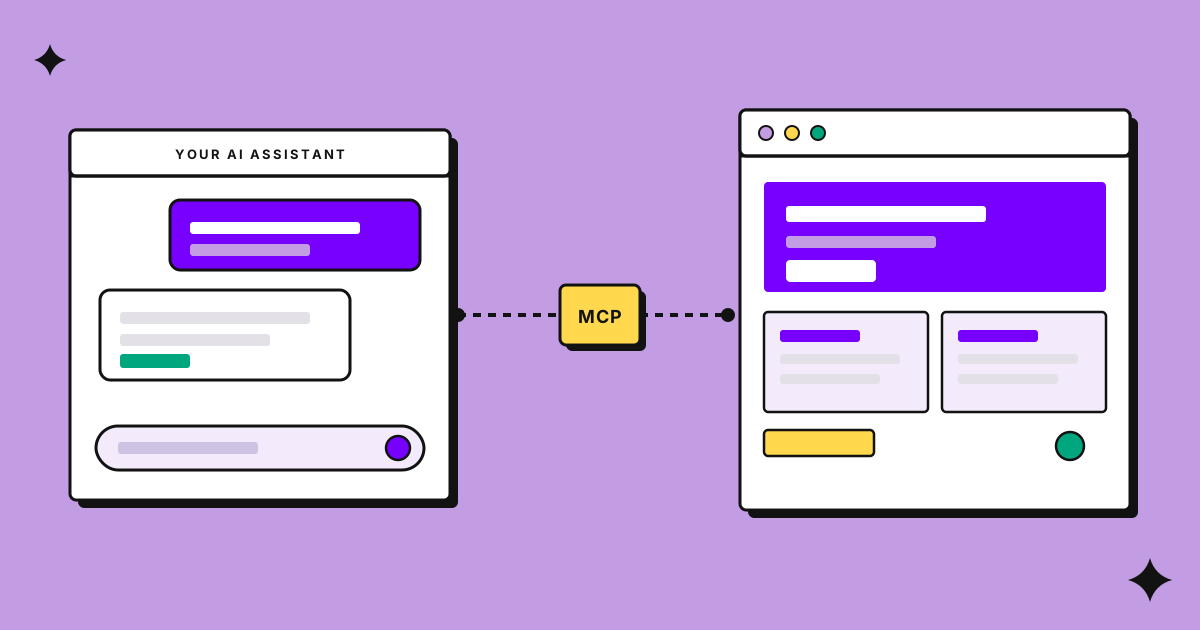
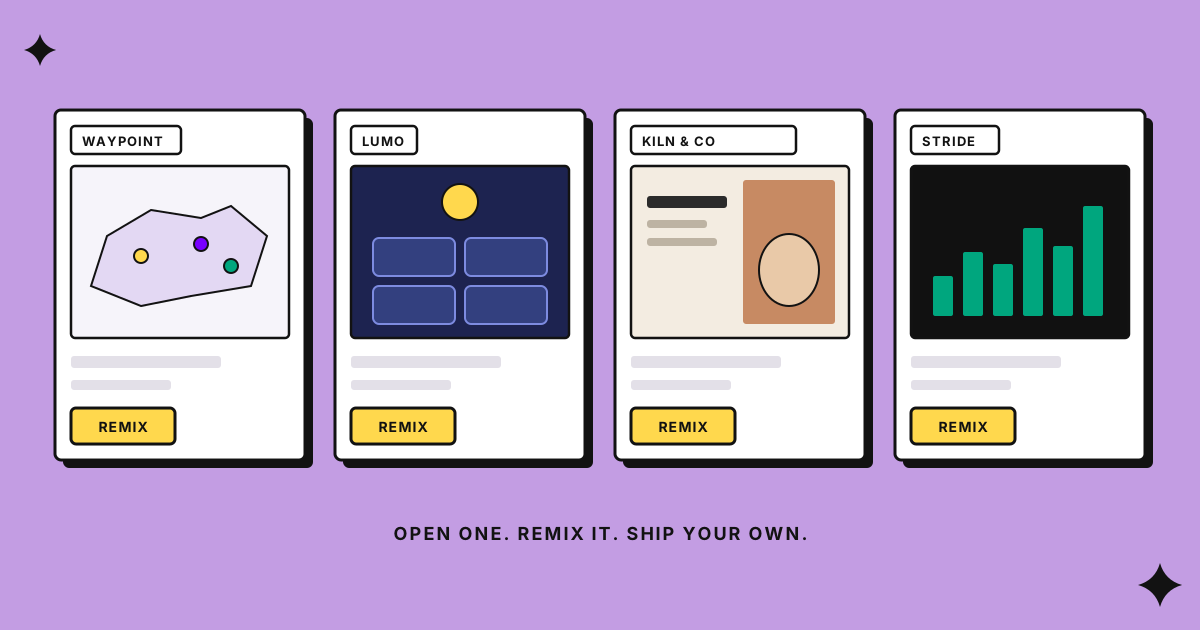
UXPin Wire is an AI builder that runs in your browser. You describe what you want, and it builds a working app, a landing page, a design system, or a short product film, using your components and your design rules. Here are five questions worth asking any AI builder, and how UXPin Wire answers them.
Does it build with the components you already have?
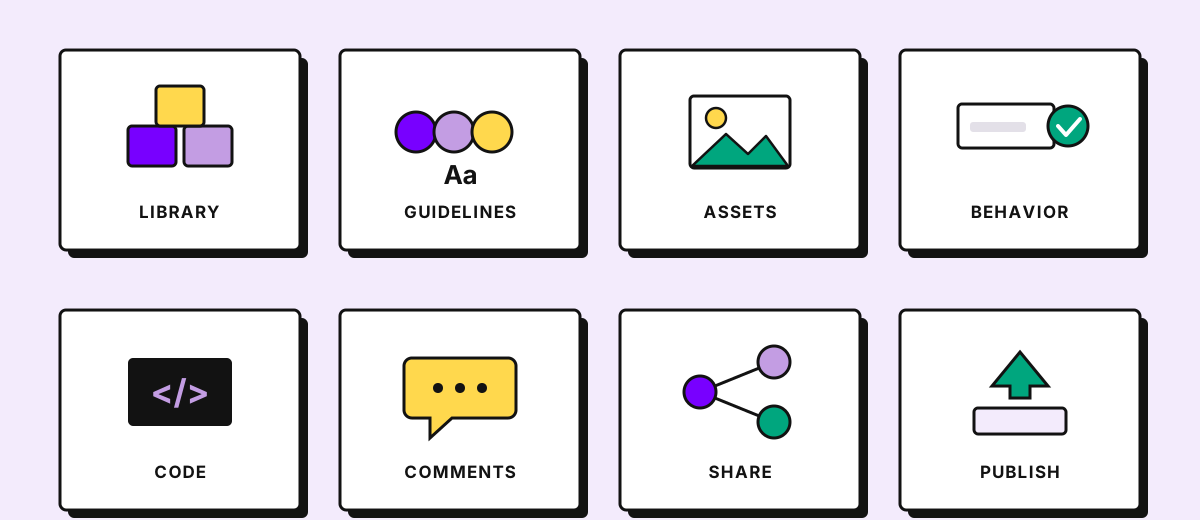
Your team has a component library, and that’s what developers ship. In UXPin Wire you choose the components before you write the prompt: shadcn/ui, MUI, Ant Design, or Bootstrap. Have your own library? Bring it in through Merge, which takes some setup and a plan that includes Merge. No library yet? Create a design system in UXPin Wire, a themed component library based on MUI 9 and saved to your workspace, and publish it as a Merge library when you’re ready.
Does it know how your product looks?
Colors, fonts, and imagery drift from one prompt to the next unless the AI knows your rules. Design guidelines give it those rules, and you can create them from your website’s address, a short description, files you already have (CSS, design tokens, or a PDF), or from scratch. Add your own photos, videos, and fonts, or let AI generate pictures that follow the colors and mood of your guidelines (generating pictures costs credits). The Theme panel lets you adjust colors, fonts, corners, and spacing in one place afterwards.
Does it work when you click?
A screen looks finished until you try it. UXPin Wire builds apps with working navigation, forms that validate, and interactive states, and the Playground tab lets you click through them. The Screens panel lists every screen and flags broken links and accessibility issues. After each AI change, UXPin Wire checks that the app still builds and fixes errors on its own, so you don’t land on a broken preview.
Can you change what it made?
Ask for a change in the chat, click an element and edit its text right there, or open the code editor. Undo and redo work for your own edits and for AI changes, and History keeps restore points, so trying something out is safe.
Can you show it to people?
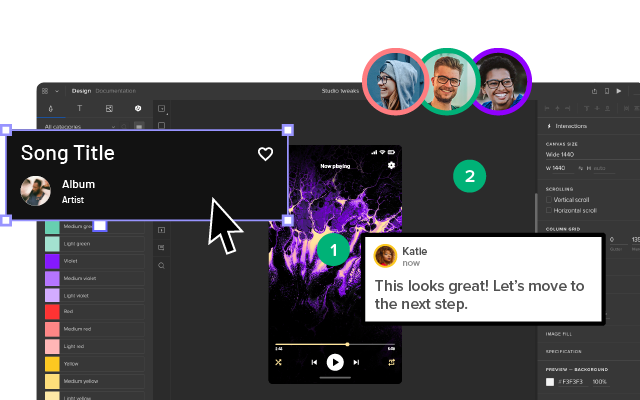
Share a link that opens the working app, with no sign-in needed. Teammates and guests can pin comments on any element, so feedback stays with the app instead of landing in screenshots and chat threads. When it’s ready, publish it to a uxpin.app address.
Try it with a small app
The answer to all five questions is the same: start from what you already have, your components, your rules, and your assets. Open the Wire tab in your UXPin dashboard, choose New build, pick a library and guidelines, and describe a small app. UXPin Wire builds the front end, so plan logins and databases with your engineers.
UXPin Wire is available on UXPin plans that include Forge. If you don’t see the Wire tab in your account, See plans shows your options.

by UXPin on
UXPin is a web-based design collaboration tool. We’re pleased to share our knowledge here.