Building a UI has never been easier. With Claude Haiku 4.5, MUI components, and UXPin Merge, you can go from concept to production-ready code faster and at a lower cost. Here’s why this workflow stands out:
- Claude Haiku 4.5 is an AI model offering 2–3 times faster performance than its predecessor at just $1 per million input tokens and $5 per million output tokens.
- UXPin Merge allows you to design directly with live MUI components, ensuring your prototypes match production code.
- No need for manual handoffs – AI-generated MUI components integrate seamlessly into UXPin.
This guide covers everything you need: setting up tools, writing effective AI prompts, generating components, and creating interactive prototypes. Whether you’re a designer or developer, this approach saves time, reduces costs, and ensures consistent results.
Prerequisites and Setup
Before diving into UI building with Claude Haiku 4.5, MUI, and UXPin Merge, it’s important to have the right tools and accounts in place. One of the key benefits here is that UXPin natively integrates MUI components, so there’s no need to manually import libraries.
What You Need for UXPin Merge with MUI
First, you’ll need a UXPin account with Merge capabilities. UXPin offers several pricing tiers:
- The Core plan starts at $29/month, providing basic AI models and 200 AI credits monthly.
- The Growth plan costs $40/month, offering advanced AI models and 500 AI credits.
- Enterprise plans include custom AI credit limits and dedicated support, ideal for larger teams or complex setups.
With UXPin, MUI components are built-in, so you can use the full Material-UI library directly in your projects without extra setup. If you’re working with a custom component library, however, you’ll need the Enterprise plan to integrate it via Git and configure custom library AI features. For most users sticking to standard MUI workflows, the built-in library will cover everything.
Setting Up Claude Haiku 4.5
To use Claude Haiku 4.5, you have two main options:
- Individual users can subscribe to Claude Pro for $20/month, which provides direct web access.
- For teams handling larger-scale component generation, API access is available at $1 per million input tokens and $5 per million output tokens.
If you’re using the API, the model is identified as claude-haiku-4-5. Developers can also integrate it through platforms like Amazon Bedrock or Google Cloud’s Vertex AI. For terminal-based workflows, services like Chat Smith offer flexible subscription plans, including weekly, monthly, yearly, and lifetime options.
Make sure your design system is ready to align with these tools for a smooth workflow.
Aligning Your Design System
One of the standout features of this setup is that UXPin Merge uses live MUI components, not static representations. When Claude Haiku 4.5 generates component structures, UXPin renders them with production-ready code. This ensures your prototypes stay consistent with the final product.
For the best results, your MUI components in UXPin Merge should match the structure referenced by Claude Haiku 4.5 in its prompts. Thanks to UXPin’s native MUI integration, what you design is exactly what developers will ship – eliminating the need to rebuild components or resolve inconsistencies between design and development.
sbb-itb-f6354c6
How to Build UIs: Step-by-Step
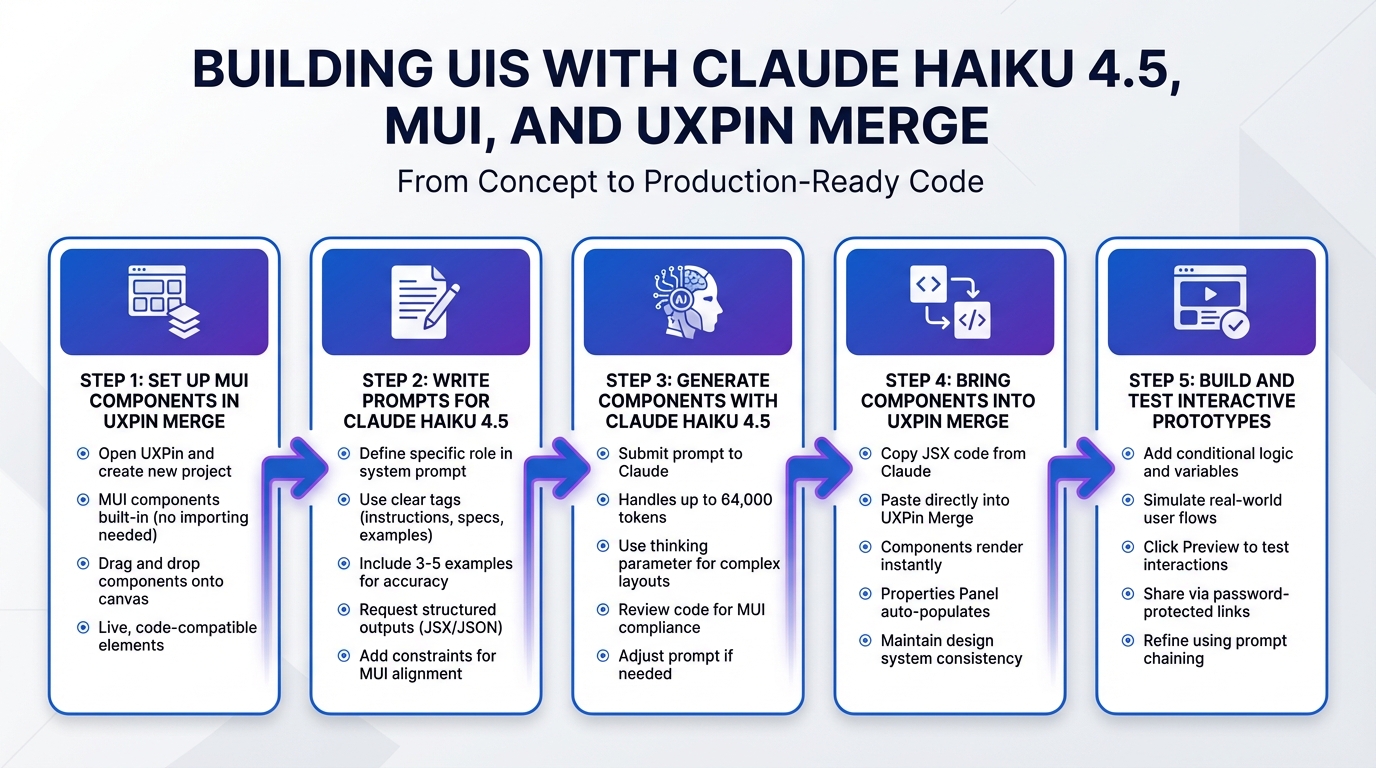
5-Step UI Building Workflow with Claude Haiku 4.5, MUI, and UXPin Merge
With your tools set up, it’s time to dive into building. This process connects the power of Claude Haiku 4.5’s component generation with UXPin Merge’s live MUI library, creating a streamlined path from AI-generated code to fully functional prototypes. Follow these steps to move seamlessly from concept to implementation.
Step 1: Set Up MUI Components in UXPin Merge
Start by opening UXPin and creating a new project. The platform already includes MUI components, so there’s no need for importing. On the left side of the canvas, you’ll find the component library panel, where the full Material-UI library is ready to use.
Simply drag and drop MUI components – like buttons, text fields, cards, or navigation bars – onto the canvas. These are live, code-compatible elements that align with what developers will use in production.
If you’re using a custom component library, you’ll need an Enterprise plan to integrate it via Git. For most users working with standard MUI, the built-in library has everything you need.
Step 2: Write Prompts for Claude Haiku 4.5
The quality of the components you generate depends heavily on how you structure your prompts. Claude Haiku 4.5 is designed for speed and high-volume processing, making it perfect for generating multiple UI components quickly.
Begin by defining a specific role in your system prompt, such as: "You are a coding assistant specializing in React and MUI." Then, organize your prompt with clear tags like instructions, component specifications, and examples. Including 3–5 examples can significantly improve accuracy. Request structured outputs by instructing Claude to return JSX or JSON Schema instead of conversational text. To refine results further, add constraints like: "Do not use custom CSS for margins if MUI spacing props are available." For more complex components, enable adaptive reasoning so Claude can determine the optimal logic level for code generation.
Your goal is to ensure the output aligns with MUI specifications for seamless integration with UXPin Merge.
"The more precisely you explain what you want, the better the result. Golden rule: Show your prompt to a colleague with minimal context on the task and ask them to follow it. If they’d be confused, Claude will be too." – Claude API Docs
Step 3: Generate Components with Claude Haiku 4.5
Submit your prompt to Claude. With a capacity of up to 64,000 tokens, it can handle complex UI structures. For intricate layouts, use the thinking: {type: "enabled", budget_tokens: N} parameter to allow Claude extra reasoning space before generating the final code.
Use the output_config.format parameter to ensure the generated code strictly follows MUI component guidelines. If Claude encounters constraints or safety issues, it will return a refusal stop reason. Be prepared to handle this in your workflow. Carefully review the generated code to confirm it adheres to Material-UI’s design system, including spacing, typography, and layout properties. If the output isn’t up to par, adjust your prompt or increase the token budget.
Once you’re satisfied with the code, move on to the next step to implement it in UXPin Merge.
Step 4: Bring Components into UXPin Merge
Copy the JSX code generated by Claude Haiku 4.5 and paste it directly into UXPin Merge. Since UXPin uses live MUI components, the code will render instantly on the canvas. The Properties Panel will automatically populate with the defined props. If any props are missing, UXPin Merge allows for custom CSS adjustments, though it’s best to stick to the design system’s predefined properties for consistency.
Step 5: Build and Test Interactive Prototypes
With your components in place, you can now create fully interactive prototypes in UXPin Merge. Use features like conditional logic, variables, and expressions to simulate real-world user flows. For example, you can add form validation that displays error messages for incomplete submissions or design navigation that adapts based on user actions.
Test your prototype by clicking the Preview button. Since UXPin Merge uses real code components, the interactions will behave exactly as they would in production. Share your prototype with your team through password-protected preview links to gather feedback before moving forward.
These prototypes act as a final checkpoint before production. If issues arise, you can use prompt chaining – generate a draft, review it, and refine it – to create components that are truly ready for production.
"Claude Haiku 4.5 delivers near-frontier performance matching Claude Sonnet 4’s capabilities in coding, computer use, and agent tasks at substantially lower cost and faster speeds." – AWS
Best Practices for Claude Haiku 4.5, MUI, and UXPin Merge
Maintaining Design System Consistency
Keeping your design system aligned is essential, and Claude Haiku 4.5 makes it easier with its 200,000-token context window. You can load your entire MUI theme configuration, approved component list, and brand guidelines directly into the prompt. This ensures the AI understands your implementation details from the start.
To maintain consistency, include key MUI theme settings – like your color palette, typography, and spacing tokens – in your prompts. If you’re working on multiple components, generate them all in a single prompt. With the model’s 32,000-token output capacity, you can create larger blocks of code that stay stylistically uniform. This approach reduces the risk of inconsistencies that can arise when generating components separately.
Take advantage of the model’s reasoning capabilities to validate design decisions. For example, ask it to evaluate whether a Grid or Stack component is better suited for your layout. This ensures that the generated code adheres to MUI best practices, not just technical functionality. And since Haiku 4.5 is twice as fast as Claude Sonnet 4, you can run quick checks in UXPin Merge to catch any inconsistencies early. These strategies make your AI-driven design process more reliable and efficient.
Getting Better Results from AI
Claude Haiku 4.5 combines 90% of Sonnet 4.5’s coding performance with speeds 4-5 times faster. To make the most of this, structure your prompts to encourage extensive tool usage. Anthropic’s testing found that prompts explicitly instructing the model to use tools "ideally more than 100 times" performed better on complex tasks.
"Claude Haiku 4.5 hit a sweet spot we didn’t think was possible: near-frontier coding quality with blazing speed and cost efficiency." – Anthropic
When creating prompts, be specific about constraints. For instance, if you want to avoid custom CSS for margins, specify that MUI spacing props should be used instead. This clarity helps the model avoid common errors. In fact, Haiku 4.5 achieved 65% accuracy in instruction-following tasks, compared to 44% from other premium models.
For more complex UI projects, break the work into smaller tasks. Use a larger model to outline the overall architecture, then let Haiku 4.5 handle sub-components simultaneously. With costs at $1 per million input tokens and $5 per million output tokens, this method stays budget-friendly, even when generating multiple iterations. These refined prompt techniques ensure better integration with live MUI components, streamlining collaboration and development.
Improving Designer-Developer Collaboration
UXPin Merge bridges the gap between designers and developers by syncing coded React components directly from Git repositories into the design editor. This means designers and developers work with the same live MUI components.
Wrapping Up
Using Claude Haiku 4.5, MUI, and UXPin Merge together makes moving from concept to production a lot smoother. By integrating MUI components into UXPin Merge, crafting specific prompts for Claude Haiku 4.5, generating AI-powered components, and syncing them with your design system, you can create interactive prototypes that align perfectly with production standards.
The AI-powered generation of MUI components cuts down on manual coding, speeding up both prototyping and deployment. Teams often notice faster workflows and shorter timelines, which helps close the gap between design and development.
This workflow isn’t just about speed – it also ensures your designs stay consistent. The live-component approach keeps everything aligned with your design guidelines, reducing the risk of inconsistencies. Plus, it strengthens collaboration across teams, whether you’re working on a small feature or scaling up for larger projects.
FAQs
What’s the fastest way to prompt Haiku 4.5 for valid MUI JSX?
To get valid MUI JSX from Claude Haiku 4.5, it’s all about giving clear and detailed instructions. The more specific you are, the better the output will match your expectations.
Here’s an example of an effective prompt:
"Generate a React component using Material-UI (MUI) that includes a button and a text field. Provide the code in JSX format."
Why does this work? It explicitly mentions:
- The framework/library: Material-UI (MUI)
- The desired components: A button and a text field
- The output format: JSX
By structuring your request like this, you help the model understand exactly what you need. The key is to be precise and include all relevant details about the component and its structure. This approach ensures Claude Haiku 4.5 generates accurate and usable JSX code every time.
How do I keep AI-generated MUI components consistent with my theme?
With UXPin Merge, you can directly import and sync code components from your repositories. This means your prototypes will perfectly reflect the production components, ensuring both visual and functional consistency throughout your design process.
On top of that, MUI’s Material Design principles play a key role in maintaining a unified look and feel. These principles ensure that AI-generated components seamlessly match your theme’s colors, styles, and behaviors, creating a cohesive and polished user interface.
What should I do if pasted JSX doesn’t render correctly in UXPin Merge?
If your pasted JSX isn’t rendering as expected in UXPin Merge, it’s worth checking for a few common culprits. Start by looking for syntax errors or mismatches in your code. Make sure the JSX adheres to React’s structural and syntax rules.
Next, confirm that your components and code are aligned with the MUI and React versions used in your project. Compatibility issues between versions can often cause unexpected behavior.
If everything seems correct but the issue persists, revisit the integration steps. Double-check that your code is properly imported and linked within UXPin Merge. Small missteps here can often lead to rendering problems.

