Want to create production-ready React components in seconds? Combining GPT-5.1, MUI (Material-UI), and UXPin Merge lets you skip traditional design handoffs and build fully functional UIs directly from text prompts or images. Here’s how it works:
- GPT-5.1 generates MUI-based UI layouts from simple text prompts, adhering to your design system rules for consistency.
- UXPin Merge allows you to design directly with production-ready components, syncing updates automatically with your Git repository.
- Export React code instantly, ensuring developers and designers work with the same components.
This guide covers setup, writing effective prompts, customizing AI-generated components, and syncing designs with your development workflow. Say goodbye to static mockups and manual rebuilds – this approach saves time, keeps your designs consistent, and bridges the gap between design and development.
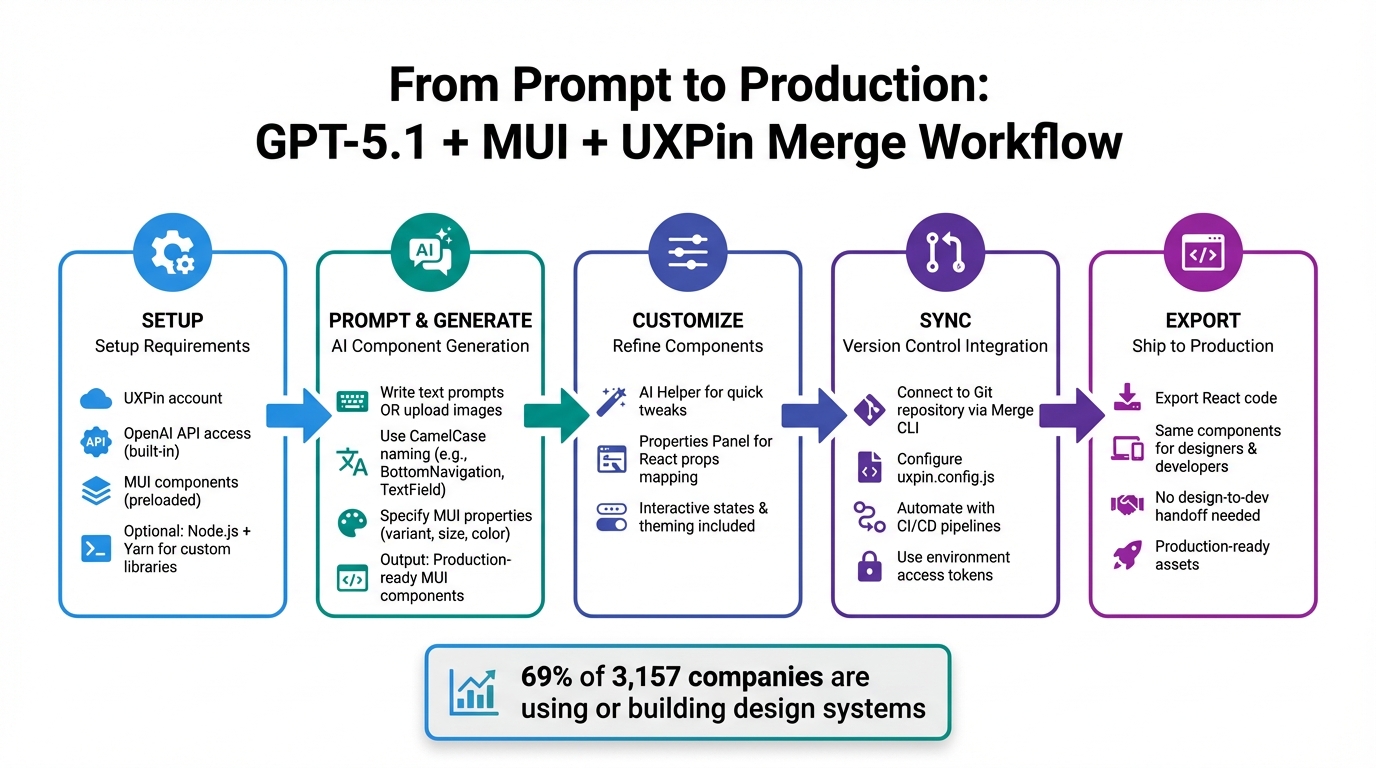
Complete Workflow: Building Production-Ready UI with GPT-5.1, MUI, and UXPin Merge
UXPin Merge AI: Smarter UI Generation That Follows Your Design System
sbb-itb-f6354c6
Tools and Setup Requirements
To build a UI with GPT-5.1 and MUI, you’ll need a UXPin account, access to the OpenAI API, and, if you’re working with custom component libraries, Node.js and Yarn. These tools form the core of the setup for creating the production-ready interface design outlined earlier.
UXPin simplifies the process by integrating MUI, Ant Design, Bootstrap, and ShadCN directly into its platform – no extra imports are needed. Plus, GPT-5.1 is accessible right from the UXPin canvas without requiring additional subscriptions.
If your team uses custom component libraries, you can take advantage of UXPin’s Git integration workflow. This approach assumes familiarity with the command line and React. Alternatively, the npm integration offers a quicker, no-code route. All you need is a UXPin account and the MUI package name, which you can input through the Merge Component Manager interface.
Below, you’ll find detailed instructions for setting up UXPin Merge with MUI and configuring GPT-5.1 API access.
Setting Up UXPin Merge with MUI
MUI components are preloaded into UXPin for immediate use. Simply open the editor, go to the Design Systems panel, and select MUI. You’ll instantly have access to ready-made components like Button, TextField, and Card (e.g., BottomNavigation).
For custom libraries, start by forking the MUI-UXPin boilerplate from GitHub. Then, install the required dependencies using Yarn and set up your local development environment to sync components. The boilerplate includes completed components such as Button, Button Group, TextField, and Card (with Header, Media, and Content variants). Note that some components, like the Date/Time Picker and Auto Complete, are still experimental or under development.
Configuring GPT-5.1 API Access

With UXPin’s Merge AI, GPT-5.1 access is built-in and comes with included AI credits. If you need external integration, you can generate an API key through the OpenAI developer dashboard. Be sure to store this key securely and avoid hardcoding it in public repositories.
Generating UI Components with GPT-5.1
The Component Creator transforms text prompts or images into fully coded MUI components. These components come with interactive states, theming, and design system constraints already in place, making them production-ready.
You can also upload images of existing UI designs to provide visual context. The AI then translates these visuals into coded MUI layouts. This multimodal feature is a huge time-saver, especially when you’re recreating or iterating on existing designs.
Writing Prompts for MUI Components
To get the best results, your prompts should clearly define the component type, layout structure, and any MUI-specific properties. Use CamelCase naming for components – think BottomNavigation, TextField, or Card instead of generic terms. For instance, instead of saying, "create a button", try something like:
"Create a contained MUI Button with primary color, medium size, and ‘Get Started’ as the label."
When asking for multiple components, describe how they relate to each other. For example:
"Create a Card with CardHeader, CardMedia showing a product image, and CardContent containing a description TextField."
Once generated, you can fine-tune these components using the AI Helper for more precise adjustments.
Customizing AI-Generated Components
After generating a component, you can refine it through simple commands using the AI Helper. Instead of rewriting your entire prompt, you might say:
"Change the button color to success" or "Add a search icon to the TextField" to make targeted updates.
For more granular control, the Properties Panel lets you map React props from the MUI library – like variant, size, color, and disabled – to interactive controls. For example, text or label customization becomes effortless by mapping the children prop to a text field control. UXPin takes this further by enabling you to build functional forms in under a minute. By mapping the children prop to a "Label" display name and the color prop to a dropdown menu, even something like an MUI Button can be instantly tailored without needing to write additional code.
Exporting and Syncing Your UI Code
Once you’ve designed your interface using GPT-5.1 and MUI components, you can integrate it directly into your development workflow with UXPin Merge’s production-ready assets. This eliminates the traditional design-to-development handoff since both designers and developers use the exact same components. Here’s how to sync your prototypes with Git repositories and export React code for your projects.
Syncing Prototypes with Git Repositories
To connect your project to a Git repository, use the Merge CLI. Define component paths and categories in the uxpin.config.js file. You can automate updates through CI/CD pipelines by using environment access tokens (like those from CircleCI, GitLab, or Bitbucket). This ensures that changes are pushed to your production repository whenever code is committed.
A survey of 3,157 companies found that 69% were either using or building a design system. This underscores how critical reliable version control is for smooth collaboration between teams.
Once your prototype is synced, you can export the React code, completing the development workflow.
Exporting React Code from UXPin Merge
UXPin Merge integrates the @mui/material package via npm, keeping the original MUI naming conventions, file structure, and documentation intact. React props – such as children, variant, color, and size – are mapped directly to the UXPin Properties Panel. This ensures that updates made to the code are reflected seamlessly after publishing in the Component Manager.
Your MUI-based components are production-ready and use the same codebase developers rely on. After publishing, refresh the library in UXPin to access the most recent updates. This workflow allows designers to work directly with production-grade code while developers can fine-tune components without disrupting the design process.
Conclusion
Integrating GPT-5.1 with MUI components in UXPin Merge bridges the gap between design and development by allowing both teams to work with the same pre-approved React components from day one. As UXPin aptly states, "AI should create interfaces you can actually ship – not just pretty pictures."
This approach eliminates the need for a rebuild loop by delivering pre-assembled component layouts that are ready for development. UXPin highlights the advantage: "You’re essentially skipping the translation phase between design and development, which is a huge win, especially for smaller teams." Leading enterprise teams, including Amazon, the American Automobile Association (AAA), and T. Rowe Price, have already adopted this workflow, leveraging custom libraries to uphold their design system standards.
The AI also strictly adheres to your design system by generating only approved components, ensuring outputs are technically feasible and consistent with established guidelines. This process not only preserves the integrity of your design system but also enables rapid iteration. Teams can make quick adjustments – like tweaking density or swapping styles – without starting from scratch. By streamlining workflows, this AI-driven method speeds up development, enhances consistency, and allows teams to iterate faster than ever.
FAQs
Do I need to be a React developer to use UXPin Merge with MUI?
No, you don’t need to be a React developer to work with UXPin Merge and MUI. The platform allows designers and non-developers to create prototypes using GPT-5.1 and real MUI components – no coding skills required. This opens the door for more users to design efficiently while keeping UI elements consistent and streamlined.
How can I make GPT-5.1 follow my design system rules in UXPin Merge?
To make sure GPT-5.1 works seamlessly with your design system in UXPin Merge, you can connect it using Git, Storybook, or npm. This setup allows you to leverage AI-driven prompts to craft and adjust layouts that follow your specific design rules. By integrating real components, such as MUI, GPT-5.1 ensures that prototypes remain consistent and adhere to your component library and style guidelines. This approach keeps your designs aligned with established standards while streamlining the prototyping process.
What’s the best way to sync MUI components with Git and export React code?
To sync MUI components with Git and export React code in UXPin, UXPin Merge is the tool you need. It allows you to connect your MUI components through either npm or Git repositories, ensuring real-time updates and consistent design-development alignment.
With this integration, any changes made to production-ready React components are instantly reflected. Plus, you can export clean JSX code, making developer handoffs smooth and simplifying collaboration and version control.

