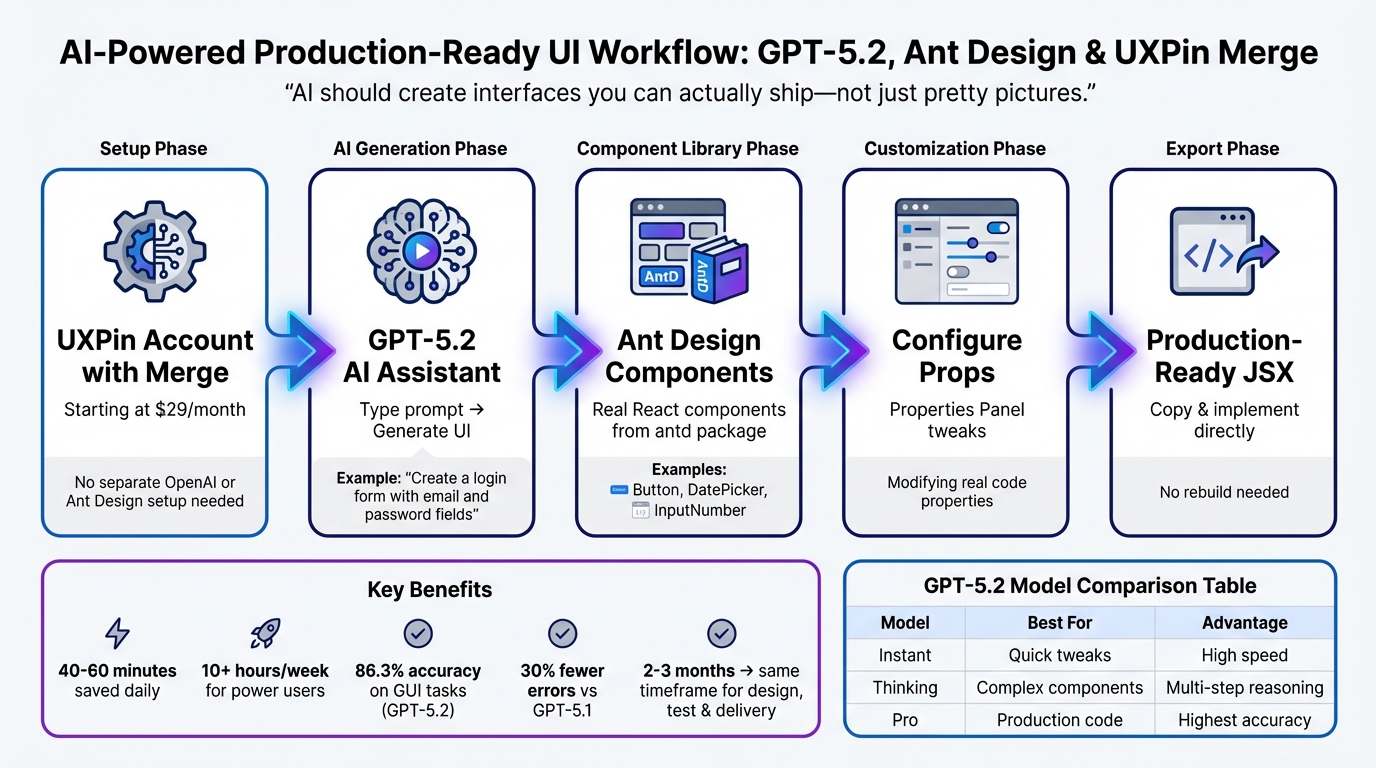
Want to create production-ready UI designs faster? Combining GPT-5.2, Ant Design, and UXPin Merge makes it possible to design, test, and deliver functional React components without the usual back-and-forth between designers and developers.
Here’s the process in a nutshell:
- GPT-5.2: Generates accurate UI layouts based on simple text prompts.
- Ant Design: Provides a structured library of pre-built React components.
- UXPin Merge: Links your design directly to production code, ensuring what you see is what developers use.
With this setup, you can skip mockups and go straight to interactive prototypes. Everything aligns with your design system, reducing errors and saving time. Just type your prompt, tweak the output, and export production-ready JSX code.
What you’ll need:
- A UXPin account with Merge enabled (starting at $29/month).
- No separate OpenAI or Ant Design setup – everything is pre-integrated.
- Optional: Link custom component libraries via Git or npm.
This workflow eliminates manual handoffs, ensures consistency, and accelerates UI development. Let’s dive into how it works.
GPT-5.2 + Ant Design + UXPin Merge Workflow for Production-Ready UI
UXPin Merge AI: Smarter UI Generation That Follows Your Design System
sbb-itb-f6354c6
Getting Started: Setting Up Your Environment
UXPin comes with Ant Design and GPT-5.2 already built in. That means you don’t have to worry about importing libraries, configuring API keys, or managing separate accounts. As soon as you open the canvas, you can start designing with real Ant Design components and benefit from AI assistance.
This setup prioritizes speed. Traditional workflows often involve connecting repositories, installing dependencies, or syncing with tools like Storybook. UXPin Merge eliminates those steps, giving you instant access to production-ready components. You’ll be working directly with the antd package that developers use in production.
What You Need to Use GPT-5.2 and Ant Design
To get started, you’ll need a UXPin account with Merge technology enabled. Merge is included in all pricing tiers – Core, Growth, and Enterprise. Plans start at $29/month for Core and $40/month for Growth, while Enterprise offers custom pricing. This straightforward setup ensures you can dive right into using AI tools and design components without extra steps.
There’s no need for a separate OpenAI account or API key. GPT-5.2 is already integrated into the UXPin canvas, allowing AI-powered UI generation to work seamlessly. Similarly, Ant Design is pre-integrated, so you can immediately drag and drop components like Button, DatePicker, or InputNumber.
The only time additional configuration is required is if you’re working with a custom component library. In that case, you’d link your Git repository or npm package using the Merge Component Manager.
How to Set Up Ant Design Components in UXPin Merge
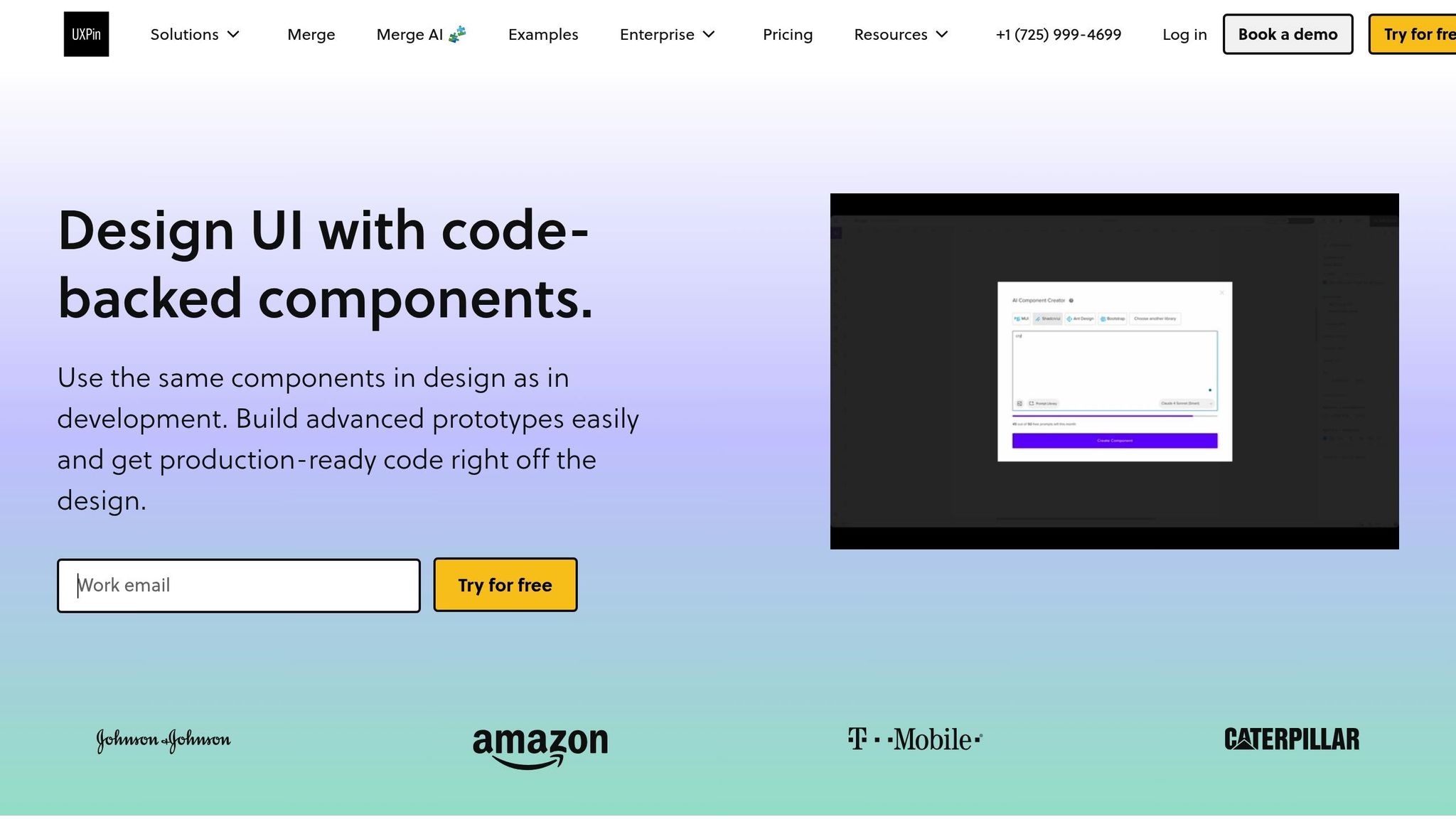
The integration between UXPin and Ant Design ensures your designs translate directly into production code without extra effort. To get started, open a new project, go to the Libraries panel, and select Ant Design from the available design systems. You’ll see the full component library, organized into categories like General, Navigation, Data Entry, and Data Display, in your sidebar.
Each component you drag onto the canvas is a real React component sourced from the antd npm package. For example, when you add a Button, it’s the exact same component your developers will use in production. Styling is handled by antd/dist/antd.css, so everything – colors, typography, spacing – matches Ant Design’s specifications.
The Properties Panel on the right makes it easy to configure each component’s props, such as type, size, or disabled, using dropdowns and toggles. These settings correspond directly to React props, meaning any changes you make are instantly reflected in production-ready code. For instance, setting a button’s type to "Primary" in the Properties Panel is equivalent to writing <Button type="primary"> in React.
How to Connect GPT-5.2 to UXPin Canvas
GPT-5.2 is accessed through the AI Assistant panel in UXPin. You can open it by clicking the AI icon in the top toolbar. From there, you can type prompts like “Create a login form with email and password fields” or “Design a data table with pagination and filters.” The AI uses only approved Ant Design components to generate layouts.
Since the AI is restricted to your design system, every component it suggests is pre-approved and ready for production. The result? Interactive prototypes built with real code components. This is especially valuable for enterprise teams that need to maintain consistency and follow strict design guidelines.
"It used to take us two to three months just to do the design. Now, with UXPin Merge, teams can design, test, and deliver products in the same timeframe. Faster time to market is one of the most significant changes we’ve experienced using Merge."
With everything set up, you’re ready to dive into generating and refining UI components in the next section.
Building UIs with GPT-5.2 and Ant Design in UXPin Merge
With your setup complete, you can dive into creating full UI interfaces using AI. The process moves seamlessly from a simple prompt to production-ready code, cutting out the usual back-and-forth between mockups and development.
How to Generate UI Components with GPT-5.2
To get started, open the AI Assistant panel by clicking the AI icon in the top toolbar. From there, GPT-5.2 takes over, ready to generate interfaces based on your prompt. Just type in a detailed description of the interface you need. For instance, you could say, "Create a profile settings page with fields for name, email, phone, and a save button" or "Design a product dashboard with a data table, search bar, and filter dropdowns."
GPT-5.2 processes your request and builds a layout using Ant Design components from your connected library. Here’s the key: it doesn’t generate static visuals. Instead, it creates fully functional components. Every element you see on the canvas is production-ready, not just a placeholder.
"Most AI design tools have a fundamental problem: they generate pixels, not components. You describe a UI, AI draws rectangles that look like buttons and cards and inputs. It’s impressive in demos. Then your engineers rebuild everything from scratch because none of it is connected to your actual component library. We built something different." – UXPin
These generated layouts retain the interactive behaviors of Ant Design components. For example, a DatePicker will open a calendar dropdown, and a Button with type="primary" will reflect the correct styling from antd/dist/antd.css. In other words, your prototype is functional from the moment it’s created.
How to Customize Ant Design Components in UXPin
Once the AI generates your layout, you can tweak it easily. Click on a component to open the Properties Panel, which shows all available React props for that specific Ant Design element. For example, you can:
- Change a button’s type (Primary, Ghost, Dashed, Link, or Text) using a dropdown.
- Enable or disable states like
loadingordisabledwith checkboxes. - Edit text labels directly in the provided fields.
For more advanced adjustments, consult the Ant Design API documentation to find additional props. If a specific property isn’t available in the Properties Panel, you can add it manually using the Merge Component Manager. This approach ensures the interface remains clean and focused, showing only the options your team actually needs.
The standout feature here is that you’re modifying real code properties, not just visual styles. For instance, changing a button’s size from "default" to "large" updates the actual size prop that developers will use in production.
How to Prototype Interactions and Export Production-Ready Code
Since UXPin Merge integrates React components, all interactive properties are already built in. You can test interactions like form inputs, dropdowns, and button clicks directly within your prototype. These aren’t simulated behaviors – they’re the actual code components in action.
When it’s time to hand off your design, switch to Spec mode. This view gives you the complete JSX code for the entire UI. Developers can copy the React code directly, including all necessary imports, props, and structure. There’s no need to rebuild anything from scratch.
This workflow eliminates manual code translation. Because the prototype uses the same Ant Design components developers rely on, what you design is exactly what gets implemented. This not only saves time but also ensures accuracy. Once your interactive prototype is tested and export-ready, you’re set to refine your AI-driven UI design further.
Best Practices for Using AI with Ant Design and UXPin Merge
Getting the most out of GPT-5.2 isn’t just about typing commands – it’s about crafting thoughtful prompts, maintaining alignment with your design system, and streamlining collaboration across teams.
How to Write Effective AI Prompts for UI Generation
The GPT-5.2 Thinking and Pro models are exceptionally skilled at handling complex UI tasks. They have a deeper understanding of Ant Design’s component structure compared to earlier versions. In fact, the model scored an impressive 86.3% on ScreenSpot-Pro for GUI screenshot interpretation and is 30% less likely to make errors compared to GPT-5.1 Thinking.
"GPT-5.2 will execute cleanly off a simple, one-line prompt." – AJ Orbach, CEO, Triple Whale
When writing prompts, focus on describing the desired outcome instead of diving into technical specifics. For example, instead of saying, "Add a div with padding and a form inside," go for something like, "Create a user registration form with email, password, and submit button." This allows GPT-5.2 to handle the technical details while you focus on the big picture.
For more intricate components – like data tables or multi-step forms – use the GPT-5.2 Thinking or Pro variants. These are better equipped to handle multi-step reasoning, reducing errors and ensuring the components meet Ant Design’s prop requirements. If you’re using the API, set the reasoning parameter to heavy or xhigh for tasks that demand strong alignment with your design system and high-quality code.
Another tip: upload screenshots when you need to replicate exact layouts. GPT-5.2 has significantly improved its ability to interpret graphical user interfaces, cutting error rates by nearly half when working with visual layouts.
| Model Variant | Best Use Case for UXPin Merge | Core Advantage |
|---|---|---|
| GPT-5.2 Instant | Quick CSS tweaks or simple component labels | High speed, friendly tone |
| GPT-5.2 Thinking | Generating complex Ant Design components (e.g., tables, forms) | Multi-step reasoning, fewer errors |
| GPT-5.2 Pro | High-stakes production code and architectural decisions | Highest accuracy, advanced reasoning |
Once you’ve crafted your AI-generated components, the next step is ensuring they stay true to your design system.
How to Maintain Consistency with Design System Constraints
With UXPin Merge, AI-generated components automatically adhere to your design system. This ensures that every layout GPT-5.2 creates aligns with your component library.
When the AI generates a layout, it pulls directly from your actual library. This means every button, input field, and table follows Ant Design’s specifications, resulting in production-ready code that developers can use right away.
If you need to tweak component behavior or add custom props, the Merge Component Manager allows you to expose additional properties without losing alignment with your design system. This keeps your designs clean and ensures the AI operates within your approved tokens and variants.
How to Collaborate Across Teams Using Merge Prototypes
Consistency in design is only part of the equation – collaboration is just as crucial. Merge prototypes act as a shared source of truth between designers and developers. Since the prototype uses the same Ant Design components that appear in production, there’s no need for a translation layer. What designers create is exactly what developers implement.
"Design with production-ready code components to eliminate handoffs, reduce errors, and accelerate product launches using code-based prototyping." – UXPin
Designers can use GPT-5.2 to generate multiple layout variations and refine them directly in UXPin, all while maintaining alignment with the design system. Developers, in turn, receive clean JSX exports that include all necessary imports, props, and structure. This eliminates the usual back-and-forth caused by mockups that don’t align with the component library.
For stakeholder reviews, Merge prototypes go a step further by including real interactions and production-aligned logic. Buttons respond to clicks, forms validate inputs, and dropdowns function as they would in the final product. This gives everyone a realistic view of the end result before production code is written, streamlining the entire process.
Troubleshooting and Common Challenges
Even with GPT-5.2’s advanced features and UXPin Merge’s code-backed setup, challenges can still arise. This section dives into common issues and their solutions, helping you maintain the seamless connection between design and code discussed earlier.
How to Fix Integration Errors
One frequent issue is the generation of generic visuals – like button-like shapes – that lack proper functionality. This typically happens when GPT-5.2 isn’t correctly linked to the Ant Design library.
To resolve this:
- Check Merge AI settings: Ensure Merge AI is active so the system pulls components from your connected library instead of creating placeholders.
- Use the right library import: If you’re working with standard Ant Design, select the "Import an open-source UI library" option within UXPin to avoid manual setup errors.
- Sync custom versions: For customized Ant Design libraries, sync through Git to give the AI access to your production code and design tokens.
If generic shapes persist, inspect the JSX export. This can help pinpoint whether the issue lies in component properties or the AI’s generation logic.
How to Improve AI-Generated Designs
Precision in prompts is key to better results. GPT-5.2 follows instructions strictly, so unclear prompts can lead to designs that, while accurate, may not be practical.
"GPT-5.2 didn’t get worse. It got stricter." – Jon Wiggens
Here’s how to refine your prompts:
- Include negative constraints: Specify what to exclude, such as "only include what I requested", to avoid unnecessary extras.
- Use Markdown structure: For complex components, organize prompts into clear sections (up to three levels) to define layout, purpose, and style.
- Encourage clarifying questions: If your request is vague, instruct the AI to ask for more details rather than making assumptions.
If the AI generates components that are slightly off, use the UXPin Merge editor to switch between real React variants. This allows you to adjust sizes, colors, or states using your Ant Design library options.
How to Ensure Design-System Alignment
When using Ant Design components, code-backed elements ensure that AI-generated designs stay consistent with your established design system. UXPin Merge ensures layouts created by GPT-5.2 pull directly from your Ant Design library, aligning with your production standards.
"AI should create interfaces you can actually ship – not just pretty pictures." – UXPin
To reinforce alignment:
- Be specific in prompts: Request components by name, like "Ant Design Card with title and action buttons", to guide the AI toward approved elements.
- Toggle between variants: Use the editor to switch between approved component states, ensuring the output meets brand standards.
Finally, review the JSX, dependencies, and functions to confirm they align with your design system.
"By using React components in your designs, you close the gap between design and development… Your designs are always in line with the production code." – UXPin
Conclusion
From setting up the environment to building interactive prototypes, this workflow effectively connects design and development. By integrating GPT-5.2, Ant Design, and UXPin Merge, teams can move beyond static mockups to create production-ready React components.
"You’re essentially skipping the translation phase between design and development, which is a huge win, especially for smaller teams." – UXPin
GPT-5.2 shines as a "systems thinker", adhering to strict constraints and delivering consistent results. Unlike earlier models that leaned heavily on creative ideation, this version focuses on structured outputs. When combined with Ant Design’s component library in UXPin Merge, it produces ready-to-use JSX code, dependencies, and functions – eliminating the need for developers to interpret abstract wireframes.
This approach leads to quicker deployment times without compromising on consistency. Teams can save 40–60 minutes daily, while power users report gaining over 10 hours of productivity per week. By treating GPT-5.2 as a junior designer with clear instructions and using UXPin Merge’s code-driven components, teams ensure alignment with the design system while speeding up every step of UI development. This unified workflow not only boosts collaboration but also preserves the integrity of the design system, as explored earlier.
FAQs
How do I make GPT-5.2 generate only Ant Design components?
To create Ant Design components using GPT-5.2, simply include phrases like "Ant Design" or "Ant Design components" in your prompts. Since Ant Design is already integrated with UXPin Merge, you can select it within the design system libraries to work seamlessly with real components. This approach ensures that GPT-5.2 generates outputs that match the available Ant Design components, making your workflow smoother and more efficient.
Can developers use the exported JSX directly in a React app?
Developers can export production-ready JSX code from prototypes created using GPT-5.2 and UXPin Merge. This exported code is ready to be integrated directly into React applications, making the shift from design to development much smoother and more efficient.
How do I add my own custom components to UXPin Merge?
To bring custom components into UXPin Merge, you can use production-ready React components from your existing libraries or repositories. Simply connect your library through Git, npm, or Storybook, allowing you to sync components seamlessly with UXPin. After importing, you’ll have the ability to tweak component props directly within UXPin, giving you control over their behavior and appearance. This approach helps ensure your designs match the final product while making collaboration between design and development much smoother.

