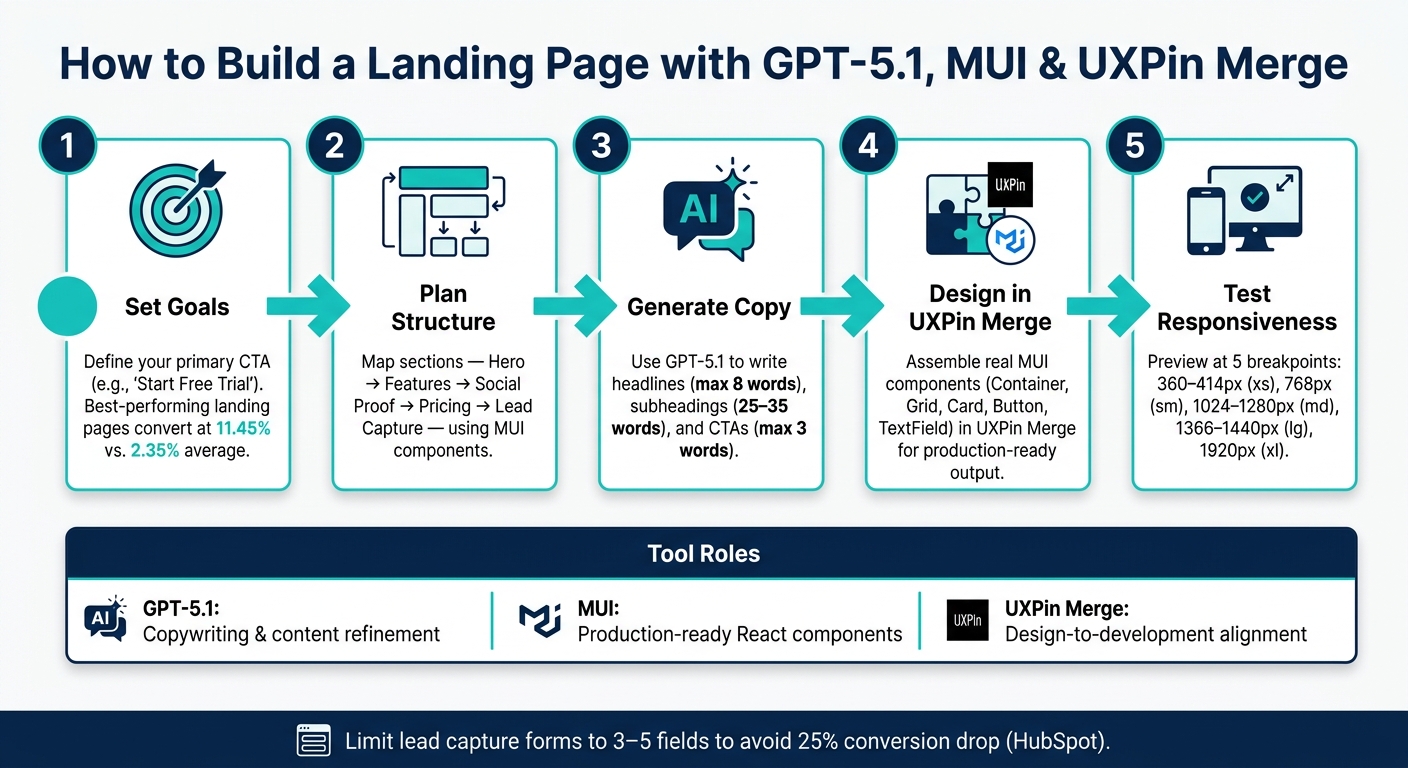
Want to create a landing page in hours instead of weeks? Combine GPT-5.1, MUI, and UXPin Merge to streamline the entire process – from content writing to design and development. Here’s how each tool fits into the workflow:
- GPT-5.1: Generates headlines, CTAs, and page copy tailored to your audience.
- MUI: Provides ready-to-use, responsive React components for consistent design.
- UXPin Merge: Lets designers and developers work with the same components, eliminating handoff issues.
Key Steps:
- Set Goals: Define your primary call-to-action (e.g., "Start Free Trial").
- Plan Structure: Use MUI components for sections like hero, features, pricing, and lead capture.
- Generate Copy: Use GPT-5.1 to create concise, engaging content that fits your design.
- Design in UXPin Merge: Build using real MUI components to ensure production-ready results.
- Test Responsiveness: Check layouts across devices to ensure a smooth user experience.
By integrating these tools, you can deliver polished, conversion-focused landing pages faster and with fewer revisions. Ready to dive in? Start with your hero section and let GPT-5.1 craft the perfect headline.
How to Build a Landing Page with GPT-5.1, MUI & UXPin Merge
Design To React Code Components
sbb-itb-f6354c6
Planning Your Landing Page with GPT-5.1 and MUI
A well-thought-out plan is the difference between a landing page that converts and one that just looks visually appealing. Before diving into UXPin Merge or generating prompts with GPT-5.1, you need a clear understanding of your page’s purpose, layout, and how each component will contribute to achieving your goals.
Defining Business Goals and Calls to Action
Start by asking yourself: what is the one action you want visitors to take? Whether it’s signing up for a free trial, booking a demo, or filling out a lead form, focusing on a single primary goal is crucial. Trying to achieve multiple objectives can dilute visitor focus and hurt your conversion rates. For context, WordStream reports that the best-performing landing pages convert at over 11.45%, while the average hovers around 2.35%.
Once your goal is clear, craft a direct and action-oriented call to action (CTA) that resonates with U.S. audiences. Phrases like "Start Your Free 14-Day Trial" or "Book a 15-Minute Demo" work well because they are clear and actionable. Pair your CTA with supportive microcopy, such as "No credit card required" or "Cancel anytime", to ease concerns and keep the page uncluttered.
Structuring the Page with MUI Sections
A high-performing landing page follows a logical sequence: hero → features/benefits → social proof → pricing → lead capture. Each section answers a specific question visitors are likely to have:
- What is this?
- Why should I care?
- Can I trust it?
- How much does it cost?
- How do I get started?
These sections work together to guide visitors toward your CTA. Below is a breakdown of how MUI components can be used effectively for each section:
| Section | Purpose | MUI Components |
|---|---|---|
| Hero | State the core value proposition | Container, Typography, Button, Grid or Stack |
| Features/Benefits | Highlight outcomes, not just features | Grid, Card, CardContent, Typography, Icon |
| Social Proof | Build trust with real-world evidence | Card, Avatar, Rating, Typography, Grid |
| Pricing | Display plans with clear USD pricing | Grid, Card, List, ListItem, Chip, Button |
| Lead Capture | Minimize friction in collecting info | TextField, FormControl, Checkbox, Button, Box |
When designing forms for lead capture, stick to 3–5 fields maximum. Research from HubSpot shows that unnecessary form fields can reduce conversions by as much as 25%. Only ask for the information you truly need.
Building a Content and Component Map
To keep your team aligned, create a content and component map. This document connects each section of the landing page to a GPT-5.1 writing task and its corresponding MUI component in UXPin Merge. It ensures that writers, designers, and developers work from the same blueprint.
For each section, define:
- The goal of the section,
- The GPT-5.1 prompt for generating copy,
- Any tone or format constraints (like character limits, U.S. English, or pricing formats such as $49/month), and
- The MUI components assigned to that section in UXPin Merge.
Here’s an example for a hero section: "Generate 5 headline options in U.S. English for a B2B SaaS product targeting marketing managers. Max 12 words. Focus on time savings. Avoid exclamation marks."
This level of detail ensures your first drafts are usable. Setting character limits to match your component widths is also key – a headline that looks fine at 55 characters on desktop might break awkwardly on mobile. By planning these constraints early, you’ll save time later when fine-tuning the layout.
With a well-prepared content and component map, you’re ready to configure your MUI components in UXPin Merge seamlessly.
Setting Up and Customizing MUI Components in UXPin Merge
Checking MUI Library Availability in UXPin Merge
You don’t need to worry about importing or installing anything to start using MUI in UXPin Merge. MUI 5 (Material UI) is already integrated as a public library, so you can dive right in when you open a new prototype.
To confirm it’s active, open your prototype and check the Design System Libraries panel on the left. You should see MUI 5 listed there. To ensure it’s fully functional and not just a placeholder, drag a Button component onto the canvas. Then, check the Properties panel to see if live props like variant, color, size, and disabled are available.
If you’re working with a custom MUI system, you can connect it via a Git repository or NPM package. Just make sure the Merge MUI version (e.g., v5) matches the one in your production app. Version mismatches can cause inconsistencies during the handoff process.
Customizing Your Theme for Design Consistency
Once MUI is connected through Merge, all components will automatically use your team’s MUI theme. This means the same createTheme configuration that defines colors, typography, and spacing in your production codebase will also apply to your prototype. The result? Your prototype will closely match the final product.
To ensure everything looks consistent, confirm that your Merge theme includes key definitions like primary.main, secondary.main, a unified font family, a size scale, and a base spacing unit (typically 8 px in U.S. design). Use MUI’s Typography component with variants like h1, h2, and body1 instead of manually styling text blocks. This way, any updates to the theme in your codebase will automatically reflect in your prototype.
For added consistency, you can lock down specific props. For example, you might restrict primary CTAs to only use variant="contained" and color="primary". This prevents off-brand styles from sneaking into your design. Once your theme is aligned, organize your components to simplify the design process.
Organizing Components for Efficient Page Building
To save time and reduce repetitive work, create a reusable "landing page kit" of MUI Merge patterns. Group these patterns by page section, and give each one a clear name that matches your React component naming conventions when possible.
| Pattern Name | MUI Components Used |
|---|---|
| HeaderPrimary | AppBar, Toolbar, Button, Menu |
| HeroWithForm | Box, Grid, Typography, Button, TextField |
| FeatureGrid3Col | Grid, Card, CardContent, Typography, Icon |
| SocialProofRow | Avatar, Rating, Card, Typography, Grid |
| PricingTiered | Grid, Card, List, ListItem, Chip, Button |
| FooterSimple | Box, Typography, Link, Grid |
Once you’ve saved these patterns, building your landing page becomes as simple as stacking sections together. This approach not only speeds up the design process but also minimizes potential ambiguities during handoff.
Building the Landing Page with GPT-5.1 and UXPin Merge
Let’s take your organized MUI kit and turn it into a complete landing page. This step combines two workflows: generating copy with GPT-5.1 and assembling the layout by bringing MUI components to UXPin with Merge. Together, these tools streamline production while keeping the design and content aligned.
Writing Effective GPT-5.1 Prompts for Landing Page Copy
Using the content and component map you created earlier, this step transforms your blueprint into actionable copy. To avoid generic results, GPT-5.1 needs clear and detailed prompts. Be specific about the MUI component, desired content length, tone, and US formatting rules.
For example, here’s a prompt for a hero section:
"You are writing marketing copy for a US-based B2B SaaS landing page. Generate: 1) an H1 headline (max 8 words), 2) a subheading (25–35 words), and 3) a primary CTA button label (max 3 words). Use plain US English, no jargon, conversational tone."
For pricing cards, it’s important to specify the currency format:
"Generate pricing copy for three SaaS tiers targeting US small businesses. For each tier, provide: a name, a one-line description (max 15 words), and a monthly price formatted as $X/month (e.g., $29/month, $59/month, $129/month). Do not mention VAT."
Here’s a breakdown of landing page sections, their MUI components, and GPT-5.1 prompt focus:
| Page Section | MUI Components | GPT-5.1 Prompt Focus |
|---|---|---|
| Hero | Typography, Button, Grid |
H1 (max 8 words), subheading (25–35 words), CTA (max 3 words) |
| Feature Cards | Card, CardContent, Typography |
Feature title (max 5 words), supporting sentence (15–25 words) |
| Testimonials | Avatar, Card, Rating |
Name, title, company, quote (25–35 words) |
| Pricing | Card, List, Chip, Button |
Tier name, description, price in USD, 3 bullet points |
| Footer | Box, Typography, Link |
Value statement (15–20 words), nav labels, newsletter text |
By referencing the specific MUI component, GPT-5.1 can generate text that fits seamlessly into the UI, minimizing the need for edits.
Assembling the Layout in UXPin Merge
Start with a global Container (maxWidth="lg") and build the page from the navigation bar to the footer.
Navigation: Add an AppBar with a Toolbar. Include a Typography component for your logo and two or three Button components for navigation links. For your main CTA, use variant="contained" and color="primary".
Hero Section: Use a two-column Grid – xs={12} and md={6} – to ensure mobile responsiveness. On the left, include the headline, subheading, and CTA buttons. On the right, add a product screenshot or illustration inside a Box.
Feature Section: Place three or four Card components in a Grid below the hero. Use CardContent for each card, adding a title and body text. Paste your GPT-5.1-generated copy directly into the Typography components via the properties panel.
CTA Banner and Footer: Mid-page, use a full-width Box with a contrasting background for conversion prompts. For the footer, combine a Box and Grid to include Link components for legal pages, privacy policy, and terms of service.
Fine-tune spacing, variant, and color through the properties panel. Preview your layout at 1440×900 (common US laptop resolution) and 390×844 (iPhone 15 viewport) to identify and fix any layout issues.
Refining Copy with GPT-5.1
Once the structural components are in place, refine the text with GPT-5.1. Use it both as a generator and an editor. Feed each section’s draft copy into GPT-5.1 for targeted improvements.
For clarity, use this prompt:
"Rewrite this landing page section for a US audience at an 8th–9th grade reading level. Use short sentences, avoid jargon, and preserve the original meaning and calls to action." Research shows that this reading level ensures accessibility for a broad audience.
For conversion, include a business-driven angle:
"This section should persuade US small-business owners to start a 14-day free trial. Improve the copy to emphasize time savings and ease of setup. Keep the total length under 80 words and end with a clear call to action."
Lastly, have GPT-5.1 check for consistency across the page. Ensure pricing is always displayed as $X/month, and that CTA phrases like "Start free trial" or "Try it free" remain uniform. Small inconsistencies can reduce trust, especially with detail-oriented US audiences who carefully review landing pages before making decisions.
Testing and Finalizing the Landing Page
Once your copy is polished and the layout is in place, it’s time to ensure everything works as expected. This means testing across devices, verifying content accuracy, and confirming everything aligns perfectly with your production code. This alignment is a critical part of the design handoff process.
Previewing the Prototype Across Devices
Since UXPin Merge uses real MUI components, the prototype preview behaves just like it would in production. Test the design at five common U.S. viewport sizes:
| Device Type | Viewport Width | MUI Breakpoint (Responsive) |
|---|---|---|
| Mobile (iPhone SE/15, Android) | 360–414 px | xs |
| Small tablet (iPad portrait) | 768 px | sm |
| Laptop/iPad landscape | 1,024–1,280 px | md |
| Standard laptop | 1,366–1,440 px | lg |
| Full HD desktop monitor | 1,920 px | xl |
At each breakpoint, check for key behaviors:
- Navigation: Ensure the menu collapses into a hamburger icon at
xs/smand expands into the fullAppBaratmdand larger viewports. - Pricing Grid: Confirm the grid adjusts from three columns on desktops to a single column on mobile without causing horizontal scrolling or clipping.
- Tap Targets: Verify that buttons, links, and form inputs are at least 44×44 px on mobile, meeting usability standards.
Pay extra attention to the hero section. The H1, subheading, and primary call-to-action (CTA) should all be visible above the fold at every breakpoint without requiring zoom. On desktops, body text should stay within 55–75 characters per line for easy readability.
Using GPT-5.1 for a Final Content Review
After the layout is finalized, copy the text from each section – hero, features, pricing, FAQ – and run it through GPT-5.1 for a final check. Use a localization-focused prompt to catch any formatting issues that could be overlooked:
"Review this landing page copy for U.S. English localization. Ensure all prices use U.S. dollar formatting ($X,XXX.XX), dates follow mm/dd/yyyy or ‘Month Day, Year’ formats, numbers use commas for thousands and periods for decimals, and measurements are in imperial units. List every suggested change and explain why."
Additionally, ask GPT-5.1 to assess whether each section ends with a clear next step and whether benefit-driven language is prioritized over feature descriptions. For example, phrases like "Save 10+ hours per week" should take precedence over "Automates workflows." To maintain brand consistency, include a style note in your prompt: "Suggest edits inline, but preserve the tone and terminology unless there’s a clear clarity or localization issue."
Once you’ve applied GPT-5.1’s feedback, recheck the responsiveness to ensure no layout shifts occurred due to content updates.
Confirming the Page Is Production-Ready
With both content and layout verified, the final step is to ensure the design aligns perfectly with production code and all interactive elements function correctly. Since UXPin Merge directly integrates with the MUI library, your prototype components should already match what developers will use. Double-check the following:
- Interactive Elements: Ensure all buttons, links, and form fields use actual MUI components with the correct
variant,color, andsizeprops. Avoid static shapes or custom frames. - Theming Consistency: Confirm that the custom theme – including palettes, typography, spacing, and border radius – matches the production React app so that components render identically.
- CTAs and Error States: Test primary and secondary CTAs to ensure they scroll to the correct sections or open the right modals. For forms, verify that error messages display properly without disrupting the layout.
- Pricing Accuracy: Cross-check all displayed prices with backend configurations and confirm they consistently use U.S. currency formatting.
Conclusion: Ship Landing Pages Faster with GPT-5.1, MUI, and UXPin Merge
Creating a landing page used to be a slow, manual process. But this guide has outlined a faster way: setting clear goals, structuring with MUI, assembling in UXPin Merge, generating copy with GPT-5.1, and refining through testing – all without unnecessary rework.
What sets this stack apart is how each tool tackles a specific challenge. GPT-5.1 accelerates copywriting by generating headlines, benefit lists, and multiple CTA options in seconds. MUI provides ready-to-use, production-quality components, while UXPin Merge ensures your designs align perfectly with the developer’s code, removing any need for translation between design and development.
One standout advantage is the design-to-development alignment. With UXPin Merge, prototypes use actual MUI components, meaning every property, state, and variant in your design matches the final code. From typography to spacing and color tokens, consistency is maintained from the first draft to the final page.
Once the system is set up – MUI library connected, theme configured, and GPT-5.1 prompts ready – you’ll be able to build landing pages much faster. Whether it’s a product launch or a campaign variant with tailored CTAs, the templates and presets you create will continue to save time on future projects.
Want to get started? Choose one landing page you need to deliver, ensure your MUI library is synced in UXPin Merge, and let GPT-5.1 help you craft the hero section copy. You’ll be up and running in no time.
FAQs
What should my landing page’s primary CTA be?
Your landing page’s main call to action (CTA) should center around a single, clear objective – whether that’s booking a demo, capturing leads, or something similar. Keep it simple and focused to avoid overwhelming your audience.
When working with AI-generated elements, you can enhance precision by clearly defining the CTA label in your prompt. For instance, use a 2–3 word label that directly communicates the action, such as "Sign Up Now" or "Book a Demo."
Since you’re using MUI components, make sure to specify the component type in your prompt to ensure consistency and readiness for production. For example, you might request a contained MUI Button with a specific color (like "primary" or "secondary") and size (e.g., "medium" or "large"). This attention to detail keeps your design cohesive while aligning with your brand’s style.
How do I connect my custom MUI theme in UXPin Merge?
To integrate a custom Material UI (MUI) theme with UXPin Merge, follow these steps:
- Create a
UXPinWrapper.jsfile. This file will wrap your Material UI components using theMuiThemeProviderto apply your custom theme. - Add a
uxpin.config.jsfile in the root of your project. This configuration file defines the paths for component imports and specifies the wrapper file. - Ensure all components are exported using
export default. Each component should also be organized into its own directory for better structure. - Sync your Git repository with UXPin Merge. Once synced, your custom MUI components and theme will be accessible within the UXPin design canvas.
By completing these steps, you’ll successfully connect your custom MUI theme to UXPin Merge, enabling seamless integration of your design system.
What viewport sizes should I test before shipping?
Testing your landing page across mobile, tablet, and desktop viewports is essential to ensure it looks and works well on all devices. With the UXPin Mirror app, you can preview your designs on actual devices in real-time – just scan a QR code for instant access. Also, make use of Preview Mode to interact with the design. This helps confirm that components, forms, and any conditional logic function smoothly, no matter the screen size.

