
AI Credits
AI credits power Forge features. Every plan with Forge enabled comes with a default monthly allocation that resets on the 1st of each month. The default amount depends on your plan.
Trial and Free accounts get a one-time allocation instead of a monthly one. Once it's used, you can upgrade to a paid plan and get its default allocation, or add extra credits on top.
Adding more credits
Note
Top-ups and add-ons are available on paid plans. Free and trial accounts don't have access to them.
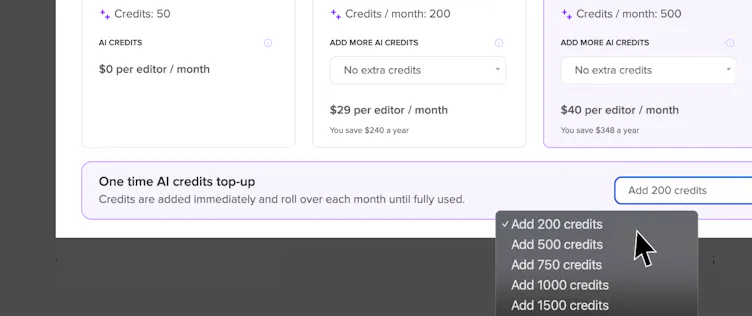
If you run out of credits, you can add more in two ways.
- One-time top-up: Single purchase of extra credits. Top-up credits don't expire and roll over month to month until fully used.
- Monthly add-on: Recurring credit pack added on top of your plan's default allocation. It renews automatically every month. Unused add-on credits don't roll over, they reset at the end of the billing period.
You can see current pricing for each credit tier in the AI credits dropdown in your Account Settings.
If you have more than one credit type on your account, they're used in this order:
- top-up credits,
- add-on credits,
- your plan's default allocation.
Billing
Add-on billing
The monthly add-on is billed as a separate subscription from your main plan, on a cycle that runs from the 1st to the 1st of the next month. If you buy an add-on or move to a higher tier, credits are added right away and the change is prorated for the rest of the current cycle. Moving to a lower tier or canceling takes effect on the 1st of the next month instead.
Example
If you buy an add-on on the 15th, you're charged roughly half the listed price for that first month, then the full price from the next cycle onward.
Canceling your main plan also cancels your add-on, on the same 1st-of-next-month schedule as a manual cancellation.
Top-up billing
A one-time top-up is a single purchase, billed separately from your plan and your add-on subscription. You'll get a separate invoice for it automatically.
Managing your credits
Note
Enterprise accounts don't have a self-serve option for AI credits. Reach out to your account manager to adjust them.
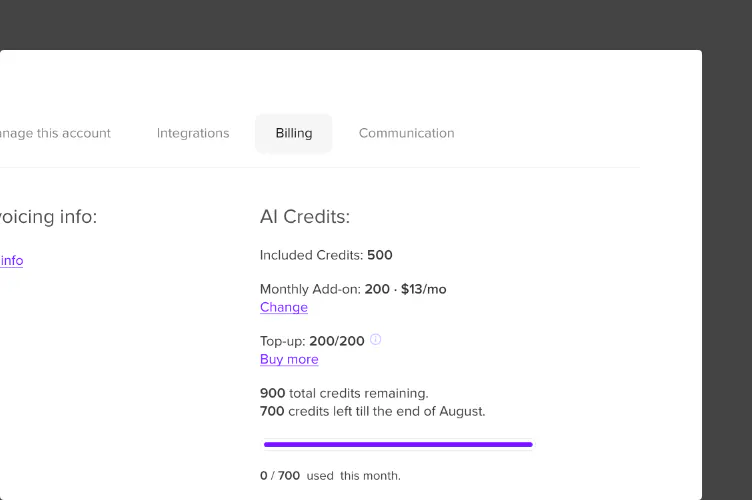
To manage your AI credits, go to Forge Settings or Account Settings > Billing
- Open Upgrade modal by clicking Buy more or Change next to AI Credits info.
- Select your current plan in the upgrade modal.
- Pick a credit amount from the AI credits dropdown.
- Click Change.
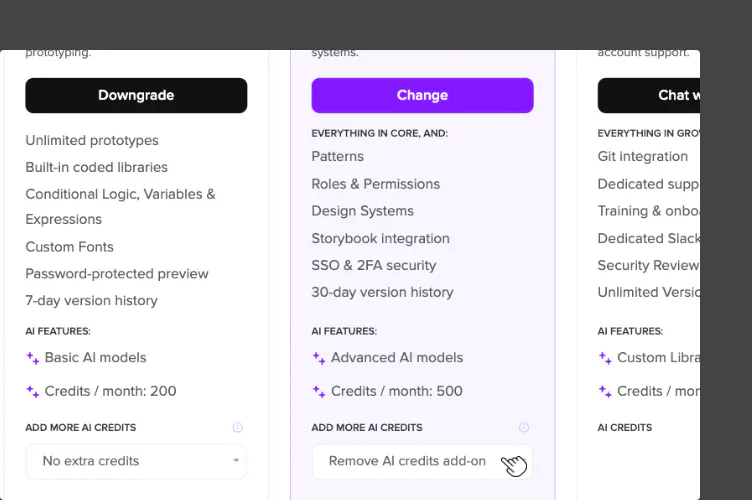
To cancel your add-on, select Remove AI credits add-on from the same dropdown and click Change.
Note
Only the account owner can purchase or change AI credits.