Building UIs is now faster and more efficient with GPT-5.2, MUI, and UXPin Merge. Here’s how these tools work together:
- GPT-5.2: Converts text prompts into functional UI layouts using MUI components.
- MUI: Provides a library of pre-built, production-ready React components like buttons, forms, and data grids.
- UXPin Merge: Lets you design and prototype with real code components, ensuring designs match what developers will implement.
This workflow eliminates design-to-development gaps by generating React code directly from your design system. Designers and developers work with the same components, reducing errors and saving time. Teams using this approach report cutting development time by 50% or more.
To get started, you’ll need:
- A UXPin Merge account (starting at $29/month).
- Basic knowledge of prompt engineering, MUI components, and UXPin’s interface.
UXPin Merge Tutorial: Exploring MUI Library (3/5)
sbb-itb-f6354c6
What You Need Before Starting
To get started, you’ll need to set up the right accounts, gather the necessary tools, and have a basic understanding of the workflow. Let’s break it down.
Required Accounts and Tools
First, you’ll need a UXPin Merge account with at least the Core plan. Here’s how the plans stack up:
- Core plan ($29/month): Includes 200 AI credits, basic AI models, and access to built-in MUI components.
- Growth plan ($40/month): Offers 500 AI credits and advanced AI models, making it ideal for teams needing more flexibility.
- Enterprise plan: Perfect for larger teams, this plan includes unlimited AI credits, custom component library integration, and tailored pricing. For details, contact sales@uxpin.com.
The best part? MUI is already integrated into UXPin, so there’s no need to purchase a separate license or import components. Just open a new Merge project and start designing with production-ready elements. Additionally, UXPin’s AI capabilities are built into the platform, so you don’t need an external OpenAI API key or a paid ChatGPT account for standard workflows involving MUI.
If you’re working with custom component libraries, you’ll need Git integration (available with the Enterprise plan) and your own API access for advanced configurations.
Once your accounts and tools are ready, it’s time to focus on the skills you’ll need to make the most of this workflow.
Basic Knowledge Required
You don’t need to be a tech wizard, but some foundational knowledge will go a long way. Here’s what to focus on:
- Prompt Engineering: Learn how to write clear, detailed prompts for GPT-5.2. For example, instead of saying, "create a form", specify something like, "create a login form using MUI TextField components with email validation and a submit button." The more specific you are, the better the results.
- Familiarity with MUI Components: Knowing elements like Data Grids, Date Pickers, or Autocomplete fields will help you request precise components instead of generic placeholders, saving time and effort.
- Proficiency with UXPin’s Interface: Spend 15–20 minutes exploring the design canvas and Properties Panel if you’re new to UXPin. You’ll need to adjust properties, work with code-backed components, and build interactive prototypes. This basic understanding will help you fully utilize UXPin’s seamless integration with MUI.
With the right tools and a bit of preparation, you’ll be ready to dive into designing smarter and faster.
How to Build UIs with GPT-5.2, MUI, and UXPin Merge
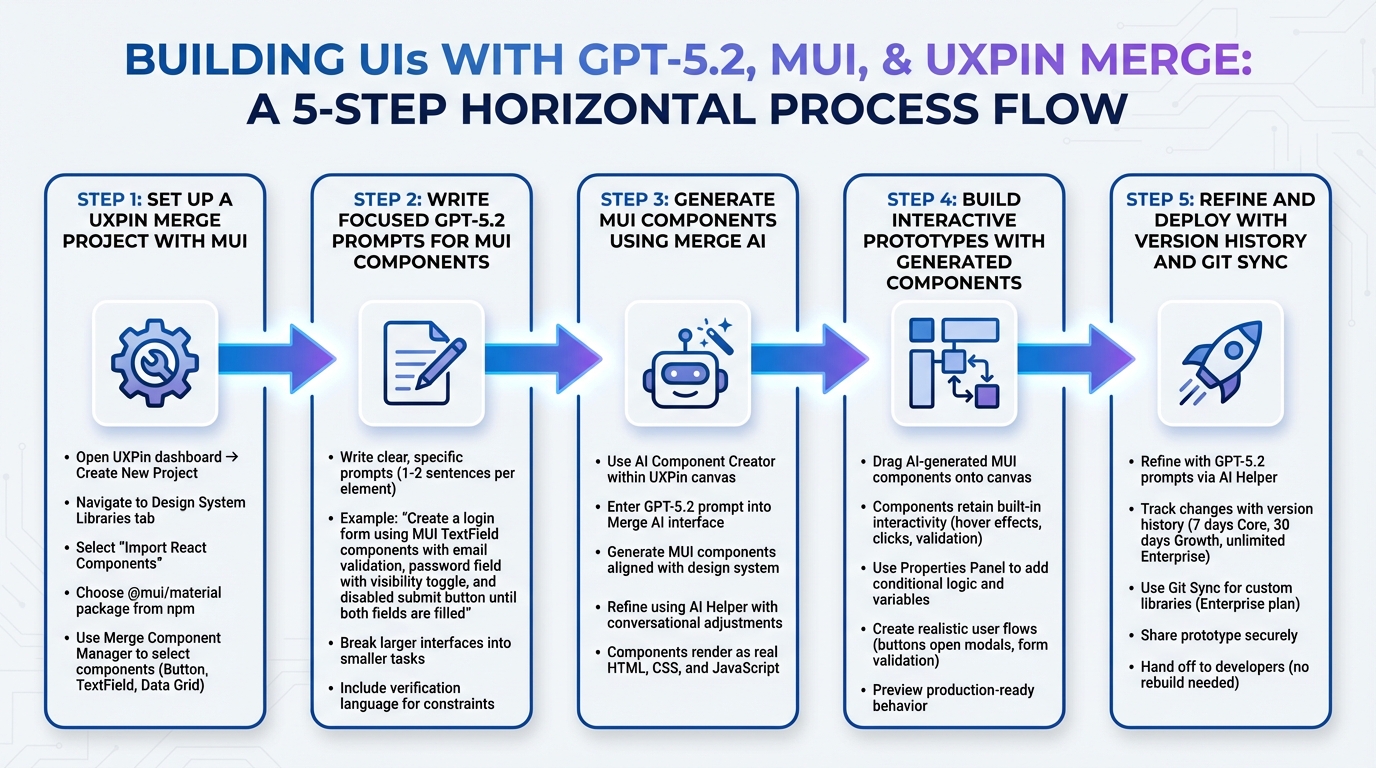
5-Step Workflow for Building UIs with GPT-5.2, MUI, and UXPin Merge
If you’re looking to streamline your UI creation process, this step-by-step guide will take you from concept to production-ready code in just minutes. Here’s how to combine GPT-5.2, MUI, and UXPin Merge for a seamless workflow.
Step 1: Set Up a UXPin Merge Project with MUI
Start by opening your UXPin dashboard and creating a New Project to access the design canvas. Navigate to the Design System Libraries tab, then select "Import React Components." UXPin makes this easy – just pick the @mui/material package directly from the npm options, skipping the need for manual Git configuration.
Once connected, use the Merge Component Manager to choose which MUI components you want in your project. You can include essentials like Button, TextField, or Data Grid. UXPin automatically maps each component’s React props to the Properties Panel, letting you customize them visually without writing code. These are the exact components your developers will implement, ensuring consistency across the board.
Step 2: Write Focused GPT-5.2 Prompts for MUI Components
Clear and specific prompts are key to getting the best results from GPT-5.2. For example, instead of a general request, try something like: "Create a login form using MUI TextField components with email validation, a password field with a visibility toggle, and a disabled submit button until both fields are filled."
Keep prompts concise – one or two sentences per element is ideal. If you’re working on a larger interface, break it into smaller tasks. For instance, start with the navigation bar, then move on to the data table, and finally the filter controls.
To ensure accuracy, include verification language in your prompts. For example: "Ensure the button disables when the email field is empty" or "Use the outlined variant for all text fields." GPT-5.2 handles these constraints well, especially when you clearly define your design system rules.
Step 3: Generate MUI Components Using Merge AI
Once your prompts are ready, use the AI Component Creator within UXPin’s canvas. Enter your GPT-5.2 prompt into the Merge AI interface to generate MUI components that align with your design system. These components are not generic – they follow your specific guidelines.
Since UXPin Merge renders real HTML, CSS, and JavaScript, the components on your canvas are identical to what developers will deploy. There’s no guesswork or translation layer – what you see is exactly what gets shipped.
If the initial output isn’t perfect, you can refine it using the AI Helper. Simply describe your adjustments, like "Change the button variant to outlined" or "Add a success state with green color." The AI adapts while staying true to the MUI structure. Start with simple changes and add more detail as needed. Once your components are polished, you’re ready to prototype.
Step 4: Build Interactive Prototypes with Generated Components
Drag your AI-generated MUI components onto the canvas and start building your prototype. These components retain their built-in interactivity – hover effects, button clicks, and form validation work right out of the box because they’re production-ready code.
Use the Properties Panel to add conditional logic and variables, creating realistic user flows. For example, you can set a button to open a modal or link form inputs to show validation messages. The components behave exactly as they will in production, giving stakeholders a clear preview of the final product.
This approach eliminates the uncertainty of design-to-development handoffs. Developers receive prototypes they can trust because they’re already built with the same codebase.
Step 5: Refine and Deploy with Version History and Git Sync
After assembling your prototype, refine it further using GPT-5.2 prompts. The AI Helper lets you make conversational changes like "Switch to dark mode" or "Increase spacing between cards." These updates maintain the integrity of your components while aligning with your design vision.
UXPin’s version history tracks every change, so you can roll back if needed. Depending on your plan, you’ll get 7 days of history (Core), 30 days (Growth), or unlimited tracking (Enterprise). For teams using custom libraries, the Git Sync feature (available on the Enterprise plan) pushes updates directly to your code repository, ensuring perfect alignment between design and development.
When your prototype is finalized, share it securely or hand it off to developers. Since everything is already code-based, there’s no need for a rebuild – just implement and deploy. This workflow can dramatically reduce the time it takes to move from design to deployment.
Benefits of This Workflow
Standard UI Workflows vs. UXPin Merge
Traditional design tools often rely on image-based workflows where designers create visuals that resemble UI elements. These visuals are then handed off to developers, who manually recreate them using code. UXPin Merge, however, flips this approach by using a code-based workflow. It renders actual HTML, CSS, and JavaScript directly within the editor, making the process far more efficient.
Here’s a side-by-side comparison of the two workflows:
| Aspect | Standard UI Workflow (Image-based) | UXPin Merge + AI Workflow (Code-based) |
|---|---|---|
| Time-to-Prototype | High (Manual drawing/linking) | Low (AI generates directly from prompts) |
| Component Accuracy | Visual approximation only | Matches production code exactly |
| Handoff Friction | High (Manual specs prone to errors) | None (Direct JSX export with auto-generated specs) |
| Scalability | Challenging (Manual library updates) | Easy (Git-sync and version control) |
| Interactivity | Limited (Simulated transitions) | Full (Real logic and data handling) |
These distinctions lead to measurable advantages. Larry Sawyer, a Lead UX Designer, shared his experience:
"When I used UXPin Merge, our engineering time was reduced by around 50%. Imagine how much money that saves across an enterprise-level organization with dozens of designers and hundreds of engineers."
Impact on Enterprise Teams
For enterprise teams, the benefits are even more pronounced. Designers no longer need to recreate code from scratch. Instead, they work with real React components, ensuring accuracy and eliminating redundant tasks. Developers receive JSX code that integrates seamlessly into their workflow, bypassing the usual back-and-forth that often leads to delays and errors.
The single source of truth approach is a game-changer. When an enterprise team connects a custom MUI-based design system through Git (available in the Enterprise plan), any updates to the component library automatically sync with the design editor. This keeps design and development perfectly aligned. DesignOps teams also benefit from streamlined version control and release coordination through GitHub, ensuring everyone works with the same up-to-date components. This consistency is critical for maintaining brand standards and building user trust across multiple products. For teams managing complex backend systems and data flows, solutions like DreamFactory, which provides governed API access to any data source, can further enhance this workflow by enabling real data integration in prototypes.
UXPin Merge has already proven its effectiveness with major enterprise design systems such as MUI, Microsoft Fluent UI, IBM Carbon, Salesforce Lightning, and Atlassian Atlaskit. By eliminating manual updates, the workflow ensures that AI-generated layouts adhere to your design rules, scaling effortlessly to meet the needs of large teams.
Conclusion
Bringing together GPT-5.2, MUI, and UXPin Merge reshapes how enterprise teams approach user interface development. This streamlined workflow removes the traditional gap between designers and developers by utilizing real React components instead of relying on static mockups. Designers work directly with production-ready code, while developers receive JSX that integrates seamlessly into their codebase.
The efficiency improvements are hard to ignore. By maintaining a single source of truth synced through Git, teams eliminate redundant tasks. Any updates to the design system automatically reflect in the editor, ensuring everyone stays on the same page. This method has already shown success with top-tier design systems. When components perfectly match production code, developers no longer need to interpret specs or resolve inconsistencies. This saves significant time and enables advanced interactive prototyping with real data, allowing teams to test complex scenarios ahead of production.
For enterprises managing multiple products and large teams, this workflow ensures consistency and scalability. AI-generated layouts adhere to established design rules, reducing the risk of deviations that could lead to technical debt. GitHub integration keeps design and code synchronized, ensuring smooth and consistent releases.
In short, combining GPT-5.2, MUI, and UXPin Merge simplifies every step of the design-to-deployment process. It offers a faster, more dependable path from concept to delivery, scaling effortlessly with your team while maintaining the high standards required for enterprise-grade products.
FAQs
Do I need my own OpenAI API key?
To integrate GPT-5.2 for generating UI components and prototypes in UXPin Merge, you’ll need your own OpenAI API key. This key is essential for configuring GPT-5.2, allowing it to assist with AI-powered component creation and refinement throughout the prototyping process.
Can I use my custom MUI component library?
Yes, you can integrate your custom MUI component library into UXPin Merge. UXPin allows you to import custom React components, whether they come from your production repository or external libraries. By incorporating MUI components into UXPin Merge, you can prototype using fully interactive, production-ready elements. This simplifies the process of using custom or third-party libraries within your UXPin projects.
How do I export JSX developers can ship?
To export JSX code that’s ready for production, UXPin Merge offers a feature to generate React code directly from your prototypes. Once your design is finalized using integrated React components, head over to Spec mode to access detailed design information. From there, you can use the export option to create clean, deployment-ready JSX code, simplifying the transition from design to development.

