How to Choose a Color Palette for UI Design: Theory, Tools & Process (2026)
Learn how to choose a UI color palette step by step — covering color theory, palette types, the 60-30-10 rule, accessibility, popular generators, and how design systems enforce consistency. Includes FAQ and practical examples.

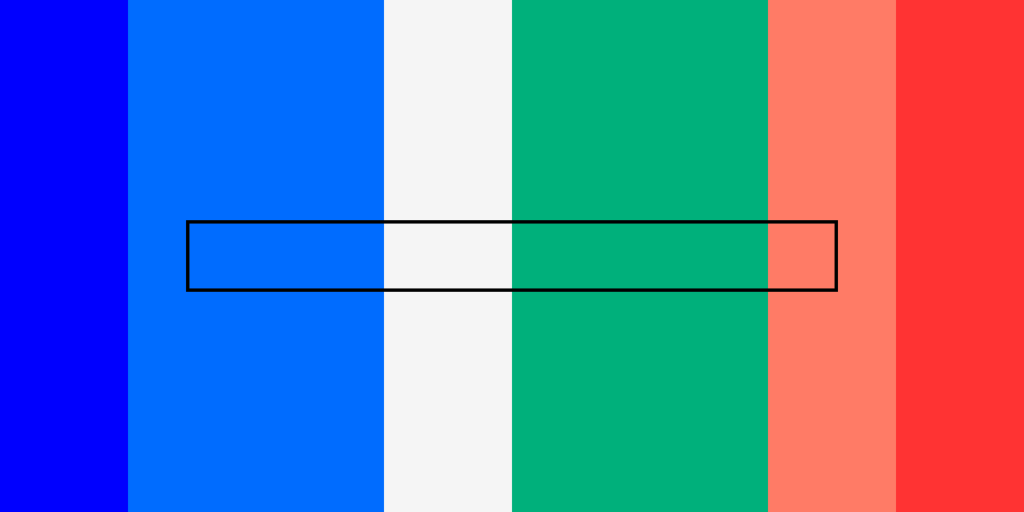
A color palette is a curated set of colors used consistently across a product’s user interface. Getting the palette right isn’t just about aesthetics — it directly affects usability, accessibility, brand perception, and conversion rates. A well-chosen palette guides the user’s eye, establishes visual hierarchy, and reinforces brand identity on every screen.
This guide walks you through color theory fundamentals, palette types, proven selection frameworks, accessibility requirements, and the tools that make the process faster — updated for 2026. Whether you’re starting from scratch or refining an existing design system, you’ll leave with a repeatable process for building a palette that works.
Key takeaways:
- Understand core color theory — the color wheel, HSL, and warm vs. cool — before picking any colors.
- Choose a palette type (monochromatic, analogous, complementary, split-complementary, or triadic) based on the emotional tone of your product.
- Apply the 60-30-10 rule to distribute color: 60 % dominant, 30 % secondary, 10 % accent.
- Test every text/background combination against WCAG 2.2 AA contrast requirements.
- Lock your palette into design tokens so every designer, developer, and AI tool stays on brand.
Once you’ve chosen your colors, bring them into UXPin to start designing. With UXPin Merge, your color tokens live inside real production components — so the colors you choose in design are exactly what ships in code. Try UXPin for free.
Understanding Color Theory for UI Design
Color theory provides the foundation for every palette decision. You don’t need to memorise the entire Munsell system, but understanding a few core concepts saves you from trial-and-error palette building.
The Color Wheel
The color wheel organises hues in a circle based on their chromatic relationships. The three primary colors (red, blue, yellow) combine to create secondary colors (orange, green, violet), which combine further to create tertiary colors. The wheel is the starting point for every palette type discussed below.
Hue, Saturation, and Lightness (HSL)
Every color has three properties:
- Hue: The pure color (red, blue, green, etc.) — the position on the color wheel.
- Saturation: The intensity of the color, from vivid to grey.
- Lightness: How light or dark the color is, from white to black.
When building a UI palette, you’ll typically choose a small number of hues and then generate a full range of saturations and lightnesses for each — this gives you the light/dark variants you need for backgrounds, borders, hover states, and text.
Warm vs. Cool Colors
Warm colors (reds, oranges, yellows) feel energetic and inviting. Cool colors (blues, greens, purples) feel calm and professional. Most enterprise and SaaS interfaces lean towards cool palettes for a reason — they reduce visual fatigue during extended use. Your choice should match the emotional tone of your product.
Types of Color Palettes
There are several proven approaches to selecting color combinations. Each produces a different visual effect:
Monochromatic
Uses a single hue with variations in saturation and lightness. This is the safest choice — it’s impossible to create clashing colors. Monochromatic palettes work well for clean, minimalist interfaces and are the easiest to make accessible.
Analogous
Uses 2–3 hues that sit next to each other on the color wheel (e.g. blue, blue-green, green). Analogous palettes feel harmonious and are common in nature-inspired designs. The risk is low contrast between elements, so you’ll need to rely on lightness differences for hierarchy.
Complementary
Uses two hues from opposite sides of the color wheel (e.g. blue and orange). This creates high contrast and visual energy — great for CTAs and attention-grabbing elements, but fatiguing if overused. Use one color as the dominant and the other as an accent.
Split-Complementary
A variation of complementary that uses one base hue plus the two hues adjacent to its complement. This gives you the contrast of a complementary palette with less tension — a popular choice for UI design.
Triadic
Uses three hues equally spaced on the color wheel (e.g. red, blue, yellow). Triadic palettes are vibrant and balanced but require careful management. Typically one hue dominates, and the other two serve as accents.
The 60-30-10 Rule for UI Color Distribution
Borrowed from interior design, the 60-30-10 rule is a reliable framework for distributing color across an interface:
- 60 % — Dominant color: Your background and primary surface color. Usually a neutral (white, light grey, or dark grey for dark mode).
- 30 % — Secondary color: Used for cards, sidebars, secondary buttons, and supporting surfaces. Often a muted tint of your brand color.
- 10 % — Accent color: Reserved for CTAs, active states, links, and elements that demand attention. This is where your primary brand color does its heaviest lifting.
This ratio ensures visual balance without overwhelming users. In design systems, these percentages map neatly to your token hierarchy: surface tokens, container tokens, and interactive tokens.
How to Choose a Color Palette: Step by Step
Step 1: Start With Brand and Context
Before touching a color tool, define the emotional territory your product needs to occupy. A fintech app might require trust and stability (blues, greens). A creative tool might need energy and expressiveness (brighter, more saturated hues). If you already have brand guidelines, extract the primary and secondary colors from there.
Step 2: Choose a Base Hue
Pick one hue that will serve as your primary brand/accent color. Every other palette decision follows from this choice.
Step 3: Generate a Full Scale
For your base hue, generate a 9- or 10-step lightness scale (e.g. 50, 100, 200, … 900). The lightest values become backgrounds and hover states; the mid-range becomes your primary interactive color; the darkest values become text and high-contrast borders.
Step 4: Add Neutral and Semantic Colors
Every palette needs:
- Neutrals: A grey scale (often with a slight warm or cool tint) for text, borders, and backgrounds.
- Semantic colors: Red for errors/destructive actions, green for success, yellow/amber for warnings, blue for informational messages.
Step 5: Test for Accessibility
Check every text/background combination against WCAG 2.2 contrast requirements: at least 4.5:1 for normal text and 3:1 for large text (AA level). Use tools like the WebAIM Contrast Checker or the built-in contrast tools in your design application. For a deeper dive into accessibility compliance, see our guide to WCAG keyboard accessibility.
Step 6: Apply and Iterate
Apply the palette to a real screen — a dashboard, a form, a settings page — and evaluate. Does the hierarchy read clearly? Are interactive elements obvious? Does it work in both light and dark mode? Adjust until everything feels balanced.
Color Palette Tools and Generators
These tools accelerate palette creation and help you explore combinations you might not find manually:
Coolors
Coolors is a fast, intuitive palette generator. Press the spacebar to generate random palettes, lock colors you like, and adjust the rest. It exports to multiple formats and has a contrast checker built in.
Realtime Colors
Realtime Colors lets you see your palette applied to a real website layout in real time. This is significantly more useful than viewing swatches in isolation — you can immediately see how colors interact on buttons, cards, text, and backgrounds.
Material Design Color Tool
Google’s Material Design color system generates accessible palettes based on a single seed color. It’s particularly useful if you’re building with MUI components in UXPin, since the palette maps directly to MUI’s theme tokens.
Color Supply
Color Supply shows palette types (complementary, triadic, etc.) overlaid on the color wheel, so you can see the geometric relationship as you adjust.
Huemint
Huemint uses machine learning to generate palettes applied to real design mockups — websites, logos, and illustrations. It’s a fast way to see how a palette feels in context.
Designing for Color Accessibility
Approximately 8 % of men and 0.5 % of women have some form of color vision deficiency. Designing for accessibility isn’t optional — it’s a legal and ethical requirement in many markets.
Key Accessibility Principles
- Never use color alone to convey meaning. If a form field turns red on error, also add an icon and error text.
- Maintain sufficient contrast ratios. WCAG 2.2 AA requires 4.5:1 for normal text and 3:1 for large text and UI components.
- Test with color blindness simulators. Tools like Sim Daltonism (macOS) or the Chrome DevTools “Emulate vision deficiencies” feature let you see your interface through different types of color vision deficiency.
- Use patterns, shapes, or labels alongside color. In charts and data visualisations, use pattern fills or direct labels in addition to color coding.
Enforcing Color Consistency With a Design System
Choosing a great palette is only half the battle — the other half is ensuring it’s used consistently across every screen, by every designer, on every team.
This is where a design system becomes essential. By defining color as design tokens (named variables like color-primary-500 or color-error-text), you create a shared vocabulary that both designers and developers use.
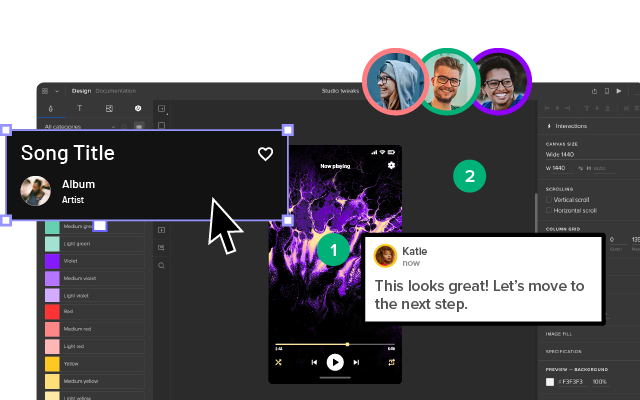
With UXPin Merge, your color tokens aren’t just documentation — they’re embedded in real, code-backed components. When a designer drags a Button onto the canvas, it already uses the correct primary color, hover state, and focus ring. There’s no room for a designer to accidentally use #3B82F6 instead of #2563EB, because the component enforces the system.
UXPin Forge takes this further. When Forge generates a layout from a text prompt, it uses your production components — and those components carry your color tokens. The result is AI-generated UI that’s automatically on-brand, without manual color picking. You can even set Design System Guidelines so every AI-generated screen respects your palette rules.
Try UXPin for free and build interfaces with color consistency baked into every component.
Color Palettes and AI-Generated Design
AI design tools are changing how interfaces get built — but they make a well-defined color palette more important, not less. When an AI generates a screen layout, it needs a color system to follow. Without one, you get generic, off-brand results.
UXPin Forge solves this elegantly. Because Forge generates layouts using your actual production React components, it inherits your color tokens automatically. Every button, card, and input it places on the canvas already uses your brand palette — no manual color picking, no risk of drift. Teams report 8.6× faster design-to-prototype cycles when combining Forge with a well-defined component library.
This means your color system decisions compound: define your palette once as tokens in your design system, and every future screen — whether designed manually, generated by AI, or built by a developer — stays perfectly on brand.
Frequently Asked Questions About Choosing a Color Palette
How many colors should a UI color palette have?
A typical UI palette includes 1–2 primary brand colors, 1 accent color, a neutral/grey scale (8–10 steps), and 4 semantic colors (error, success, warning, info) — each with their own lightness scale. In total, you may define 50–80 individual color values, but they all derive from just 5–7 base hues.
What is the 60-30-10 rule in UI design?
The 60-30-10 rule divides color usage into three tiers: 60 % dominant (backgrounds and surfaces), 30 % secondary (cards, sidebars, secondary elements), and 10 % accent (CTAs, active states, links). This ratio creates visual balance and ensures that accent colors stand out without overwhelming the interface.
How do I make my color palette accessible?
Test every text/background color combination against WCAG 2.2 AA contrast ratios (4.5:1 for normal text, 3:1 for large text). Never rely on color alone to convey meaning — always pair color with text, icons, or patterns. Test your interface with color blindness simulation tools to catch issues early.
What is the best color palette generator?
Coolors is the most popular general-purpose palette generator. For seeing palettes in context on a real layout, Realtime Colors is excellent. If you’re designing with Material UI components, Google’s Material Design color tool generates palettes that map directly to MUI theme tokens.
How do I ensure color consistency across a product?
Define your colors as design tokens in a shared system and distribute them through a component library. Tools like UXPin Merge let designers use production components with color tokens baked in, so there’s no manual color picking and no risk of inconsistency between design and code.
Should I design for dark mode from the start?
If dark mode is a requirement, yes — design for it in parallel, not as an afterthought. Use semantic token names (e.g. color-surface-primary instead of color-white) so you can swap values between themes without changing component structure. A well-structured design system makes dark mode a token-layer change, not a full redesign.