Prototyping with GPT-5.2, shadcn/ui, and UXPin Merge eliminates the traditional design-to-development gap by enabling teams to create interactive prototypes using production-ready React components. Here’s the process in a nutshell:
- Generate Components: Use GPT-5.2 to create functional UI layouts with shadcn/ui components.
- Integrate with UXPin Merge: Import these components into UXPin Merge using Git, npm, or Storybook.
- Build Prototypes: Assemble interactive prototypes directly in UXPin Merge with live React components.
- Refine with AI: Leverage AI tools within UXPin to adjust layouts and add logic dynamically.
- Export Production Code: Once finalized, export prototypes as production-ready React code.
This workflow ensures design and development stay aligned, reduces engineering time by up to 50%, and accelerates product development. By using real components, prototypes behave like the final product, improving collaboration and consistency.
For teams seeking efficiency and precision, this approach streamlines the entire process, making it faster and more effective.
From Prompt to Interactive Prototype in under 90 Seconds
Prerequisites for Getting Started
To bridge the gap between AI-generated components and production-ready prototypes, you’ll need to set up specific accounts and tools. These steps ensure a smooth workflow and integration.
Getting Access to GPT-5.2 and API Keys
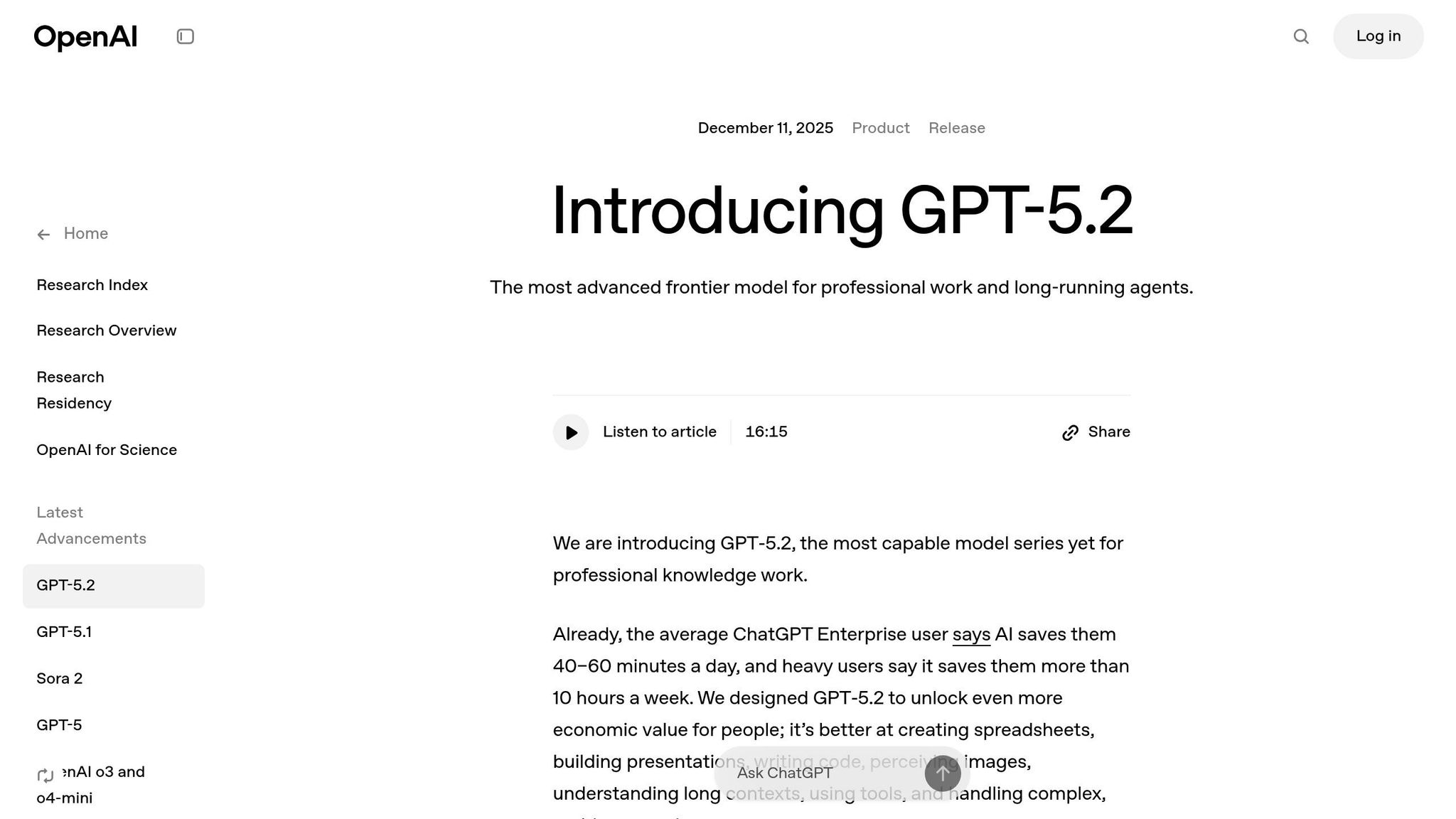
Start by creating an OpenAI Platform account with access to GPT-5.2. Keep in mind this is separate from a standard ChatGPT subscription. After setting up your account, you’ll need to generate an API key.
GPT-5.2 operates on a pay-as-you-go model, so you’ll need to add a payment method and purchase credits. Free-tier keys won’t work with this advanced model. Once you have your API key, input it into your tool’s settings and select GPT-5.2. It’s also a good idea to monitor your credit usage to avoid running into "Code generation failed" errors.
Next, prepare your environment by setting up the shadcn/ui component library.
Installing and Configuring shadcn/ui Components
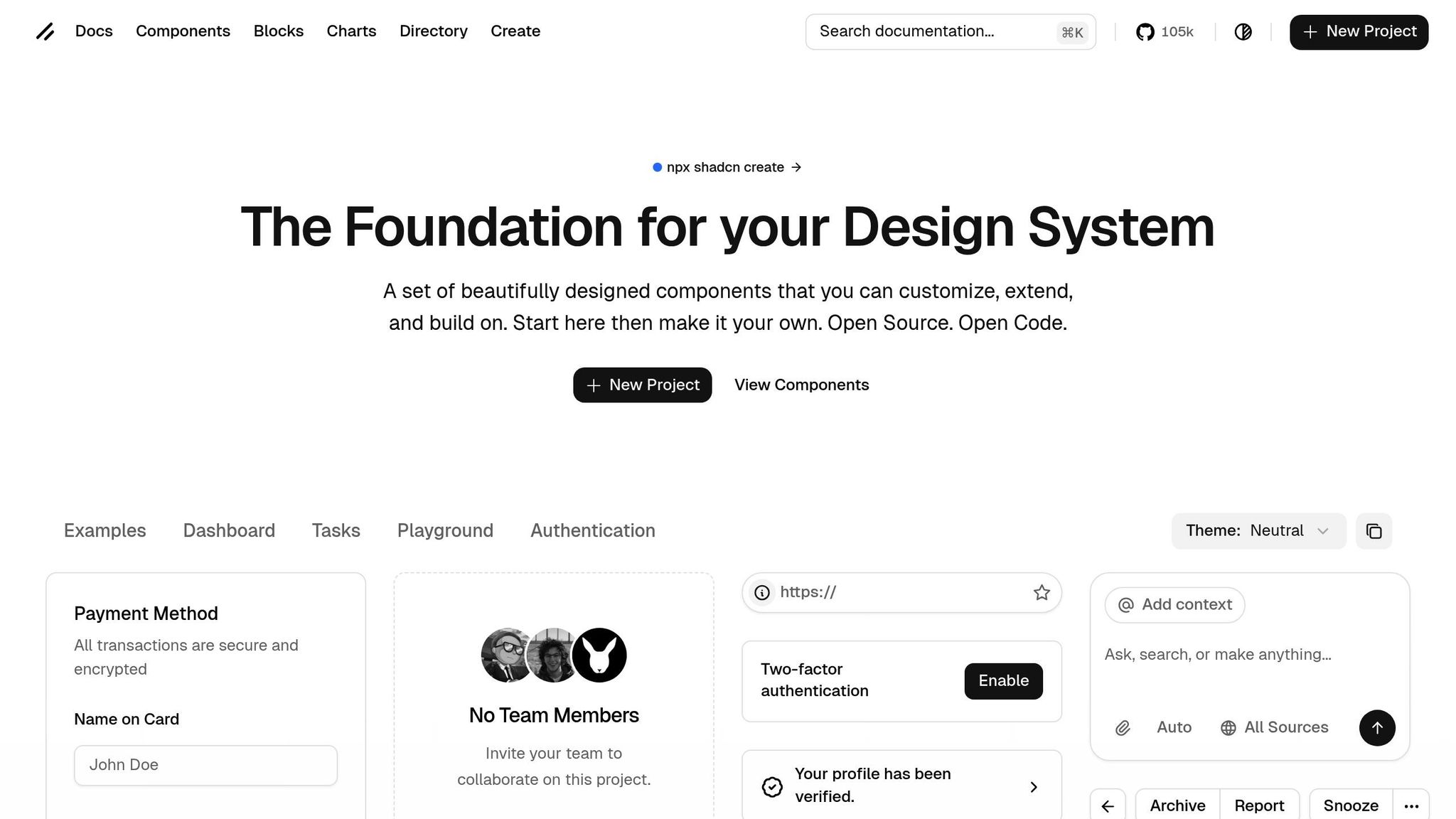
You’ll need a React-based development setup. The recommended stack includes Next.js with TypeScript, Node.js, and Tailwind CSS (version 4 or later). Additionally, you’ll need the shadcn CLI to manage your components.
When naming components, use clear, semantic names like "Button", "Card", or "Container." This approach achieves high accuracy – around 90–95% for simple components and 70–80% for more complex layouts.
Connecting UXPin Merge to Your Component Library
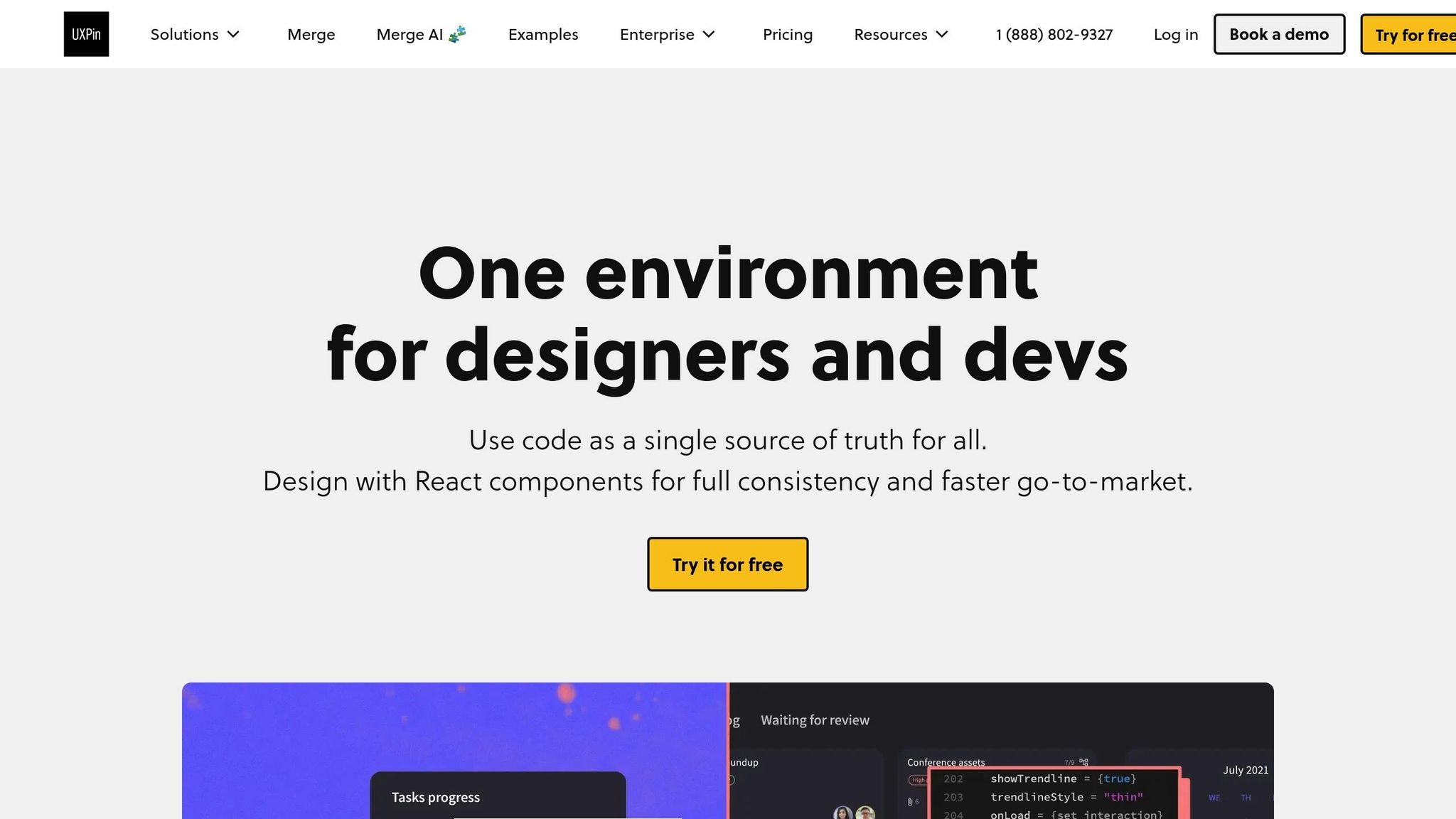
To integrate your components into design workflows, you’ll need a UXPin account with Merge access. While UXPin offers a free basic editor, accessing Merge features may require requesting enterprise access or booking a demo.
There are three ways to connect your shadcn/ui components to UXPin Merge:
- Git Integration: Sync your repository directly for complete control over updates.
- Storybook: Import components if they’re already documented in Storybook.
- npm: Quickly bring in your library via an npm package.
Since shadcn/ui is built on Tailwind CSS, it works seamlessly with Merge, which supports rendering compiled JavaScript and CSS.
| Tool | Required Account/Access | Key Prerequisite |
|---|---|---|
| GPT-5.2 | OpenAI Platform | API key and paid credits |
| shadcn/ui | GitHub (for source) | Node.js, Tailwind CSS, and the shadcn CLI |
| UXPin Merge | UXPin Account | Git repository, Storybook setup, or npm package |
How to Build Prototypes with GPT-5.2, shadcn/ui, and UXPin Merge
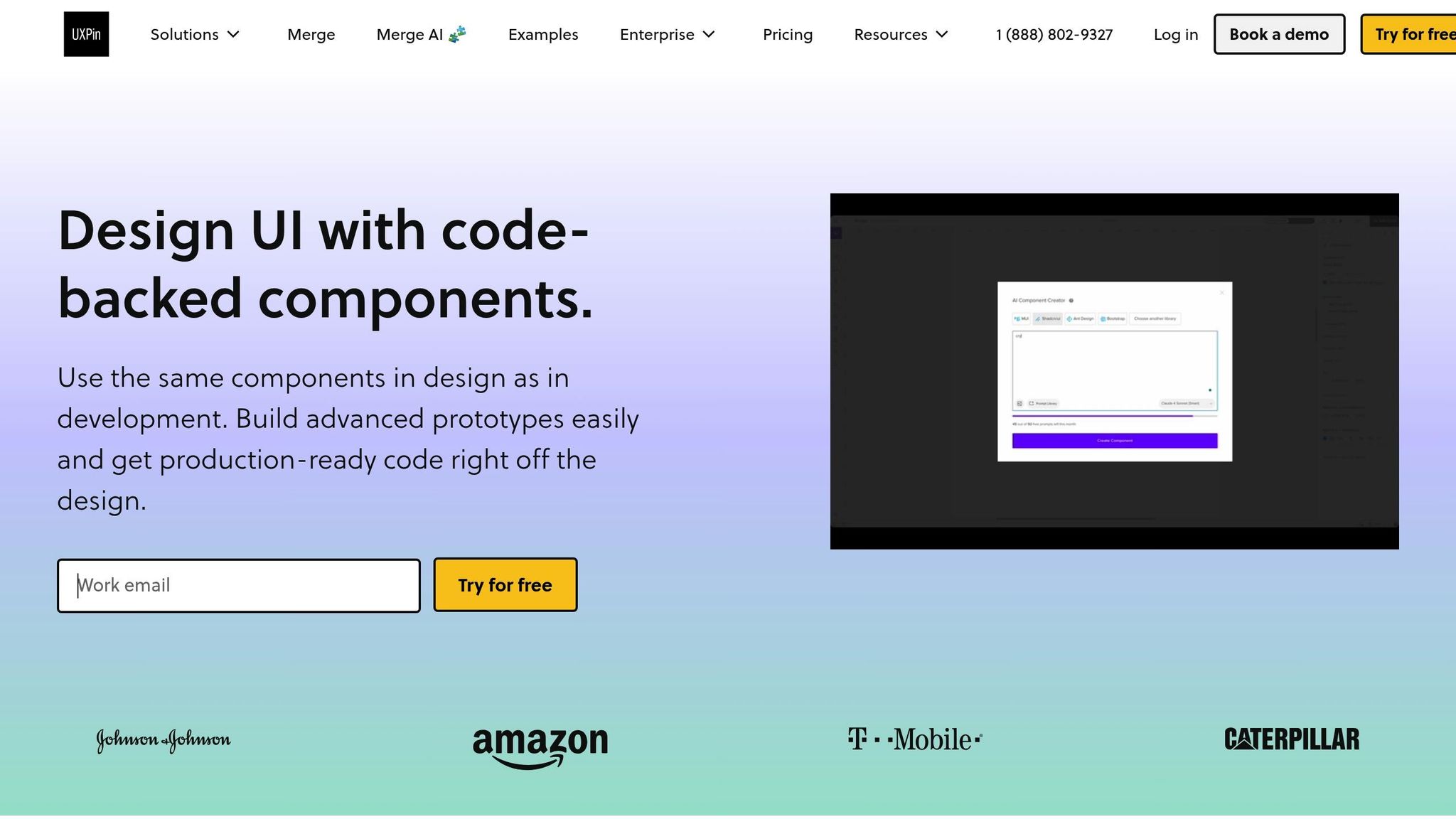
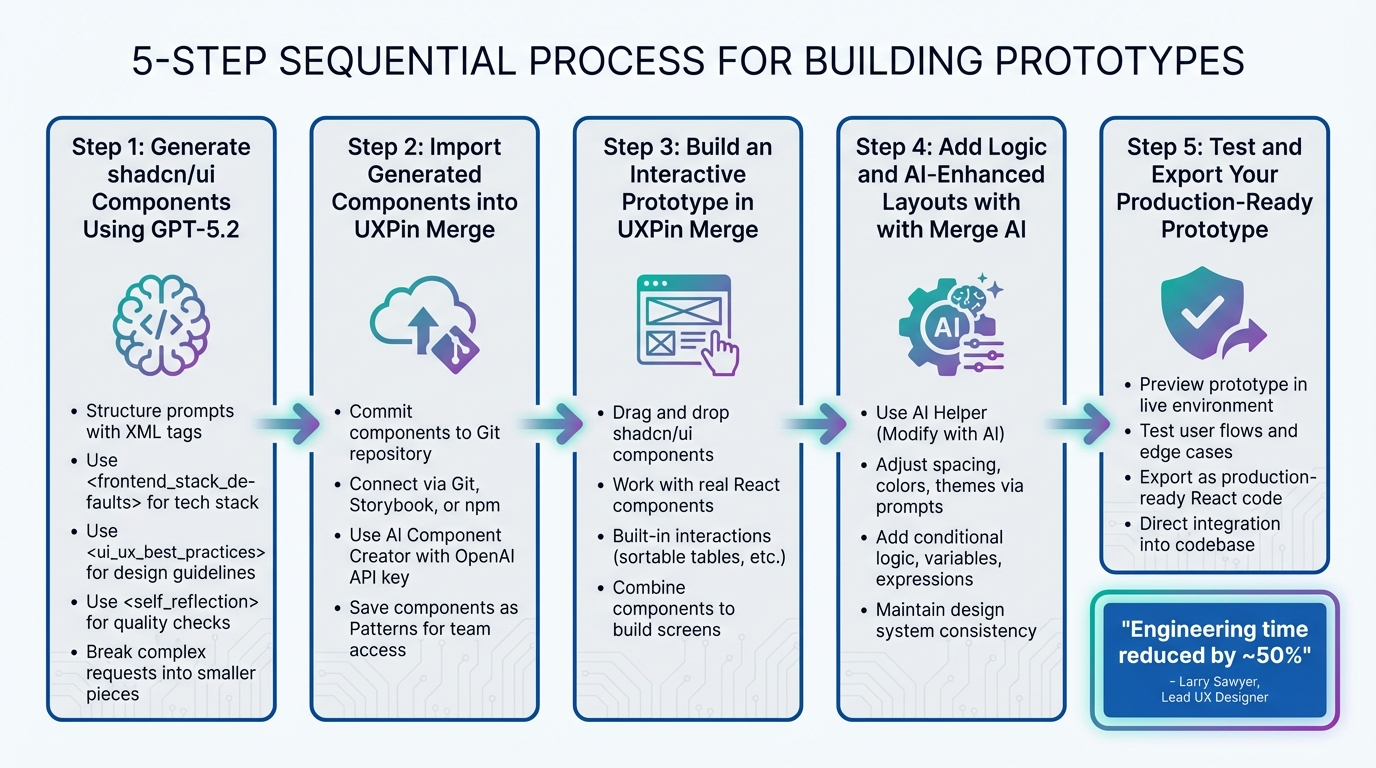
5-Step Workflow for Prototyping with GPT-5.2, shadcn/ui, and UXPin Merge
With your setup ready to go, it’s time to dive into creating prototypes that blend AI-generated components with polished, production-level design workflows. This approach leverages GPT-5.2’s ability to generate code alongside UXPin Merge’s component-driven design system.
Step 1: Generate shadcn/ui Components Using GPT-5.2
Start by opening your development environment and carefully structuring prompts with XML tags to guide GPT-5.2 effectively. Use a <frontend_stack_defaults> tag to define your core technologies, such as Next.js, Tailwind CSS, and shadcn/ui.
To maintain a cohesive design system, include a <ui_ux_best_practices> tag. Specify guidelines like "use zinc as a neutral base", "limit typography to 4-5 font sizes", and "apply multiples of 4 for padding".
For more complex interfaces, break your requests into smaller, manageable pieces instead of attempting to generate everything in one go. Add a <self_reflection> tag to encourage GPT-5.2 to create a 5-7 category rubric for quality before generating code.
| Prompt Element | Purpose | Example Input |
|---|---|---|
<frontend_stack_defaults> |
Sets technical foundation | Framework: Next.js, UI: shadcn/ui, Icons: Lucide |
<ui_ux_best_practices> |
Ensures design consistency | "Use multiples of 4 for spacing and margins." |
<self_reflection> |
Encourages quality checks | "Create a rubric for a top-tier web app before coding." |
reasoning_effort |
Adjusts depth of logic | Set to high for multi-step components. |
In January 2026, GitHub made GPT-5.2-Codex available for Copilot Enterprise and Business users, offering advanced "agent" modes in VS Code. These modes enable multi-file refactoring and frontend component generation.
Once you’ve generated your components, proceed to Step 2 to integrate them into UXPin Merge.
Step 2: Import Generated Components into UXPin Merge
After GPT-5.2 generates your shadcn/ui components, commit them to your Git repository. Open UXPin Merge and access your component library settings. Use Git integration for continuous updates and better control.
Within UXPin, take advantage of the AI Component Creator. Paste your OpenAI API key, choose the appropriate model, and describe the component you want to generate.
Once created, save these components as Patterns. This ensures they’re accessible across your team, streamlining collaboration and eliminating redundant development phases.
With your components imported, you’re ready to start assembling prototypes in UXPin Merge.
Step 3: Build an Interactive Prototype in UXPin Merge
Drag and drop your shadcn/ui components from the library onto the UXPin canvas. These are real React components, so they come fully functional – sortable tables, for example, automatically re-render when data changes, and interactions are built-in.
"UXPin Merge can render advanced components with all the interactions! This table automatically re-renders when the data sets changes. Sorting always work." – UXPin Documentation
Combine components to build your screens. Since every element is backed by live code, your design is always aligned with the development process.
Step 4: Add Logic and AI-Enhanced Layouts with Merge AI
Once your prototype takes shape, you can refine it further with AI-driven enhancements. Use the AI Helper (Modify with AI) directly within the canvas. For example, you can request changes like "adjust card spacing to 16px" or "set the button color to match the primary theme", and Merge AI will make the updates while adhering to your design system.
You can also add conditional logic, variables, and expressions through the UXPin interface to create dynamic, interactive prototypes. These features remain intact when exporting code, giving developers a functional head start.
Step 5: Test and Export Your Production-Ready Prototype
Preview your design in a live environment by clicking Preview Prototype. Components like video players, sortable tables, and form validations retain their full functionality. Test user flows and edge cases to ensure everything works smoothly.
When ready, export your prototype as production-ready React code, complete with dependencies and interactions. Since you’ve been working with real components, developers can integrate your prototype directly into the codebase.
"When I used UXPin Merge, our engineering time was reduced by around 50%. Imagine how much money that saves across an enterprise-level organization with dozens of designers and hundreds of engineers." – Larry Sawyer, Lead UX Designer
sbb-itb-f6354c6
Benefits of Using GPT-5.2 + shadcn/ui with UXPin Merge
Faster Prototyping and Easier Scaling
Say goodbye to redrawing designs from scratch. With this setup, you can drag fully functional React components directly from your codebase into your prototypes. GPT-5.2 uses natural language prompts to generate shadcn/ui components, leveraging a consistent API for smooth integration.
Prototyping with UXPin Merge is up to 10x faster than traditional methods. Take Microsoft as an example: UX Architect Erica Rider led a project syncing the Fluent design system with UXPin Merge. This allowed a small team of just three designers to support 60 internal products and over 1,000 developers, all while maintaining a single source of truth. This speed doesn’t just save time – it strengthens the connection between design and development.
Better Alignment Between Design and Development
Speed is important, but alignment is essential. By designing with real React components, you eliminate the gap between what designers envision and what developers build. UXPin Merge doesn’t rely on static graphics – it renders live HTML, CSS, and JavaScript. This means your prototypes behave exactly like your final product, complete with features like sortable tables, form validations, and responsive layouts.
Developers also benefit from auto-generated JSX specs tied to real, composed components rather than static redlines . This method prevents design drift and ensures that any updates developers make to the component library are automatically reflected in the design environment when connected via Git .
AI and Component-Driven Design Systems Working Together
Combining AI with component-driven design systems sets the stage for tackling future challenges. Shadcn/ui’s open, AI-ready code allows GPT-5.2 to generate design-aligned components and suggest improvements. Since shadcn/ui components share a common interface, GPT-5.2 integrates seamlessly, reducing the workload for both designers and developers.
This synergy enables AI to produce complex components while UXPin Merge keeps everything synced with production code. GPT-5.2 is fine-tuned for creating intricate layouts, delivering enterprise-grade code, and producing high-quality outputs. For example, adding shadcn/ui components is as simple as running a command like:
npx shadcn@latest add button
This straightforward process ensures developers can quickly integrate prototype code into their workflows.
"Being able to jump straight from design to having code ready to go is going to be a huge time-saver for our team."
- Allison Barkley, Director of Operations, Baremetrics
Conclusion
By merging GPT-5.2, shadcn/ui, and UXPin Merge, you can create prototypes in real React code that closely resemble your final product. This method removes the disconnect between design and development, streamlining the entire process.
The workflow is simple: use GPT-5.2 to generate shadcn/ui components, bring them into UXPin Merge, and craft interactive prototypes that are ready for production. Because you’re working with code-based design components, any updates to your component library automatically sync with your design environment. This ensures your designs remain consistent and aligned with production standards. The result? A smoother, more integrated design pipeline.
This approach doesn’t just save time – it enhances scalability and ensures consistency. Teams have reported product development speeds up to 8.6 times faster when using AI-generated components and production-ready prototypes. This streamlined process bridges the gap between design and code, making implementation almost immediate.
"Adding a layer of AI really levels the playing field between design & dev teams. Excited to see how your team is changing the game for front-end development."
- Ljupco Stojanovski
Want to revolutionize your design-to-development workflow? Start designing with real code components and experience the speed and efficiency of UXPin Merge. Visit uxpin.com/pricing to find the right plan for your team, or reach out to sales@uxpin.com to explore Enterprise options with custom AI integration and dedicated support.
FAQs
How does GPT-5.2 streamline prototyping with UXPin Merge?
GPT-5.2 takes prototyping to the next level by driving UXPin Merge’s AI Component Creator. With just a simple text prompt, this tool generates fully functional, code-backed UI components that seamlessly align with your design system. The result? Consistency across your designs and significant time savings.
By streamlining the process, designers can produce high-fidelity prototypes more quickly, without compromising on precision or usability. It’s a game-changer for closing the gap between design and development.
What makes shadcn/ui components useful for prototyping with UXPin Merge?
shadcn/ui offers a versatile set of pre-built, customizable React components that work effortlessly with UXPin Merge. These components are open-source, meaning they behave just like production-level code. This allows your prototypes to include real interactions, responsive designs, and data bindings, making them feel fully functional rather than just static visuals. By using these components, teams can test user flows early, spot potential issues, and simplify the design-to-development handoff with a unified source of truth for engineers.
What sets shadcn/ui apart is its flexibility and developer-friendly approach. Teams can tweak or extend the components to match specific project requirements without being confined by rigid frameworks. If there’s a bug or a missing feature, developers can directly adjust the source code, ensuring the prototype stays aligned with project goals. Combined with its lightweight, theme-first design, this library speeds up workflows and delivers consistent, production-ready outcomes.
How does UXPin use AI to streamline design and development?
UXPin’s AI-powered tools make it easier for design and development teams to work together by turning natural-language prompts or images into fully functional, code-based UI components. These components automatically sync with your team’s design system, maintaining consistency and removing the need for developers to redo or tweak designs later.
One standout feature is the Merge AI Builder, which lets designers create layouts using real, production-ready components that adhere to specific component-level rules. Another powerful tool, the AI Component Creator, enables users to describe a widget they need and instantly receive a fully coded, interactive component ready for use in prototypes. Since these components come straight from Git-hosted React libraries, the prototypes stay perfectly aligned with the final product.
This streamlined process not only speeds up the transition from design to development but also minimizes manual adjustments, ensuring a smoother collaboration between teams. The result? High-quality, consistent digital products delivered in less time.

