Prototyping with GPT-4.1 and shadcn/ui in UXPin Merge combines speed, precision, and real code components. Here’s what you need to know:
- UXPin Merge lets you design with production-ready React components, ensuring prototypes behave like the final product.
- GPT-4.1, with its advanced AI, generates detailed layouts from natural language prompts, reducing manual effort.
- shadcn/ui provides customizable, Tailwind CSS-based components that align with your design system.
Key Steps:
- Use UXPin’s built-in shadcn/ui library or connect your custom library via Git, Storybook, or npm.
- Enable GPT-4.1 in UXPin to create layouts with natural language prompts.
- Customize components and add interactions directly in UXPin.
- Test prototypes with real users and export production-ready React code.
This workflow eliminates inconsistencies between design and development, making it easier to deliver polished products faster.
UXPin Merge AI: Smarter UI Generation That Follows Your Design System
sbb-itb-f6354c6
Prerequisites for Setting Up GPT-4.1 + shadcn/ui in UXPin Merge
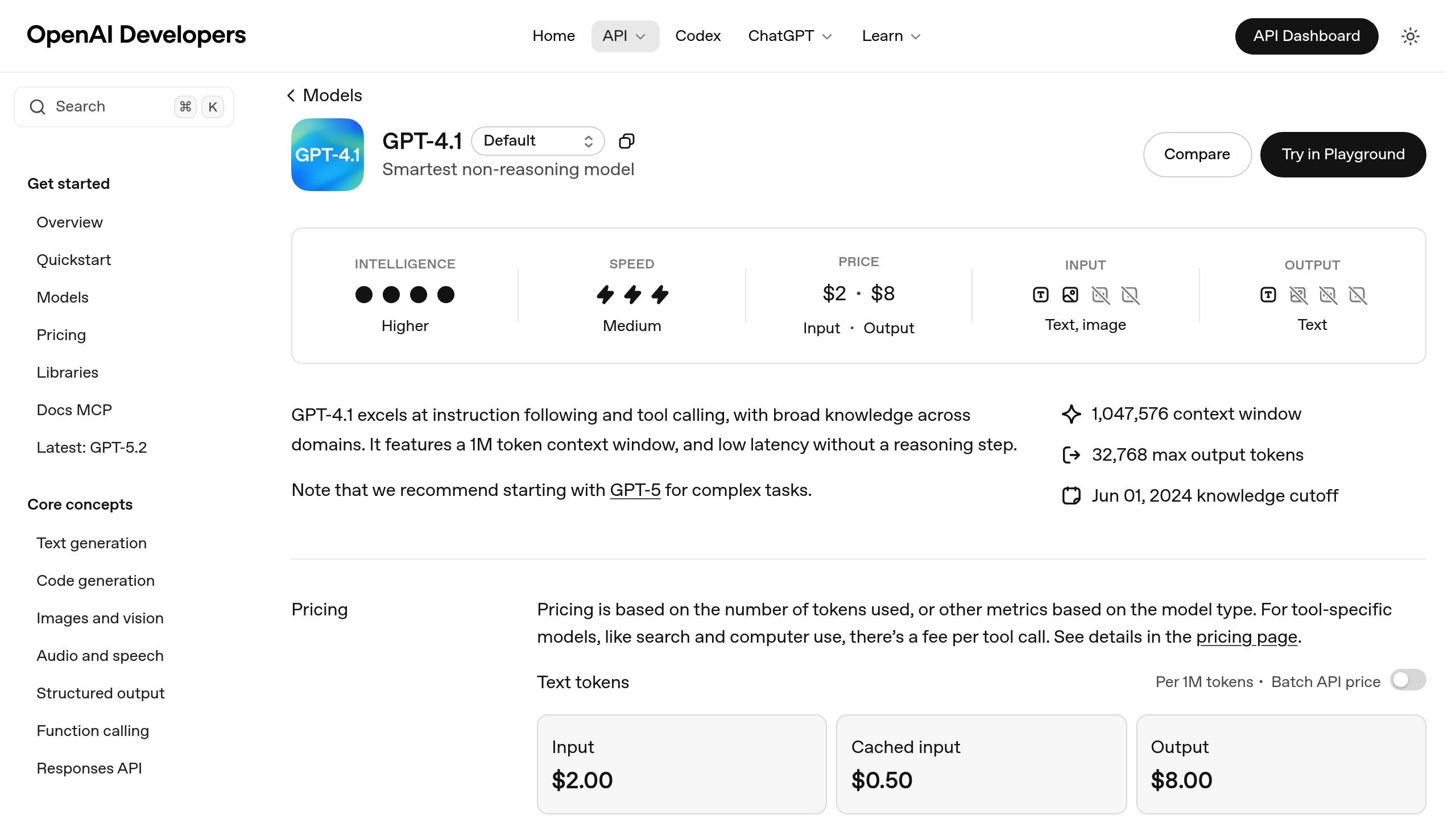
Getting started with GPT-4.1 and shadcn/ui in UXPin Merge requires a few key tools, accounts, and configurations. Since UXPin integrates these components directly, you won’t need separate library imports or additional AI subscriptions in most cases. Below, you’ll find a breakdown of what’s required to begin prototyping effectively.
Tools and Accounts You’ll Need
Your setup will vary depending on whether you’re using UXPin’s built-in libraries or integrating your own custom design system. UXPin’s native integration gives you immediate access to shadcn/ui components and GPT-4.1, making it easy to start prototyping right away. However, if you want more control, such as higher usage limits or custom configurations, you can generate your own OpenAI API key.
Here’s what you’ll need:
- UXPin’s Built-In Tools: The platform includes shadcn/ui components ready to use, along with GPT-4.1 access through the AI Component Creator. UXPin plans come with AI credits – starting at 200 credits per month on the Core plan and scaling up for Enterprise users.
- Optional OpenAI API Key: For teams needing greater flexibility or higher limits, an OpenAI Platform account with paid credits is necessary. Once you generate an API key, you can add it to the AI Component Creator’s settings.
- Custom shadcn/ui Library Setup: If you’re using your own shadcn/ui library instead of UXPin’s built-in version, you’ll need access to your Git repository, Storybook, or npm package. A UXPin Merge plan is required for this setup – starting with the Growth plan ($40/month) or Enterprise for advanced integrations. Additionally, you’ll need Node.js, Tailwind CSS v4+, and the shadcn CLI installed locally to prepare your components for syncing.
System Requirements and Configuration
Once you’ve gathered the necessary tools and accounts, it’s time to configure your system for optimal performance. UXPin Merge runs directly in your browser, but you’ll need to meet the following specifications:
- CPU: Multi-core processor
- RAM: 4 GB
- Storage: 500 MB
- Internet Speed: 10 Mbps
These requirements ensure smooth operation and an efficient design workflow.
If you’re using UXPin’s built-in shadcn/ui library, the setup process is straightforward. The native integration allows you to start prototyping immediately. To enable GPT-4.1, open the AI Component Creator from the toolbar and select GPT-4.1 as your model in the settings. This model is ideal for creating detailed, structured layouts that blend logic, text, and visuals seamlessly.
For teams working with a custom shadcn/ui library, you’ll need to connect your repository using UXPin Merge’s Git integration or Storybook. This setup ensures that your prototypes always reflect the latest production code. Enterprise customers typically configure this during the onboarding process.
Step-by-Step Guide: Prototyping with GPT-4.1 + shadcn/ui in UXPin Merge
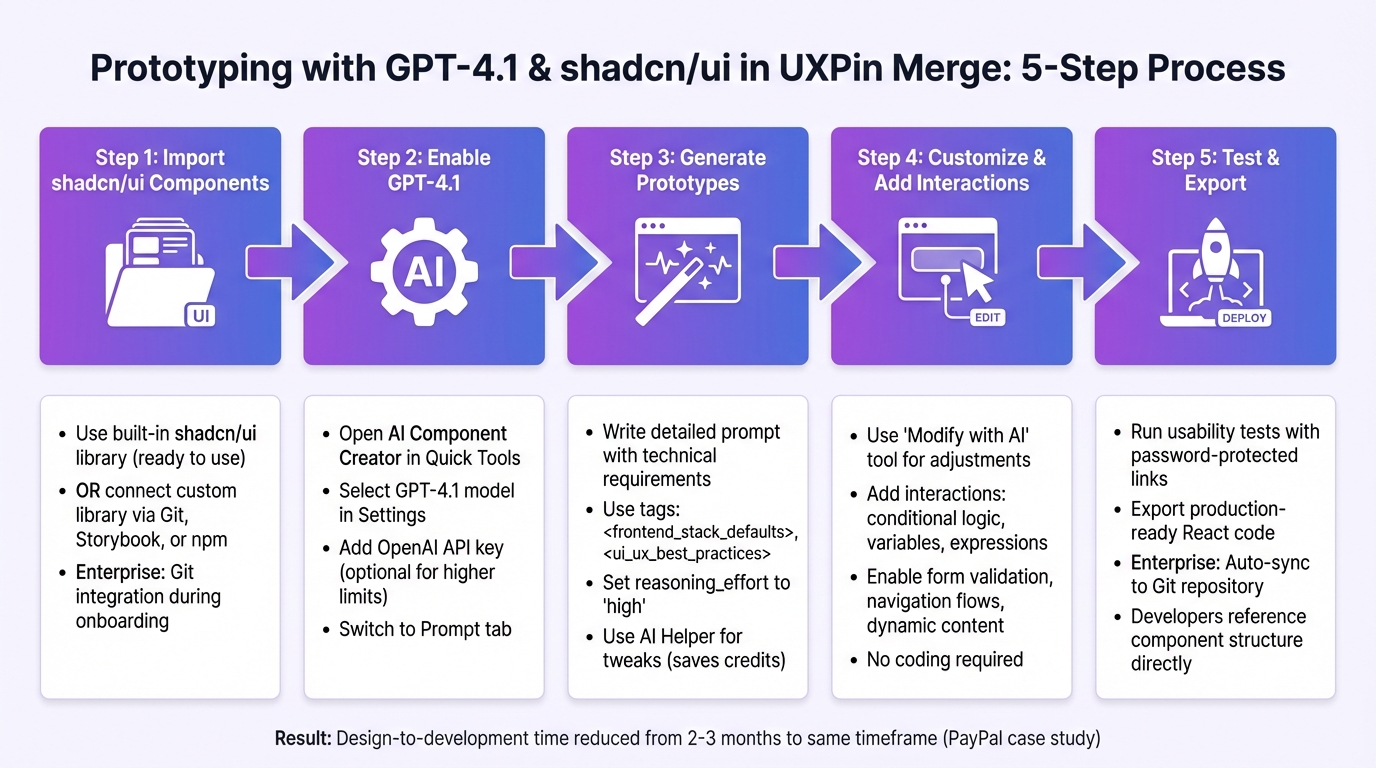
5-Step Workflow for Prototyping with GPT-4.1 and shadcn/ui in UXPin Merge
Step 1: Import shadcn/ui Components into UXPin Merge
If you’re using the native shadcn/ui library, you can skip this step – those components are already available in your canvas. Just open the UXPin Editor and access shadcn/ui directly from the built-in libraries panel. For custom shadcn/ui libraries, you’ll need to connect your repository. Options include Git Integration (great for continuous syncing), Storybook (ideal for documented libraries), or npm (quick for standard packages). Enterprise users often set up Git integration during onboarding, ensuring their prototypes stay aligned with the latest production code.
Step 2: Enable and Configure GPT-4.1 in UXPin Canvas
Head to the UXPin Editor and find the AI Component Creator in the Quick Tools panel. From the Settings tab, choose GPT-4.1 and add your OpenAI API key if you need higher credit limits. This model is particularly effective at generating layouts that combine logic, text, and visuals. Next, switch to the Prompt tab and describe your UI in detail. Be specific about colors, typography, layout preferences, and any shadcn/ui components you want to include. Once configured, you’re ready to generate your first prototype.
Step 3: Generate Initial Prototypes Using GPT-4.1 and shadcn/ui
With your setup complete, use GPT-4.1 to create your prototype by crafting a detailed prompt. Include technical requirements and structure your input with tags like <frontend_stack_defaults> and <ui_ux_best_practices>. You can also set reasoning_effort to high for more refined results. The AI will generate layouts that incorporate your shadcn/ui components. If the output isn’t quite right, use the AI Helper to tweak specific properties like colors, typography, or padding instead of regenerating the entire component. This incremental approach saves credits while fine-tuning your design.
Step 4: Customize Components and Add Interactions
Once your prototype is generated, you can refine it further using the "Modify with AI" tool. This allows you to adjust visual or structural elements with simple natural language commands – no coding required. When it comes to interactions, UXPin’s tools like conditional logic, variables, and expressions let you add realistic behaviors such as form validation, navigation flows, or dynamic content updates. These interactions mimic production functionality. As Erica Rider, UX Architect and Design Leader, put it:
"It used to take us two to three months just to do the design. Now, with UXPin Merge, teams can design, test, and deliver products in the same timeframe".
Once your customizations are complete, you’re ready to move on to testing and deployment.
Step 5: Test, Export, and Prepare for Deployment
Run usability tests using password-protected preview links. Because your prototype uses production-ready shadcn/ui components, the testing experience closely mirrors the final product. This ensures that the integration of GPT-4.1 and shadcn/ui with UXPin Merge is efficient and effective. When it’s time to hand off the design to developers, simply export your prototype. The code is already compatible with your tech stack, so developers can reference the component structure, properties, and interactions without needing to rebuild anything. For Enterprise users with Git integration, changes sync automatically to your repository, eliminating the usual design-to-development handoff challenges.
Best Practices for Using GPT-4.1 and shadcn/ui in Enterprise Prototyping
Maintaining Design System Governance
Take ownership of shadcn/ui components to maintain control over APIs, handle versioning, and manage breaking changes effectively. Vaibhav Gupta emphasizes:
"If you approach shadcn UI as a system instead of a library, it will outperform most traditional UI frameworks – both in developer experience and production stability".
To ensure consistency and scalability, organize your components into three clear tiers:
- Base components: Core shadcn/ui elements (e.g.,
ui/). - Brand-specific adjustments: Custom tweaks for branding (
primitives/). - Product-level compositions: Higher-level components (
blocks/).
Define your design tokens as CSS variables, such as --radius-md or --brand-color, to maintain consistent styling across themes or white-label applications.
It’s also a good idea to encapsulate base components within product-specific wrappers (e.g., an AppButton). This allows you to centralize functionality like behavior, analytics tracking, and permissions. To make your system even more user-friendly, include a README.md in your components folder. Use it to document why each component exists and when it should or shouldn’t be used.
With this structured approach to design systems, you can seamlessly integrate GPT-4.1 into your prototyping workflow.
Optimizing AI-Driven Workflows
Once your design system is in place, the next step is refining how you use AI tools like GPT-4.1. Since GPT-4.1 follows instructions literally, crafting clear and concise prompts is key.
You can enhance the effectiveness of your prompts by using tags like <frontend_stack_defaults> or <ui_ux_best_practices>. These tags help establish a strong technical foundation while ensuring design consistency. For more intricate, multi-step components, provide detailed instructions to improve outcomes – a strategy that has been shown to boost task success rates by 4%.
When working with image-to-code features, always upload high-fidelity mockups instead of wireframes. This ensures the AI can accurately interpret typography, colors, and spacing. Additionally, avoid overriding Radix UI‘s default accessibility features, such as asChild or focus styles, when customizing shadcn/ui components. Modifying these defaults can interfere with keyboard navigation and screen reader support, potentially harming the user experience.
Conclusion
Key Benefits Recap
Combining GPT-4.1 with shadcn/ui in UXPin Merge changes the game for enterprise prototyping. Instead of relying on static mockups, you’re designing with real React components – bridging the gap between design and development entirely. These prototypes don’t just look like the final product; they behave like it, offering features like sortable tables and form validations because they’re built with the same code developers will eventually deploy.
Git integration further simplifies the process by ensuring a single source of truth. Updates to the component library automatically sync with your design tools, eliminating design drift and reducing the need for constant back-and-forth between designers and developers. Your prototypes remain aligned with production without requiring manual intervention.
Take PayPal as an example. By adopting UXPin Merge, they transformed what once took two to three months of design work into a streamlined design, testing, and delivery cycle – all within the same timeframe. This shift significantly sped up their time to market.
Adding GPT-4.1 into the mix takes this efficiency to the next level. The AI can generate complex UI layouts based on natural language prompts, which are then imported into UXPin Merge as fully functional, code-backed components. This allows even small design teams to handle the demands of large development organizations by working within a unified, code-driven design system.
Next Steps for Your Team
Now that you’re familiar with the benefits, it’s time to take action. Start by obtaining an OpenAI API key and configuring it in UXPin Editor’s AI Component Creator. Select GPT-4.1 to generate detailed layouts for complex designs. You can also use the "Modify with AI" tool to tweak components directly on the canvas. This workflow ensures your prototypes remain functional and production-ready.
Dive into UXPin’s Merge AI 2.0 features, such as the Prompt Library, which offers pre-written prompts for common components and layouts. This resource helps your team hit the ground running while maintaining consistency across projects. By combining GPT-4.1’s capabilities with shadcn/ui, your team can create prototypes that aren’t just designs but fully functional previews of the final product.
FAQs
Do I need my own OpenAI API key to use GPT-4.1 in UXPin?
Yes, you’ll need an OpenAI API key to integrate GPT-4.1 with UXPin. This key allows you to link your account to GPT-4.1 or GPT-5.1 through the API, making it possible to create and refine prototypes with ease.
Can I connect my custom shadcn/ui library (Git, Storybook, or npm)?
You can link your custom shadcn/ui library to UXPin Merge using Git, Storybook, or npm. This setup lets you bring your components directly into UXPin, making it easier to prototype with your pre-built design system components. It’s a straightforward way to integrate your library and streamline your design workflow.
How do I keep prototypes in sync with production components?
Designing prototypes that perfectly align with production components is a breeze with UXPin Merge. By using production-ready React components directly in UXPin, your prototypes will mirror the final product in both functionality and appearance. Why? Because they share the exact same styling, props, and interactions as the real deal.
To get started, you’ll need some essential tools like Node.js, npm, and Tailwind CSS. Once your environment is set up, configure your components in the uxpin.config.js file. After that, sync everything with UXPin for a smooth and integrated workflow.

