Want to create UX designs that are ready for development from day one? Combining GPT-5.2, Bootstrap, and UXPin Merge makes it possible. This workflow allows you to design with real, production-ready components while leveraging AI to ensure consistency with your design system. Here’s how it works:
- GPT-5.2: Generates layouts based on your design rules, ensuring every suggestion aligns with your specifications.
- Bootstrap: Provides a robust library of responsive, pre-coded UI components for scalable design.
- UXPin Merge: Lets you design directly with code-based components, bringing design and code together.
This combination eliminates the need for developers to recreate designs, speeding up the process and ensuring accuracy. Whether you’re building prototypes, refining layouts, or deploying designs, this workflow keeps your team aligned and efficient.
Let’s explore how to set up and use these tools for a smooth, code-ready design process.
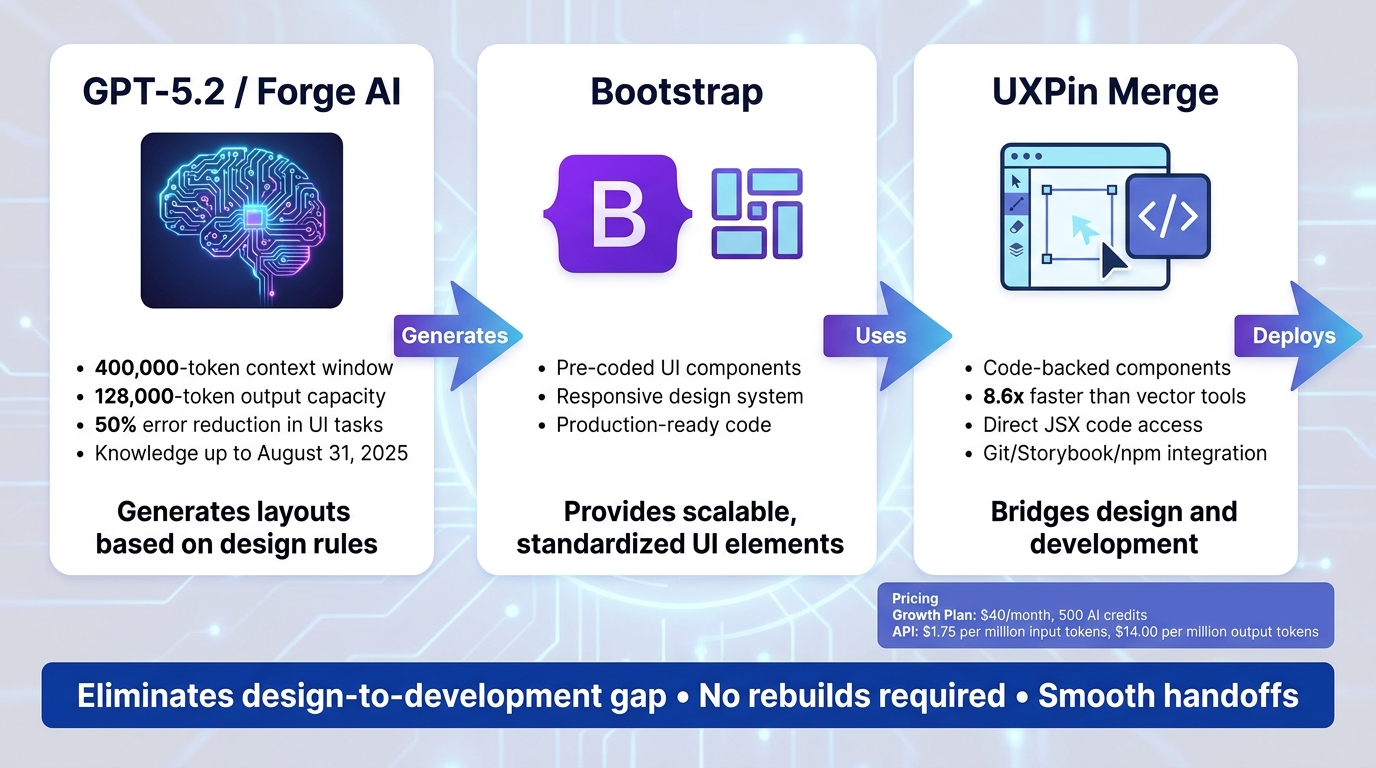
GPT-5.2, Bootstrap, and UXPin Merge Workflow for Production-Ready UX Design
UXPin Merge Tutorial: Intro (1/5)
sbb-itb-f6354c6
What You Need Before Starting
Before diving into building UX designs with GPT-5.2, Bootstrap, and UXPin Merge, there are a few essential steps to get everything set up. Since UXPin already includes Bootstrap, you won’t need to import it unless you’re working with a custom component library. Let’s break it down.
Getting Access to UXPin and Forge AI
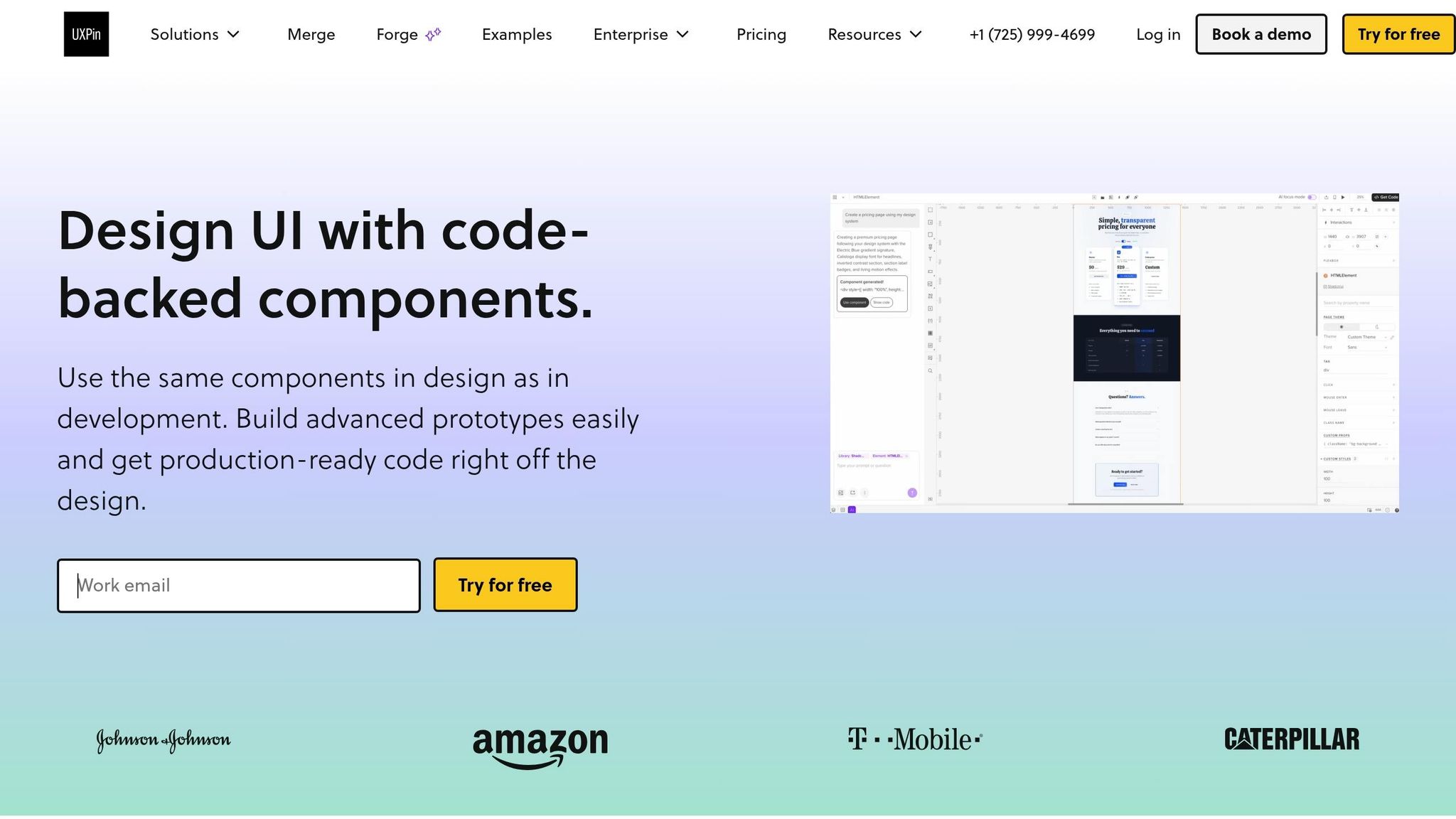
First, you’ll need a UXPin account with Merge capabilities enabled. If you’re on the Growth plan (starting at $40/month), you’ll have access to advanced AI models, 500 AI credits per month, and pre-built coded libraries like Bootstrap. For larger teams, the Enterprise plan offers additional perks, like custom AI credit limits and Git integration for managing custom component libraries.
Forge AI is integrated directly into UXPin, so you won’t need an OpenAI account or API key to use GPT-5.2. Simply start prompting right from the UXPin canvas. If you prefer external use, GPT-5.2 is accessible through OpenAI‘s API or the Codex CLI. Use the following command to get started:
codex -m gpt-5.2 The GPT-5.2 model features a massive 400,000-token context window and a 128,000-token output capacity. This allows it to handle large-scale tasks like processing entire documentation sets or codebases in one go. For API access, pricing is $1.75 per million input tokens and $14.00 per million output tokens for the standard version.
Adding Bootstrap to Your Project
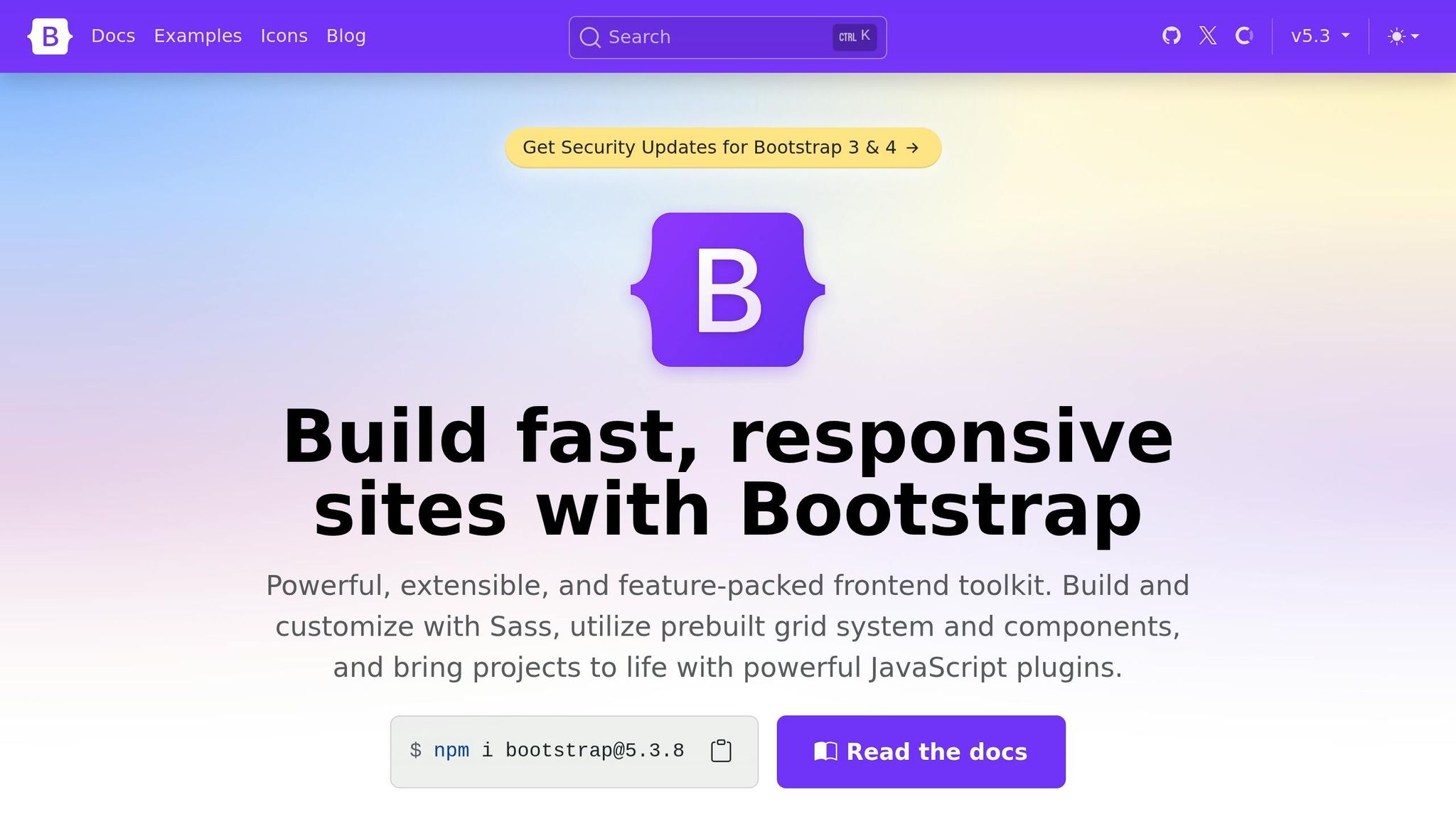
If you’re using UXPin’s native Bootstrap library, you’re good to go – no installation required. But if you’re integrating a custom React Bootstrap library via npm, you’ll need to install both react-bootstrap and bootstrap packages. Afterward, add the path to Bootstrap’s CSS file (bootstrap/dist/css/bootstrap.min.css) in the Merge Component Manager to ensure proper styling for your components.
Once that’s done, configure your component libraries and design tokens to keep your design environment synchronized and consistent.
Working with Component Libraries and Design Tokens
With your account set up and Bootstrap ready, the next step is standardizing components for seamless integration. Component libraries and design tokens play a crucial role in maintaining consistency in UXPin Merge. When using Bootstrap’s pre-built components, you’re designing with the same code that developers will later implement.
The Merge Component Manager is your go-to tool for importing UI elements and mapping their React props to the UXPin Properties Panel. Use lowercase names for React props, import only the properties you need, and then publish your library. After publishing, click "Refresh Library" to update the canvas with the latest changes.
For accurate property mapping, refer to the React Bootstrap API documentation. This ensures that both designers and developers work from a unified source, streamlining collaboration across teams.
How to Connect Bootstrap with UXPin Merge
UXPin Merge comes with Bootstrap already integrated, allowing you to dive straight into designing. The connection happens through the Merge Component Manager, which links Bootstrap’s React props directly to the UXPin Properties Panel. This setup ensures what designers see in UXPin matches what developers will implement in production.
Adding Bootstrap Components to UXPin Canvas
Start by opening UXPin and navigating to the Merge tab. If you’re using the built-in Bootstrap library, just drag components like buttons, navbars, or cards onto your canvas. These components mirror production-ready code, making the handoff process seamless.
For custom libraries, you’ll need to import them through the Merge Component Manager. Choose "Import React Components with npm integration" and include both the react-bootstrap and bootstrap packages. Don’t forget to specify the CSS path bootstrap/dist/css/bootstrap.min.css to ensure the components render properly.
When importing components, stick to the category names used in the React Bootstrap documentation. This consistency helps both designers and developers work from the same reference point. To keep the Properties Panel clean and user-friendly, limit the imported properties and variants to only those you need. Also, use lowercase for property names (e.g., children instead of Children) to align with React conventions and avoid potential syncing issues.
Once your components are configured, click "Publish Changes" in the Component Manager. Then, hit "Refresh Library" on the UXPin canvas to view the updates. These steps ensure your Bootstrap components are fully integrated and ready for detailed customization.
Customizing Bootstrap Components in UXPin Merge
After adding components to your canvas, you can fine-tune them to match your design tokens. Since the imported components are production-ready, any adjustments you make will stay consistent with development standards. Use the Properties Panel to modify components based on your project’s needs.
To override default classes, use the className prop – for instance, replace btn-primary with btn-brand. For broader control, design tokens are incredibly useful. Variables like --primary-color: #007bff ensure consistency across your project while streamlining updates.
The States panel allows you to define interactive behaviors without writing code. You can create component variants in UXPin Merge, tweaking the Bootstrap defaults while keeping the original code intact. By mapping React props according to the Bootstrap API, you ensure smooth communication between design and development teams, making the process efficient and aligned.
Using GPT-5.2 for AI-Driven UX Design in UXPin Merge
With its integration into UXPin Merge, GPT-5.2 takes UX design to a whole new level by generating layouts using production-ready components. This AI-powered tool, known as Forge AI, works directly on the design canvas and ensures that all suggestions are limited to components from your chosen library – whether it’s Bootstrap or a custom system.
In December 2025, UXPin introduced Merge AI 2.0, shifting its focus from static visuals to shippable UI by grounding outputs in real React components. This update brought features like the AI Helper for iterative design refinement and extended support for multiple libraries. Enterprise teams, including those at Amazon, AAA, and T. Rowe Price, began leveraging custom library integration to ensure that their UI strictly adhered to internal design systems and tokens.
Generating Design Ideas with Forge AI
To get started, select your component library using the global library selector in UXPin. When working with Bootstrap, for example, the AI generates layouts exclusively using Bootstrap components that align with production code. This ensures that every design suggestion is ready for development without additional approvals.
The Prompt Library offers pre-built prompts for common design patterns, such as dashboards, sign-up forms, or navigation sections, saving you the time and effort of crafting prompts manually. For proprietary design systems, the Custom Library AI (available in Merge Enterprise) connects directly to your Git repository, allowing GPT-5.2 to access your unique components and design tokens.
Another standout feature is the image-to-layout tool, which analyzes screenshots or sketches and converts them into designs aligned with your component library. This makes it easy to transform rough ideas into polished, on-brand layouts.
Once you’ve generated your initial ideas, you can refine and transform them into UX design patterns for future projects.
Creating Reusable Patterns with AI
GPT-5.2’s 400,000-token context window allows you to input entire design systems, ensuring that the AI-generated patterns remain consistent with your brand’s look and feel. Since the model’s knowledge extends up to August 31, 2025, it incorporates the latest Bootstrap updates and modern web framework practices.
The AI Helper lets you refine designs on the fly. For instance, you can adjust spacing, swap component variants, or tweak layouts without starting from scratch. Simple commands like "make this denser" can fine-tune existing components while preserving their consistency. This iterative process ensures that designs stay cohesive while evolving into reusable patterns.
"AI should create interfaces you can actually ship – not just pretty pictures." – UXPin
To make scaling easier, you can document prompts and transcripts used to create specific UI patterns. This ensures the design logic can be audited or replicated later. When you find a successful pattern – like a card layout or a form structure – you can remix it by reusing previous prompts, ensuring consistency across multiple projects.
For more complex layouts, GPT-5.2’s Thinking mode is a game-changer. It reduces error rates by 50% when understanding software interfaces, making it especially effective for intricate Bootstrap designs that require careful planning of component hierarchies. By enabling this mode, the AI takes extra time to reason about geometry and relationships, producing cleaner, more accurate code for sophisticated designs.
Building, Testing, and Deploying Your UX Designs
Once GPT-5.2 generates consistent layouts, the next step is turning those designs into interactive prototypes. With UXPin Merge, you can work with code-backed components – not just static visuals. This means your Bootstrap prototypes aren’t just images; they’re fully interactive, clickable, and ready for user testing. Since Merge pulls components directly from your production library, what you design is exactly what developers will implement.
Building Prototypes with Production-Ready Components
UXPin Merge bridges the gap between design and code. By adding Bootstrap components to your canvas, you’re using the same React or Web components that exist in production. This guarantees your prototype matches the final product exactly. Unlike traditional design tools, where developers need to recreate everything, Adalo and other no-code builders offer similar benefits for app development, but Merge prototypes come with built-in interactivity – dropdowns open, forms validate, and buttons respond automatically.
You can integrate Bootstrap components into UXPin through Git repositories, Storybook, or npm packages. Once connected, the components behave just like they would in a live environment. This level of functional fidelity speeds up feedback cycles and eliminates the need for complex manual prototyping. After assembling your interactive prototypes, test and refine them to ensure they meet your project goals.
Testing and Refining AI-Generated Designs
Testing layouts generated by AI is simple with UXPin Merge. Use Preview Mode to interact with your designs and ensure their functionality and responsiveness align with your requirements. To check that the code meets development standards, switch to Spec Mode before handing it off. If you need to see how components function in a real development environment, export them directly to StackBlitz from UXPin.
"It works as simple as Google Translator and you don’t need to double-check anything. Your design IS code!" – UXPin
Using Merge libraries is 8.6x faster than traditional vector-based design tools. If you’re missing any UI elements, the AI Component Creator can instantly generate components like FAQ sections or interactive contact forms.
Deploying Production-Ready Designs from UXPin Merge
Once testing confirms everything works as intended, it’s time to deploy. Since your prototypes are built with production-ready components, developers don’t have to recreate anything. They can access the JSX code, dependencies, and functions for each component directly from the prototype’s preview link. This eliminates redundant work and streamlines the handoff process.
"With UXPin Merge, developers can access the actual JSX code, dependencies, and functions for every component in your design." – UXPin
To deploy, simply share the UXPin preview link with your development team. Developers can use Spec Mode to copy the JSX code and paste it directly into the production codebase. Ensure the developer environment includes the required libraries, like Bootstrap, to match the dependencies used in UXPin Merge. For advanced integration, developers can use Copy to StackBlitz to seamlessly move designs into their workflow without extra documentation.
Conclusion
Bringing together GPT-5.2, Bootstrap, and UXPin Merge creates a streamlined workflow where design logic from AI meets production-ready code for developers. GPT-5.2 acts as a smart collaborator, capable of generating intricate design patterns and resolving alignment issues between design tokens and Bootstrap components seamlessly. Bootstrap, with its standardized and scalable UI library, ensures consistent design elements, while UXPin Merge bridges the gap by allowing real code components to be directly manipulated on the canvas. This combination significantly boosts design efficiency.
The results speak for themselves. GPT-5.2 Thinking reduces error rates by nearly 50% in software interface tasks. Its extended context capabilities and enhanced vision ensure it handles modern frameworks with precision.
The real game-changer? It eliminates the traditional design-to-development gap. Since prototypes are built using production-ready Bootstrap components, developers can directly access the code, dependencies, and functions through the preview link. This means no need for rebuilds, no design inconsistencies, and smooth handoffs.
To maximize this workflow, connect your custom Bootstrap library to UXPin Merge via Git repositories, Storybook, or npm packages. Use GPT-5.2 to craft reusable patterns and component logic, then integrate them into your design system. Finally, Forge AI enables you to create layouts exclusively with your approved design components.
This approach accelerates projects from concept to production in days rather than months, ensuring design and development teams stay in sync at every stage. Every design decision transitions smoothly into high-quality, deployable code, keeping your workflow efficient and aligned.
FAQs
How do I keep GPT-5.2 outputs limited to Bootstrap components?
To make sure GPT-5.2 creates only Bootstrap components, you need to craft your prompts with a clear focus on Bootstrap’s UI elements. Be specific about the components you want, such as buttons, modals, or cards, and emphasize adherence to Bootstrap’s structure. Use API parameters to request well-structured, component-specific code outputs.
Additionally, integrate Bootstrap’s CSS and JS files into your project. This ensures that the generated code aligns visually and functionally with the Bootstrap framework. Providing clear, detailed instructions in your prompts will help maintain consistency with Bootstrap’s design and coding standards.
What’s the best way to map React props to UXPin’s Properties Panel?
The easiest way to connect React props to UXPin’s Properties Panel is by leveraging UXPin Merge’s sync features. These tools automatically link the properties from your React components to the Properties Panel, making the process smooth and straightforward. Once you integrate your React components with UXPin Merge, their props will appear in the panel, allowing you to edit them directly. This setup simplifies the design and prototyping workflow, saving time and ensuring everything stays aligned.
How can my devs reuse the exact JSX from a UXPin Merge prototype?
Developers can directly reuse the JSX from a UXPin Merge prototype by leveraging real code components integrated into the platform. UXPin Merge connects with production-ready React components through Git or npm, giving developers seamless access to the same JSX used in prototypes. This approach promotes consistency and simplifies development by ensuring the same components are utilized in both design and code.

