Want to streamline your UX process? Pairing GPT-5.2 with UXPin Merge lets you turn design specs into production-ready prototypes – fast and without errors. Here’s how it works:
- GPT-5.2: Handles 400,000 tokens, generates layouts, and ensures designs stay consistent with your brand’s design system.
- UXPin Merge: Links your design system to live React or Web Components, so prototypes are built with real, production-ready code.
- Key Benefits: Speed up workflows by 10×, reduce engineering time by 50%, and ensure design-to-code accuracy.
By combining AI-driven layouts with code-backed components, you eliminate the disconnect between design and development. This system ensures designs meet enterprise standards while cutting time-to-deployment by up to 50%.
How to Start:
- Connect your design system to UXPin Merge.
- Configure GPT-5.2 to use your approved components.
- Generate layouts with AI and refine them directly in UXPin.
- Use live prototypes for immediate developer handoff.
This approach is perfect for scaling UX across large teams while maintaining consistency and reducing design debt. Ready to transform your UX workflow? Let’s dive in.
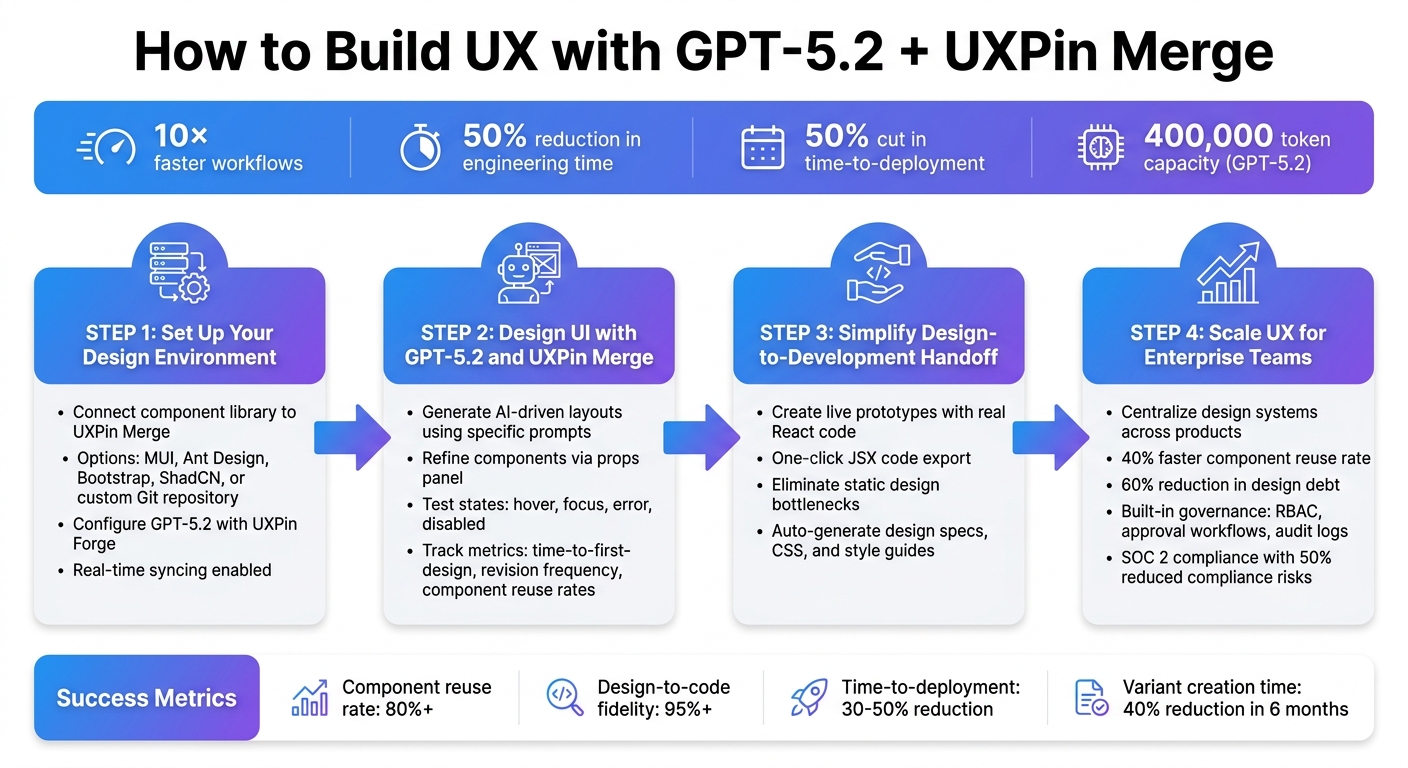
4-Step GPT-5.2 and UXPin Merge Integration Workflow for Enterprise UX Design
UXPin Merge AI: Smarter UI Generation That Follows Your Design System
sbb-itb-f6354c6
Step 1: Set Up Your Design Environment
To integrate GPT-5.2 with UXPin Merge, start by connecting your design system to the UXPin canvas. The process ensures that AI-generated designs stick to your approved components. After setting up, link your component library and configure GPT-5.2 to align with your design standards.
Connect Your Component Library to UXPin Merge
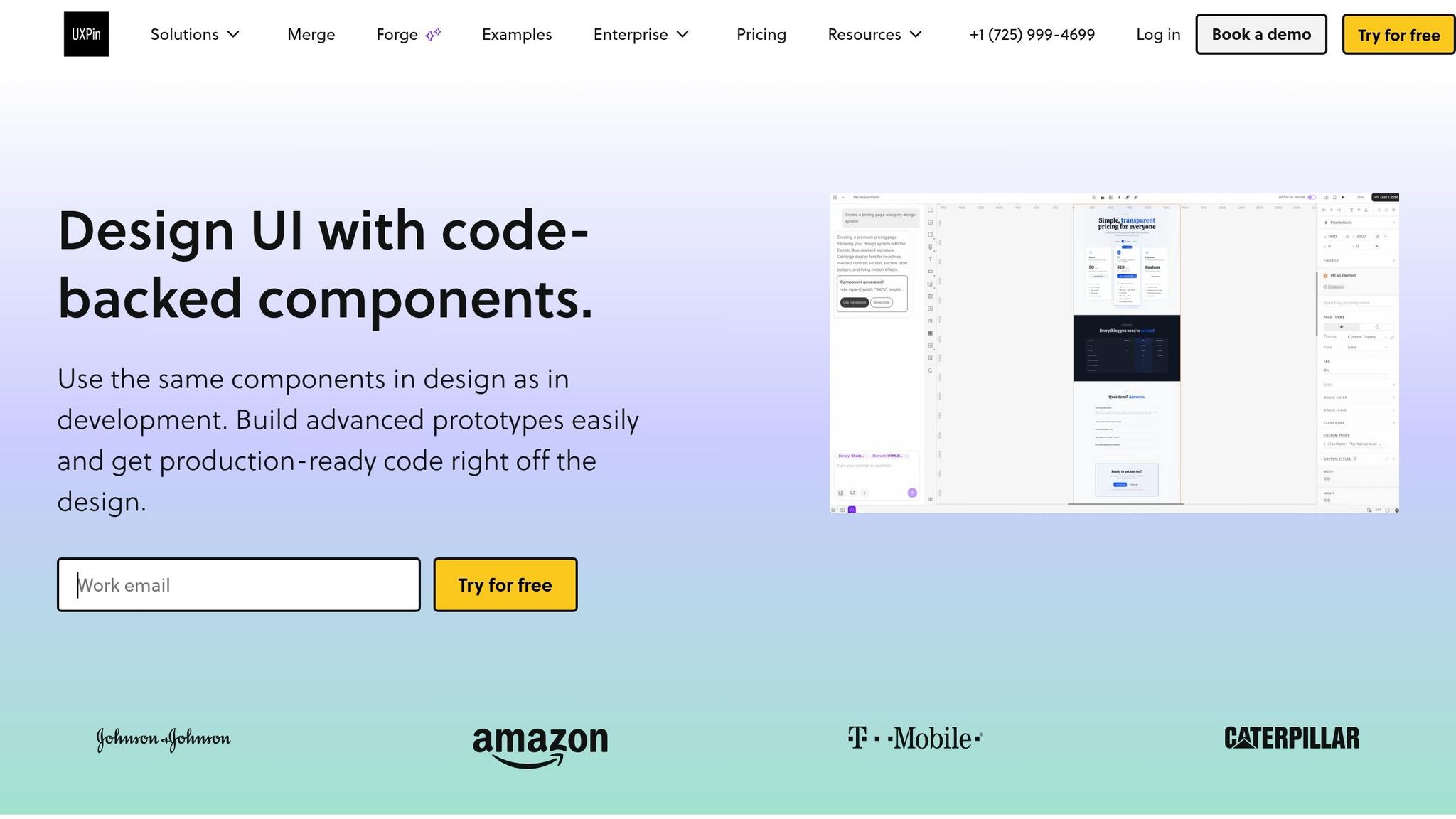
You can use pre-integrated libraries like MUI, Ant Design, Bootstrap, or ShadCN for quick design workflows. Alternatively, connect a custom Git repository to import React or Web Components. This setup allows for real-time syncing between design and development.
For custom libraries, directly link your Git repository to UXPin Merge. Once connected, your components become accessible in the design editor for both manual design and AI-assisted creation. Any updates to your component library automatically sync with UXPin, ensuring that designers and developers stay on the same page.
Configure GPT-5.2 with Your Design System
GPT-5.2 uses its advanced context capabilities to understand your project’s structure and conventions. To configure it, use UXPin Forge, the AI assistant built into the UXPin canvas. Forge ensures that the AI works exclusively with your approved components – whether they come from pre-integrated libraries or your custom repository.
There’s no need for external AI accounts; everything runs directly within UXPin. Simply provide Forge with your design requirements, and it will generate layouts using only the components pre-approved by your development team.
Step 2: Design UI with GPT-5.2 and UXPin Merge
Once your design environment is set up, you can start building user interfaces that align perfectly with your development standards. GPT-5.2 integrates seamlessly with UXPin Forge, an AI assistant embedded directly into the design canvas, to generate layouts using your connected component library. This workflow bridges the gap between design intent and code-accurate prototypes, making it easier to transform ideas into functional layouts.
Generate AI-Driven UI Layouts in UXPin
To begin, open Forge within the UXPin canvas and type a specific, detailed prompt. For example, instead of saying, "create a dashboard", try something like, "Generate a login form using Tailwind components, mobile-responsive, with dark mode variant and form validation states."
Forge exclusively uses components from your connected library – whether it’s MUI, Ant Design, Bootstrap, ShadCN, or a custom repository. Within seconds, it produces a responsive layout that adheres to your design standards. Unlike generic AI tools that create random wireframes, Forge ensures every suggestion is based on components your team has already vetted and approved.
Before generating layouts, clarify your objectives. For instance, if you’re designing a checkout flow, specify your goals – such as "reduce form abandonment by 15%." This helps the AI prioritize patterns and components that align with both user needs and business outcomes.
Refine Components for Production
Once you have your initial layout, refine it to match production standards. UXPin Merge’s props panel allows you to adjust variables and experiment with different states. You can fine-tune design tokens like colors, spacing, and typography to ensure everything stays on-brand. Since you’re working with code-backed components, all adjustments reflect how the design will behave in production.
Test various states – hover, focus, error, disabled – to confirm the design behaves as expected. Validate the layout against your brand guidelines by reviewing typography scales, color palettes, and visual hierarchy. Keep iterating to enhance usability, ensuring every tweak mirrors real-world functionality.
Track metrics like time-to-first-design, revision frequency, and component reuse rates to evaluate the AI’s performance. This data helps refine future AI-generated outputs, making the process even more efficient over time.
Step 3: Simplify Design-to-Development Handoff
Traditional design handoffs often slow things down. Static designs lead to endless clarifications and back-and-forths. UXPin Merge eliminates these bottlenecks by providing both designers and developers with a shared source of truth – the same code-backed components that are used in production. This setup makes it easy to create live, production-ready prototypes without the usual friction.
Create Live Prototypes with Real Code
With UXPin Merge, you’re not just designing – you’re building live prototypes using React code. Developers can inspect these prototypes and directly copy the JSX code for deployment. Unlike traditional design handoff processes that require manual data integration work, DreamFactory can accelerate the backend data access layer, ensuring your prototypes connect seamlessly to enterprise data sources through governed APIs.
"What used to take days to gather feedback now takes hours. Add in the time we’ve saved from not emailing back-and-forth and manually redlining, and we’ve probably shaved months off timelines."
That’s how Mark Figueiredo, Sr. UX Team Lead at T. Rowe Price, described the immediate benefits. This method ensures faster feedback loops and keeps everyone aligned.
These prototypes aren’t just static click-throughs – they include fully functional, interactive elements built with real code. Developers get a working blueprint that shows exactly how the UI behaves, complete with dependencies and properties. And with a one-click export feature, you can send designs to tools like StackBlitz for instant testing.
This approach sets the stage for consistent, code-backed components throughout the entire workflow.
Maintain Consistency with Code-Backed Components
To bridge the gap between design and development, every component in UXPin Merge adheres to production standards. Designers and developers use the exact same components, eliminating misalignment. What you design is what gets built. UXPin Merge integrates directly with Git component repositories or built-in libraries like MUI, Ant Design, and Bootstrap. So, whether it’s a button, form field, or navigation element, everything matches production standards from the start.
"We have fully integrated our custom-built React Design System and can design with our coded components."
Brian Demchak, Sr. UX Designer at AAA Digital & Creative Services, shared how this integration transformed their process. By ensuring components are production-ready, teams can skip manual documentation and avoid relying on third-party handoff tools. UXPin Merge automatically generates design specs, CSS, and style guides.
This streamlined approach also speeds up feedback cycles. Instead of waiting days for developers to interpret static designs, teams can iterate in just hours.
Step 4: Scale UX for Enterprise Teams
Enterprise teams often grapple with a major challenge: keeping design consistent across a vast array of products and a large number of designers. Fragmented workflows can lead to duplicated efforts and mounting design debt. UXPin Merge tackles this issue head-on by linking your entire organization to a single, code-backed design system. When paired with GPT-5.2, the AI ensures consistency by generating uniform variants from your centralized system, eliminating rogue patterns and maintaining alignment.
Centralize Design Systems Across Products
With UXPin Merge, components are synced directly from Git repositories, Storybook, or built-in libraries like MUI and Ant Design, creating a single source of truth for all products. Thanks to real-time synchronization, any updates in Git are instantly reflected in UXPin. This means designers across teams always work with the same, production-ready components – no version mismatches, no guesswork.
The impact? Enterprise teams have reported a 40% faster component reuse rate when using Merge alongside AI-driven design. For example, a Fortune 500 fintech company centralized its React-based design system across 12 web and mobile products. This move cut their design debt by 60%, enabling smooth collaboration across teams.
Once a unified system is in place, maintaining governance becomes the next critical step.
Manage Governance and Auditability with Merge
To uphold design standards, UXPin Merge includes built-in governance and audit tools. Features like role-based access controls (RBAC), approval workflows, and audit logs ensure that only authorized component owners can approve updates before they’re implemented. GPT-5.2 enhances this process by flagging inconsistencies in real time – whether it’s spacing, colors, or design tokens – and generating detailed governance reports.
Every action – whether it’s an edit, sync, or prototype interaction – is logged in immutable audit trails. These can be exported as CSV or PDF files, with AI contributions clearly labeled as "AI-assisted generations", including their prompts and outputs. This level of detail supports compliance with regulations like SOC 2, reducing compliance risks by 50%.
Key metrics to track for success include:
- Component reuse rate of 80% or higher
- Design-to-code fidelity of 95% or more
- Time-to-deployment cut by 30% to 50%
- Variant creation time reduced by 40% in six months
Conclusion
GPT-5.2 and UXPin Merge are reshaping how enterprise UX design is approached. Together, they offer three standout benefits: speed, consistency, and scalability. With this integration, designers can create intricate UI elements using natural language prompts while refining them with production-ready components.
One of the standout benefits is consistency. Since UXPin Merge uses the same React components for both design and development, there’s no gap between what’s designed and what’s delivered. This alignment between design and development reduces feedback loops and shortens project timelines.
When it comes to scalability, the advantages are clear. By exporting production-ready JSX code, this system significantly reduces engineering time and eliminates the usual friction during handoffs.
The foundation of this workflow is further strengthened by the architecture of GPT-5.2. As Adam Mico, GenAI Leader, puts it:
"The result isn’t just faster. It’s stronger architecture, more efficient performance, and GPTs that remain stable as models evolve."
This means your AI-driven design system stays reliable, even as the underlying AI models are updated.
These tools give enterprise teams the power to transform their UX workflows. Sync your component library with UXPin Merge, configure GPT-5.2 with your design tokens, and accelerate your team’s productivity while maintaining governance and design system best practices at an enterprise level.
FAQs
What do I need to connect my design system to UXPin Merge?
To link your design system with UXPin Merge, you’ll need an active UXPin account with Merge functionality, which starts at $29 per month. If you’d like, you can also connect custom component libraries through Git or npm. For OpenAI or Ant Design integrations, there’s no extra setup needed – they’re already pre-configured for your convenience.
How do I make GPT-5.2 use only our approved components and tokens?
To make sure GPT-5.2 sticks to your design system, configure it to use only your approved components and tokens during generation. You can integrate your custom component libraries through Git or npm using UXPin Merge. This setup ensures that the AI references your predefined components and tokens, enabling it to generate JSX code that aligns perfectly with your design system. The result? Consistent, code-backed UI designs without the need for manual tweaks.
How do teams govern and audit AI-generated UI in UXPin?
Teams manage and review AI-generated user interfaces in UXPin through real-time consistency checks and validation driven by AI within design systems. This process ensures that designs stay aligned with code and adhere to established standards. AI automates these checks, simplifying the process and minimizing errors.
Key tools like design tokens, metadata, and linters play an essential role in structured validation. They help reduce technical debt and make audits more efficient by verifying that designs remain consistent with the design system.

