How to Use ChatGPT for UI Design: AI Component Generation in 2026
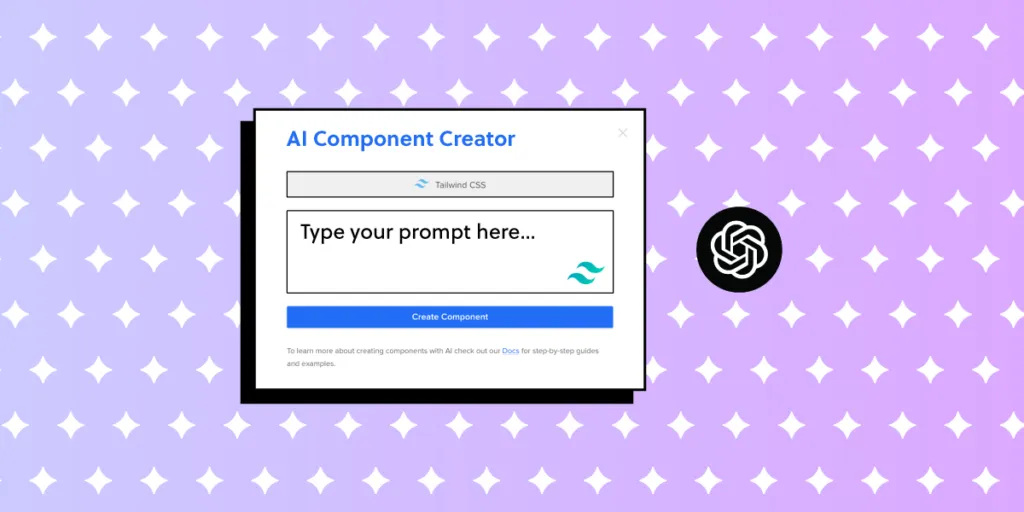
ChatGPT has become a go-to AI assistant for designers — from brainstorming layouts and writing UX copy to generating quick code snippets. But when it comes to UI design, generic AI output often falls short. The components it produces are disconnected from your production design system, which means extra rework to make them usable.
That’s where purpose-built AI design tools change the picture. UXPin Forge takes AI-powered UI generation a step further: it creates, edits, and iterates using real React components from your production codebase — not generic pixels or one-off HTML. The output is exportable as production-ready JSX, so there’s no handoff gap between design and development.
In this guide, you’ll learn how designers use ChatGPT for UI work, where it hits its limits, and how Forge bridges the gap between AI convenience and production-quality output. Try UXPin for free to explore AI-assisted design with real components.
What Is ChatGPT?
ChatGPT is a large language model developed by OpenAI. It generates human-like text responses based on prompts and can handle tasks ranging from answering questions and writing code to summarizing documents and generating creative content.
Since its initial release, OpenAI has iterated rapidly — from GPT-3.5 through GPT-4o and beyond. Each generation has improved contextual understanding, code generation accuracy, and multimodal capabilities (including image interpretation). For UI designers, this means ChatGPT can now reason about layouts, suggest component structures, and even produce working code snippets when prompted correctly.
That said, ChatGPT is a general-purpose model. It doesn’t have access to your design system, brand guidelines, or component library — which is a critical limitation when designing production interfaces.
How Designers Use ChatGPT for UI Design
Despite its limitations, ChatGPT is a useful companion for several stages of the UI design workflow:
1. Generating Layout Ideas
You can prompt ChatGPT with descriptions like “Suggest a layout for a SaaS pricing page with three tiers, feature comparison, and a FAQ section” and receive detailed layout recommendations, including HTML/CSS structure.
2. Writing UX Copy and Microcopy
ChatGPT excels at producing button labels, error messages, onboarding copy, and placeholder text. Feed it context about your audience and tone, and it delivers usable drafts quickly.
3. Generating Code Snippets
Ask ChatGPT to create React, HTML, or Tailwind CSS components and it will return working code. For example: “Create a responsive card component with an image, title, description, and CTA button using Tailwind CSS.”
4. Accessibility Auditing
Paste your component markup into ChatGPT and ask it to identify accessibility issues — missing ARIA labels, insufficient color contrast ratios, or keyboard navigation gaps.
5. Brainstorming Design Patterns
Describe your use case and ChatGPT can suggest established UI patterns — whether you need a data table with inline editing, a multi-step wizard, or a dashboard layout for analytics.
Keep in mind that AI-generated content suggestions, including copy within those patterns, should be reviewed carefully. An AI detector can help you quickly identify and refine any text that reads as machine-generated before it reaches your users.
For more on effective prompting, read Prompt Engineering for UX/UI Designers.
Limitations of Using ChatGPT Alone for UI Design
While ChatGPT is helpful for ideation and code generation, there are significant gaps when it comes to real production UI work:
- No design system awareness — ChatGPT generates generic components. It doesn’t know your company’s button styles, spacing tokens, or brand colors unless you paste them into every prompt.
- Inconsistent output — Each generation is a fresh start. You can’t guarantee that two prompts will produce visually or structurally consistent results.
- No visual canvas — ChatGPT works in text. You can’t see, arrange, or interact with the UI elements it creates without copying the code into another tool.
- No iteration in context — If you want to modify one element in a generated component, you typically need to regenerate the whole thing or manually edit code.
- Output isn’t production-ready — The code ChatGPT produces rarely maps to your team’s actual component library, so developers must rewrite it before shipping.
This is precisely the problem that UXPin Forge was built to solve.
UXPin Forge: AI That Uses Your Real Components
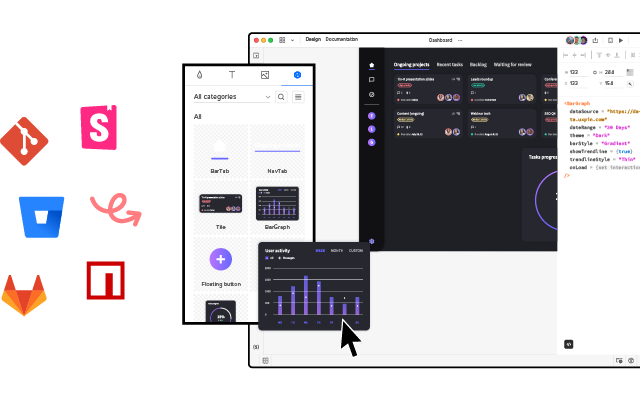
Forge is UXPin’s AI design assistant. Unlike ChatGPT, Forge generates, edits, and iterates using real React components from your production design system — the same components your developers use in code.
Here’s what makes Forge different:
- Constrained to your design system — Every element Forge produces comes from your actual component library, so output is always on-brand and consistent.
- Visual + conversational — You see the result on a real design canvas and can refine it through conversational prompts (“make the header sticky,” “swap the primary button for a ghost variant”) without regenerating from scratch.
- Multiple input methods — Generate from text prompts, upload a screenshot or wireframe sketch, or paste a URL and let Forge convert it into a component-based layout.
- Production JSX output — The result is exportable JSX that maps directly to your codebase. No handoff translation required.
- Design System Guidelines — Brand rules are enforced across all AI output automatically, so Forge can’t accidentally break your design standards.
Enterprise teams like PayPal use UXPin to support 60+ products with a 5-person UX team and over 1,000 developers — proof that this component-driven approach scales.
How to Generate UI Components with Forge
Here’s a quick walkthrough of generating UI with Forge inside UXPin:
Step 1: Open Forge in the Editor
Launch UXPin and open any project that uses Merge (code-backed components). Click the Forge icon in the toolbar to open the AI assistant panel.
Step 2: Describe What You Need
Type a natural-language prompt describing the component or layout. For example:
- “Create a pricing table with three tiers: Free, Pro at $29/mo, and Enterprise with a ‘Contact sales’ button. Highlight Pro as recommended.”
- “Build a contact form with name, email, message textarea, and a primary submit button.”
- “Generate a user profile card with avatar, name, role, and action buttons for Edit and Delete.”
Forge interprets the request and assembles the layout using your design system’s real components — buttons, inputs, cards, typography, and spacing tokens that match your production code.
Step 3: Refine Conversationally
Not perfect on the first pass? Tell Forge what to change: “Make the CTA button larger” or “Add a secondary action link below the form.” Forge modifies the existing layout in place — no full regeneration needed.
Step 4: Export Production JSX
Once you’re satisfied, export the result as clean JSX that maps directly to your component library. Hand it to your developers — or use it yourself if you’re working in code.
With Forge and Merge, teams have reported 8.6x faster design-to-prototype cycles and up to 50% reduction in engineering time for enterprise customers. Try UXPin for free to see the difference.
Best Practices for AI-Assisted UI Design
Whether you’re using ChatGPT, Forge, or both, these practices will help you get better results:
- Be specific in your prompts — Include details about layout structure, content, color requirements, and responsive behavior. Vague prompts produce vague results.
- Provide context — Mention the platform (web, mobile), the target audience, and any constraints like accessibility requirements or brand guidelines.
- Use AI for the first 80%, design the last 20% — AI gets you to a solid starting point fast. Use professional design tools to fine-tune spacing, visual hierarchy, and interaction details.
- Always validate with real users — AI-generated UIs still need usability testing. Build interactive prototypes and test them before committing to development.
- Keep your design system as the source of truth — Tools like Forge constrain AI to your component library, ensuring consistency. If you’re using ChatGPT, always cross-reference its output against your design system documentation.
Frequently Asked Questions
Can ChatGPT design a user interface?
ChatGPT can suggest layouts, generate HTML/CSS/React code for UI components, and help with UX copywriting. However, it can’t produce visual designs on a canvas or output components tied to your production design system. For that, you need a purpose-built tool like UXPin Forge.
What is the best AI tool for UI design?
The best AI tool depends on your needs. ChatGPT is great for brainstorming and code snippets. For production-quality UI generation using your real component library, UXPin Forge is purpose-built — it generates, edits, and exports production-ready JSX from your actual design system.
How is UXPin Forge different from ChatGPT for UI work?
ChatGPT generates generic code without awareness of your design system. Forge is constrained to your production React components, produces output on a visual canvas, supports conversational refinement without full regeneration, and exports clean JSX — eliminating the gap between design and development.
Can I use ChatGPT to generate React components?
Yes, ChatGPT can generate React component code from text prompts. However, the output uses generic markup and styling rather than your team’s actual component library. You’ll need to manually remap it to your design system. With UXPin Merge and Forge, the components are your production components from the start.
Is AI replacing UI designers?
No. AI accelerates the design process — handling the repetitive 80% of layout assembly and component arrangement. But the strategic decisions, user research, interaction design nuance, and visual polish that define great products still require human designers. AI is a force multiplier, not a replacement.
What prompts work best for generating UI components with AI?
Effective prompts include: the component type (e.g., “pricing table”), specific content (tier names, prices), layout details (number of columns, alignment), styling constraints (brand colors, spacing), and functional requirements (responsive behavior, accessibility). The more specific you are, the better the output.