Advanced Search UX: Best Practices, Powerful Examples & Design Tips (2026)

Where basic search returns a flat list of results, advanced search gives users the tools to refine, filter, and zero in on exactly what they need. When done well, it transforms a frustrating needle-in-a-haystack experience into one that feels fast, precise, and empowering.
Advanced search is especially critical for products with large content sets — eCommerce catalogs, SaaS platforms, knowledge bases, and enterprise applications. According to Nielsen Norman Group research, users who successfully apply search filters are significantly more likely to find what they need and feel satisfied with the experience.
In this guide, you will learn what advanced search UX is, its key UI components, how AI is reshaping search in 2026, common pitfalls to avoid, and real-world examples from leading products. We also cover how to prototype and test advanced search patterns effectively.
What Is Advanced Search?
Advanced search is a feature that allows users to narrow results using specific parameters — filters, facets, date ranges, Boolean operators, or category selectors — rather than relying on a single keyword box. In eCommerce, a connected ecommerce ecosystem can align product data and storefront systems to support search and faceted navigation across large catalogs. It is widely used in eCommerce (filtering by size, color, price), enterprise tools (filtering by status, assignee, date), and content-heavy platforms (filtering by type, topic, author).
The core purpose is to reduce information overload and help users reach their goal faster. The more content a product contains, the more important advanced search becomes.
How Advanced Search UX Impacts User Behavior
Advanced search directly influences engagement, satisfaction, and conversion:
- Efficiency: Users who can filter results find items faster, reducing time-on-task and frustration.
- Perceived control: Giving users refinement tools makes them feel empowered rather than lost.
- Conversion: In eCommerce, users who use filters convert at significantly higher rates than those who browse unfiltered catalogs.
- Retention: A satisfying search experience builds habits — users return to platforms where they know they can find things quickly.
Key UI Elements of Advanced Search

Search Bar Design and Placement
The search input field should be prominent, wide enough for typical queries, and placed where users expect it — typically the top of the page or within a persistent header. Include a clear search icon, placeholder text hinting at what users can search for, and a visible submit button or keyboard shortcut.
Predictive Search and Auto-Complete
As users type, auto-complete suggestions appear in real time, accelerating the search process and reducing spelling errors. The best implementations show a mix of query completions, category shortcuts, and even product previews (in eCommerce). Sophisticated systems use NLP to handle typos and synonyms gracefully.
Filters and Faceted Search
While often used interchangeably, filters and facets serve slightly different purposes:
- Filters apply broad categories — date ranges, content types, price bands.
- Facets are more granular, multi-dimensional attributes — size, color, brand, material — that users combine to progressively narrow results.
Both are essential for products with large, attribute-rich datasets. Display active filters clearly so users know what is currently applied and can remove individual filters easily.
Handling “No Results” Scenarios
No search system is perfect. When a query returns zero results, your empty state should:
- Clearly state that no matches were found.
- Suggest spelling corrections or alternative queries.
- Offer links to popular or related content.
- Provide an option to broaden the search or clear filters.
The goal is to keep users engaged and exploring, not staring at a dead end.
Leveraging Device Context
Location data, language preferences, and browsing history can make search results more relevant and personalized. A food delivery app surfacing nearby restaurants or a travel site defaulting to the user’s home airport are examples of contextual search done well.
The Role of AI and Machine Learning in Advanced Search

In 2026, AI is no longer a “nice to have” for search — it is the expectation. Modern search systems leverage:
- Natural Language Processing (NLP): Understands conversational queries, synonyms, and intent — not just keywords.
- Semantic search: Matches meaning rather than exact terms, returning relevant results even when the wording differs from the indexed content.
- Personalized ranking: Uses past behavior to surface the most relevant results for each individual user.
- Visual search: Lets users upload an image to find similar products — increasingly common in fashion and home décor.
- Conversational search: Chat-based interfaces that let users refine results through a dialogue rather than static filters.
Google’s search engine, Amazon’s product search, and Spotify’s recommendation engine all rely heavily on these techniques. For your own products, integrating these capabilities starts with clean data architecture and thoughtful UI design. Enterprise applications can leverage DreamFactory, a self-hosted platform providing governed API access to any data source, to power intelligent search on top of diverse backend systems and on-prem LLMs.
Common Advanced Search Pitfalls (and How to Avoid Them)

- Overcomplicated filter UI: Too many options overwhelm users. Keep filters relevant to the current context and conduct user testing to identify which filters matter most.
- Hidden search features: If users can’t find advanced search, they won’t use it. Make it discoverable — a visible “Filters” button or expandable panel.
- Poor auto-complete: Irrelevant or lagging suggestions erode trust. Invest in NLP-driven auto-complete with typo tolerance.
- Ignoring natural language queries: Users increasingly phrase searches conversationally. If your system only supports exact-match keywords, consider NLP or semantic matching.
- Unhelpful “no results” state: A blank page with “No results found” is a dead end. Always offer alternative paths.
- No filter feedback: Users need to see how many results remain after applying each filter and be able to remove filters individually.
- Mobile neglect: Advanced search must be fully functional on mobile. Design with responsive behavior and touch-friendly controls.
5 Examples of Excellent Advanced Search UX
Airbnb

Airbnb’s filter panel is a masterclass in managing complexity. Despite offering dozens of refinement options — property type, price range, number of bedrooms, amenities, accessibility features — the UI remains clean and intuitive. Checkboxes, sliders, toggle chips, and clear category groupings help users narrow millions of listings to a manageable shortlist in seconds.

Instagram combines predictive search with tab-based categorization — For You, Accounts, Audio, Tags, and Places. This lets users switch context quickly and explore results through different lenses without retyping their query.
GitHub

GitHub serves a highly technical audience that expects precision. Its search syntax lets developers query by language, file path, repository owner, and more — while a sidebar of clickable filters provides the same power for users who prefer a visual approach.
Zalando
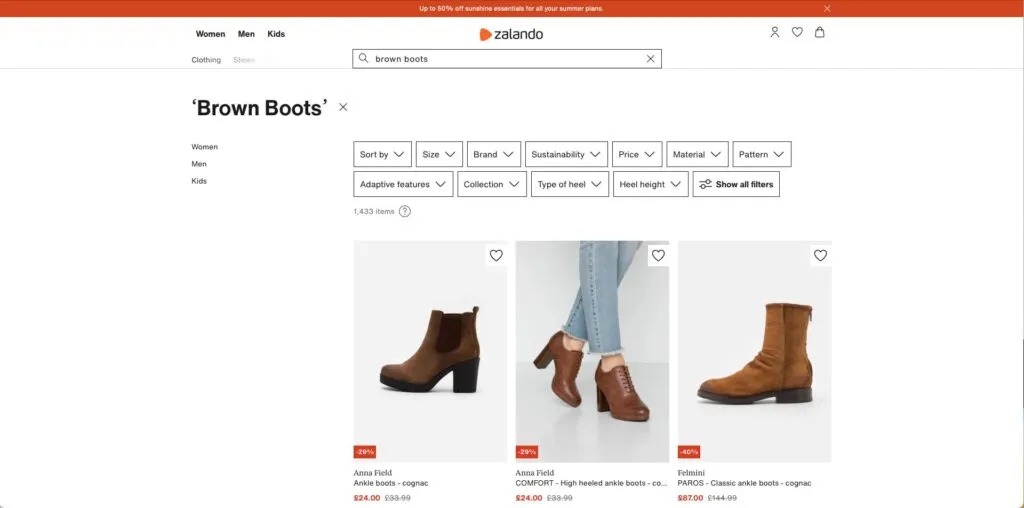
Zalando’s fashion marketplace uses predictive search alongside comprehensive faceted navigation — size, brand, color, price, material, and more. The result count updates in real time as users adjust filters, giving immediate feedback on how each filter narrows the catalog.
Amazon
Amazon’s search stands out for its adaptive filters. Search for “brown boots” and you see boot-specific facets (shaft height, heel type, outer material). Search for “wireless headphones” and the facets change entirely (connectivity, driver size, noise cancellation). This context-aware filtering helps shoppers navigate Amazon’s enormous catalog with surprising efficiency.
Prototyping and Testing Advanced Search in UXPin
User testing is non-negotiable for search design. But traditional design tools cannot replicate search behavior — you can’t simulate auto-complete, dynamic filtering, or result updates with static frames.
UXPin solves this. Its code-based engine lets designers build search prototypes that behave like the real thing:
- Variables capture user input from the search field and pass it to other components.
- Conditional Interactions show or hide results based on filter selections.
- Expressions calculate result counts and validate inputs.
- API connections can pull live data to create dynamic prototype experiences using real content.
With UXPin Merge, you can prototype search using your production React components — the same text inputs, filter chips, and result cards your developers will ship. This means usability testing results translate directly to the production experience, with no surprises at handoff.
Need to generate a search interface quickly? UXPin Forge can produce a complete search layout — including filter panels and result grids — from a text description, using your design system’s actual components.
Sign up for a free trial to start prototyping advanced search experiences that look and feel like the final product.
Frequently Asked Questions about Advanced Search UX
What is advanced search UX?
Advanced search UX refers to the design patterns and interactions that let users refine search queries beyond a basic keyword box. It includes filters, faceted navigation, auto-complete, sorting options, and contextual suggestions — all designed to help users find exactly what they need with minimal effort.
What is the difference between filters and faceted search?
Filters apply broad categories (e.g., date range, content type). Facets are more granular, multi-dimensional attributes often used in eCommerce (e.g., size, color, brand, material). Faceted search lets users combine multiple facets simultaneously to narrow results progressively.
How does AI improve advanced search?
AI enhances advanced search through natural language processing (understanding conversational queries), personalized ranking (surfacing results based on user behavior), semantic search (matching intent rather than exact keywords), and intelligent auto-complete that predicts user needs before they finish typing.
What should a “no results” page include?
A good “no results” page should include a clear message, spelling correction suggestions, links to popular or related content, an option to broaden the search or remove filters, and possibly a way to contact support. The goal is to keep users engaged.
How do I prototype advanced search interactions?
Use a code-based prototyping tool like UXPin that supports Variables, Conditional Interactions, and API connections. This lets you simulate real search behavior — auto-complete, dynamic filtering, and results updates — producing reliable usability testing insights before development.
What are common advanced search UX mistakes?
Common mistakes include overcomplicating the filter UI, hiding the advanced search feature, providing poor auto-complete suggestions, ignoring natural language queries, displaying unhelpful “no results” pages, and failing to optimize search for mobile devices.