Want to design faster and with fewer errors? Combine GPT-5 Mini, shadcn/ui, and UXPin Merge to simplify your workflow. These tools help you skip repetitive tasks like converting mockups to code or fixing design inconsistencies. Here’s how they work together:
- GPT-5 Mini: Use natural language to create layouts via Forge AI.
- shadcn/ui: Drag-and-drop React components styled with Tailwind CSS.
- UXPin Merge: Design with live, code-ready components – no handoffs needed.
This setup eliminates delays, ensures consistency, and reduces prototyping time by up to 70%. With plans starting at $29/month, you can start building production-ready designs today.
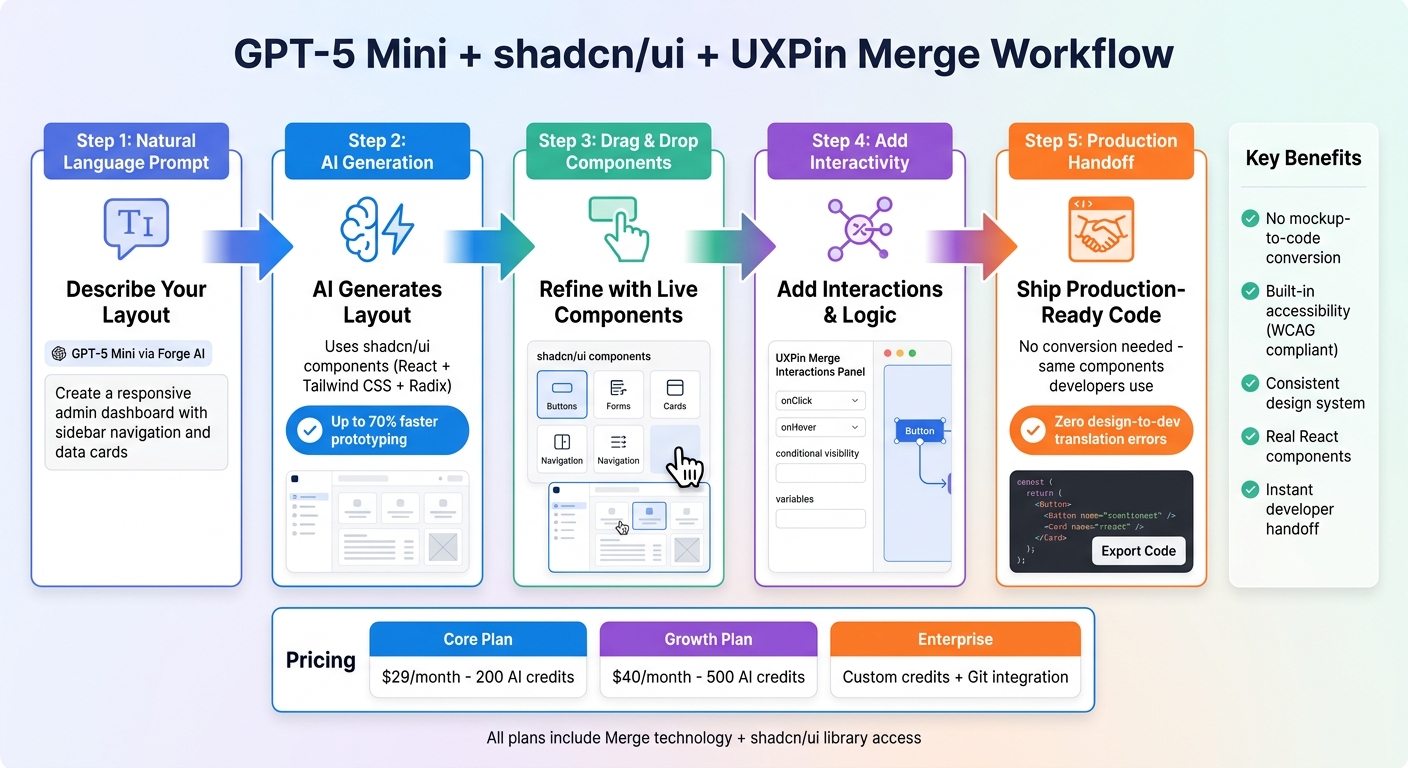
GPT-5 Mini + shadcn/ui + UXPin Merge Workflow: From Prompt to Production
Prerequisites and Setup
What You Need to Get Started
To follow along with this guide, you’ll need a UXPin account that includes Merge access. The good news? UXPin already integrates shadcn/ui components and GPT-5 Mini via Forge AI, so there’s no need for any external setup. Everything runs seamlessly within UXPin’s canvas, and no additional subscriptions are required.
Here’s a breakdown of UXPin’s plans:
- The Core plan ($29/month) includes basic AI models, 200 AI credits, and built-in libraries like shadcn/ui.
- The Growth plan ($40/month) offers advanced AI models and 500 AI credits each month.
- Enterprise customers benefit from custom AI credit limits, personalized onboarding, and the ability to integrate their own component libraries.
All plans come with Merge technology, giving you instant access to production-ready components. While prior knowledge of UX principles and component-based design isn’t mandatory, it can definitely help you make the most of this setup.
Accessing shadcn/ui Components in UXPin Merge
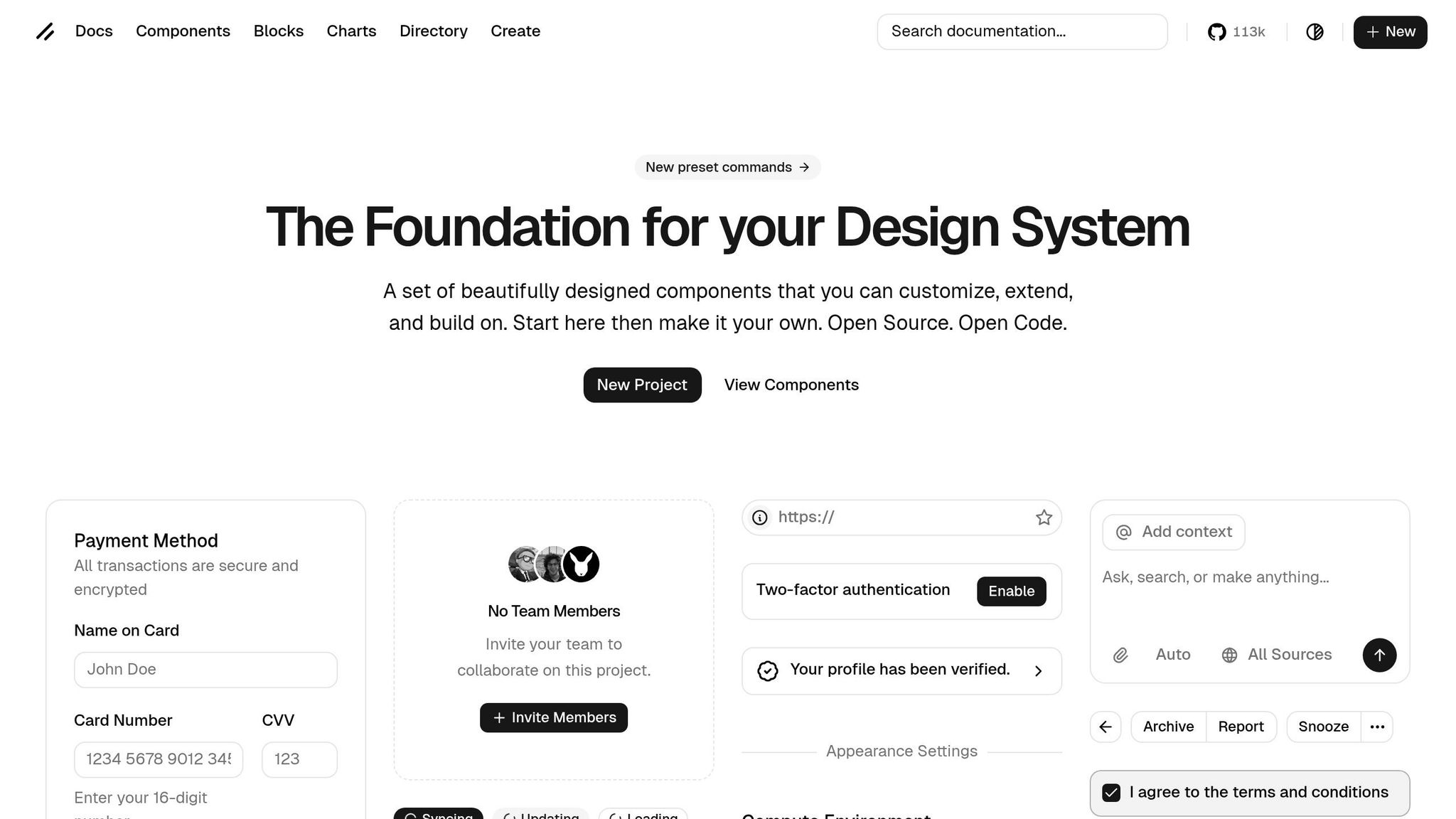
Once you’re logged into UXPin, you can access shadcn/ui components directly from the built-in library panel in the canvas. These include a variety of React components like buttons, forms, cards, and navigation elements – all ready to drag and drop, no extra configuration required.
If your team uses a custom component library, you can connect it through UXPin’s Git integration (available on Enterprise plans). This ensures your designs match the exact components your developers are using, creating a smooth handoff from design to production.
For those collaborating with developers or referencing external tools, note that the current shadcn CLI command is npx shadcn@latest init -y. Avoid using the now-deprecated shadcn-ui package. While this doesn’t impact your work in UXPin (where everything is pre-integrated), it’s important if developers are setting up local environments.
With your components ready, you’re all set to dive into building layouts and refining designs using GPT-5 Mini and Forge AI!
sbb-itb-f6354c6
Building UX with GPT-5 Mini and shadcn/ui
Creating shadcn/ui Layouts with Forge AI
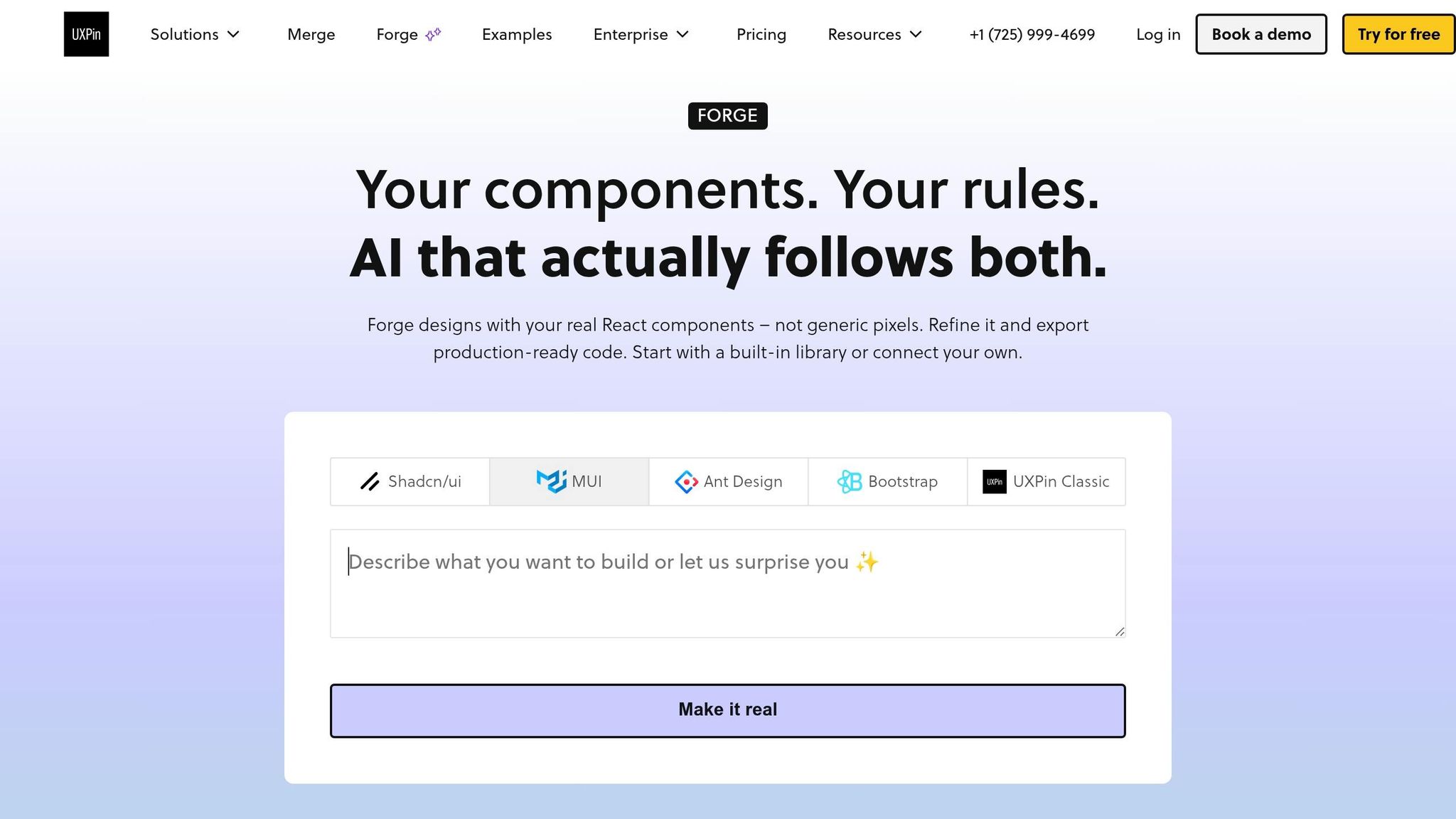
With your shadcn/ui setup ready, you can use Forge AI to transform plain language prompts into custom layouts. This tool simplifies the process of building layouts using shadcn/ui components. To get started, click the Forge AI icon in the top toolbar, which opens a prompt window. Here, you can describe your desired layout in everyday language, and Forge AI will generate it using shadcn/ui components styled with Tailwind CSS and built on Radix primitives.
For better results, provide detailed prompts. For instance, you could say:
- "Generate a responsive admin dashboard using shadcn/ui components: header with search bar, sidebar navigation, and 3-column grid of data cards with charts – optimized for desktop and tablet."
- "Create a user signup form with shadcn/ui input fields, buttons, labels, and validation states, fully responsive with Tailwind sm/md/lg breakpoints."
- "Build a product listing page with shadcn/ui grid of product cards (image, title, price in USD, add-to-cart button), infinite scroll hint, and filters sidebar."
Adding specifics like "include Radix for accessibility" or "support dark mode" ensures Forge AI delivers layouts that are closer to production-ready standards.
Once your layout is generated, preview it across desktop, tablet, and mobile views to confirm it adapts properly. According to UXPin case studies, integrating AI into prototyping workflows can cut design time by up to 70%, making this approach especially useful for teams working on tight schedules.
Editing and Refining AI-Generated Components
After Forge AI creates your layout, you’ll likely want to fine-tune it. Use the Styles panel to modify Tailwind classes. For example:
- Add
p-4 md:p-8to adjust padding across breakpoints. - Use
w-full sm:w-1/2 lg:w-1/3 grid-cols-1 md:grid-cols-3to create responsive grids that stack on smaller devices and expand on larger screens.
You can also tweak component variants in the Props panel. For example, shadcn/ui buttons come with variants like default, destructive, and outline – ideal for tailoring actions to specific contexts. For accessibility, edit Radix props to ensure proper keyboard navigation and ARIA labels. Adding Tailwind classes like focus:ring-2 ring-blue-500 can help you meet WCAG compliance by creating visible focus states.
To test your updates, switch between device previews (e.g., iPhone, iPad, desktop) and resize the canvas to verify responsiveness. UXPin’s built-in accessibility checker can identify issues like low contrast or missing ARIA attributes, helping you reach 95% AA compliance. If needed, you can use Version History to undo changes and revert to earlier iterations. This iterative refinement process ensures your layouts are visually polished and fully functional before design handoff.
From here, you can start adding interactivity to finalize your prototype for production.
Adding Interactivity and Preparing for Deployment
Adding Interactions to shadcn/ui Prototypes
Once your layouts are polished, it’s time to make them interactive. With UXPin Merge, you can add conditional logic, variables, and expressions to transform static shadcn/ui designs into fully functional prototypes. To get started, select a component and open the Interactions panel. From there, you can define triggers like onClick, onHover, or onChange, and assign actions such as navigating to a new screen, showing or hiding elements, or updating variable values.
For example, you can create a multi-step form where clicking the "Next" button reveals the following section while saving user input. You can also use conditional visibility to show error messages only when validation fails or to display different content based on user roles. Since shadcn/ui components are built on Radix primitives, all interactions include proper keyboard navigation and ARIA attributes, ensuring your prototype is accessible from the start.
Once the interactions are in place, you can hand off these production-ready designs directly to your developers.
Handing Off Production-Ready Designs
With interactive prototypes complete, UXPin Merge simplifies the process of moving from design to production. Traditional handoff methods are no longer necessary. Because your prototypes are built using the same shadcn/ui components that developers will use in production, they can inspect the designs and view the exact Tailwind classes, Radix props, and component variants applied. Developers can even copy these specifications directly from the Spec panel, where all styling and configuration details are displayed in a developer-friendly format.
Before deploying any AI-generated code, it’s crucial to verify the package. Run npm view shadcn deprecated or npx shadcn@latest --help to confirm you’re using the most current CLI package, shadcn. This step ensures your team avoids design inconsistencies and works with the latest component logic across all environments. For teams managing complex backend data needs, consider pairing your frontend prototypes with a self-hosted platform like DreamFactory, which provides governed API access to enterprise data sources, allowing your developers to seamlessly connect these production-ready designs to real backend systems.
UXPin Merge Tutorial: Generating Code From the Design (5/5)
Best Practices for GPT-5 Mini and shadcn/ui Workflows
Building on your polished layouts and interactive prototypes, these tips can help you fine-tune your AI-driven design process.
Writing Better Prompts for Forge AI
Crafting effective prompts is key to improving the quality of AI-generated designs. When using Forge AI, make sure to select shadcn/ui as your component library in UXPin Merge. This ensures your layouts are built with real, coded components rather than generic placeholders.
When updating an existing design, rely on the AI Helper instead of starting from scratch. Offer clear, actionable instructions like:
- "Make this denser, admin-style"
- "Tighten table columns"
- "Switch primary to tertiary"
These targeted prompts allow you to tweak shadcn/ui variants without disrupting the rest of the design.
Another useful feature is the ability to upload screenshots or sketches into Forge AI. The system analyzes these visuals and translates them into layouts using shadcn/ui components. This makes it easier to turn your existing designs or wireframes into production-ready prototypes.
For enterprise teams using custom design systems, connecting your Git repository to Merge can be a game changer. This integration lets the AI access your specific design tokens and components, ensuring all outputs align with your organization’s design system. UXPin highlighted how companies like Amazon, AAA, and T. Rowe Price have leveraged this feature to create reusable templates and maintain design standards with AI.
Maintaining Consistency and Accessibility
Consistency is baked into the process when using component-based generation. Since Forge AI relies on real React components from the shadcn/ui library, the outputs are always technically feasible and ready for deployment. As UXPin puts it, "AI should create interfaces you can actually ship – not just pretty pictures."
Accessibility is another built-in advantage. Because shadcn/ui components are based on Radix primitives and respect your Git-integrated design tokens, the designs generated by Forge AI naturally meet accessibility standards.
To minimize design drift, use the refinement tool to make adjustments to your existing layouts rather than regenerating entire screens. This method helps retain your layout structure while allowing for detailed updates. UXPin’s prompt library also offers pre-optimized suggestions for components, sections, and full layouts, ensuring your designs follow established patterns. This iterative approach keeps your prototypes on track and production-ready.
Common Issues and How to Fix Them
Even with a component-driven workflow, hiccups can happen. Here’s how to address them without derailing your production process.
Fixing Prompt Problems
Vague or unclear prompts often result in layouts that miss the mark. If GPT-5 Mini generates inconsistent or impractical component layouts, don’t immediately start over. Instead, use the AI Helper to refine what’s already on your canvas. Try specific instructions like:
- "Make this denser, admin-style,"
- "Tighten table columns,"
- "Swap primary buttons to tertiary."
These targeted edits keep your existing structure intact while improving design consistency.
Another common issue stems from using the outdated shadcn-ui package name. GPT-5 models sometimes default to this older name because it’s more prevalent in training data, even though it’s no longer current. To avoid rendering problems, confirm you’re using the updated shadcn CLI to ensure components align correctly.
If text prompts completely fail, consider uploading a screenshot or sketch. Visual references can help the AI recreate layouts with better semantic accuracy. And before starting, double-check that shadcn/ui is selected as your global library in UXPin Merge. This ensures the AI relies exclusively on the correct building blocks.
For more stubborn issues, version history can be a lifesaver.
Using Version History to Refine Designs
When prompt adjustments don’t fully resolve problems, UXPin’s version history helps you fine-tune your layouts without starting from scratch. It acts as a safety net, allowing you to roll back to a previous version if an AI-generated iteration doesn’t work out. This is especially helpful for complex layouts or when testing multiple design directions.
Pair this with the refinement tool to make precise updates. Instead of generating entirely new screens, you can tweak your current layout. As UXPin emphasizes:
Keep iterating without wiping your work.
This approach preserves your progress while allowing detailed corrections, saving time and reducing frustration. Growth plan users enjoy a 30-day version history, while Enterprise users benefit from unlimited access.
Conclusion
GPT-5 Mini, shadcn/ui, and UXPin Merge streamline the design-to-development process, removing the usual bottlenecks. By designing with production-ready components, teams can skip recreating static mockups entirely. As UXPin highlights:
AI should create interfaces you can actually ship – not just pretty pictures."
Using shadcn/ui components ensures consistency across projects, eliminating design drift and reducing guesswork, translation errors, and tedious rebuilds. Companies like Amazon, American Automobile Association (AAA), and T. Rowe Price already use UXPin Merge to integrate custom component libraries into AI-powered workflows.
This efficient process leads to quicker deployment while maintaining consistency and accessibility. Designers avoid starting from scratch, product managers can rapidly prototype internal tools, and developers receive layouts built with familiar, trusted components. For teams connecting their Git repositories via Merge Enterprise, GPT-5 Mini adheres to your design system’s tokens and components, staying within established guidelines.
Move from concept to production in a matter of days. Check out pricing options starting at $29/month at uxpin.com/pricing. Start building with production-ready components today and see how AI can transform your workflow.
FAQs
Do I need to install shadcn/ui to use it in UXPin Merge?
To use shadcn/ui with UXPin Merge, you’ll need to manually install its dependencies and set up Tailwind CSS in your project. Make sure to follow the installation steps carefully to ensure everything is configured correctly before integrating the components.
How do I make Forge AI outputs match my team’s design system?
Use GPT-5 Mini to create UI components that match your design system, and seamlessly integrate them into your workflow using UXPin Merge. This approach keeps your components aligned with your design standards, allowing you to build interactive prototypes effortlessly. By automating updates through CI/CD pipelines, you ensure that your design system stays in sync as it evolves. This method simplifies the design-to-development process and helps minimize inconsistencies.
What’s the best way to fix a bad AI-generated layout without starting over?
To improve a poorly generated AI layout without starting from scratch, focus on refining your prompts and making precise adjustments. Craft prompts with specific criteria to guide the AI toward better results, and tweak them iteratively for improvement. Tools like GPT-5 Mini combined with platforms like UXPin Merge can simplify this process. These tools allow you to generate and refine components effectively, making it easier to enhance layouts while preserving the original framework.

