Screen readers are vital tools for millions of users with vision disabilities, helping them navigate digital content. However, even small issues in your code can create major accessibility barriers. This guide simplifies the process of identifying and fixing screen reader problems, ensuring your website or app works seamlessly for all users.
Key Takeaways:
- Start with proper tools: Use screen readers like NVDA, JAWS, VoiceOver, and TalkBack on their respective platforms.
- Test systematically: Combine keyboard navigation, screen reader testing, and developer tools to identify issues.
- Common fixes include: Adding proper labels, managing focus, and ensuring dynamic content is announced correctly.
- Document thoroughly: Record clear steps, expected behavior, and actual output for every bug.
- Maintain accessibility: Use automated tools (like axe-core) in your CI/CD pipelines and conduct regular manual audits.
Fixing screen reader issues isn’t just about compliance – it’s about creating a better experience for users who rely on assistive technologies. Start with these steps to make your content accessible and user-friendly.
How to Check Web Accessibility with a Screen Reader and Keyboard
Setting Up Your Testing Environment
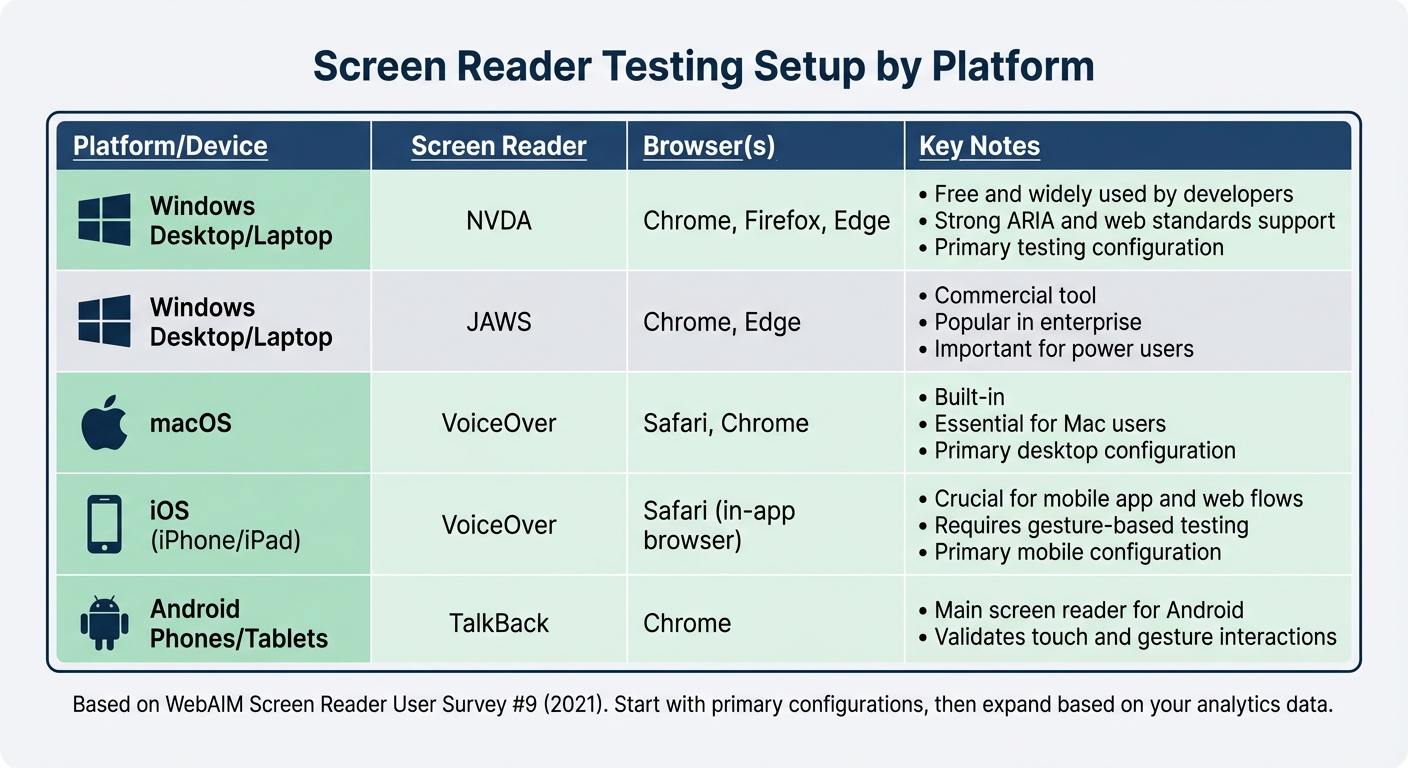
Screen Reader and Browser Combinations by Platform for Accessibility Testing
Record details like your operating system, browser version, screen reader/version, and key settings. This helps pinpoint whether an issue stems from your code, the browser, or the screen reader itself.
Choosing Screen Readers and Platforms
For testing in the US, focus on NVDA and JAWS for Windows, VoiceOver for macOS and iOS, and TalkBack for Android. According to WebAIM‘s Screen Reader User Survey #9 (2021), these are the most widely used screen readers, with NVDA and JAWS leading on Windows and VoiceOver dominating Apple platforms. The survey also revealed that most users combine Windows with Chrome or Firefox, making Windows + Chrome/Firefox + NVDA a key testing setup.
Start with NVDA + Chrome on Windows and VoiceOver + Safari on macOS as your primary desktop configurations. For mobile, prioritize VoiceOver + Safari on iOS and TalkBack + Chrome on Android. If analytics show most of your traffic comes from Windows/Chrome, begin testing there before expanding to other setups.
| Platform / Device | Recommended Screen Reader | Typical Browser(s) | Notes |
|---|---|---|---|
| Windows desktop/laptop | NVDA | Chrome, Firefox, Edge | Free and widely used by developers; strong ARIA and web standards support |
| Windows desktop/laptop | JAWS | Chrome, Edge | Commercial tool, popular in enterprise; important for many power users |
| macOS | VoiceOver | Safari, Chrome | Built-in; essential for testing Mac users |
| iOS (iPhone/iPad) | VoiceOver | Safari (in-app browser) | Crucial for mobile app and web flows; requires gesture-based testing |
| Android phones/tablets | TalkBack | Chrome | Main screen reader for Android; validates touch and gesture interactions |
Once you’ve established your screen reader and platform combinations, set up browsers and developer tools to inspect the accessibility tree.
Setting Up Browsers and Developer Tools
Browser tools let you examine the accessibility tree – what the screen reader interprets – before you activate assistive technology. In Chrome DevTools, go to the Elements panel, select an element, and switch to the Accessibility tab. Here, you can check the element’s accessible name, role, states, and ARIA attributes. Compare these details with the screen reader’s output to identify discrepancies.
In Firefox, use the Accessibility Inspector to view a tree of accessible objects, landmarks, and focus order. For Safari on macOS, enable "Show Web Inspector" in preferences. Inspect elements while running VoiceOver to confirm that roles and labels match VoiceOver’s output. Also, test keyboard navigation (Tab, Shift+Tab, arrow keys) with the screen reader enabled, as focus behavior can vary across browsers.
Enabling Logs and Speech Viewers
Logs and speech viewers capture screen reader output, helping you match spoken announcements with your code. In NVDA, activate the Speech Viewer from the NVDA menu to display announcements in a text window. Enable logging via NVDA menu → Tools → Log Viewer to record detailed events. These logs are invaluable for debugging and reporting issues.
For VoiceOver on macOS, use the VoiceOver Utility to enable logging options. This is especially useful for analyzing how VoiceOver handles complex ARIA widgets. Keep the browser console open alongside these tools to monitor JavaScript errors, ARIA warnings, and messages from accessibility libraries like axe-core. Comparing logs with your HTML and ARIA in DevTools can help you pinpoint whether the issue lies in your markup, the browser’s accessibility tree, or the screen reader’s interpretation.
Reproducing and Documenting Issues
Once your testing environment is set up, you’ll need a clear, systematic approach to reproduce and document screen reader issues. Without detailed reproduction steps and thorough documentation, bugs can become tricky to identify and fix. Before jumping into debugging, ensure that the issue can be consistently reproduced using written steps.
Defining User Tasks and Expected Results
When documenting bugs, think in terms of user tasks rather than isolated UI problems. For example, instead of stating "Submit button has wrong role", describe the issue as part of a broader task like "Complete and submit the checkout form." Define success criteria for each task based on WCAG guidelines.
For instance, in a form submission task, success criteria could include:
- Each field announces a meaningful label, its role (e.g., "edit"), state (e.g., required or invalid), and any instructions.
- Error messages are programmatically linked to fields and announced when focus lands on the field.
For a modal dialog task, success criteria might include:
- Focus moves inside the dialog when it opens.
- Tab and Shift+Tab navigation stays within the dialog.
- The screen reader announces the dialog’s title and purpose.
- Closing the dialog returns focus to the triggering element.
Document each bug using this format: Task → Precondition → Steps → Expected behavior (with WCAG references) → Actual behavior. Then, use a keyboard and screen reader to perform these tasks and capture real-time behavior.
Testing with Keyboard and Screen Readers
Start by confirming that keyboard navigation works as expected. Once that’s verified, enable your screen reader (such as NVDA, JAWS, or VoiceOver) and repeat the task, recording key announcements from the screen reader. For example, when interacting with a modal, encountering a validation error, or expanding an accordion, note the exact output.
Pay close attention to:
- Missing or incorrect labels (e.g., "edit, blank" instead of "Email address, edit").
- Incorrect or missing roles and states (e.g., checkboxes failing to announce whether they’re checked or unchecked).
- Dynamic updates that aren’t announced (e.g., inline validation messages or toast notifications).
Compare the screen reader’s output with the accessibility tree in your developer tools. If the tree lacks a name or has an incorrect role, the issue likely originates in the code rather than the screen reader itself.
Recording and Prioritizing Issues
Once you’ve reproduced an issue, document it thoroughly using a structured bug report template:
- Title: Include the component and assistive technology (e.g., "Modal close button not announced – NVDA + Chrome").
- Environment: Specify the operating system, browser (and version), screen reader (and version), and any non-default settings.
- Reproduction Steps: Detail the starting URL, initial focus point, keys pressed in order, and any special conditions.
- Expected vs. Actual Behavior: Outline what should happen (e.g., announcements, focus behavior) based on WCAG and ARIA guidelines, and contrast this with the actual screen reader output and focus behavior.
- Impact: Describe how the issue affects task completion (e.g., "User cannot identify which field has an error, making the form unusable for screen reader users"). Include the relevant WCAG reference and severity (e.g., "WCAG 2.1 Level A, 4.1.2 Name, Role, Value – Blocker").
- Supporting Artifacts: Attach screen recordings with audio, screenshots showing visible focus, and excerpts from the Accessibility Tree.
Focus on resolving blockers first – issues that completely prevent users from completing tasks with a screen reader or keyboard alone. After that, address problems that cause confusion or misleading behavior, such as incorrect announcements or erratic focus movements.
sbb-itb-f6354c6
Fixing Common Screen Reader Problems
To tackle screen reader issues effectively, focus on three common problem areas: missing or incorrect labels, focus and navigation issues, and unannounced dynamic content. Let’s dive into the fixes for each.
Fixing Missing or Incorrect Labels
Start by using the Accessibility pane in DevTools to check the accessible names of all interactive elements. These names are what screen readers announce to users. If a name is missing, generic (e.g., "button" with no context), or doesn’t align with what sighted users see, you’ve got a labeling issue.
- Form fields: Always associate form fields with visible labels. If that’s not possible, use
aria-labelas a fallback. For instance:<label for="email">Email address</label> <input id="email" type="email">Avoid relying on
placeholdertext – it’s often not announced by screen readers and disappears when users start typing. - Icon-only buttons: Add a descriptive
aria-labelto clarify the button’s purpose. For example:<button type="button" aria-label="Close notification"> <svg aria-hidden="true">...</svg> </button>Here, the
aria-hidden="true"ensures the screen reader skips unnecessary icon details. - Images: Use meaningful
alttext for images that convey information (e.g.,alt="Bar chart showing 40% increase in sales") andalt=""for decorative images so they’re ignored by screen readers.
Tools like Lighthouse or axe can help identify unlabeled controls quickly, but always verify fixes manually with screen readers like NVDA, JAWS, or VoiceOver to ensure they’re announced correctly in context.
Fixing Focus and Navigation Problems
First, test your page with a keyboard. Use Tab, Shift+Tab, arrow keys, and Enter/Space to navigate and interact with controls. Make sure the focus follows the visual order and doesn’t get lost.
- DOM order: Check the DOM order in DevTools and remove any positive
tabindexvalues (e.g.,tabindex="1") that disrupt the natural focus sequence. - Use semantic HTML: Stick to elements like
<button>,<a>, and<input>whenever possible. They’re inherently keyboard-accessible. Reservetabindex="0"for custom widgets that need to be focusable andtabindex="-1"for programmatic focus without adding the element to the tab order. - Modals and overlays: Implement a focus trap to keep Tab and Shift+Tab cycling within the dialog while it’s open. Return focus to the triggering element when the dialog closes. Use
aria-hidden="true"on background content to hide it from the accessibility tree while the modal is active. Ensure focus styles are visible – don’t useoutline: nonewithout providing a clear alternative. - Visually hidden but accessible elements: Use CSS clipping to hide elements that should still be accessible to screen readers. For elements that shouldn’t be reachable (like closed off-canvas menus), combine CSS hiding with ARIA attributes to remove them from the accessibility tree.
Announcing Dynamic Content Updates
To handle dynamic content effectively, ensure screen readers announce critical updates. Determine whether updates are critical (e.g., error messages or alerts) or informational, and use the appropriate ARIA attributes.
- Low-urgency updates: Use
aria-live="polite"orrole="status"to announce updates without interrupting the user’s current task. - High-priority alerts: For urgent updates, such as error messages, use
role="alert". This interrupts ongoing speech to deliver the message immediately.
When updating content, modify the text of an existing live region instead of creating and removing nodes repeatedly. Use aria-atomic="true" if you want the entire region announced rather than just the changed portion.
- Form validation errors: Place an error summary at the top of the form within a
role="alert"region and shift focus there on submit failure. Also, associate field-level errors with inputs usingaria-describedby. For example:<div id="error-summary" role="alert" aria-live="assertive"></div> <!-- On error --> <div>An error occurred. Please check your email and password.</div> - Toast notifications: Use a small container with
role="status"and update its text when the notification appears. - Single-page applications: When navigating to a new view or section, update a hidden heading or live region with
aria-live="polite"to describe the change (e.g., "Billing settings loaded") and shift focus to the new page heading.
Test your fixes with at least two screen readers, such as NVDA and VoiceOver, to ensure announcements are clear, timely, and not overly verbose. Always retest to confirm everything aligns with your initial testing.
Maintaining Accessibility Over Time
Keeping accessibility intact as your code evolves is no small feat. Changes like adding new features, refactoring, or updating dependencies can unintentionally disrupt accessibility. Once you’ve addressed initial issues, it’s essential to establish a system for continuous monitoring to ensure your hard-earned progress isn’t undone.
The best approach combines automated checks in your CI/CD pipelines with regular manual audits. Automated tools are great for catching common problems, but they typically identify only 20–30% of WCAG violations. Manual testing, especially with real screen readers, can uncover more subtle issues like confusing navigation flows or unclear announcements. By integrating both methods, you can spot and address regressions early.
Adding Accessibility Tests to CI/CD Pipelines
Tools like axe-core and Lighthouse CI are invaluable for embedding accessibility checks into your continuous integration workflows. These tools scan your application with every pull request and can flag critical violations before they make it to production. For example:
- Lighthouse CI can be configured on preview deployments to enforce an accessibility score threshold (e.g., 90+).
- axe-core works seamlessly with Puppeteer or Playwright, allowing you to test key user flows like login, search, or checkout. Builds can fail automatically if "serious" or "critical" issues – such as missing form labels or incorrect ARIA roles – are detected.
You can also set up a GitHub Actions workflow to install axe-core, run it against your staging environment, and post detailed violation reports directly on pull requests. While these tools act as a strong first line of defense, they aren’t a complete solution. They should be supplemented with more in-depth manual testing.
Running Regular Manual Accessibility Audits
For a more thorough approach, conduct manual audits regularly. Mature products may only need quarterly checks, but high-traffic applications should be audited every sprint or release. These audits focus on areas automated tools might miss, such as:
- Screen reader navigation and flow
- Usability of forms
- Proper announcements for dynamic content
- Keyboard interaction for all key user tasks
Use tools like NVDA (Windows) and VoiceOver (macOS/iOS) to simulate real-world scenarios. For example, try logging in, searching, or completing a checkout process using only a keyboard and screen reader. Verify that content is announced correctly, focus is managed logically, and interactive elements behave as expected.
Document your findings in a shared tracker with clear details: reproduction steps, expected vs. actual behavior, and severity ratings (critical, high, medium). Address high-impact issues, such as those affecting checkout or account access, within a single sprint. This structured approach helps maintain WCAG 2.1 AA compliance across even the most complex applications over time.
Using Design Tools for Accessible Prototypes
Accessibility isn’t just a development concern – it starts in the design phase. Tools like UXPin allow designers and developers to collaborate on prototypes using real, code-backed React components from your design system. These components already include essential accessibility features, such as ARIA attributes, keyboard navigation, and focus states, ensuring you catch potential issues early – before any production code is written.
With UXPin, you can design with components that mirror your actual codebase, creating prototypes that are both functional and accessible.
Brian Demchak, Sr. UX Designer at AAA Digital & Creative Services, shared: "As a full stack design team, UXPin Merge is our primary tool when designing user experiences. We have fully integrated our custom-built React Design System and can design with our coded components. It has increased our productivity, quality, and consistency, streamlining our testing of layouts and the developer handoff process."
Conclusion
Addressing screen reader issues isn’t just about meeting accessibility standards – it’s about creating digital experiences that work for the 2.2 billion people worldwide with vision impairments. For many of these users, screen readers are their primary way to navigate websites and apps. When things go wrong, it can drastically impact their ability to use these tools effectively.
To tackle these challenges, combine automated testing with manual reviews and real user feedback. While tools like axe-core and Lighthouse are excellent for spotting common problems, they often miss the more nuanced barriers. By blending these methods, you can build a more solid foundation for accessibility.
Making accessibility a priority means committing to regular audits, keeping thorough documentation, and retesting frequently. Focus on resolving issues that disrupt essential tasks – like logging in, completing a checkout, or filling out forms – as quickly as possible.
Collaboration across teams makes all the difference. When designers, developers, QA teams, and accessibility specialists work together early in the process, many problems can be identified and resolved before they become larger issues. Tools like UXPin, which allow for prototyping with accessible, code-backed components, can help catch these issues during development.
Screen reader compatibility deserves the same attention as visual design. By committing to continuous improvement, you’re not just meeting guidelines – you’re making the digital world more inclusive for everyone. That’s a win for all users.
FAQs
What are the best practices for creating a screen reader testing environment?
To create a solid screen reader testing setup, start by combining various screen readers and browsers to cover a range of platforms. Tools like NVDA, JAWS, and VoiceOver work well when paired with browsers such as Chrome, Firefox, or Safari, offering a thorough testing experience.
Make your testing environment as realistic as possible by using actual devices and configurations that mirror your users’ everyday experiences. Keep both your screen readers and browsers updated to account for the latest features and potential bugs. Additionally, get acquainted with accessibility standards like WCAG 2.1 to help spot and resolve common compatibility issues in your code.
How can I make sure screen readers announce dynamic content updates properly?
When working with dynamic content, it’s crucial to make sure screen readers can announce updates effectively. This is where ARIA live regions come into play. These attributes enable screen readers to pick up on changes and announce them automatically, without requiring any interaction from the user. For instance, using aria-live="polite" will announce updates in a non-disruptive manner, while aria-live="assertive" ensures more urgent updates are communicated immediately.
It’s equally important to test your implementation with a variety of screen readers to ensure everything works as intended. Tools like UXPin can be incredibly useful for prototyping and fine-tuning accessible designs, helping to create a seamless experience for everyone.
What are some tools you can use in CI/CD pipelines to ensure accessibility compliance?
To ensure your CI/CD pipelines align with accessibility standards, consider incorporating tools like Axe, Pa11y, and Lighthouse. These tools automate accessibility testing, making it easier to catch potential issues early in the development cycle. By integrating them directly into your workflow, you can efficiently identify and address problems related to screen readers or other accessibility features, helping your product stay compliant and user-friendly.

