Using GPT-5 Mini with UXPin Merge allows you to create prototypes directly from production code, ensuring your designs match development standards. Here’s how it works:
- AI-Generated Layouts: GPT-5 Mini builds functional UIs from simple prompts, using real components from libraries like MUI, Ant Design, or custom React systems.
- Code-Based Prototypes: UXPin Merge connects these designs to your Git repository, Storybook, or npm package, creating a direct link between design and development.
- Faster Workflows: This approach reduces engineering time by up to 50%, eliminates design-to-code translation, and ensures consistency across products.
- Enterprise Scalability: Teams can manage multiple products efficiently by syncing design systems, maintaining compliance, and using AI to streamline processes.
To get started, connect your design system to UXPin, configure GPT-5 Mini with an OpenAI API key, and use prompts to generate layouts. Refine designs, add interactivity, and share code-backed prototypes with developers for immediate implementation.
This method bridges the gap between design and development, saving time and ensuring precision in large-scale projects.
UXPin Merge AI: Smarter UI Generation That Follows Your Design System
sbb-itb-f6354c6
What You Need Before You Start
Before diving in, make sure you have an active UXPin Merge account and a connected component library. You can use open-source options like MUI, Ant Design, Bootstrap, or Tailwind UI. If you’re working with a custom library, connect it through a Git repository, Storybook, or npm package. This ensures the AI-generated components align with your codebase and design standards, setting the stage for efficient prototyping.
Setting Up Your Custom Design System in UXPin
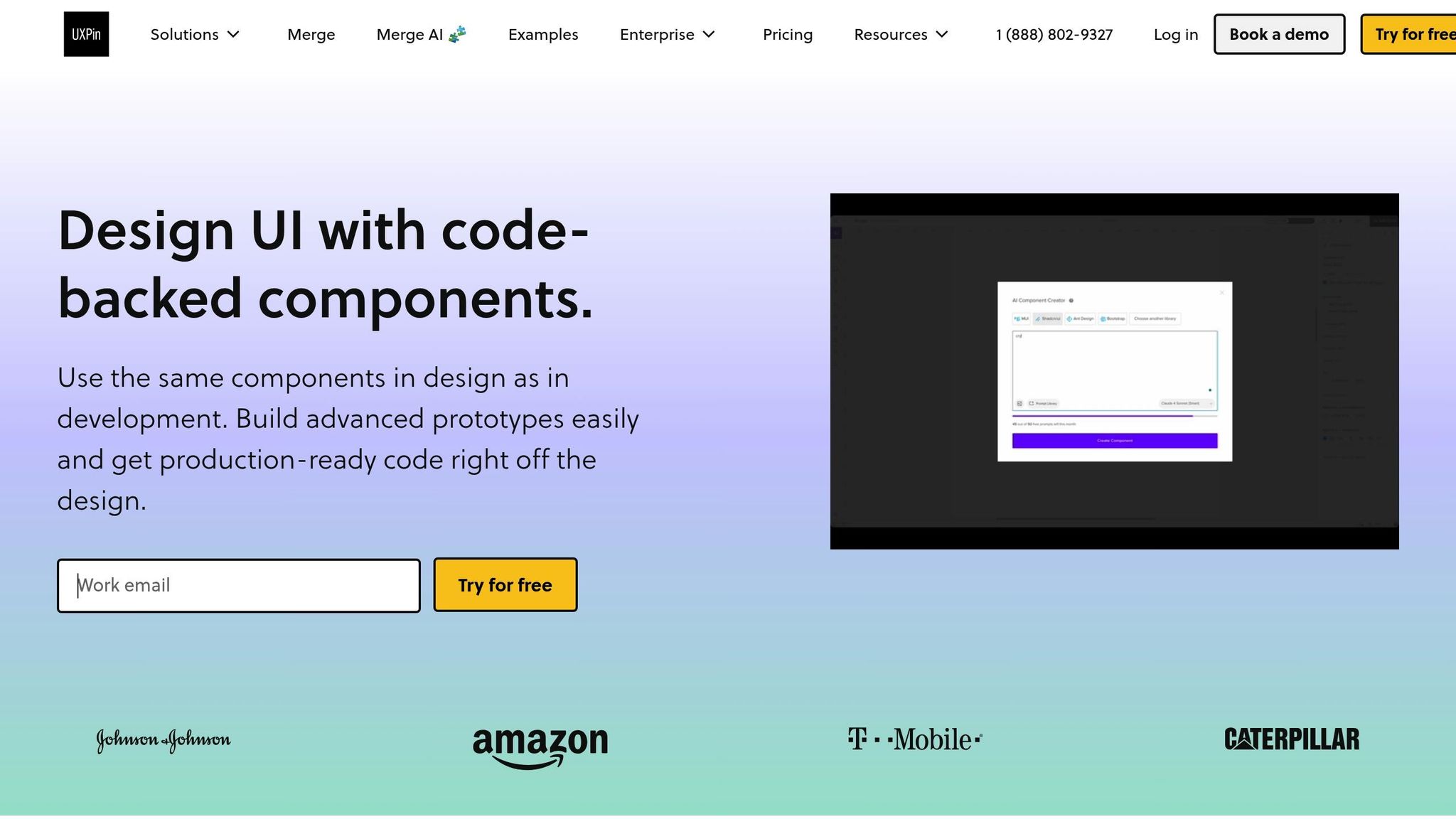
UXPin provides three integration methods for your design system: npm packages, Git repositories, or Storybook. For custom libraries, such as a modified version of Ant Design, use the Merge Component Manager to input the npm package name and the CSS file path. If you’re working with a proprietary system, you’ll need developers to help map design tokens and component properties during Git or Storybook integration. Once everything is connected, the Properties Panel allows you to verify that the component properties in your prototype match your production code.
Allison Barkley, Director of Operations at Baremetrics, highlighted the benefits of this streamlined approach:
"Being able to jump straight from design to having code ready to going to be a huge time-saver for our team."
After your design system is set up, you’re ready to enable GPT-5 Mini.
Configuring GPT-5 Mini in UXPin
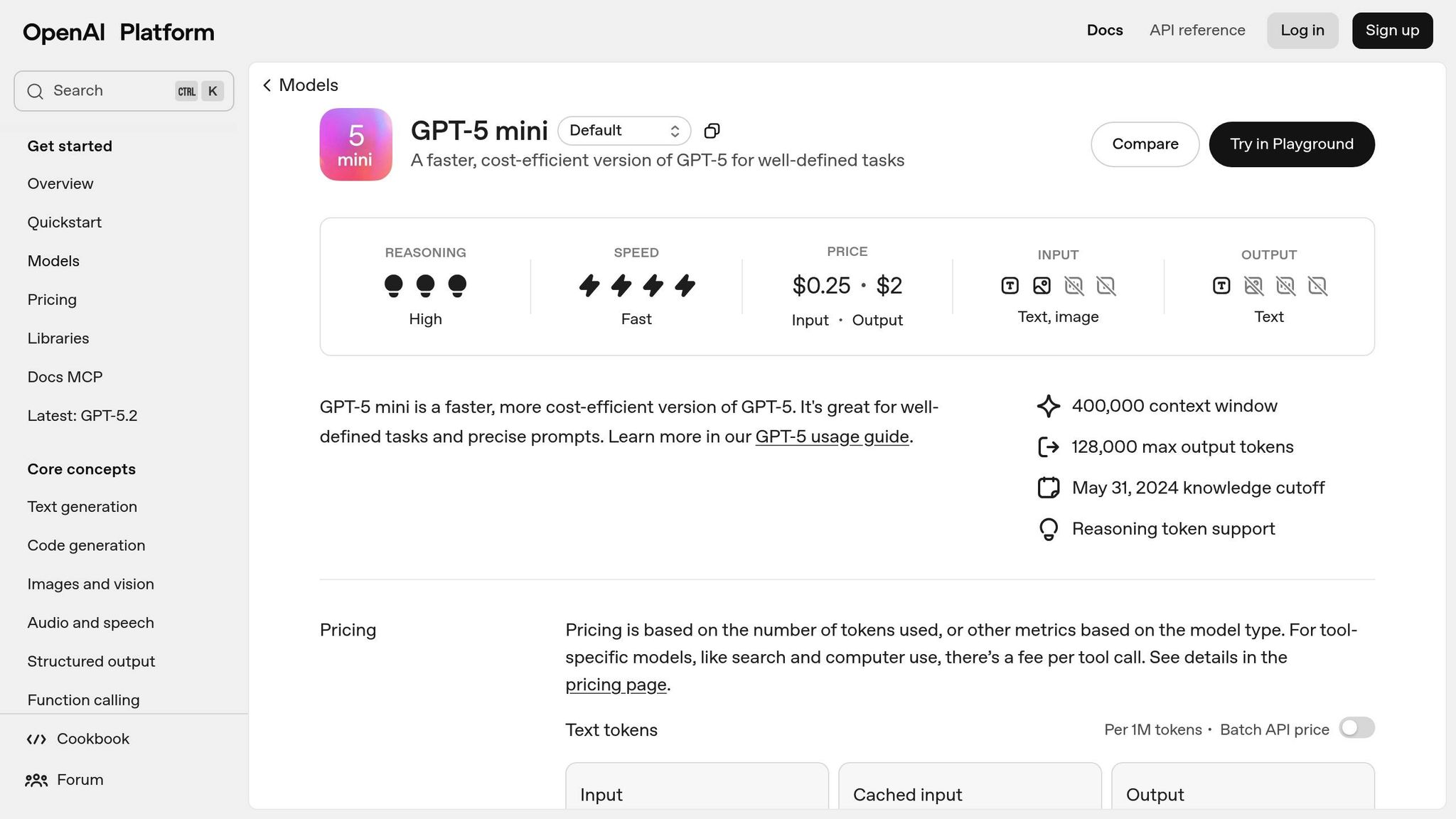
Head to the Settings tab and enter your OpenAI API key. From the AI Models dropdown, select "GPT-5-mini." This model is designed for fast performance, perfect for generating layout variations quickly and efficiently. Be sure to check your AI credit balance in your account settings – Core plans come with 200 credits per month, while Growth plans include 500 credits per month.
Team Alignment
Decide on the integration method that works best for your team: built-in libraries for speed, npm for custom packages, or Git/Storybook for proprietary systems. To ensure consistency, standardize your prompts by using CamelCase for component names and breaking down complex UI requests into smaller, manageable tasks for better accuracy.
How to Build Prototypes with GPT-5 Mini and UXPin Merge
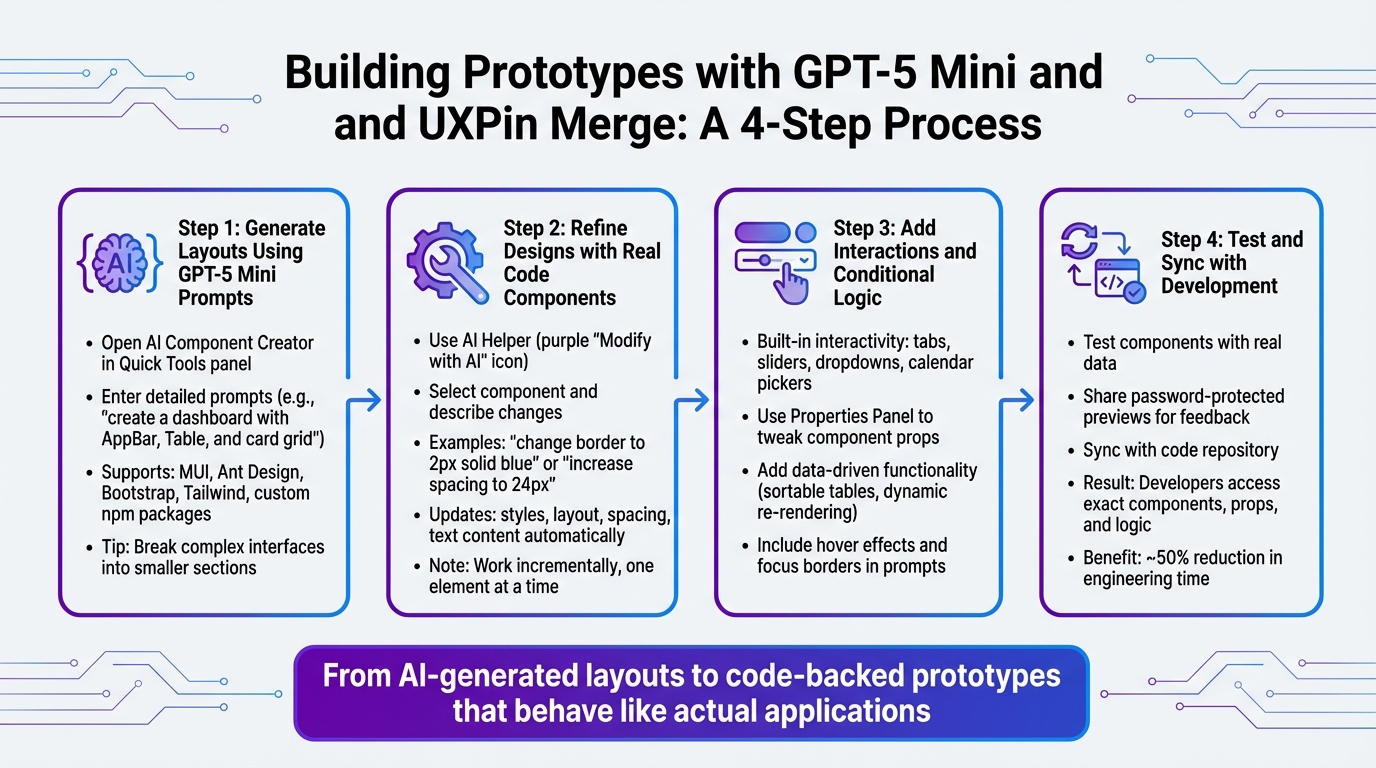
4-Step Process for Building Prototypes with GPT-5 Mini and UXPin Merge
Once your design system is connected and GPT-5 Mini is set up, you’re ready to start building. The process transitions from AI-generated layouts to polished, code-backed prototypes that behave like actual applications. Here’s a step-by-step guide to get you started.
Step 1: Generate Layouts Using GPT-5 Mini Prompts
Begin by opening the AI Component Creator in the Quick Tools panel of the UXPin Editor. Enter a prompt that clearly specifies the layout and components you need. For instance, instead of requesting "create a dashboard", try something more detailed like: "create a dashboard with a navigation bar using the AppBar component, a data table using the Table component, and a card grid with three cards."
GPT-5 Mini supports popular React libraries like MUI, Ant Design, Bootstrap, and Tailwind, as well as your custom npm packages. If you’re working on a complex interface, break your request into smaller sections. For example, generate the header first, then the sidebar, and finally the main content area. This modular method ensures better precision and gives you more control over the results.
Once the initial layout is created, move on to refining individual components.
Step 2: Refine Designs with Real Code Components
Use the AI Helper (the purple "Modify with AI" icon) to fine-tune specific components. Select the component you want to adjust and describe the change you need. For example, you might say: "change the bottom border to 2px solid blue when focused" or "increase spacing between cards to 24px." The AI Helper will automatically update styles, layout, spacing, and even text content – no need for manual property adjustments.
Since you’re working with actual code components, every change aligns with your production codebase. To ensure accuracy, make specific adjustments and work incrementally. If you need to modify multiple elements, handle them one at a time. Remember, deselecting a component while the AI is processing will cancel the operation.
With your components refined, you can now add interactivity to make your prototype feel even more realistic.
Step 3: Add interactions and conditional logic
Once your layout is polished, it’s time to incorporate interactions that simulate real-world behavior. Coded components come with built-in interactivity – features like tabs, sliders, dropdowns, and calendar pickers function exactly as they would in the final product. For more advanced behavior, use the Properties Panel to tweak component props according to your logic.
You can also include data-driven functionality. For example, sortable tables will re-render automatically when data sets are updated, creating a dynamic user experience. If you need hover effects or focus borders, include these details in your prompts.
This approach has been successfully used by companies like PayPal to build prototypes that handle advanced use cases with components functioning just like the final product. Microsoft’s design team took this concept further by syncing their Microsoft Fluent design system with UXPin Merge. Erica Rider, a UX Architect and Design Leader, shared their experience:
"We synced our Microsoft Fluent design system with UXPin’s design editor via Merge technology. It was so efficient that our 3 designers were able to support 60 internal products and over 1,000 developers."
Step 4: Test and Sync with Development
With interactivity in place, it’s time to validate your prototype using real data and prepare it for development. Test components like sortable tables or grids to ensure they process data correctly. Share password-protected previews with stakeholders to gather feedback before moving forward.
Using shared React components eliminates handoff issues. Edward Nguyen, a UX Architect, highlighted the benefits of this approach:
"UXPin prototypes gave our developers enough confidence to build our designs straight in code. If we had to code every prototype and they didn’t test well, I can only imagine the waste of time and money."
When you’re ready, sync your prototype with your code repository. This allows developers to access the exact components, props, and logic you used, minimizing translation errors and cutting engineering time by about 50%.
Advanced Techniques for Enterprise Teams
Managing prototypes at scale requires a balance of governance, efficiency, and smooth collaboration between DesignOps and engineering teams. Here’s how enterprise teams can leverage GPT-5 Mini and UXPin Merge to stay in control while accelerating their workflows.
Managing Prototypes Across Multiple Products
Consistency is the cornerstone of scaling design efforts. By syncing your design system directly from your Git repository or Storybook into UXPin Merge, you can ensure updates are automatically reflected. This eliminates manual syncing, version mismatches, and redundant work across multiple product lines.
With a 400,000-token context window, GPT-5 Mini can process extensive design system documentation and multi-product requirements in a single session. This allows you to generate layouts that pull from your entire component library without losing context or accuracy. For teams managing complex, interconnected products, this removes the need to repeatedly explain design system details to the AI.
This method, already adopted by top-performing teams, ensures that prototypes are consistent and production-ready. It’s a scalable way to enforce design standards while fostering better collaboration across teams.
Maintaining Governance and Compliance with AI
Once scalable prototypes are established, maintaining compliance becomes essential – especially in regulated industries or organizations with strict branding standards. AI-generated designs can adhere to these requirements by assigning roles within your prompts. For instance, instruct GPT-5 Mini to act as a "Senior UX Architect" or "Compliance Officer" to ensure web accessibility, adherence to brand guidelines, and respect for technical constraints.
For critical tasks, prompts can be configured to require summaries and pause for approval before making changes to component libraries. This safeguard prevents unintended refactoring or deletions. Additionally, the Responses API can enable Zero-Data Retention, ensuring that sensitive prototype data isn’t used for model training – an essential feature for teams handling confidential information.
To balance performance and precision, adjust the reasoning_effort parameter. Use "minimal" for straightforward UIs and "high" for more complex designs. The json_object parameter can also standardize output by ensuring the AI generates valid JSON for component properties and design tokens, making it easier to validate outputs against your design system.
If your products need to meet regional standards, specify localization requirements directly in GPT-5 Mini prompts. For example, enforce MM/DD/YYYY date formats or imperial units for U.S.-based projects. This approach ensures compliance without requiring manual edits after generation.
Improving Collaboration Between DesignOps and Engineering
The handoff between design and development is often the biggest bottleneck in organizations. By using production code, UXPin Merge eliminates this friction. Developers receive JSX specifications for every design, including the exact components, props, and logic used by designers. As Larry Sawyer, Lead UX Designer, noted:
"When I used UXPin Merge, our engineering time was reduced by around 50%. Imagine how much money that saves across an enterprise-level organization with dozens of designers and hundreds of engineers."
To further streamline collaboration, connect your React library through Git or Storybook so GPT-5 Mini generates layouts using your actual production components. This alignment reduces the need for constant check-ins or approval cycles. DesignOps teams can manage component versions and coordinate releases via GitHub, ensuring AI-generated layouts stay within technical constraints.
Allison Barkley, Director of Operations at Baremetrics, shared her team’s experience:
"The AI component creator is a favorite! … Being able to jump straight from design to having code ready is going to be a huge time-saver for our team."
For quick iterations, GPT-5 Mini can test layouts and variations rapidly, prioritizing speed over complexity. The AI Helper allows DesignOps teams to update visual styles, layouts, and spacing using simple text prompts, cutting down on manual adjustments. This keeps feedback loops short and minimizes back-and-forth communication between teams.
Conclusion
Summary of Main Benefits
Using GPT-5 Mini alongside UXPin Merge takes enterprise prototyping to a whole new level. By designing with production-ready components, you eliminate the need for the traditional design-to-code translation phase. This ensures consistency and removes gaps between design and development.
This workflow can reduce engineering time by approximately 50% because developers receive production-ready code and detailed specifications instead of static mockups. Even small teams can manage a large workload – three designers can support as many as 60 internal products and over 1,000 developers using this method. GPT-5 Mini also excels at processing large design system documentation, creating precise layouts that align with your entire component library.
Beyond speed, this method offers control and governance. By syncing your design system directly from Git or Storybook, updates are automatically reflected across all prototypes. AI-generated designs comply with your technical requirements and branding guidelines because they are built using pre-approved components. This creates a scalable, efficient workflow for enterprise teams.
How to Get Started
Once production-ready prototypes are in place, moving to implementation is simple. You can connect your component library through Git, Storybook, or npm. If you don’t have a custom library, you can use built-in options like MUI, Ant Design, Bootstrap, or ShadCN – all accessible directly in the UXPin canvas. Start by generating initial layouts from text prompts, refine them with real code components, add interactions, and share a single link with your development team for immediate use.
For teams looking to scale this process across multiple products, visit uxpin.com/pricing to explore Enterprise options. These include custom library AI integration, unlimited AI credits, and dedicated onboarding support. For tailored pricing, you can contact sales@uxpin.com to discuss your organization’s specific needs.
FAQs
How does GPT-5 Mini work with UXPin Merge to improve prototyping?
GPT-5 Mini simplifies prototyping when paired with UXPin Merge by converting natural language prompts into ready-to-use UI components. This approach keeps designs uniform, minimizes repetitive tasks, and makes workflows more efficient.
By blending GPT-5 Mini’s AI-powered functionality with UXPin Merge’s code-based components, teams can produce high-fidelity prototypes quickly while ensuring seamless collaboration between design and development. This integration allows enterprise teams to meet deployment deadlines faster and deliver refined outcomes with less hassle.
How do I set up a custom design system with UXPin Merge?
To set up a custom design system with UXPin Merge, start by navigating to the Design Systems tab located in the top bar of UXPin. Here, you can choose to either create a brand-new design system or manage an existing one.
The next step is to connect your code-based library. To do this, select your Merge library from the dropdown menu under the Design System category, or use the library settings within the editor to establish the connection.
Once the library is linked, UXPin will automatically generate documentation for your components. This documentation includes details like properties and versions, all pulled directly from your code repository. You can further tailor this documentation to match the unique requirements and use cases of your design system.
After completing these steps, your design system will be fully set up. This allows you to create high-fidelity prototypes using components that stay perfectly aligned with your codebase.
How can enterprise teams maintain compliance and governance when using AI-generated designs?
Enterprise teams can stay on top of compliance and governance by setting up clear standards and guidelines for AI-generated designs. By establishing specific rules for AI outputs, organizations can ensure consistency, maintain security, and align with their internal policies.
To strengthen governance even further, teams should embed AI into a structured framework. This framework could include tools like APIs, version control systems, and metadata tracking. Such an approach ensures that all AI-generated components align with design systems and meet compliance requirements.
Another key step is to test and validate AI-generated components before they go live. This process helps confirm quality, security, and adherence to enterprise standards, minimizing risks and reinforcing trust in AI-powered workflows.

