
UXPin vs Figma: Code-Based Design Comparison 2026
Pick a source of truth: code-backed components to cut rebuilds or visual-first tools for faster mockups and inspection.
If your team wants design work to stay close to shipped code, UXPin is the better fit. If your team wants fast visual mockups and standard handoff, Figma is the better fit.
I’d sum up the article like this:
- UXPin centers on production-linked components for React, Angular, and Vue
- Figma centers on visual components, Dev Mode, variables, and plugin-based workflows
- The biggest gap is the source of truth: code in UXPin vs. visual specs in Figma
- That gap affects prototype depth, design system control, AI output, and rebuild work
- For enterprise teams, fewer rebuild steps often mean lower rework risk
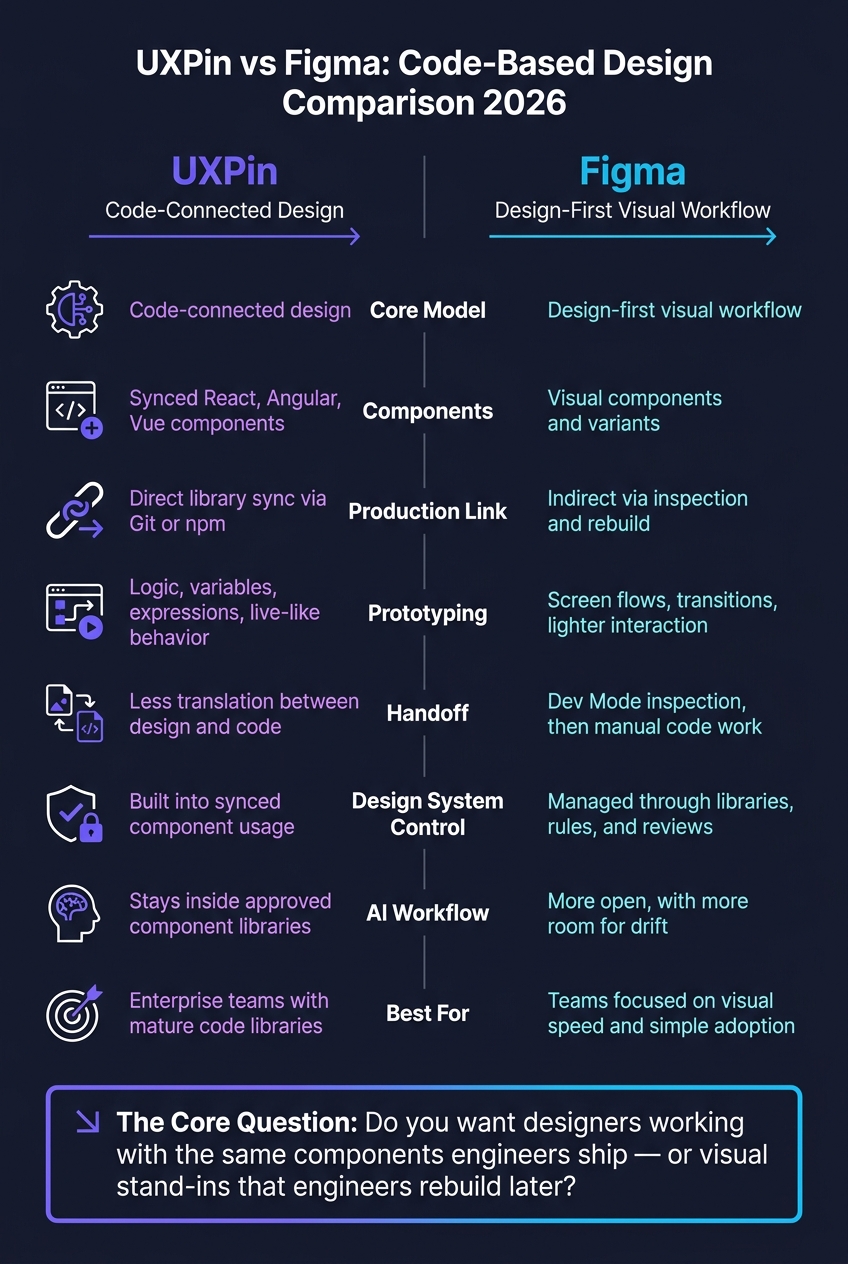
In plain terms, this comparison is about one question: Do you want designers working with the same components engineers ship, or with visual stand-ins that engineers rebuild later?
Quick Comparison
| Criteria | UXPin | Figma |
|---|---|---|
| Core model | Code-connected design | Design-first visual workflow |
| Components | Synced React, Angular, Vue components | Visual components and variants |
| Production link | Direct library sync through Git or npm | Indirect via inspection and rebuild |
| Prototyping | Logic, variables, expressions, live-like behavior | Screen flows, transitions, lighter interaction |
| Handoff | Less translation between design and code | Dev Mode inspection, then manual code work |
| Design system control | Built into synced component usage | Managed through libraries, rules, and reviews |
| AI workflow | Stays inside approved component libraries | More open, with more room for drift |
| Best for | Enterprise teams with mature code libraries | Teams focused on visual speed and simple adoption |
One stat-like takeaway stands out: across the 5 main areas in this article – components, prototyping, handoff, governance, and AI – the pattern is the same. UXPin is built to cut rebuild steps. Figma is built to improve visual design and inspection.
So if every project still ends with engineers recreating the UI, I’d treat that as a workflow issue, not bad luck.
UXPin vs Figma: Code-Based Design Tool Comparison 2026
How UXPin Supports Code-Connected Product Design
Real components with Merge and built-in libraries
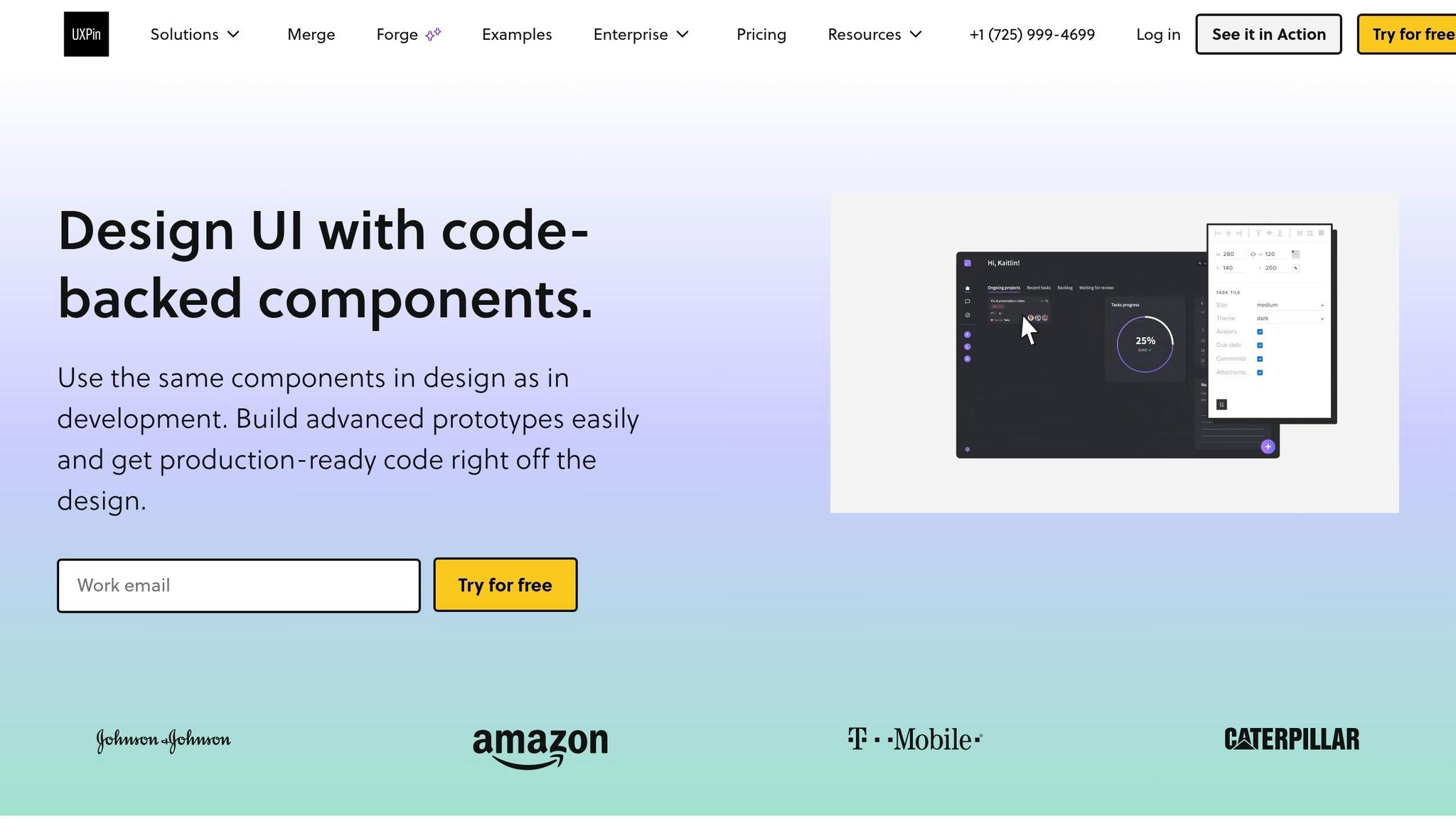
UXPin Merge lets teams design with production-connected React, Angular, or Vue components synced from code. It fits teams running shared design systems across large organizations.
Inside the canvas, teams can use built-in libraries like MUI and Ant Design. They can also connect custom libraries through Git or npm. That means designers use component-driven prototyping to work with the same components developers use, right from the start.
This becomes a big deal when AI needs to stay inside approved system patterns.
Forge AI working within your design system
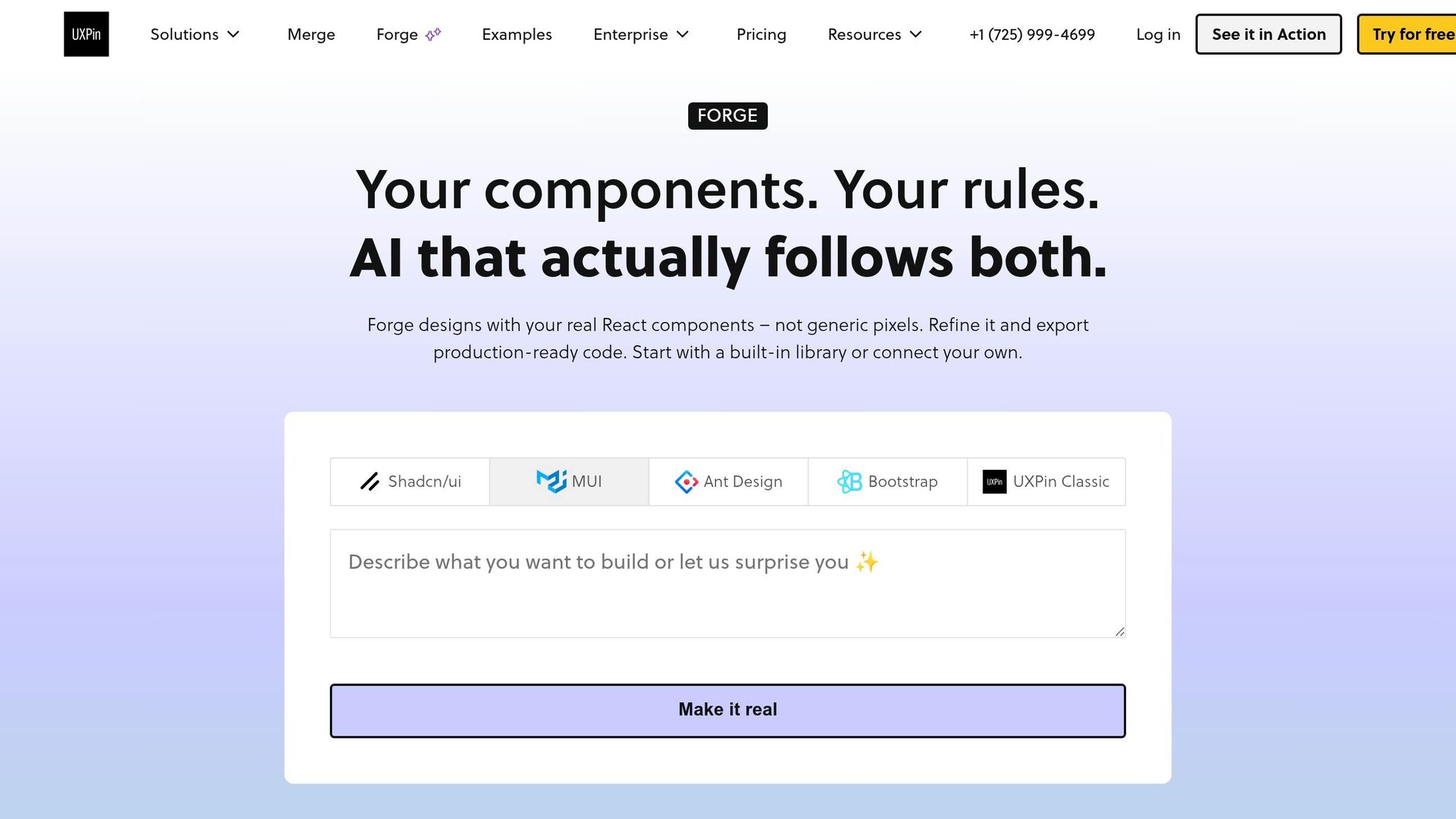
Forge generates layouts using only approved components from your synced library. So the AI stays inside the design system instead of drifting into off-brand patterns or one-off UI ideas.
For enterprise teams, that’s the whole point. AI can speed up layout work without creating extra cleanup later. Designers can also prompt directly in the canvas, so they don’t have to jump between tools.
The result is faster layout work without leaving the system.
Advanced prototyping and no-handoff alignment
UXPin supports conditional logic, variables, and expressions directly in the prototype layer. In practice, prototypes can use conditional logic, variables, and expressions, then export as JSX tied to the same component library developers use.
That cuts down translation work for engineering teams. Instead of recreating intent from static mockups, they can work from outputs already tied to the system.
That code-connected model sets up the next question: how does a design-first workflow compare?
sbb-itb-f6354c6
The Future of Prototyping UXPin vs Figma
How Figma Approaches Design-First Workflows
Figma centers its workflow on a design-first canvas. Everything starts in a visual space built around reusable components, responsive layout tools, and inspection features. Because the output stays visual, it shapes how teams handle handoff, prototyping, and system control. That leads to a pretty direct question: how far can Figma take enterprise handoff and prototyping before engineers need to jump in?
Components, variants, and Auto Layout
Figma handles reusable UI with component sets and variants. Designers can define many states inside one component set, then switch between those states right on the canvas. That setup makes it easier to keep interfaces consistent without rebuilding the same element again and again.
Auto Layout adds responsive behavior by letting frames resize and reflow based on content. It’s helpful, especially when a layout needs to stretch, shrink, or adjust as text and elements change. But there’s a catch: it doesn’t always line up exactly with CSS Flexbox or Grid. So developers may need to interpret what they’re seeing instead of translating it line for line into code.
Dev Mode, variables, and token-based handoff
Figma’s Dev Mode gives developers a separate inspection view with CSS values, spacing measurements, and asset exports. That makes handoff cleaner and cuts down on some of the back-and-forth between design and engineering.
Variables and shared styles help teams keep color, typography, and spacing in sync across files. They work a lot like design tokens, which is useful when a team wants one source of truth for visual rules. Even so, Dev Mode mainly improves inspection. Teams still have to refactor what comes out of Figma before it turns into production code. And variables still need manual sync with code token files. In plain terms, the workflow stays visual, but it’s not yet tied straight into code.
Prototyping in a design-first workflow
For simple flows, Figma does the job well. Teams can build screen flows and transitions without writing code, which makes it a good fit for stakeholder walkthroughs and early usability checks.
The limits show up when prototypes need real logic, like conditional flows or dynamic data. At that point, the prototype can drift away from the final product. And once that drift starts, gaps often show up later during development.
UXPin vs. Figma: Code-Based Design for Enterprise Teams
The main split comes down to the source of truth. UXPin stays connected to production code. Figma stays connected to visual specs and handoff. That gap shows up most clearly in handoff, prototype fidelity, and how tightly a design system is controlled.
Component model and connection to production code
UXPin Merge syncs real components into the canvas through Git or Storybook, so teams design with the same component that gets shipped. In Figma, teams still need to inspect the design and rebuild it in code. That changes the workflow in a big way.
With real components, there’s less guesswork and less rework. With visual components, developers still have to translate specs into code before anything can go live.
Developer alignment, prototyping depth, and rework risk
UXPin prototypes use the same components developers ship, so design and development stay directly aligned without a rebuild step. That’s the big draw.
Figma prototypes are visual mockups. They can look close to the final product, but they still leave more room for interpretation. And when design and implementation drift apart, teams usually pay for it later in extra rework.
Put simply: the more translation steps you add, the more likely things are to go off track before a feature reaches production.
Design system governance and AI at scale
This split gets even sharper at the enterprise level. For DesignOps teams, UXPin enforces governance through structure: designers can only use components from the synced production library. Forge AI works inside that same setup, generating layouts only from approved components in your design system.
Figma handles governance in a more manual way. Shared libraries and guidelines help, sure, but designers can still detach instances or override styles. AI output can drift too, especially when it isn’t tightly bound to your component API.
Choosing the Right Tool for Your Team
After looking at components, prototyping, and governance, the buying decision comes down to one thing: pick the tool that matches your source of truth.
When UXPin is the better fit
Choose UXPin if your team already works from a mature React, Angular, or Vue component library and drift is causing rework. Merge keeps designers working with synced components, so there’s no need to rebuild the same thing twice. Forge keeps AI-generated output inside approved components, which helps teams stay on track.
UXPin also makes sense for teams that need conditional flows, variables, or live data in prototypes.
If your team doesn’t work that way, a design-first setup may be enough.
When Figma is the better fit
Choose Figma if your team wants fast visual exploration, simple adoption, or a workflow built around plugins. Dev Mode works well for teams that inspect specs and then rebuild components in code.
Key takeaways for 2026 buying decisions
For 2026, base the decision on three factors:
- Source of truth matters most: code-backed components cut handoff loss.
- Governance works better at scale when components stay synced instead of being recreated.
- Higher prototype fidelity can reduce rework risk.
If every handoff still ends with a rebuild, that gap isn’t random. It’s built into the workflow.
FAQs
How hard is it to switch to code-based design?
It’s usually less about design talent and more about the technical setup behind the scenes. If your team already has a structured React, Angular, or Vue component library, the switch is pretty straightforward.
With UXPin Merge, designers don’t need to be coding experts. Most of the heavy lifting happens upfront: connecting the repository and getting components ready for import. After that, code and design stay in sync through a single source of truth.
Can non-developers use synced components effectively?
Yes. Once the engineering team connects the component library through Git, Storybook, or npm, synced components show up in the design editor as ready-to-use elements.
Designers and other non-developers can drag and drop them right onto the canvas. And because these components are tied to real code, they come with preset interactivity, states, and properties already built in.
That means teams can put together functional, high-fidelity prototypes without writing code or even looking at it.
What kind of team benefits most from UXPin Merge?
UXPin Merge is a strong fit for enterprise teams that already have a mature, well-kept component library in React, Angular, or Vue. It works best when design system governance matters and keeping prototypes aligned with production has become a clear pain point.
It also suits teams with enough engineering support to handle setup and maintenance over time. The goal is pretty straightforward: cut down on manual handoff, keep technical debt in check, and scale design work with production-ready components serving as a single source of truth.