Want to simplify your design-to-development process? Combine GPT-5.1, shadcn/ui, and UXPin Merge to create production-ready React components directly from your design workspace. This approach eliminates the inefficiencies of traditional design handoffs and ensures your designs are aligned with development standards from the start. Here’s how it works:
- GPT-5.1 generates React code using libraries like shadcn/ui, Tailwind CSS, and Lucide React.
- shadcn/ui provides customizable React components styled with Tailwind CSS and Radix UI primitives.
- UXPin Merge integrates these components into the design process, allowing designers to work with real code.
Key Steps:
- Set up your environment: Ensure Node.js, Yarn, and UXPin Merge are configured with shadcn/ui components.
- Generate layouts: Use GPT-5.1 to create layouts in UXPin Canvas with prompts tailored to your design system.
- Refine designs: Adjust and test components directly in UXPin using Merge and Forge tools.
- Sync to production: Export designs without rebuilding, as they are already production-ready React components.
This workflow bridges the gap between design and development, saving time and reducing inconsistencies. Ready to streamline your UX process? Let’s dive in.
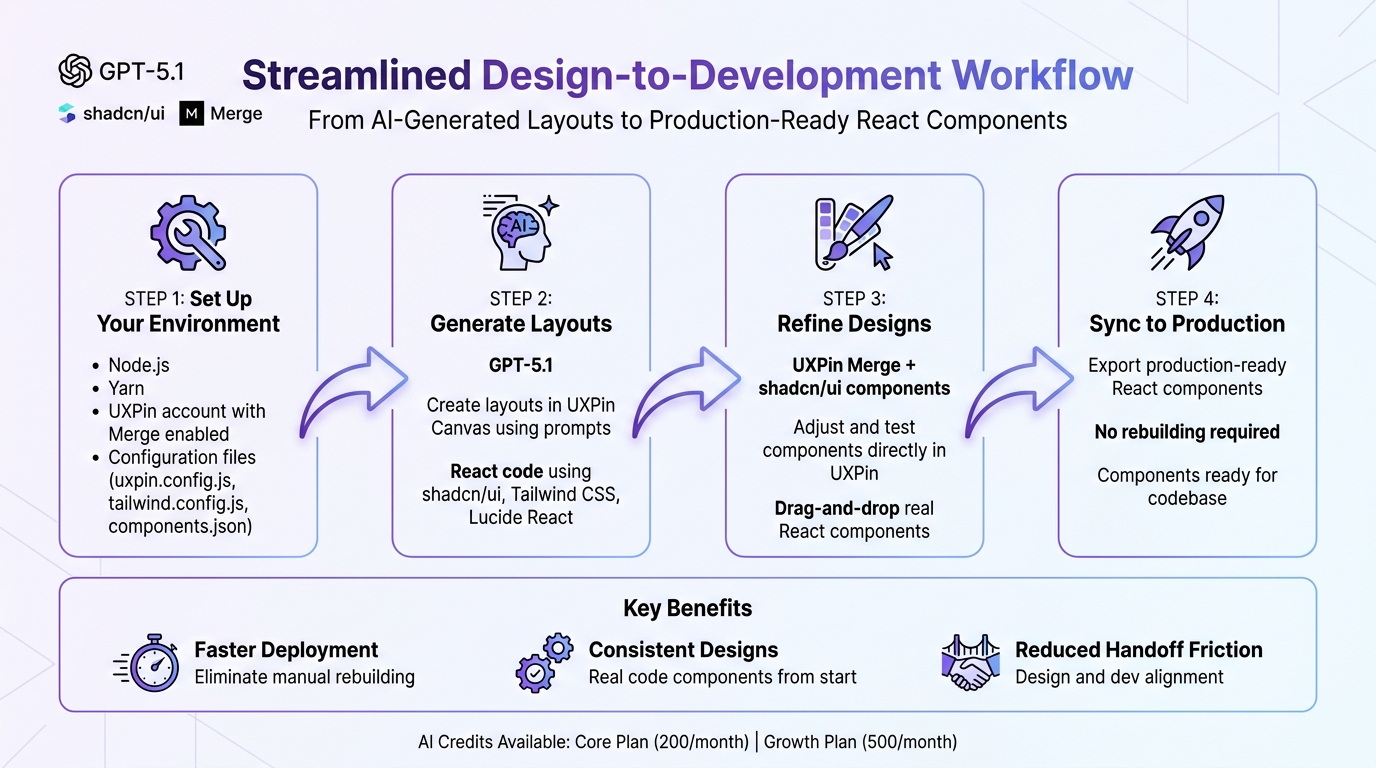
4-Step Workflow for Building UX with GPT-5.1, shadcn/ui, and UXPin Merge
UXPin Merge Tutorial: Intro (1/5)
sbb-itb-f6354c6
What You Need to Get Started
To dive into building UX with GPT-5.1 and shadcn/ui, you’ll first need to set up your development environment and ensure the necessary tools are ready within UXPin. Fortunately, UXPin natively integrates both GPT-5.1 and shadcn/ui, so there’s no need for manual imports or external AI services.
Make sure you have the following:
- Node.js
- Yarn
- A UXPin account with Merge enabled
- Configuration files:
uxpin.config.js,uxpin.webpack.config.js,tailwind.config.js, andcomponents.json
Since shadcn/ui components are built using React, Radix UI primitives, and Tailwind CSS, having these configurations in place is essential. Detailed setup instructions follow in the next sections.
Setting Up shadcn/ui in UXPin Merge
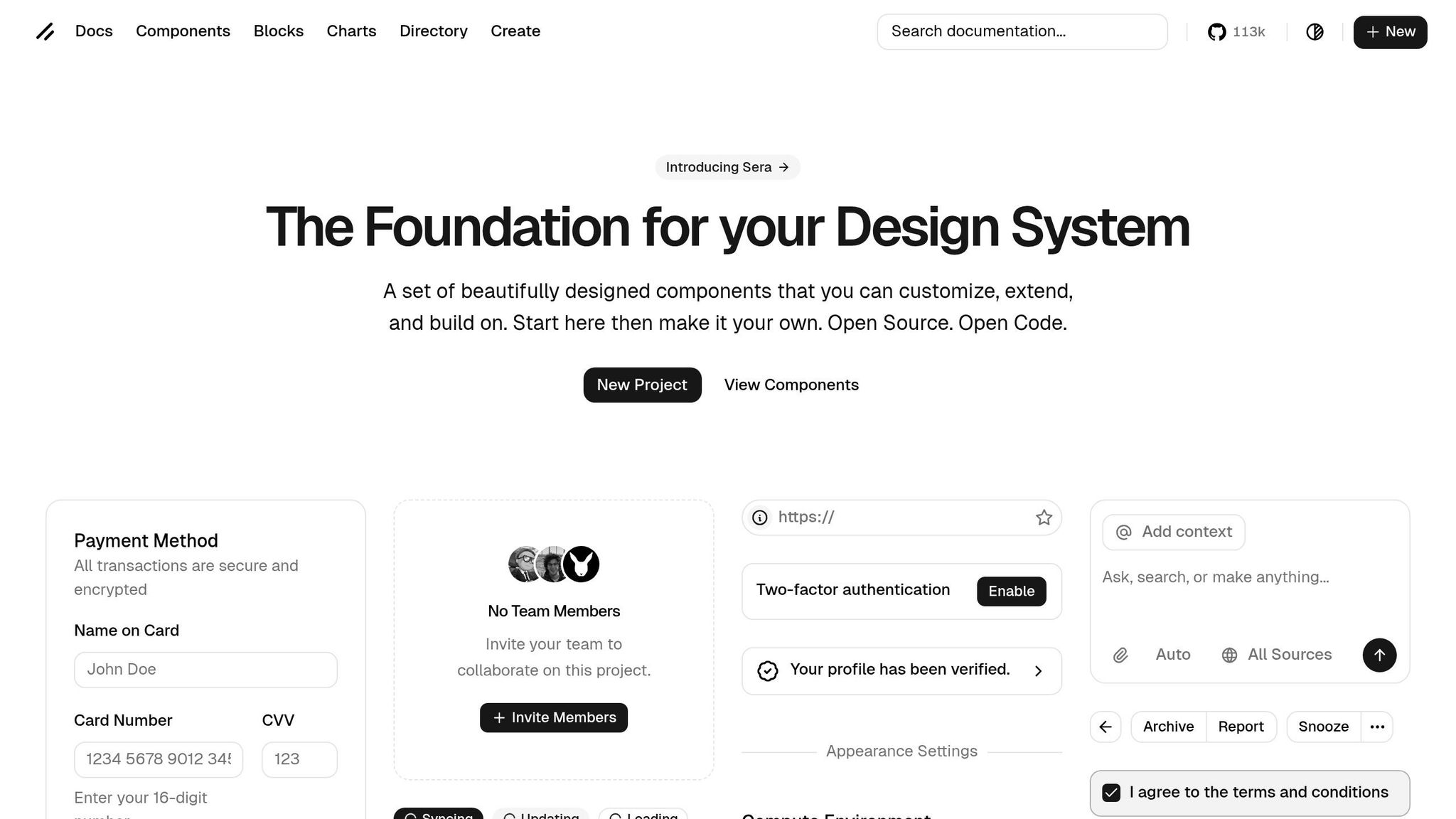
With UXPin’s native integration of shadcn/ui, you can start using these components directly from the UXPin canvas – no need for manual imports. If you’re working with the pre-integrated library, you can jump straight into designing.
For those creating a custom component library or syncing their own shadcn/ui setup, you’ll need to push your components to UXPin using your unique library token. Use the following commands to sync your custom library:
yarn install npx uxpin-merge --disable-tunneling npx uxpin-merge push --token <UXPin library token> [--branch <branch name>] Since shadcn/ui components are React-based and stored in your repository, you can fully customize them before syncing. Just make sure your tailwind.config.js file includes the shadcn/ui safelist to retain all necessary styles.
Enabling GPT-5.1 Through UXPin Forge
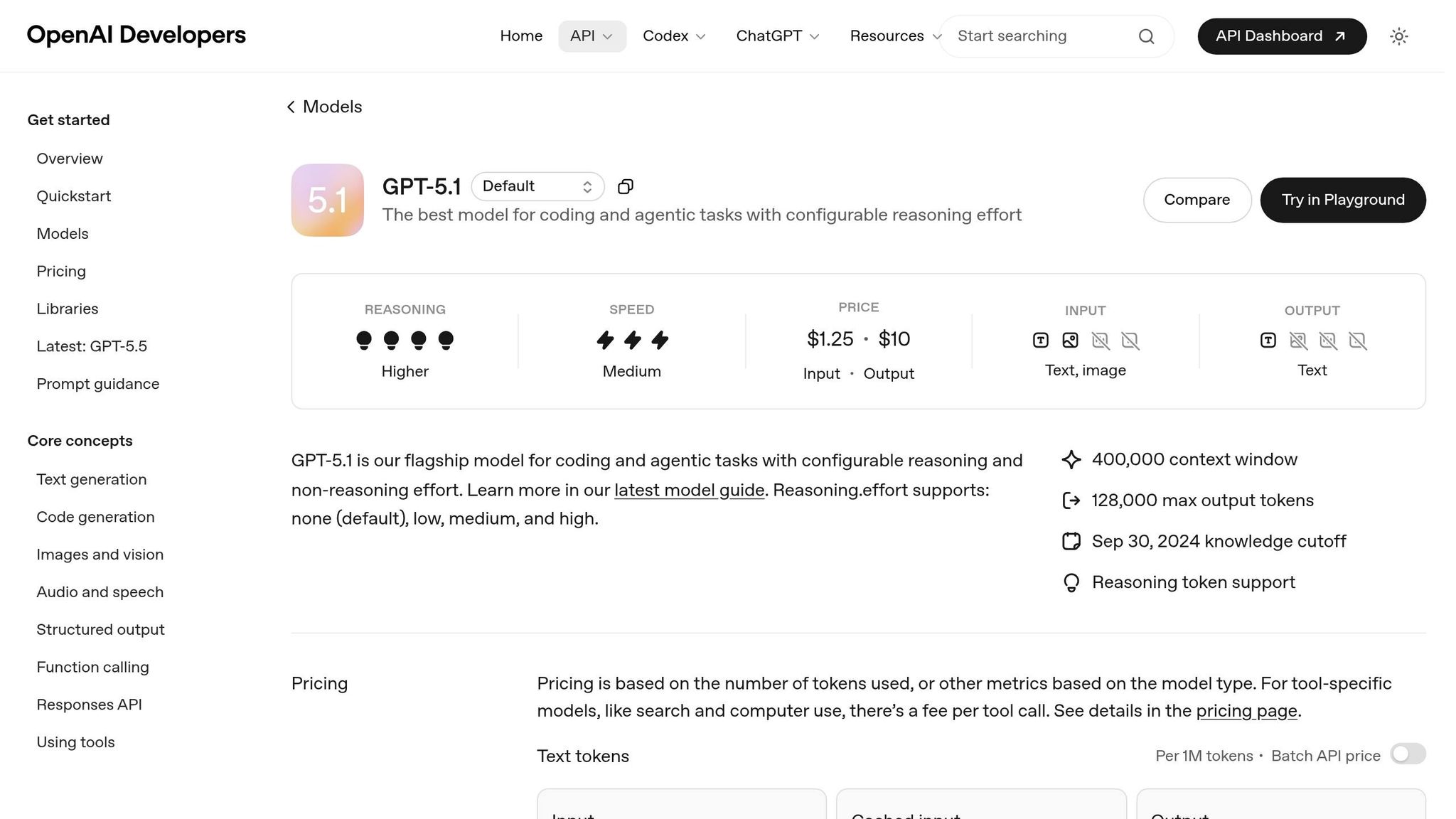
You can activate GPT-5.1 directly within the UXPin canvas using Forge, eliminating the need for a separate AI subscription. The AI generates React code with import paths aligned to your project setup.
Your access to AI features depends on your UXPin pricing plan:
- Core Plan: Includes 200 AI credits per month.
- Growth Plan: Offers 500 AI credits and access to advanced AI models.
For detailed pricing information, check out UXPin Pricing.
Preparing Your Design System
To ensure a smooth workflow, organize your design system so all shadcn/ui components are approved, backed by code, and synced. Forge relies on the components available in your system, so double-check that all essential UI elements are included and that your Tailwind configuration supports the necessary design tokens.
How to Build UX with GPT-5.1 and shadcn/ui
Once your setup is ready, you can start creating user experiences by combining AI-generated layouts with production-ready components. This process involves crafting precise prompts, refining layouts with real components, and testing interactions – all within a unified workspace. The journey begins with generating initial layouts using GPT-5.1.
Step 1: Create Initial Layouts with GPT-5.1
Launch Forge directly on the UXPin canvas and describe your feature with as much detail as possible. For instance, you could provide a prompt like:
"Design a mobile checkout flow for a fitness app aimed at Gen Z users, incorporating Apple Pay and a progress indicator."
GPT-5.1 will respond by generating React code using only shadcn/ui components synced with your design system. It ensures layouts adhere to your brand standards by prioritizing CSS variables like --background, --primary, and --border. To maintain consistency, use token-first prompting. For example, you might instruct GPT-5.1 to pull colors from globals.css and stick to them throughout the task. You can also specify visual styles for UI assets, such as:
- Icons: "minimal, geometric, consistent stroke width"
- Illustrations: "3D-isometric, clean edges, pastel colors"
"GPT-5.1, our newest flagship model, is designed to balance intelligence and speed for a variety of agentic and coding tasks."
– Samarth Madduru, GPT-5.1 Prompting Guide
Once your layout is generated, move on to refining it with shadcn/ui components in Step 2.
Step 2: Edit and Adjust Components with shadcn/ui
After GPT-5.1 creates the initial layout, use the Merge canvas to fine-tune it by dragging and dropping shadcn/ui components. These are real React components built with Radix UI and styled with Tailwind CSS, making them ready for production. To maintain consistency, establish a baseline for your design system, which is especially helpful when working with a team.
If further customization is required, you can use a Theme Generator to adjust primary colors and export the corresponding CSS variables.
"Our company selected shadcn as our primary design library… Its comprehensive variable system has significantly improved our efforts around branding and accessibility."
– Ryan Almoneda, UX Designer, BlackDuck
Additionally, you can leverage pre-built Pro Blocks to quickly assemble entire pages.
Step 3: Build Interactive Prototypes with Forge
Forge allows you to add and test interactions that mimic real-world behavior, such as error handling, dark mode toggling, and cart updates. Since these prototypes use the same components that will eventually go into production, testing at this stage can reveal performance and accessibility issues early on.
"Design-to-code only gets better when intent survives the handoff."
– Matt Wierzbicki, Product Designer
Forge can also generate multiple components at once, making it easier to create complex interfaces like multi-step forms. You can then refine these flows based on feedback from user testing.
Tips for Using GPT-5.1 and shadcn/ui Effectively
When combining GPT-5.1 with shadcn/ui, ensuring consistency and reliability across teams is crucial. AI-powered design tools work best when clear roles and boundaries are established upfront. By defining these parameters early, you can avoid "design drift", where inconsistent decisions lead to mismatched screens and features.
Keeping Designs Consistent Across Teams
A lack of clarity in core design decisions often leads to inconsistency. To avoid this, establish design system standards for typography, spacing, visual density, and corner radii before you start building. This isn’t just about making things look good – it’s about creating a shared framework that both GPT-5.1 and your team can use.
A Theme Generator can serve as your single source of truth for color roles and dark mode behavior. Export these settings as CSS to ensure uniformity across your project. For instance, Michał Wigda’s team at PagePro implemented a structured onboarding process for shadcn/ui, cutting onboarding time from weeks to just one day.
"Consistency stops depending on memory. It becomes the default."
– Matt Wierzbicki, Product Designer
Reusing pre-built structures doesn’t just save time – it keeps your design language intact. When using GPT-5.1, provide system-aware instructions that reference your design system variables and component structures. This reduces the chances of the AI making assumptions or deviating from your standards.
Once you’ve locked in consistency, the focus shifts to ensuring AI outputs align with these predefined standards.
Using AI Responsibly in Design
GPT-5.1 generates patterns based on historical data, which means it may favor older, widely-used references over newer updates. It doesn’t automatically validate commands or check for deprecated features unless you explicitly instruct it to. Additionally, because GPT-5.1 has a knowledge cutoff, it might not be aware of the latest updates to libraries or frameworks.
"Frequency bias > recency: Even with a knowledge cutoff… older, frequently cited package names can still dominate completions unless I’m asked to check current docs or the registry."
– OpenAI Developer Community
To avoid relying on outdated or incorrect information, always verify AI outputs manually before implementation. Ask GPT-5.1 to include source links, official documentation, and the date of the information it provides. Set rules for the AI to confirm package or CLI versions before making recommendations. As a final check, run commands like npx [package]@latest --help to ensure accuracy before executing any AI-generated suggestions.
Moving from Prototype to Production
Streamline the transition from prototype to production by eliminating unnecessary rework. With DreamFactory providing governed API access to your backend data sources and UXPin Merge handling your frontend components, the entire data-to-UI pipeline becomes seamless and production-ready.
Exporting Designs to Production
shadcn/ui uses a flat-file distribution system, meaning its React components are embedded directly into your project’s source code rather than being managed as an external npm package. To work with shadcn/ui, your build chain must include Tailwind CSS directives in your global.css. Make sure these directives are present, and ensure your Tailwind and PostCSS configurations align with your design system. Matching these configurations is essential to maintain consistency across your project.
"Shadcn/UI works from your source code not from npm package once code is generated. This own component library model provides flexibility but demands careful build configuration." – DevUnionX
shadcn/ui is designed to be AI-compatible, enabling AI models to interpret its code structure. However, human oversight is still critical. Research shows that 96% of developers don’t fully trust AI-generated code to be error-free, and only 48% consistently review such code before committing it. Always manually validate components to ensure they include necessary sub-components like DialogTitle and DialogDescription. Check that responsive prefixes (e.g., md:, lg:) and ARIA labels are applied correctly. Using CVA for managing variants is also recommended, particularly for supporting features like dark mode.
Once your components are verified for production, shift your attention to fostering alignment between design and development teams.
Coordinating Design and Development Teams
As production requirements take shape, seamless collaboration between designers and developers becomes increasingly important. This collaboration should start well before page design begins. Agreeing on key elements – like typography, spacing, visual density, and color roles – early on prevents misalignment and reduces the cost of reworking repeated UI components.
"A lot of handoff problems are not really handoff problems. They are translation problems. Design says one thing. Code interprets it another way." – Matt Wierzbicki, Product Designer
Use your Theme Generator settings to align on these foundational elements. When incorporating AI into development workflows, ensure that instructions reference your specific design system variables to avoid inconsistencies. Additionally, utilizing CLI-installable blocks or templates can help maintain a consistent code structure throughout the design-to-production pipeline.
Conclusion
By integrating GPT-5.1, shadcn/ui, and UXPin Merge, the design-to-development workflow takes a major leap forward, letting you move from concept to production faster than ever. Unlike traditional workflows that demand manual rebuilding, this approach uses real React components that plug directly into your codebase. The AI handles the repetitive assembly, giving you more time to focus on designing exceptional user experiences.
"AI should create interfaces you can actually ship – not just pretty pictures." – UXPin
This method removes the usual friction between design and development teams. The result? Faster deployment cycles, consistent product designs, and design systems that are actually utilized – cutting out translation layers, miscommunication, and unnecessary rework.
"The gap between design and development is shrinking thanks to tools like UXPin Merge that helps you design with React components, enabling a smooth transition from prototype to production." – UXPin
With these streamlined processes, your prototypes are production-ready from the start, saving time and effort across the board.
Interested in bringing AI-powered, code-backed design to your team? Check out uxpin.com/pricing for UXPin Merge plans starting at $29/month, or reach out to sales@uxpin.com for Enterprise solutions that include custom component library integration.
FAQs
What should I put in my prompt so GPT-5.1 uses my design tokens?
To make sure GPT-5.1 works seamlessly with your design tokens, provide explicit instructions in your prompt that reference your design system or specific tokens. Clearly mention your design tokens or style variables, so GPT-5.1 can generate components or layouts that align with your established design guidelines. This method ensures consistency and helps AI-generated elements match your custom styles effectively.
How do I keep Tailwind styles from disappearing when syncing to UXPin Merge?
To keep Tailwind styles intact when syncing with UXPin Merge, make sure your Tailwind CSS setup is properly configured and active. When importing components created with shadcn/ui into UXPin Merge, ensure the Tailwind classes are preserved. The key to smooth synchronization lies in maintaining your Tailwind configuration and confirming that the imported components carry all the required styles.
How do teams review and trust AI-generated React before shipping?
Teams make sure AI-generated React code is dependable by performing thorough, line-by-line reviews. This process helps identify logical mistakes, potential safety risks, or unusual interactions within the code. Some developers are still wary of fully trusting AI-generated outputs, which highlights the importance of having strict review procedures in place. These steps are essential for maintaining both code quality and safety before the code is deployed.

