Want to speed up your design-to-development workflow? Here’s how combining GPT-5.1, Ant Design, and UXPin Merge can help.
This approach lets you create prototypes using production-ready components, eliminating the need for developers to rebuild designs from scratch. Here’s the process in a nutshell:
- GPT-5.1 generates layouts based on simple prompts, using Ant Design’s pre-built UI components.
- Ant Design ensures consistency with its library of tested, reusable UI elements like buttons, forms, and tables.
- UXPin Merge connects everything, allowing designers to work directly with the same code developers use.
UXPin Merge Tutorial: Generating Code From the Design (5/5)
For a deeper dive, follow our design with code tutorial to master these workflows.
sbb-itb-f6354c6
Getting Started: Prerequisites and Setup
This setup connects AI design tools with production-ready components, creating a streamlined foundation for UX development. Setting up your environment to integrate GPT-5.1, Ant Design, and UXPin Merge typically takes 15–30 minutes. Follow the steps below to get everything ready.
Setting Up Ant Design Components in UXPin Merge
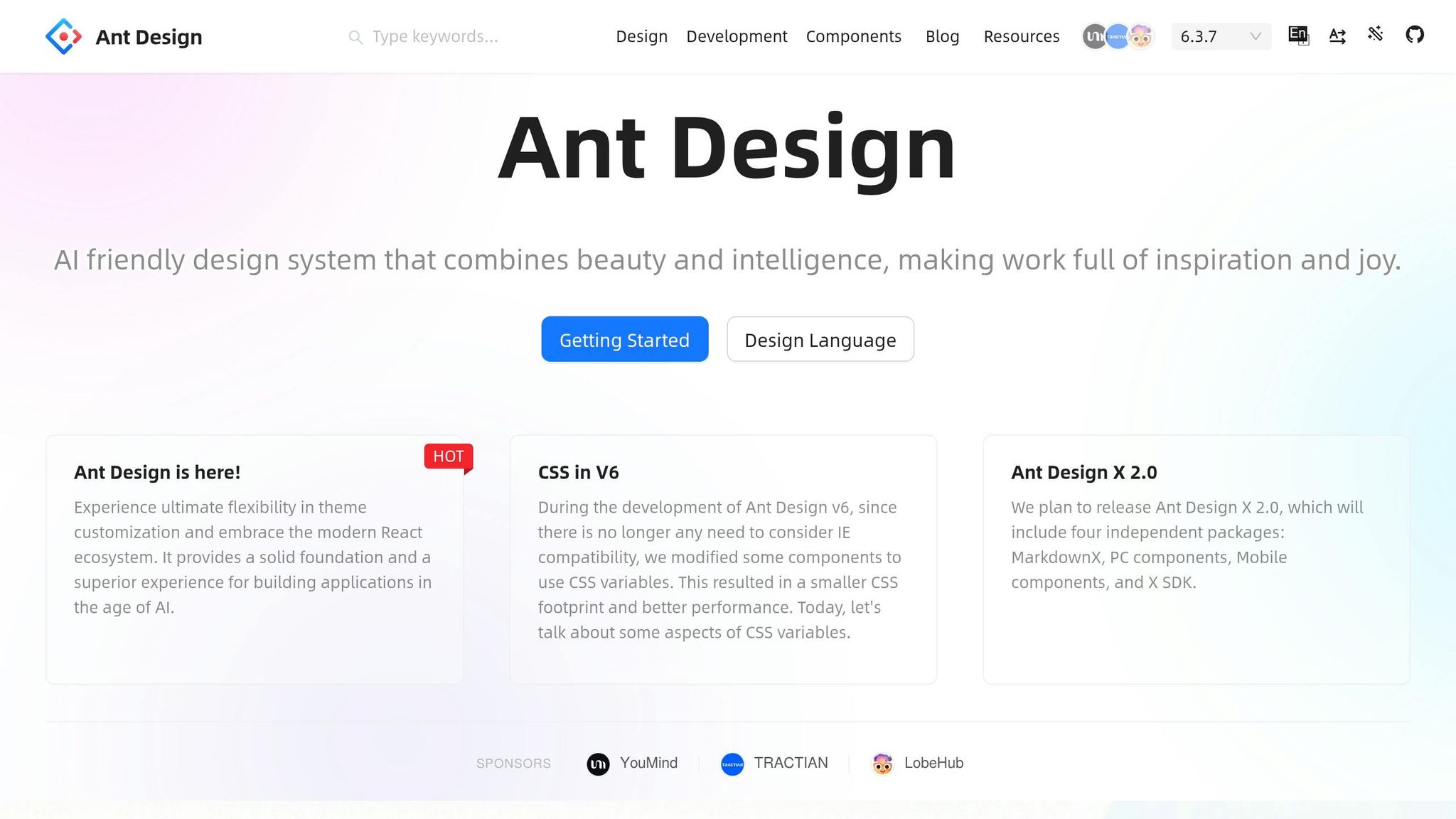
UXPin comes with Ant Design already integrated, so there’s no need to manually import files or maintain separate libraries. Simply open the UXPin Design Editor and access the built-in Ant Design library from the component panel. You’ll find all the essentials – buttons, forms, tables, navigation elements, and more – ready to use right away.
If your team relies on a custom library instead of the default Ant Design setup, you’ll need to connect it through your Git repository. Start by cloning the uxpin-merge/ant-merge repository to incorporate your custom components. Update the uxpin.config.js file to map your components and their properties. This configuration ensures UXPin recognizes your components and handles them correctly in the design environment. Use yarn or npm to install dependencies from your package.json, aligning your environment with production.
For Windows users, setting up the Windows Subsystem for Linux (WSL) is essential for using Merge CLI tools effectively. After configuring WSL, validate your components in the Merge Dev Environment Editor to catch any issues before rolling them out to your team. This step ensures that only functional components make their way into your workflow.
Accessing GPT-5.1 Through UXPin Forge
UXPin Forge, the platform’s built-in AI assistant, provides access to GPT-5.1. You don’t need a separate subscription to ChatGPT or Claude – Forge is included with your UXPin plan. Simply click the Forge icon or open the prompt panel from the canvas interface to get started.
Forge uses GPT-5.1 to generate layouts while adhering strictly to your approved Ant Design components. This means the AI won’t create random elements or suggest patterns outside your design system. The ant-merge framework links real-code components to the editor, giving GPT-5.1 a structured library to draw from. For example, when you ask Forge to build a dashboard or form, it uses actual React components instead of placeholders.
Your UXPin subscription tier determines the number of AI credits available each month. The Core plan includes 200 credits, Growth offers 500, and Enterprise plans provide custom credit limits tailored to your team. Each AI-generated layout consumes credits based on its complexity. Once GPT-5.1 is activated, configure your workspace to ensure smooth collaboration across your team.
Configuring Your Workspace for Team Collaboration
To enable seamless teamwork, set up permissions, shared libraries, and automated synchronization. Start by creating a named library in the UXPin Design Editor to store your Ant Design components. Use the "select team members" option to control who can access or modify specific component sets, ensuring your design system stays intact.
For automated updates, generate an authentication token in UXPin and add it to your CI/CD environment variables (e.g., CircleCI, Travis CI, GitLab, or Bitbucket). This setup allows production code changes to sync automatically with your design components. Choose between Clean Integration, which directly connects to your Git repository, or Wrapped Integration, which offers flexibility for modifying components to suit design needs.
"All design or experience-based decisions are now shared across both sides of the fence, allowing for more frictionless collaboration between engineers and designers." – CMS Critic Staff
Finally, use UXPin Merge to set up version control coordination through GitHub. This ensures your design system remains a single source of truth, eliminating the need to juggle separate UI kits and codebases. Organize your repository so that each component resides in its own directory with an export default, ensuring smooth integration.
Building UX with AI and Ant Design in UXPin Merge
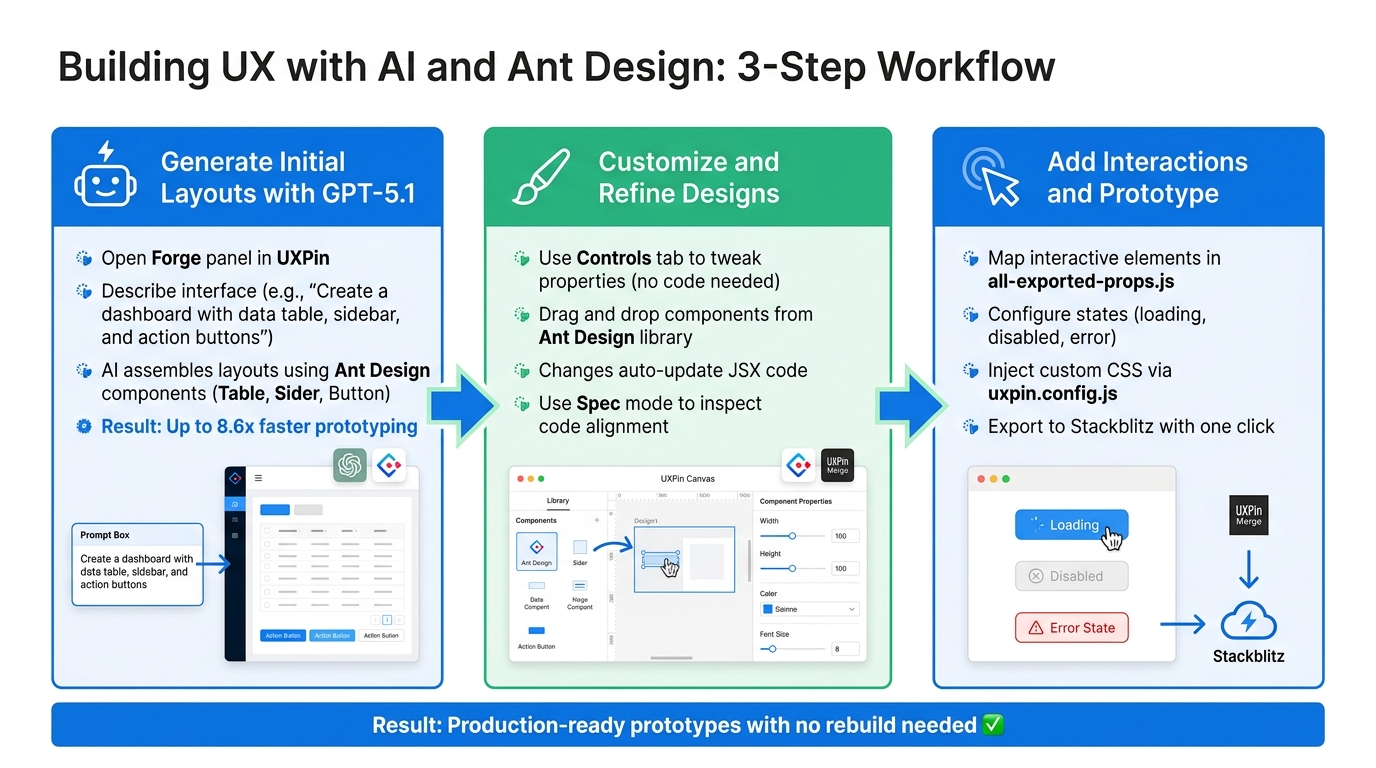
3-Step Workflow: Building UX with GPT-5.1, Ant Design, and UXPin Merge
After setting up your workspace, you can dive into creating user experiences by combining GPT-5.1’s layout generation capabilities with Ant Design’s ready-to-use components. This process unfolds in three key stages: generating initial layouts with AI, refining them in the canvas, and adding realistic interactions that mimic the final product. This workflow takes you smoothly from setup to a polished prototype.
Step 1: Generate Initial Layouts with GPT-5.1 Prompts
Start by using GPT-5.1 and Ant Design to create the foundation of your prototype. Open the Forge panel in UXPin and describe the interface you’re aiming for. For example, you could prompt Forge with: "Create a dashboard with a data table, sidebar, and action buttons." In response, GPT-5.1 will assemble layouts using Ant Design components like Table, Sider, and Button – all sourced from your approved library.
This approach ensures that the AI sticks to production-ready components. For example, if you’re designing an e-commerce checkout flow, the AI will use Ant Design’s Form and Input components rather than creating custom patterns. This adherence to your design system means the AI output is both practical and aligned with your development standards.
Think of the generated layout as a starting point, not the final product. Forge helps you kick off your design process quickly – up to 8.6x faster prototyping – but the real magic happens in the refinement phase.
Step 2: Customize and Refine Designs in UXPin Canvas
Once you have the base layout, it’s time to tailor it to your project’s specific needs. Use the Controls tab in UXPin to tweak component properties without touching any code. For instance, you can edit button labels, adjust form field settings, or modify table columns directly in the editor. Every change you make updates the underlying JSX code automatically, ensuring your adjustments are reflected in the technical implementation.
Need to rearrange the layout? No problem. You can drag and drop components from the Ant Design library or reposition existing elements. For example, if Forge places a navigation menu at the top but your design requires a sidebar, just move the Menu component and adjust its orientation. Use Spec mode to inspect the JSX code and confirm that your visual changes align with the technical requirements for deployment.
Before diving into customizations, check the exposed properties of components. Designers can only modify properties defined in the Git repository. This ensures what you see in the canvas matches what developers will ship, maintaining consistency between design and code.
Step 3: Add Interactions and Prototype with Real Code
With UXPin Merge, you can incorporate interactions using the same React components that will be used in production. Map interactive elements in all-exported-props.js to enable states like loading, disabled, or error conditions – all directly within the editor. For example, you can configure a Button to display a loading spinner when clicked or set a Form field to show validation errors based on user input.
To match your brand’s style, use the uxpin.config.js file to inject custom CSS or theme providers. This ensures Ant Design components reflect your branding while sticking to the Single Source of Truth principle. The result? Prototypes that look and function just like the final product.
When your interactions are ready, test the prototype directly in UXPin or export it to developer environments like Stackblitz with a single click. The exported design includes all the logic, states, and styles from your Ant Design library, so developers won’t need to rebuild anything from scratch. To avoid discrepancies, keep your package.json and repository files updated with the latest Ant Design version. This ensures a seamless handoff between design and development.
Best Practices for Scalable and Efficient UX Design
After crafting your initial prototypes, it’s important to follow key practices that ensure your UX design process stays consistent and efficient.
Aligning Design and Development with a Single Source of Truth
One of the toughest parts of UX design isn’t just creating visually appealing interfaces – it’s making sure the designs align with what developers actually build. UXPin Merge bridges this gap by linking your design canvas directly to the same Ant Design components developers use in production. This means the UX you create in UXPin is always in sync with the production environment. By working from the same React code library, teams can maintain consistent designs across the board.
To streamline updates, manage custom styles and component properties centrally using the uxpin.config.js file. Whether it’s a developer tweaking a button’s style or a designer adjusting a form field, these changes are instantly reflected for the entire team. This setup creates a unified design environment that mirrors production exactly.
For efficient handoff, use Spec Mode to export production-ready code. With components already built for production, there’s no need for a translation layer between the designer’s vision and the developer’s implementation.
Using AI Responsibly Within System Constraints
While tools like GPT-5.1 can speed up layout generation, working without clear guidelines can lead to inconsistent results. To keep AI-generated outputs within technical limits, provide specific instructions tied to Ant Design patterns. For instance, instead of requesting "a modern dashboard", try something like "a dashboard using Ant Design’s Table, Sider, and Card components with our standard spacing tokens."
Start with UXPin’s pre-built layouts from open-source libraries before using AI for customizations. Think of GPT-5.1 as an assistant that works within your rules, not as a substitute for thoughtful design. The AI Component Creator uses pre-integrated code components, ensuring that complex sections, like FAQ areas or contact forms, remain consistent with your approved design system.
By setting clear constraints, you can harness AI effectively while staying true to your design principles.
Improving Collaboration Across Teams
A strong design system is just the foundation – effective collaboration between designers and developers is what keeps everything running smoothly. Since these teams often have different workflows and terminology, UXPin Merge provides a shared language by using the same Ant Design components powered by React code. This shifts conversations from "Can you build this?" to "How should we configure this?" – reducing misunderstandings and speeding up decisions.
To maintain control, configure workspace roles so only authorized team members can modify components, while still allowing others to provide feedback. For teams on the Growth plan or higher, Storybook integration adds another layer of clarity by documenting component behavior and usage guidelines.
Regular design system reviews, where both designers and developers review updates to the Ant Design library together, can further strengthen collaboration. Whether it’s a new component or an update to an existing one, these reviews ensure everyone understands the changes and their impact – keeping the entire team aligned and in sync.
Troubleshooting and Overcoming Common Challenges
Once you’ve set up your components and started prototyping, you’ll likely encounter a few hiccups along the way. This section dives into some common challenges and how to tackle them effectively.
Debugging Issues with Ant Design Component Integration
If your components aren’t rendering properly, the first step is to check your configuration files. Start with your uxpin.config.js file – this file dictates how custom styles and properties are applied to your components. If you’ve recently transitioned from another framework, like Tailwind, make sure to clean out any conflicting configurations in your postcss.config.js file.
Missing components like Avatar, Badge, or Ribbon? They might not be registered. Update the all-exported-props.js file, which acts as your component registry. If a component isn’t listed here, it won’t appear in the Merge editor. Add the missing components to this file and re-sync your library to fix the issue.
For rendering errors, use Spec Mode to inspect the production-ready code. You can also click "Copy to Stackblitz" to isolate the problematic component in a clean development environment. This allows you to debug without interference from other parts of your design. Once the issue is resolved, ensure that AI-generated layouts follow your team’s development standards.
Ensuring AI-Generated Designs Meet Development Standards
While GPT-5.1 can quickly generate layouts, they might not always align with your team’s coding standards. The key is to be specific in your prompts. Instead of requesting "a dashboard", try something like, "a dashboard using Ant Design’s Table, Sider, and Card components with 16px spacing tokens." This approach helps keep AI outputs within your technical guidelines.
Always double-check generated layouts in Spec Mode to confirm the code is accurate. If there are inconsistencies, adjust your prompt or make tweaks directly in the canvas. With UXPin Forge, pre-integrated components ensure that AI outputs stay within your defined constraints.
For teams using custom versions of Ant Design, setting up automated testing can save time and prevent errors. For example, the ant-design/x repository runs over 2,500 workflow tests to maintain component quality. Adopting a similar approach can help catch issues before they reach production.
Resolving Team Workflow Misalignments
One common source of frustration is when designers and developers work with different versions of the same components. UXPin Merge addresses this by connecting directly to your Git repository, ensuring everyone uses the same assets. If designers struggle to customize components, it’s often due to missing props in the React code. Developers should expose adjustable properties – like labels, colors, and sizes – to give designers the flexibility they need.
Oscar Jite-Orimiono, a UX writer with expertise in design systems, explains:
"A code-to-design system provides a single source of truth for designers and developers. Everyone has to work with the same components".
This shared foundation eliminates the back-and-forth that often slows teams down. PayPal, for instance, reported in February 2025 that switching to a code-to-design workflow with UXPin Merge sped up their design and development process by over six times compared to traditional image-based tools. The secret? Both teams worked from the same React components, reducing translation errors and rework.
To avoid workflow misalignments, schedule regular design system reviews. These sessions allow designers and developers to jointly review component updates, ensuring everyone stays on the same page. Use GitHub for version control and coordinate releases so both teams always reference the latest component versions.
Conclusion
Key Benefits of Combining AI, Design Systems, and Real Code
Bringing together GPT-5.1, Ant Design, and UXPin Merge bridges the gap between design and development. By using production-ready components, designers and developers work from the same foundation – there’s no need to convert static mockups into code. Every design is built with real HTML, CSS, and JavaScript, so prototypes function just like the final product, complete with features like form validation, state management, and data sorting.
This approach creates a unified workflow by automatically syncing updates from Git repositories to the design environment. As a result, designers always have access to the most up-to-date components.
With 69% of companies already using design systems, UXPin Merge helps teams maintain consistency and speed up development by integrating directly with their repositories.
"UXPin is on a mission to enable the best user experiences by merging design and engineering into one world of better, faster product development."
The result? Faster deployment, fewer errors during handoffs, and prototypes that seamlessly translate into production code. Designers can use React components to build fully functional, code-ready prototypes, while developers save time by avoiding the need to recreate designs from scratch.
Next Steps for Implementing This Workflow
If you’re ready to adopt this streamlined workflow, here’s how to get started. Begin by setting up a Clean Integration between UXPin Merge and your Git repository. Ensure your React components include well-defined properties (props), allowing designers to adjust labels, colors, and sizes directly in UXPin. Use GitHub for version control to manage design system updates and keep both teams in sync.
For those new to this process, start with a small set of core Ant Design components. Experiment with GPT-5.1 to generate initial layouts and gradually expand your component library as you refine your AI prompts to align with your team’s standards. To explore pricing options, visit uxpin.com/pricing, and learn more about AI integration at uxpin.com/forge.
FAQs
What do I need in my Git repo to use a custom Ant Design library with Merge?
To work with a custom Ant Design library in UXPin Merge, start by making sure your Git repository includes the Ant Design components as dependencies. You can install the Ant Design package using either npm or yarn. Once installed, integrate your custom components into your codebase. This setup allows UXPin Merge to sync and use your custom Ant Design components seamlessly.
How do AI credits work in UXPin Forge with GPT-5.1?
AI credits in UXPin Forge with GPT-5.1 are consumed based on the number of tokens processed. This includes both the input text you provide and the output generated by the system. Each request deducts credits depending on how many tokens are used.
If you connect your own OpenAI API key, you can also access GPT-5.1. The cost will depend on OpenAI’s pricing for the model, which often offers lower rates when using your own API key.
How do I ensure AI-generated layouts align with our design system and coding standards?
To make sure AI-generated layouts align seamlessly with your design system and coding standards, consider using UXPin Merge with Ant Design. Merge bridges the gap between design and development by connecting AI-generated designs directly to your codebase. It syncs with real, production-ready React components, ensuring everything stays consistent.
With this setup, you can fine-tune layouts generated by GPT-5.1 using design tokens and component configurations, keeping everything in line with your established design system. This approach not only keeps your prototypes consistent but also minimizes the disconnect between design and implementation.

