How to build UX using GPT-4.1 + Bootstrap – Use UXPin Merge!
Build production-ready UX prototypes with GPT-4.1, Bootstrap components, and UXPin Merge—no code required and faster handoffs.

Want to design faster and more efficiently? Combining GPT-4.1, Bootstrap, and UXPin Merge lets you create production-ready UX designs without writing code. Here’s how it works:
- GPT-4.1: Generates layouts using your design system.
- Bootstrap: Provides a robust library of components.
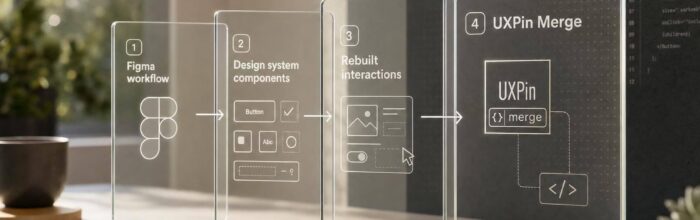
- UXPin Merge: Syncs design and development by using live, code-based components.
This workflow eliminates design-to-code gaps, accelerates prototyping, and ensures 100% alignment with production code.
Key Benefits:
- Reduce engineering time by up to 50%.
- Work 8.6x faster than vector-based tools.
- Create fully functional, interactive prototypes in under an hour.
Ready to build better UX? Let’s dive in.
UXPin Merge Tutorial: Generating Code From the Design (5/5)
sbb-itb-f6354c6
What You Need to Get Started
To begin designing with GPT-4.1 and Bootstrap, you’ll need three things: a UXPin account, access to GPT-4.1 through UXPin’s Forge AI, and a basic understanding of Bootstrap components. The good news? Everything is managed within UXPin, so you won’t need to juggle multiple tools or subscriptions.
Create Your UXPin Account
Head over to uxpin.com and click on "Start Free Trial" to set up your account. This gives you 14 days of full access to UXPin’s Merge features – no credit card required. Simply enter your work email, set a password, and confirm your account through the email verification link.
Once you’re logged in, open the Merge panel in the UXPin editor. From there, click "Connect Library", search for "Bootstrap", and import the official Bootstrap 5 library. This library includes over 50 production-ready components like navbars, cards, modals, buttons, forms, and grids. The setup process is super quick – less than two minutes – and you’ll be ready to start dragging and customizing components directly on your canvas.
If you’re part of an enterprise team, choose the "Enterprise" option during signup to contact sales for tailored plans starting at $29 per user per month (billed annually in USD). Teams based in the U.S. also benefit from AWS US-East-1 server hosting, ensuring low latency and compliance with standards like CCPA and SOC 2 Type II.
How to Access GPT-4.1
GPT-4.1 is seamlessly integrated into UXPin via Forge AI. After creating your UXPin account, navigate to the editor sidebar and go to "AI Tools" > "Forge AI." You can enable AI features with just one click in the settings.
With a free trial account, you’ll get 50 AI generations per month. Paid plans, however, unlock unlimited access. Forge AI allows you to generate components like a responsive e-commerce navbar by simply prompting it with a request. It produces editable HTML and CSS that align perfectly with your connected Bootstrap library, ensuring consistency with your design system.
Understanding Bootstrap Components
At the heart of this workflow is Bootstrap’s 12-column responsive grid system. While you don’t need advanced coding skills – UXPin Merge takes care of the technical implementation – familiarity with Bootstrap’s structure will help you craft better AI prompts and fine-tune your designs.
Here are three key areas to focus on:
- Grid system: Learn the responsive breakpoints (e.g.,
xs,sm,md,lg,xl) to create adaptable layouts. - Utility classes: Classes like
d-flexandjustify-content-centersimplify alignment and spacing. - Core components: Buttons, forms, and navigation elements are essential building blocks.
You can find detailed examples and code snippets in the official Bootstrap documentation. Spend 2-4 hours reviewing the basics to get comfortable before diving in.
When customizing AI-generated designs, pay attention to Bootstrap’s spacing scale (0-5 rem) and color variables (like $primary). As UXPin’s Merge lead explains:
"Bootstrap’s structure streamlines GPT-4.1 prompts, reducing custom CSS by 70%."
This standardized approach allows you to focus more on design decisions and less on wrestling with code. With these basics covered, you’re all set to create smart, responsive UX designs using GPT-4.1, Bootstrap, and UXPin Merge.
How to Build UX with GPT-4.1, Bootstrap, and UXPin Merge
Creating a UX prototype has become simpler and faster with pre-configured tools and design systems. You can now build a fully interactive, code-ready prototype in less than an hour. By combining Bootstrap components, AI-generated layouts, and easy customization options, you can achieve this without writing a single line of code.
Step 1: Connect Bootstrap Components in UXPin Merge
Start by ensuring your component library is set up correctly. Open your UXPin project and access the Merge panel, where you’ll find a pre-loaded library of Bootstrap 5 components. This library includes over 50 components across categories like:
- Layout: Container, Row, Col
- Navigation: Navbar, Breadcrumbs
- Forms: Button, Input, Select
- Content: Card, Alert, Badge
- Modals: Modal, Toast, Dropdown
To confirm the setup, drag a Bootstrap button onto the canvas. If it appears and you can tweak its properties in the right panel, your library is ready to go. This setup process typically takes 5-10 minutes and doesn’t require any extra configuration.
Step 2: Generate Design Ideas with GPT-4.1 Using Bootstrap Components
Next, use GPT-4.1 to generate design layouts directly in UXPin. Click "AI Tools" > "Forge AI" in the editor sidebar. Forge AI works exclusively with your Bootstrap components, ensuring all designs are production-ready and aligned with your design system.
For the best results, use a specific prompt structure. Define the UI’s purpose, list the required Bootstrap components, include design constraints, and provide project context. For example:
"Generate a responsive user registration form using Bootstrap form components, input fields, and a primary action button. Ensure it works on mobile and desktop screens using Bootstrap’s grid system."
Avoid vague prompts like "create a form." Specific requests mentioning Bootstrap components deliver 40-60% more usable designs on the first attempt compared to generic prompts. Once you hit "Generate", Forge AI will produce a layout complete with HTML and CSS that aligns seamlessly with Bootstrap’s structure.
Step 3: Edit and Customize AI-Generated Designs
After generating your design, refine it to align with your brand guidelines. Select any component and use the properties panel to adjust Bootstrap classes, spacing, colors, and typography. These changes won’t disrupt the component’s responsive behavior.
Focus on three key areas during customization:
- Visual Styling: Update colors, padding, and shadows to match your brand.
- Component Configuration: Adjust button sizes (
btn-lgtobtn-sm) or change input field types. - Layout Adjustments: Modify grid columns or tweak responsive breakpoints.
For example, if the AI generates a card layout with default padding (p-3), you can easily increase it to p-4 through the properties panel. Teams using this approach save 30-45% of their time on design refinements compared to manual adjustments, speeding up iterations while maintaining consistency.
Once your design reflects your brand, you can move on to adding interactions.
Step 4: Add Interactions to Your Bootstrap Prototype
To make your prototype interactive, select a Bootstrap component (like a button or form field) and open the interactions panel. Here, you can define triggers (e.g., click, hover, focus) and set actions (e.g., navigate to a new frame, show/hide elements, or change a component’s state).
For enterprise applications, prioritize these interaction patterns:
- Form Validation Feedback: Highlight error states for invalid input fields.
- Navigation Flows: Link buttons to specific screens.
- Modal Dialogs: Use Bootstrap modals with open/close interactions.
- State Changes: Display loading spinners or disable buttons during processing.
For instance, you can create a login form where clicking the submit button triggers a loading spinner for 2 seconds before navigating to a dashboard frame. Teams using interactive prototypes report 25-35% faster stakeholder feedback cycles and 40% fewer issues during design-development handoffs, making this approach highly effective for bridging the gap between design and development.
Benefits of Using GPT-4.1 with Bootstrap in UXPin Merge
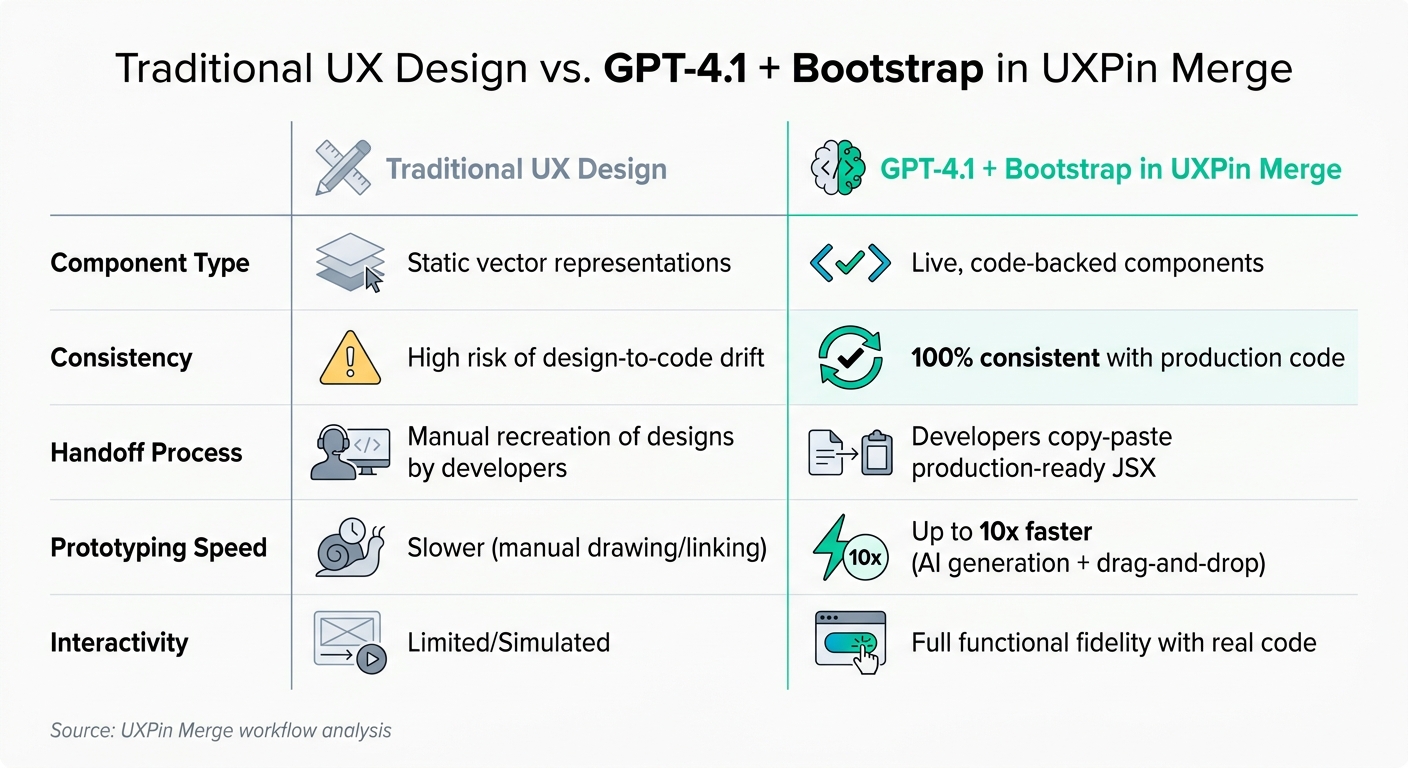
Traditional UX Design vs GPT-4.1 Bootstrap UXPin Merge Workflow Comparison
This workflow transforms how design and development teams collaborate. Instead of relying on static mockups, designers work with live, code-based components, cutting down on rework and ensuring a smoother process. The result? Faster delivery and no translation errors, reinforcing the seamless connection between design and development.
Traditional UX Design vs. GPT-4.1 + Bootstrap in UXPin Merge
Here’s a breakdown of how traditional design compares to using GPT-4.1 with Bootstrap in UXPin Merge:
| Feature | Traditional UX Design | GPT-4.1 + Bootstrap in UXPin Merge |
|---|---|---|
| Component Type | Static vector representations | Live, code-backed components |
| Consistency | High risk of design-to-code drift | 100% consistent with production code |
| Handoff Process | Manual recreation of designs by devs | Developers copy-paste production-ready JSX |
| Prototyping Speed | Slower (manual drawing/linking) | Up to 10x faster (AI generation + drag-and-drop) |
| Interactivity | Limited/Simulated | Full functional fidelity with real code |
The efficiency gains are even more pronounced at scale. Erica Rider, a UX Architect and Design Leader, highlighted this when describing her team’s experience:
"We synced our Microsoft Fluent design system with UXPin’s design editor via Merge technology. It was so efficient that our 3 designers were able to support 60 internal products and over 1,000 developers."
This alignment between design and production code addresses some of the most persistent challenges in design workflows.
Problems This Workflow Solves for Teams
One of the biggest hurdles in product development is the design-to-development handoff. In traditional workflows, designers deliver static files that developers must interpret and rebuild. This often leads to inconsistencies, wasted time, and the dreaded back-and-forth rework.
With this workflow, that gap disappears. When designing with Bootstrap components in UXPin Merge, designers use the exact same components developers will implement in production. The prototype becomes the single source of truth, ensuring 100% alignment with the final product. Misinterpretation is no longer an issue because the prototype itself is production-ready.
Adding GPT-4.1 into the mix boosts efficiency even further. Entire layouts can be generated from simple text prompts. But unlike traditional tools, the AI doesn’t just create static visuals – it generates production-ready interfaces. This eliminates tedious manual steps, allowing teams to build functional UIs in record time.
For developers, the handoff process is streamlined. Instead of deciphering static files, they receive a single link containing specs, production-ready JSX code, dependencies, and functions. They can directly copy and paste this into their environment, cutting down on engineering time and eliminating the back-and-forth that can stall projects.
Wrapping It All Together
Using GPT-4.1, Bootstrap, and UXPin Merge transforms the way teams handle the design-to-development process. Instead of relying on static mockups that developers need to recreate, this workflow ensures your designs and production components are perfectly aligned. The result? A consistent, streamlined process from start to finish.
With GPT-4.1, you can quickly generate layouts using front-end prototyping backed by actual code. Bootstrap offers a rich library of components to jumpstart your designs, while UXPin Merge keeps everything in sync – automatically updating your design editor to reflect changes in your production code.
For teams juggling multiple products, this setup scales effortlessly. It eliminates the need for manual updates, keeping your design assets aligned with production code and simplifying design system maintenance.
Ultimately, this unified approach eliminates the usual back-and-forth between design and development. Developers get ready-to-use React components that integrate seamlessly, enabling faster releases, reducing errors, and creating a smooth workflow from design to code.
Ready to take the leap? Create your UXPin account, connect your Bootstrap components with Merge, and start designing in code – no programming skills required.
FAQs
What’s the fastest way to prompt GPT-4.1 for usable Bootstrap UIs in UXPin?
To get GPT-4.1 to create Bootstrap UIs for UXPin efficiently, craft clear and structured prompts. Make sure your prompts specify the exact Bootstrap-compliant components or layouts you need. This helps GPT-4.1 produce clean, responsive code. Once generated, you can fine-tune the components using Bootstrap’s utilities and grid system. Afterward, import the refined code into UXPin Merge to create production-ready, Bootstrap-friendly designs quickly.
How do I keep AI-generated layouts aligned with my design system and production code?
If you’re looking to integrate AI-generated layouts seamlessly into your design system and production code, GPT-4.1 can be a game-changer. By leveraging its capabilities, you can generate structured, code-compliant UI components that align with your design tokens and standards.
Here’s how you can make it work:
- Set Clear Prompts: Provide GPT-4.1 with detailed instructions to create React components that adhere to your design system. Be specific about the design tokens, naming conventions, and any other standards your team follows.
- Import into UXPin Merge: Once the components are generated, bring them into UXPin Merge. This allows you to create interactive prototypes that mirror your final product.
By following this approach, you’ll maintain consistency across layouts, design systems, and production code while also simplifying your workflow. It’s a streamlined way to ensure your prototypes and final code are always in sync.
Can developers reuse the prototype code directly, and what do they get from the handoff?
Developers can directly reuse the prototype code provided. The components created by GPT-4.1 are ready for production and adhere to either the design system or the Bootstrap framework. This seamless handoff delivers functional prototypes with code that aligns perfectly with the final design. As a result, developers don’t need to rebuild components from scratch, ensuring consistency between the design and development phases.