When it comes to accessibility testing, automated tools can only catch about 30–57% of WCAG violations. The rest? You need manual testing for deeper insights into usability and user experience. Here are five tools that help you test accessibility manually:
- NVDA: A free, open-source screen reader for Windows that helps identify issues like unclear alt text, incorrect reading order, and inaccessible widgets.
- Orca: A Linux-based screen reader that tests GNOME applications and web content for accessibility barriers.
- BrowserStack: A cloud-based platform to test accessibility across real devices and browsers, ensuring consistency for various platforms.
- tota11y: A browser-based tool that overlays visual annotations to highlight issues like missing labels, poor heading structures, and low contrast.
- Fangs: A Firefox add-on that emulates screen reader output, helping you analyze reading order and structural issues.
Each tool serves a specific purpose, from screen reader simulation to cross-platform testing, providing critical insights that automated checks can miss.
Introduction to Manual Accessibility Testing
Quick Comparison
| Tool | Platform | Focus | Best For | Cost |
|---|---|---|---|---|
| NVDA | Windows | Screen reader testing | Validating screen reader output and WCAG compliance | Free |
| Orca | Linux (GNOME desktop) | Linux screen reader testing | Testing Linux-based applications and web content | Free |
| BrowserStack | Cloud-based (Windows, macOS, iOS, Android) | Cross-browser/device testing | Ensuring accessibility across devices and browsers | Paid subscription |
| tota11y | Browser-based (Chrome, Firefox) | Visual annotations for accessibility | Quick checks for structural issues | Free |
| Fangs | Firefox | Screen reader emulation | Checking reading order and heading hierarchy | Free |
To ensure thorough testing, combine these tools with automated checks and use them at different stages of your workflow. This layered approach helps uncover barriers that might otherwise go unnoticed, improving accessibility for all users.
1. NVDA (NonVisual Desktop Access)

NVDA (NonVisual Desktop Access) is a free, open-source screen reader designed for Windows users. It reads on-screen content aloud and conveys the structure and semantics of digital content, making it accessible for individuals who are blind or have low vision. Created by NV Access, NVDA has become one of the most widely used screen readers worldwide. According to the WebAIM Screen Reader User Survey #9 (2021), 30.7% of respondents identified NVDA as their primary screen reader, while 68.2% reported using it at least occasionally. This widespread use underscores its importance for manual accessibility testing, as it reflects how actual users interact with websites and applications – not just theoretical compliance.
NVDA is a prime example of why manual testing is essential alongside automated tools. While automated systems can verify technical details, such as whether form fields have labels, NVDA testing goes deeper. It evaluates whether the reading order makes sense, whether error messages are announced at the right time, and whether custom widgets, like dropdowns, are intuitive to navigate with a keyboard. These insights are critical for achieving practical compliance with ADA and Section 508 standards.
NVDA has earned accolades, including recognition at the Australian National Disability Awards for its role in digital inclusion. It is also frequently cited in university and government accessibility guidelines as a key tool for quality assurance teams.
Let’s dive into NVDA’s compatibility and the specific benefits it offers for accessibility testing.
Platform/Environment Compatibility
NVDA operates natively on Windows 7 and later versions, including Windows 10 and Windows 11, and supports both 32-bit and 64-bit systems. It works seamlessly with major browsers commonly used in the U.S., such as Chrome, Firefox, Edge, and Internet Explorer, making it ideal for testing web applications across various browser environments on Windows desktops.
One of NVDA’s standout features is its portable mode, which allows testers to run it on any Windows machine without installation. However, its functionality is limited to Windows. It does not support macOS, iOS, Linux, or Android, so teams must pair NVDA with other tools – like VoiceOver for macOS and iOS or TalkBack for Android – to ensure comprehensive cross-platform testing.
Accessibility Barriers Addressed
NVDA helps identify issues that automated tools often overlook, such as unclear alternative text, missing or incorrect form labels, and illogical reading orders. Some common barriers it addresses include:
- Missing or vague alternative text for images
- Incorrect or absent form labels
- Poor heading hierarchy, which complicates navigation
- Inaccessible dynamic content, such as ARIA live regions that aren’t announced when updated
- Non-descriptive link text, like "click here"
- Inaccessible custom widgets, including dropdowns, modals, and tabs
- Missing or incorrect landmarks and roles
NVDA also verifies critical aspects like keyboard navigation, focus order, and dynamic updates, ensuring they meet WCAG 2.x and Section 508 standards. For example, it’s particularly effective at spotting issues in complex workflows, such as multi-step checkouts or onboarding processes. These scenarios often involve dynamic changes – like progress indicators or inline error messages – that automated tools might miss, leaving screen-reader users confused about what’s happening.
Additionally, NVDA supports over 50 languages and works with a variety of refreshable braille displays, making it invaluable for testing multilingual interfaces and for users who rely on tactile reading of on-screen text.
Primary Use Cases
NVDA’s technical capabilities make it a vital tool for several key accessibility testing scenarios:
- Interactive Element Testing: NVDA ensures that all interactive elements are accessible through spoken feedback and keyboard navigation. Testers often turn off their monitors or avoid looking at the screen, relying solely on auditory feedback and keyboard shortcuts to navigate. This approach checks for logical tab order, visible focus indicators, and fully operable controls.
- Regression Testing: When new features or UI updates are introduced, NVDA helps confirm that accessibility remains intact. Teams can create a standardized NVDA testing checklist – covering headings, landmarks, forms, tables, dialogs, and dynamic updates – to make regression testing consistent and thorough.
- Semantic HTML and ARIA Validation: NVDA is instrumental in verifying that design system components and reusable elements are accessible by default. Early testing during prototyping stages can catch structural issues before they’re implemented.
- Team Training and Empathy Exercises: NVDA is often used to train designers, developers, and QA teams, helping them understand how blind users interact with digital interfaces. This fosters more inclusive design decisions from the outset.
Limitations or Considerations
While NVDA is an essential tool, it does have limitations that teams should consider:
- Platform Limitations: NVDA is exclusive to Windows and cannot simulate experiences on macOS, iOS, or Android. To achieve cross-platform coverage, teams must use additional tools like VoiceOver or TalkBack.
- Focus on Visual Impairments: NVDA primarily addresses accessibility for users with visual disabilities. It does not directly test barriers faced by individuals with cognitive, motor, or hearing impairments. For these cases, additional methods – like keyboard-only testing, captions for multimedia, or usability testing with diverse user groups – are necessary.
- Training Requirements: Effective NVDA use requires familiarity with its commands and navigation patterns. Without proper training, testers might misinterpret results or overlook critical issues. Organizations should invest in training their teams on NVDA shortcuts and user behaviors to ensure accurate and comprehensive testing.
- Complementary Tools Needed: While NVDA excels in manual testing, it doesn’t replace automated tools. Automated scanners can quickly identify structural errors, color contrast issues, or missing attributes, while NVDA validates whether those fixes result in a usable experience for screen-reader users. Combining both approaches creates a robust testing strategy.
NVDA is a cornerstone of any manual accessibility testing toolkit, offering deep insights into real-world usability for screen-reader users. It works best when paired with other tools and methods to ensure a fully accessible experience across platforms and user needs.
2. Orca Screen Reader
Orca is a free, open-source screen reader designed for the GNOME desktop environment on Linux and other Unix-like systems. Created and maintained by the GNOME Project, it enables blind and low-vision users to navigate applications using speech output, braille, and magnification. For accessibility testers, Orca is a key tool for assessing how web and desktop applications interact with a Linux screen reader – an often-overlooked but crucial part of cross-platform testing.
Orca is particularly geared toward Linux users, a niche yet important group that includes government agencies, educational institutions, research organizations, and open-source communities. The W3C Web Accessibility Initiative highlights that testing with multiple screen readers across platforms exposes more compatibility issues than relying on a single tool. Adding Orca to your testing process ensures your product provides consistent accessibility for Linux users alongside other platforms.
Built in Python and leveraging the AT-SPI (Assistive Technology Service Provider Interface) framework, Orca gathers semantic details – like roles, names, and states – from applications. This makes it invaluable for confirming that your app’s underlying code communicates effectively with assistive technologies. Using Orca goes beyond visual checks, ensuring the accessibility layer is functioning as intended.
Let’s dive into how Orca fits into manual accessibility testing workflows and what testers need to know to use it effectively.
Platform/Environment Compatibility
To achieve thorough accessibility, addressing platform-specific nuances is essential, and Orca excels on Linux. It runs natively on GNOME-based Linux distributions like Ubuntu, Fedora, and Debian. It also functions on other AT-SPI-enabled desktop environments, such as MATE and Unity, though the integration quality can vary. Orca is often preinstalled on GNOME-based distributions or can be added via standard package managers (e.g., sudo apt install orca on Ubuntu).
Set up a GNOME-based Linux environment with AT-SPI-enabled applications to test with Orca. It works seamlessly with popular applications like Firefox, Chromium (Chrome), Thunderbird, LibreOffice, OpenOffice.org, and Java/Swing apps. For web testing, Firefox and Chrome are reliable options for AT-SPI support on Linux.
Orca also allows testers to customize keyboard shortcuts, enabling efficient navigation without a mouse. Settings can be tailored per application or profile, simulating various user preferences like verbosity levels, punctuation announcements, or key echo configurations.
Additionally, Orca supports braille displays through BRLTTY, offering both speech and braille output simultaneously. This dual capability ensures testers can verify tactile feedback alongside spoken output, crucial for braille users.
Accessibility Barriers Addressed
Orca excels at uncovering nonvisual interaction issues that automated tools might miss. By navigating using only keyboard commands, testers can identify problems such as:
- Unlabeled or vague form fields: For instance, Orca might announce "edit text" instead of "Email address, edit text, required."
- Improper focus order: Navigating through a page in an illogical sequence.
- Non-keyboard-operable elements: Controls that require mouse interaction.
- Incorrect or missing ARIA roles and landmarks: Misidentified or absent navigation regions.
- Inaccessible custom widgets: Dropdowns, modals, accordions, and tabs that fail to expose state changes.
- Silent dynamic updates: Content changes not announced via ARIA live regions.
By paying close attention to Orca’s feedback during tasks, testers can map these issues to WCAG success criteria related to perceivability and operability.
Primary Use Cases
Orca plays a vital role in ensuring inclusive design across platforms and complements other accessibility tools. Key use cases include:
- Cross-Platform Screen Reader Testing: Ensuring web applications function correctly with a Linux screen reader, especially in browsers like Firefox or Chrome. This is particularly important for tools and applications used in government, education, or open-source communities.
- Desktop Application Testing: Verifying that GTK, Qt, or cross-platform apps (e.g., Electron-based apps) expose accessibility information properly through AT-SPI. This includes checking that menus, dialogs, and custom controls announce their purpose and state accurately.
- Reproducing User-Reported Issues: When Linux users report accessibility problems, Orca helps QA teams recreate and diagnose these issues in a controlled environment, ensuring fixes are verified before release.
- Keyboard Navigation Testing: Orca provides a reliable way to test keyboard accessibility. By navigating through workflows like sign-up forms or checkout processes, testers can uncover problems with tab order, missing focus indicators, or non-operable controls.
For example, a practical workflow might involve enabling Orca on a GNOME-based Linux machine and opening Firefox. Testers could navigate login pages using keyboard commands, checking that the page title and main heading are announced upon load, input fields are described clearly, and buttons are reachable and properly labeled. Simulating error states, like submitting an empty form, can reveal additional accessibility gaps.
Limitations or Considerations
While Orca is a powerful tool, there are some limitations to keep in mind:
- Platform Specificity: Orca is Linux-specific and doesn’t support Windows or macOS/iOS. A comprehensive testing strategy should include screen readers for all major platforms.
- Variable Performance: Orca’s behavior may vary depending on the Linux distribution, GNOME version, browser, or application toolkit in use.
- Learning Curve: Testers unfamiliar with Linux or screen reader conventions may need training to use Orca effectively. Developing scripted test flows can help improve consistency.
- Complementary Role: Orca works best alongside automated tools like axe DevTools, WAVE, or tota11y. While automated tools catch structural issues, Orca validates whether fixes provide a usable experience for screen reader users.
To make Orca findings actionable, document issues with clear reproduction steps, including keystrokes, what Orca announced, and what was expected. Map findings to relevant WCAG criteria and internal accessibility guidelines. Sharing brief screen recordings with audio can help developers and designers understand issues more effectively. Repeated issues, like unlabeled buttons or inconsistent heading structures, should inform updates to design systems, code templates, or component libraries. For example, if Orca frequently announces generic "button" labels, teams can update shared components to enforce accessible naming conventions during development. This approach improves accessibility across all new features.
3. BrowserStack

BrowserStack is a cloud-based testing platform that gives teams access to real devices and browsers for manual accessibility testing. Unlike automated scanners, it helps catch issues that might otherwise slip through the cracks. By eliminating the need for physical device labs, BrowserStack makes it easier to conduct thorough cross-environment testing, ensuring accessibility features work consistently across the wide range of devices and browsers commonly used in the U.S. Instead of relying solely on simulated environments, the platform tests Section 508 and WCAG compliance under real-world conditions. Below, we’ll explore its compatibility, accessibility challenges it addresses, use cases, and limitations.
Platform/Environment Compatibility
BrowserStack supports major platforms like Windows, macOS, iOS, and Android, offering access to thousands of real device-browser combinations. This allows testers to create detailed testing matrices, covering all major browsers and operating systems. Such broad compatibility is crucial for manual accessibility testing, as assistive technology often behaves differently across platforms. For instance, a screen reader may correctly announce a custom dropdown in Chrome on Windows 11 but behave unpredictably in Safari on iOS. By testing identical workflows on various devices, teams can identify these platform-specific discrepancies.
The platform also supports OS-level accessibility features, such as high-contrast modes, zoom settings, and screen readers like VoiceOver (macOS/iOS), TalkBack (Android), and NVDA (Windows). With BrowserStack Live for web applications and App Live for mobile apps, testers can interact with real devices in real time. This is particularly important since emulators often fail to replicate how assistive technologies interact with actual hardware and operating systems.
Accessibility Barriers Addressed
BrowserStack helps uncover issues like faulty keyboard navigation (e.g., illogical tab sequences, missing focus indicators, or controls that rely solely on mouse input), screen reader inconsistencies across devices and browsers, and visual problems related to contrast, touch targets, and focus management. Testers can navigate through forms, menus, and interactive elements using only a keyboard to confirm that all functionality is accessible.
By testing with screen readers on actual devices, teams can ensure that announcements are clear and consistent across different environments. For example, ARIA live regions may work seamlessly in one setup but fail to announce dynamic updates in another. Manual testing also helps identify visual accessibility issues, such as poor color contrast or layout problems at various zoom levels, ensuring text readability and design integrity. Testing on physical mobile devices further validates that touch targets are appropriately sized and spaced for users with motor impairments.
Focus management in complex interactions – like modals, dropdowns, and transitions in single-page applications – can also be thoroughly evaluated. Testers can confirm that focus moves logically, returns to the correct element when dialogs close, and remains visible throughout navigation.
Primary Use Cases
BrowserStack is particularly effective for cross-browser/device validation, regression testing, and troubleshooting user-reported issues. For example, teams can manually verify critical workflows – such as sign-up processes or checkout flows – across environments relevant to U.S. audiences. A typical testing matrix might include configurations like Chrome on Windows 11, Safari on iOS, Chrome on Android, and Edge on Windows. Testers can then use keyboard-only navigation and assistive technologies to spot-check these workflows.
Many teams pair BrowserStack with in-browser accessibility tools during remote testing sessions. For instance, a tester might run Lighthouse or axe DevTools within a BrowserStack session to quickly identify automated issues before manually verifying them in the same environment. This combination of automated detection and manual validation provides a more thorough assessment.
BrowserStack is also invaluable for diagnosing user-reported accessibility problems. When users report issues on specific devices or browsers, QA teams can use BrowserStack to recreate the exact setup, isolate the root cause, and verify fixes before deployment. This ensures that early design decisions – such as those made in tools like UXPin – translate into accessible, real-world implementations.
Limitations or Considerations
While BrowserStack is a powerful tool, its reliance on manual testing can make the process more time-intensive and expensive compared to automated options. Achieving meaningful coverage requires careful planning to select the right mix of devices and browsers. Additionally, manual testing is prone to human error and inconsistency unless teams establish standardized test flows and thorough documentation practices.
It’s worth noting that BrowserStack doesn’t include built-in accessibility rule engines or reporting tools. Teams need to develop their own processes for documenting findings, mapping issues to WCAG success criteria, and tracking remediation efforts. The platform also requires an active internet connection and human testers, so proper scheduling and resource allocation are key.
For design teams working in tools like UXPin, BrowserStack serves as a final checkpoint to ensure that accessible designs are fully realized in the deployed product.
sbb-itb-f6354c6
4. tota11y
tota11y is an open-source accessibility visualization tool developed by Khan Academy. It helps developers and designers identify common accessibility issues by overlaying annotations directly on web pages. Unlike traditional automated scanners that generate lengthy reports, tota11y provides real-time visual feedback, making it easier to pinpoint issues and understand their significance. This approach supports efficient manual testing and fosters a more intuitive review process.
The tool functions as a JavaScript bookmarklet or embedded script, compatible with modern desktop browsers like Chrome, Firefox, Edge, and Safari. It works seamlessly across local development environments, staging servers, and live production sites without requiring changes to server configurations. This flexibility makes it a handy resource for U.S.-based teams, offering a lightweight, always-available tool for front-end development and design reviews.
When activated, tota11y adds a small button to the lower-left corner of the page. Clicking this button opens a panel of plugins, each designed to highlight specific accessibility issues. To avoid overwhelming users, developers can enable one plugin at a time. The tool then marks problematic elements with callouts, icons, and labels. For example, images without alt text are flagged, headings with structural issues are labeled, and unlabeled form fields are clearly identified. This enables teams to see accessibility barriers as users might experience them, rather than relying solely on abstract error messages.
Platform/Environment Compatibility
tota11y integrates effortlessly into existing workflows, running in any desktop browser that supports JavaScript. It can be added to a webpage either as a bookmarklet or by injecting the script during development. Since it operates entirely on the client side, it’s perfect for use on localhost during active development, on staging environments for pre-release checks, or even on live production sites – all without altering server configurations.
This adaptability makes tota11y a valuable addition to front-end review checklists, design QA sessions, and manual accessibility testing. For teams utilizing advanced prototyping tools that output semantic HTML – like UXPin – tota11y can be run within the browser to ensure early design decisions align with accessibility best practices. By turning abstract guidelines into visible, actionable insights, it encourages collaboration among UX designers, engineers, and accessibility specialists.
Accessibility Barriers Addressed
tota11y highlights issues such as missing alt text, improper heading structures, unlabeled controls, and insufficient color contrast. When a plugin is activated, the tool overlays visual annotations directly onto the webpage, allowing testers to see problems in their actual context instead of sifting through code or deciphering error logs.
Primary Use Cases
tota11y is particularly effective for quick accessibility checks during manual reviews. Developers often use it for initial inspections during front-end development to catch obvious issues before formal audits. It’s also a great tool for collaborative design and code reviews, where teams can walk through a page together, observing live annotations. Additionally, it serves as an educational tool, helping teams new to accessibility understand and visualize common challenges.
For example, testers can activate tota11y via its bookmarklet, review the on-page annotations for issues like missing alt text or heading errors, and document necessary fixes. Once developers address the issues, the tool can be re-run to confirm that the problems are resolved. This iterative process fits well within Agile or Scrum workflows, where accessibility is checked regularly during sprints.
U.S. organizations aiming for WCAG 2.x compliance to meet ADA and Section 508 standards often pair tota11y with assistive technologies like NVDA and browser-based automated checkers. For instance, a team working on a responsive e-commerce site might use tota11y to identify missing alt text on product images, incorrect heading hierarchies, and unlabeled form fields in the "add to cart" section. After fixing these issues, they could use NVDA to ensure the page’s reading order, landmark navigation, and focus behavior meet accessibility standards. Combining tota11y’s visual overlays with assistive technology testing provides a more comprehensive view of accessibility.
Limitations or Considerations
While tota11y excels at highlighting common HTML issues, it doesn’t cover the full spectrum of WCAG requirements or handle complex dynamic interactions. It cannot fully evaluate keyboard navigation, advanced ARIA patterns, or intricate screen reader behavior – tasks that require manual testing with tools like NVDA or VoiceOver. Additionally, because tota11y relies on JavaScript, it may not reflect accessibility states accurately if custom frameworks fail to expose attributes properly. Lastly, it’s not designed for large-scale site scanning, as each page must be manually loaded.
Despite these limitations, tota11y is a valuable addition to accessibility testing. Its visual overlays make it easier to identify and address issues, and being free and open source, it’s accessible to teams of any size without licensing costs. When used alongside other tools and methods, tota11y enhances the overall accessibility review process.
5. Fangs Screen Reader Emulator
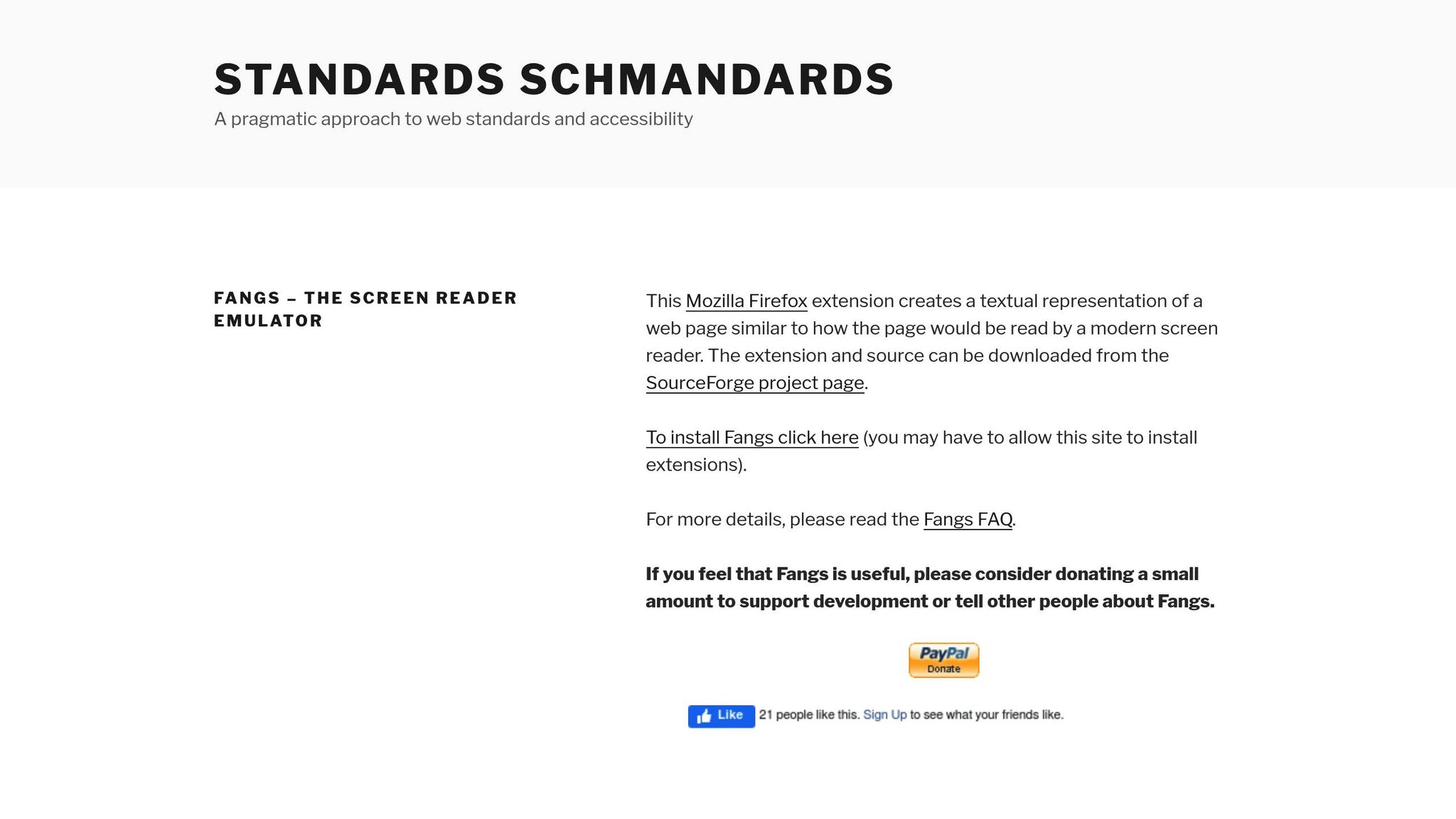
Fangs is a Firefox add-on that provides a text-only simulation of screen reader output, offering a straightforward way to test web page accessibility. It converts web pages into a stripped-down, text-based view, mimicking how a screen reader like JAWS would interpret the content. By removing all layout and styling, it highlights headings, links, lists, and form controls in a logical order. When activated, Fangs displays two panels: one simulates the speech output of a screen reader, and the other lists headings and landmarks, much like navigation shortcuts used by assistive technology. This setup makes it easier to identify structural issues that could confuse users relying on screen readers.
Although Fangs is no longer actively maintained and is considered a legacy tool, it remains a popular choice for quick checks and as a learning tool for those new to accessibility. Its simplicity is particularly helpful for teams trying to understand the importance of semantic HTML and proper heading structures before diving into more advanced testing methods.
Platform/Environment Compatibility
Fangs operates exclusively as a Firefox extension and is compatible with desktop systems like Windows, macOS, and Linux. Since it runs directly in the browser, it doesn’t require additional assistive technology installations, making it a convenient option for secure corporate setups. Teams typically use Firefox ESR or the latest Firefox version on their QA machines or virtual environments and install Fangs through the Firefox add-ons marketplace.
However, Fangs is limited to Firefox, meaning it cannot replicate browser-specific behaviors in Chrome, Edge, or Safari. Additionally, it is designed for desktop web testing only, so it doesn’t emulate mobile screen readers or native app environments.
Accessibility Barriers Addressed
Fangs focuses on uncovering structural issues related to perceivable and robust content, as outlined in WCAG 2.x and Section 508 standards. It helps identify problems like skipped heading levels, vague link text, illogical reading orders, and missing or unclear labels and alt text. By showing how these elements appear in a linearized, screen-reader-like view, Fangs can catch issues that automated tools might miss or only partially detect.
For instance, an e-commerce product page might visually look fine but, when viewed in Fangs, reveal that key details like price and specifications appear after a long list of sidebar links due to poor DOM order. Developers can then adjust the HTML to ensure main content appears earlier and use semantic elements like <main> and <nav> for better navigation.
Primary Use Cases
Fangs is a practical tool for manual accessibility testing, especially for those less familiar with full-featured screen readers like NVDA or JAWS. It’s particularly useful for:
- Validating headings, landmarks, and link text during early development.
- Checking navigation and template structure after markup updates.
- Demonstrating to stakeholders how poor structure affects screen reader users.
Teams often use Fangs during mid-development, once the basic markup is in place, and again during final manual checks before release. A checklist aligned with WCAG standards – covering headings hierarchy, unique page titles, clear link text, and properly labeled form controls – can help testers systematically review the Fangs output.
Limitations or Considerations
While Fangs provides valuable insights, it has its limitations. It offers a static snapshot of the DOM and semantics, meaning it doesn’t simulate dynamic interactions, live regions, or keyboard navigation. Features dependent on JavaScript, such as single-page apps and ARIA live regions, won’t be fully represented in the Fangs view.
Additionally, Fangs doesn’t generate automated reports or compliance scores, so results must be manually interpreted. Its compatibility with newer Firefox versions can also be inconsistent, as the tool is no longer actively updated.
For best results, Fangs should be used alongside other tools. Start with automated solutions like axe or Lighthouse for an initial scan, then use Fangs to examine structural elements like reading order and headings. Finally, confirm accessibility with full-featured screen readers like NVDA or JAWS. This layered approach is especially crucial in compliance-sensitive industries like government, healthcare, and finance.
Fangs works well when paired with tools like tota11y for visual overlays or BrowserStack for cross-browser testing. For teams using prototyping platforms that output semantic HTML, such as UXPin, running Fangs in Firefox can verify that early design choices align with accessibility standards. While NVDA and Orca excel at testing speech output and dynamic interactions, Fangs offers a unique advantage by focusing on the semantic structure in a simplified text view. Together, these tools provide a comprehensive understanding of accessibility barriers and their impact on users.
Comparison Table
The table below highlights key features and ideal use cases for five accessibility tools, making it easier to choose the right one based on your platform, team expertise, and specific challenges. These tools range from full screen reader experiences to quick visual feedback solutions, simplifying your decision-making process.
| Tool | Platform / Environment | Type of Tool | Key Strengths | Best Use Cases | Pricing (USD) | Ideal User Role |
|---|---|---|---|---|---|---|
| NVDA (NonVisual Desktop Access) | Windows desktop; works with Chrome, Firefox, Edge | Screen reader | Real screen reader experience; Braille support; active community; frequent updates | Manual screen reader testing; WCAG conformance checks; keyboard navigation validation on Windows | Free, open source (donation-supported) | QA engineers, accessibility specialists, developers |
| Orca Screen Reader | Linux/Unix (GNOME desktop) | Screen reader | Only major open‑source GNOME screen reader; native AT-SPI support | Testing Linux desktop and web apps for screen reader accessibility | Free, open source | QA engineers, developers working in Linux environments |
| BrowserStack | Cloud-based: Windows, macOS, iOS, Android (real devices and VMs) | Cloud testing platform | Cross-browser/device coverage; physical device testing and seamless QA integration | Manual keyboard/focus checks; visual accessibility issues; testing across many browsers and devices | Paid subscription with free trial | QA engineers, testers, accessibility specialists |
| tota11y | In-browser (JavaScript overlay); works in Chrome and Firefox on any OS | Visualization toolkit | Visual overlays for landmarks, headings, labels, and contrast issues | Quick page-level audits; early design and development testing; team training | Free, open source | Designers, front-end developers, product managers |
| Fangs Screen Reader Emulator | Firefox extension on desktop | Screen reader emulator | Emulates a screen reader’s text/outline view; quickly inspects reading order and headings | Inspecting reading order, heading structure, and link text during development | Free browser add-on | Front-end developers, accessibility beginners |
Choosing the Right Tool for Your Needs
Platform compatibility is a key factor. NVDA and Orca offer full screen reader capabilities for Windows and Linux environments, respectively, while tota11y and Fangs focus on lightweight visual and structural feedback. If your team works across multiple operating systems, combining NVDA and Orca ensures consistent testing.
Tool functionality also dictates their best applications. NVDA and Orca provide a complete screen reader experience, including speech output, keyboard shortcuts, and Braille support. On the other hand, tota11y and Fangs are ideal for quick checks – tota11y overlays annotations directly on the page, while Fangs generates a text-based outline of how content will be read by a screen reader.
Each tool brings unique strengths to the table. NVDA benefits from an active community and frequent updates, ensuring it stays aligned with evolving web standards. Orca is essential for Linux users as the only major open-source GNOME screen reader. BrowserStack stands out for real-device testing, verifying accessibility across various platforms and browsers. tota11y’s visual overlays make it easy to spot issues like missing labels or skipped headings, while Fangs simplifies checking reading order and heading hierarchy.
Workflow Integration
These tools fit into different stages of accessibility testing. NVDA is great for in-depth audits on Windows, covering keyboard navigation, focus order, ARIA roles, and dynamic content. Orca performs similar tasks for Linux environments. BrowserStack excels in cross-browser and cross-device testing, while tota11y is perfect for early design and development phases. Fangs is especially helpful for developers needing quick structural checks.
Pricing and User Roles
Four of these tools – NVDA, Orca, tota11y, and Fangs – are free and open source, making them accessible to teams with limited budgets. BrowserStack, however, requires a subscription but offers a free trial. The ideal users for these tools vary: NVDA and Orca suit QA engineers, accessibility specialists, and developers familiar with assistive technologies. tota11y and Fangs are more approachable for designers, product managers, and front-end developers needing quick feedback. BrowserStack is versatile, fitting any role requiring extensive testing across devices and browsers.
Maximizing Accessibility Testing
For teams using design tools like UXPin, these manual testing tools can seamlessly integrate into your workflow. For instance, you can design components with proper semantic structure in UXPin, then test prototypes with NVDA on Windows or BrowserStack on real devices to ensure screen reader compatibility and keyboard accessibility meet WCAG standards.
While automated tools can identify 30–40% of accessibility issues, the rest require manual testing or assistive technology tools. A comprehensive approach might include starting with an automated scan, using tota11y or Fangs for structural reviews, and confirming accessibility with NVDA or Orca. BrowserStack can then validate functionality across different devices and browsers, ensuring a thorough and well-rounded testing process.
Conclusion
Manual accessibility testing tools are indispensable because automated scanners can only identify about 20–40% of accessibility issues. Challenges like keyboard traps, confusing focus orders, unclear link text, and inadequate error messaging require human insight and assistive technologies to uncover barriers that automation alone misses. Tools like NVDA, Orca, BrowserStack, tota11y, and Fangs play a critical role in this process.
NVDA and Orca help simulate the experiences of blind and low-vision users on Windows and Linux. They validate screen reader outputs, keyboard navigation, and ARIA semantics, ensuring your product is accessible to users reliant on these technologies. BrowserStack allows testing across real devices and browsers, helping identify platform-specific issues that may only appear under certain conditions. Meanwhile, tota11y provides instant visual feedback on structural issues such as missing landmarks, incorrect headings, or poor contrast. Fangs offers insights into how screen readers linearize and interpret your content, giving you a clearer picture of how accessible your design truly is.
The key to success lies in combining these manual tools with automated checks and incorporating them into your regular workflow. Instead of relying on one-off audits, make accessibility testing a consistent part of your process. This ensures critical user flows – like sign-in, search, and checkout – are thoroughly validated at every stage of development.
Beyond improving usability, thorough accessibility testing helps reduce legal and compliance risks. With thousands of ADA-related digital accessibility complaints filed annually, organizations that include real assistive technology testing alongside automated tools are better equipped to identify and address barriers before they impact users. Plus, these tools are highly accessible themselves – four out of the five mentioned are free and open source – making it easy for teams of any size to get started.
For teams using platforms like UXPin to build interactive, code-backed prototypes, these manual testing tools integrate seamlessly into the workflow. You can design accessible components in UXPin, validate them with NVDA on Windows, check for cross-browser compatibility with BrowserStack, and use tota11y for quick structural reviews. Catching issues early during prototyping is not only more effective but also more cost-efficient.
Incorporating these tools into your process enhances the experience for users who rely on assistive technologies. While automated tools are a great starting point, manual testing ensures your product meets both technical standards and real-world usability needs. Start small – choose one core user flow and a single tool, document your findings, and build from there. Over time, manual accessibility testing will naturally become an integral part of creating inclusive, user-friendly products.
FAQs
Why is manual accessibility testing still necessary when using automated tools?
Manual accessibility testing plays a crucial role because automated tools, while helpful, have their limits. They can catch technical issues like missing alt text or incorrect heading structures, but they often overlook context-specific challenges. For example, unclear navigation, difficult-to-read color contrasts, or elements that increase cognitive strain can slip through unnoticed.
By involving human insight and gathering feedback from actual users, manual testing provides a deeper and more nuanced assessment of accessibility. This method helps identify subtle problems that might otherwise go undetected, ensuring your product is designed to be inclusive and user-friendly for everyone.
How can I use NVDA to test accessibility in Windows applications effectively?
To get the most out of NVDA for accessibility testing in Windows applications, start by adjusting its settings to align with your specific testing requirements. Use NVDA to explore your application’s interface, verifying that all UI elements are accessible and properly announced. Pay close attention to scenarios like keyboard navigation and alternate workflows to uncover any potential obstacles.
Pair NVDA testing with manual reviews to ensure your application meets accessibility standards. Take note of any issues, such as missing labels or focus problems, and provide detailed documentation so these can be resolved during development. This method helps create a more user-friendly experience for everyone.
How does tota11y compare to BrowserStack for manual accessibility testing?
tota11y and BrowserStack each play distinct roles in manual accessibility testing.
tota11y is an open-source browser tool that helps you spot common accessibility issues right on your webpage. It adds visual overlays to highlight problems like low contrast or missing labels, making it a handy option for quick checks during development.
Meanwhile, BrowserStack is a platform designed to test websites across different devices and browsers. While it’s not specifically tailored for accessibility, it allows you to manually evaluate how accessible your site is in various environments. This is essential for ensuring your site delivers a consistent experience no matter where it’s accessed.
To get the most out of your testing efforts, try using both tools together – tota11y for pinpointing accessibility barriers and BrowserStack for broader, cross-platform testing.

