Yes – if your team designs from code and keeps losing time in handoff. If you need live components, logic-heavy prototypes, and design system control, UXPin is the better fit. If you want low-cost, visual-first collaboration and easy team buy-in, Figma is still the simpler pick.
I’d sum it up like this:
- Choose UXPin for code-backed components, Merge, Spec Mode, conditional logic, variables, and tighter design-to-dev alignment
- Choose Figma for visual design, frame-based prototyping, Dev Mode, plugins, whiteboarding, and lower entry cost
- UXPin starts at $29/month
- Figma starts free, with Professional at $15/editor/month
- Figma Dev Mode can cost $25/editor/month on its own
- UXPin includes handoff tools in paid plans
If I were deciding, I’d focus on these questions first:
- Do you already have a React, Angular, or Vue component library?
- Do developers keep rebuilding the same UI from static files?
- Do you need prototypes with states, form logic, and stored inputs?
- Is your team fine with visual specs, or do you need code parity?
UXPin vs Figma: Features & Pricing Comparison 2024
The Future of Prototyping UXPin vs Figma
sbb-itb-f6354c6
Quick Comparison
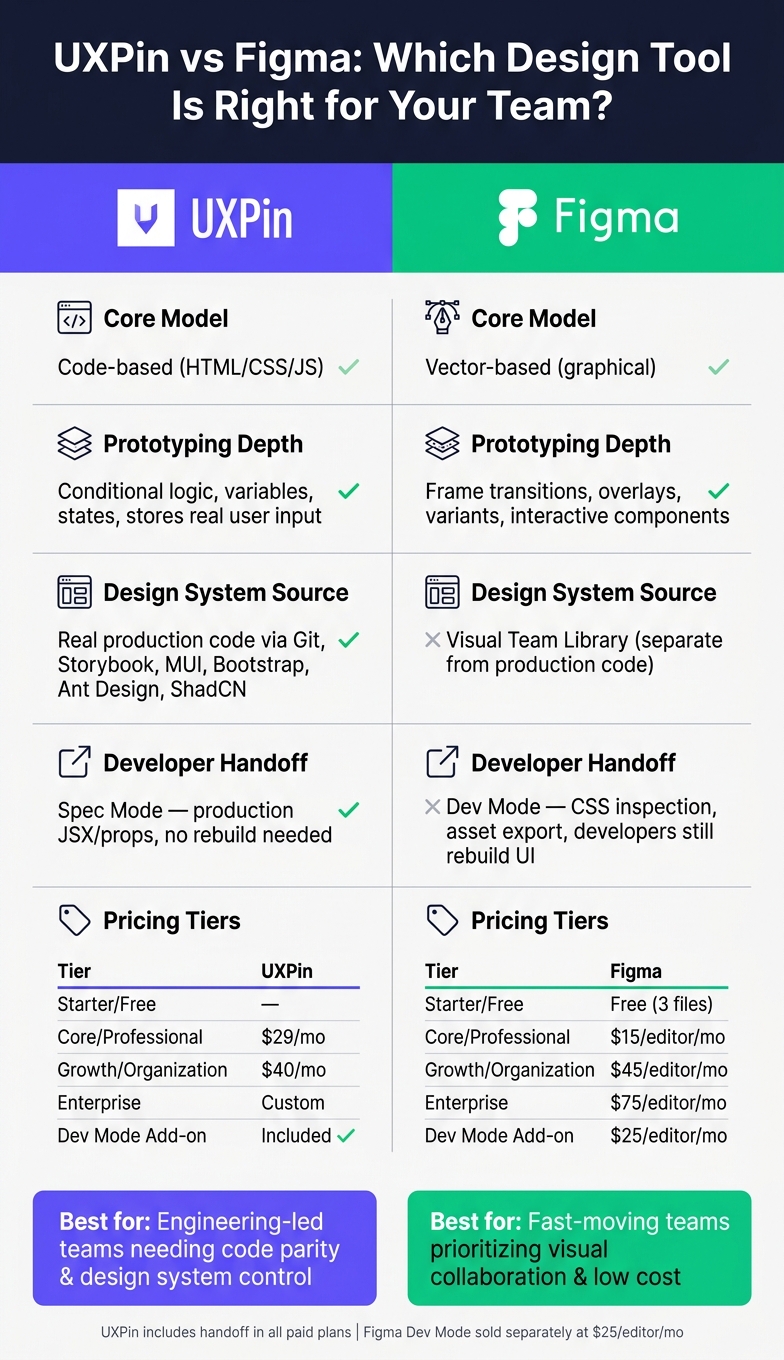
| Criteria | UXPin | Figma |
|---|---|---|
| Core model | Code-based | Vector-based |
| Best for | Design systems tied to code | Visual design and team collaboration |
| Prototype depth | States, variables, conditional logic | Transitions, overlays, interactive components |
| Component source | Git, Storybook, built-in code libraries | Team Library |
| Handoff | Spec Mode with props and code-linked parts | Dev Mode with specs, CSS, assets |
| Collaboration | Co-editing and comments | Co-editing, comments, whiteboards |
| Starting price | $29/month | Free |
| Mid-tier price | $40/month | $15/editor/month |
| Enterprise | Custom | $75/editor/month |
Bottom line: I’d call UXPin better for engineering-led teams, while Figma is better for broad design collaboration. The right pick depends on whether you care more about production alignment or low-friction design work.
UXPin vs Figma at a Glance
UXPin uses code-backed components. Figma uses visual specs.
| Feature | UXPin | Figma |
|---|---|---|
| Core Technology | Code-based (HTML/CSS/JS) | Vector-based (graphical) |
| Component Source | Real production code via Merge | Visual libraries |
| Prototyping | High-fidelity with conditional logic, states, and variables | Semi-interactive; frames, transitions, and overlays |
| Handoff | Spec Mode (production JSX/props) | Dev Mode (CSS inspection and assets) |
| Collaboration | Real-time co-editing | Real-time co-editing |
| Best Fit | Enterprise design systems and code parity | Rapid exploration and team collaboration |
The biggest split shows up in prototype depth and handoff.
How UXPin approaches design and prototyping
UXPin is built for production-aligned prototyping. In plain English, design and code pull from the same component source.
Because UXPin renders HTML, CSS, and JavaScript, designers work with live components instead of static mockups. That changes the feel of the work. You’re not just drawing what the product might look like. You’re building with parts that behave much closer to the shipped UI.
UXPin Merge syncs React, Angular, or Vue components from a repo, so teams design with the same source code developers ship. Enterprise teams can connect their own repository. Other teams can start with built-in libraries like MUI or Bootstrap right on the canvas.
Forge, UXPin’s built-in AI assistant, generates layouts using your team’s approved design system components, without leaving the tool or falling back on generic wireframes.
How Figma approaches design and prototyping
Figma is built for fast visual collaboration and lightweight prototyping.
It’s vector-based, which means designers create visual specs that developers later rebuild in code. That setup is a big part of why Figma feels so easy to pick up. You can move fast, sketch ideas, and get team feedback without much setup.
Figma stands out for quick co-editing, a big plugin and template ecosystem, and a low barrier to entry. Its prototyping links frames with transitions and overlays, which works well for showing user flows. For handoff, Dev Mode lets developers inspect CSS properties and download assets. Figma also includes AI tools for generating editable layouts and interactive prototypes.
Dev Mode gives teams specs and assets, but developers still rebuild the UI in code. Spec Mode, by contrast, surfaces production props directly.
That gap is easiest to spot when teams deal with interactive states, logic, and design-system fidelity.
Feature Comparison: Where Each Tool Has the Edge
The biggest differences come down to logic, design-system source, and handoff.
| Feature | UXPin | Figma |
|---|---|---|
| Prototyping Logic | Conditional logic, variables, logic expressions | Screen-to-screen transitions between frames |
| Variables | Stores input across screens | Primarily for design tokens and mode switching |
| Component States | Multiple states within a single element | Variants that swap between component versions |
| Design System Source | Code-backed components synced from Git or Storybook | Visual libraries in Team Library |
| Developer Handoff | Live production components via Merge | Dev Mode inspection, CSS snippets, asset export |
| Collaboration | Real-time co-editing and comments | Real-time co-editing, live cursors |
The main split is pretty simple: prototype behavior, code parity, and handoff speed.
Prototyping depth: interactive states, logic, and realistic behavior
This is where the two tools start to feel very different.
UXPin supports conditional logic (if-then/if-else), logic expressions, and variables that store real user input. So a prototype can remember a user’s name, run a calculation, or send someone to a different screen based on what they typed. UXPin Merge also helps keep that behavior lined up with production code.
Figma handles prototyping in a more frame-based way. You connect screens with transitions and overlays, then use Variants and Interactive Components to mimic state changes by swapping between component versions. That works well for many flows. But once a team needs form inputs, dynamic data, or multi-step logic, Figma starts to feel a bit limited.
If you’re testing a checkout flow with real error states, or reviewing a data-heavy dashboard, UXPin is the stronger fit. If you just need to map an early flow and get fast stakeholder feedback, Figma is usually easier to set up. Put plainly: UXPin is better for behavior-heavy validation, while Figma is faster for lightweight flow review.
Design systems: code-backed components vs visual libraries
Figma’s Team Library is a visual component system. It’s fast for managing design libraries, but it still sits apart from production code. That means developers usually rebuild those parts by hand, which can lead to drift between the design file and the shipped product.
UXPin Merge takes a different route. Teams can connect their React, Angular, or Vue repository – or a Storybook integration – right to the canvas. Designers work with the same components developers already use in production. Instead of two versions of the same thing, there’s one shared source. And for teams that don’t yet have a mature coded component library, UXPin also includes built-in libraries like MUI, Ant Design, Bootstrap, and ShadCN.
Figma makes more sense for early-stage teams or groups without a dedicated frontend systems team. UXPin Merge starts to pay off when a company already has a maintained component library and keeps losing time to handoff rework. That difference hits hardest when engineering owns the component source.
Collaboration and developer handoff
Figma has the stronger day-to-day collaboration feel. Live cursors, threaded comments, and built-in whiteboarding make it an easy home base for cross-functional teams. UXPin supports collaboration too, but it leans more technical, which fits the kind of teams it tends to attract.
On the handoff side, the gap is clearer. Figma’s Dev Mode gives developers specs, CSS snippets, and asset exports, but they still rebuild the UI in code. With UXPin Merge, much of that translation step goes away. Because the prototype uses real components, developers aren’t starting from a static spec. They’re working from the same codebase that’s already in use.
For code-heavy teams, that can cut down rebuild work in a big way. And that workflow gap ties straight into pricing and overall value.
Pricing Analysis: Cost, Value, and Return for Product Teams
Once the prototyping and handoff gap is clear, pricing becomes the next big filter. The main question isn’t just "What does a seat cost?" It’s whether that cost makes sense once you factor in rework, developer time, and how long handoff takes.
UXPin pricing and what each tier includes
All paid UXPin tiers include Merge.
Core starts at $29/month. It includes unlimited prototypes, conditional logic, variables, expressions, built-in code-backed libraries like MUI, Ant Design, Bootstrap, and ShadCN, password-protected previews, and 7-day version history.
Growth starts at $40/month and adds design systems, patterns, Storybook integration, roles and permissions, SSO, 2FA, and 30-day version history.
Enterprise is custom-priced. It adds Git integration, custom library AI integration, dedicated onboarding, a dedicated Slack channel, security review, and unlimited version history.
Figma pricing and where teams may see value
Figma’s Starter plan is free. It includes 3 Figma files plus unlimited personal files. The Professional plan costs $15/editor/month and unlocks unlimited files, shared libraries, and Dev Mode. The Organization plan costs $45/editor/month, adding branching, advanced analytics, and SSO. Enterprise costs $75/editor/month, with custom security and dedicated support.
If developers only need handoff access, a standalone Dev Mode seat costs $25/editor/month. UXPin includes handoff features in its paid tiers, so teams don’t need to buy a separate seat for that.
When a higher per-seat cost pays off
This is where the math shifts a bit. A lower sticker price can look better at first. But if your team keeps rebuilding designs in code, the cheaper option may not stay cheaper for long.
The tradeoff depends on what your team needs. If you only want inspection access, Figma may do the job. If you need shared code alignment between design and engineering, UXPin starts to look different.
As Omid Saffari, AI Product Engineer & Architect, notes, Merge pays off when engineering already maintains a React component library.
For teams in that setup, designers work with the same components developers ship. That cuts out the rebuild step entirely. And that’s where a higher seat price can be offset by less developer rework.
| Team Type | Better Fit | Why |
|---|---|---|
| DesignOps teams | UXPin | Governance and single source of truth |
| Engineering-led product teams | UXPin | Design-to-code parity via Merge |
| Agencies | Figma | Client-friendly workflow |
| Enterprise teams | UXPin | Reduced dev rework at scale |
Final Verdict: Is UXPin Better Than Figma for Your Team?
After looking at features and pricing, this choice comes down to workflow fit. UXPin works better for production-aligned teams. Figma works better for fast-moving, collaborative design.
Choose UXPin if your team needs designs that match production components
UXPin makes more sense if your team already has a mature React, Angular, or Vue component library. With Merge, designers can use real production components right inside the design canvas, which keeps prototypes close to what developers actually ship.
That matters when handoff delays and design drift keep slowing things down. If your team keeps paying the price for rework, UXPin’s design system control and faster handoff can justify the higher per-seat cost.
Choose Figma if your team puts fast, low-friction collaboration first
Figma is the better pick for teams that care most about quick review cycles and easy adoption across roles. If your process is collaboration-first and you don’t need production-fidelity prototypes, Figma is usually the smoother path.
Its Professional plan starts at $15 per editor/month with annual billing. That lower starting price can be hard to ignore, especially for teams that want to move fast without adding much process overhead.
Key takeaways for DesignOps, engineering, and product leadership
A few simple filters can make the decision easier:
- Do you have a production component library? If yes, UXPin Merge gives designers direct access to it inside the design canvas. If not, visual libraries are often the easier place to start.
- Is handoff delay costing you time? If developers keep rebuilding designs from scratch, UXPin’s higher seat price may pay for itself by cutting that translation work.
- Does design system governance matter? UXPin enforces component usage at the structure level. Figma’s shared libraries act more like guidance, so designers can still drift off-system.
- How do you look at pricing? Seat cost is only part of the picture. Rework time matters too. For DesignOps and engineering leaders, total cost of delivery is the better comparison.
The right choice depends on how your team builds, reviews, and ships: code parity and system control, or speed and collaboration.
FAQs
Do I need a coded component library to use UXPin well?
No. You can use UXPin well even if you don’t have a coded component library.
If your team has a proprietary design system, Merge can sync that code into UXPin and keep it as a single source of truth. If you don’t have one, that’s fine too. UXPin comes with built-in, production-ready component libraries, so teams can build interactive, high-fidelity prototypes without writing or managing custom code.
How hard is it to switch an existing design system into UXPin?
Moving an existing design system into UXPin is mostly a setup task, not a design problem.
If your team already has a structured component library in React, Angular, or Vue, the move is usually pretty straightforward. With UXPin Merge, you can connect your Git repository, Storybook, or npm packages, so production-ready components sync right into the design canvas. It does take some upfront engineering work, but it gives teams one source of truth.
When does UXPin’s higher price save money overall?
UXPin’s higher price can save money when your team needs high-fidelity, code-backed prototyping that cuts engineering hours. With UXPin Merge and production-ready component libraries, teams can cut development time by about 50%.
That means less manual redlining, less back-and-forth, and less design drift. For large enterprise teams, those time savings can add up fast. The payoff comes from faster development, less technical debt, and fewer extra tools.