Building user experiences (UX) just got simpler and faster. By combining GPT-4.1 with shadcn/ui components in UXPin Merge, you can create designs that are ready for production without the usual back-and-forth between designers and developers. Here’s what makes this approach effective:
- Real React Components: Generate layouts with shadcn/ui components that developers can directly use in production.
- AI Assistance: GPT-4.1, integrated into UXPin‘s Forge AI, helps designers quickly create and refine layouts with simple commands.
- Streamlined Workflow: Designers and developers work with the same components, eliminating design drift and reducing revision cycles.
- Customization & Interaction: Easily tweak components and add interactions while maintaining code integrity.
This method ensures faster workflows, fewer errors, and prototypes that developers can immediately implement. Whether you’re a solo designer or part of a large team, this setup bridges the gap between design and development efficiently.
Want to try it? Set up a UXPin Merge project, access shadcn/ui components, and let GPT-4.1 handle the heavy lifting for production-ready UX.
UXPin Merge AI: Smarter UI Generation That Follows Your Design System
sbb-itb-f6354c6
What You Need to Get Started
Before diving in, you’ll need a few key tools. Luckily, UXPin makes things straightforward by integrating shadcn/ui and GPT-4.1 directly into its platform – no extra setup required.
First, make sure you have a UXPin account with Merge enabled. Merge is included in all plans starting at $29/month. For features like advanced AI tools and Git integration, you’ll need to contact UXPin’s sales team at sales@uxpin.com.
The process is refreshingly simple. Unlike traditional workflows where designers and developers operate in separate silos, UXPin Merge combines everything into a single workspace. Designers work with the exact React components that developers will use in production, and the AI assistant, Forge, generates layouts using only approved components from your library.
Now, let’s walk through how to set up your UXPin environment with Merge technology.
Setting Up UXPin with Merge Technology

Once you log in, Merge activates automatically, giving you access to shadcn/ui components (along with MUI, Ant Design, and Bootstrap) in the component panel. Start a new project, and you’ll find these components on the left side of the canvas, ready to use.
If your team uses a custom component library, you can connect it directly to your Git repository (available on the Enterprise plan). This ensures that your designs always reflect the latest version of your components, and any updates to the codebase are automatically synced with the design environment.
UXPin’s folder structure follows best practices for scaling shadcn/ui in 2026. Components are organized into three categories:
- ui/: Raw shadcn components.
- primitives/: Slightly modified components.
- blocks/: Larger, product-level compositions like pricing sections or authentication forms.
This structure keeps your design system clean and makes it easier for developers to locate and use components.
Next, let’s explore how Forge uses GPT-4.1 to enhance your design process.
Understanding GPT-4.1 and Forge in UXPin
Forge, UXPin’s AI assistant powered by GPT-4.1, is tightly aligned with your design system. It only suggests components already present in your library, whether they’re from shadcn/ui, MUI, or your custom setup.
This focus on your existing components is a game-changer. As Vaibhav Gupta, an expert on shadcn/ui, explains:
Shadcn UI isn’t ‘just another component library.’ It’s a component system built on Radix UI + Tailwind CSS, designed for teams that care about ownership, performance, and long-term scalability.
Forge uses this approach to its advantage. When you ask it to create a dashboard layout or a checkout flow, it pulls in real React components that adhere to accessibility standards from Radix UI and styling from Tailwind CSS. You can tweak designs with commands like “make this denser” or “swap button variants,” and Forge updates the layout without disrupting your project’s structure.
All AI tools are built directly into UXPin, so there’s no need for separate accounts with ChatGPT or Claude. Every plan includes AI credits: 200 per month on the Core plan, 500 on Growth, and custom limits for Enterprise users.
Accessing shadcn/ui Components
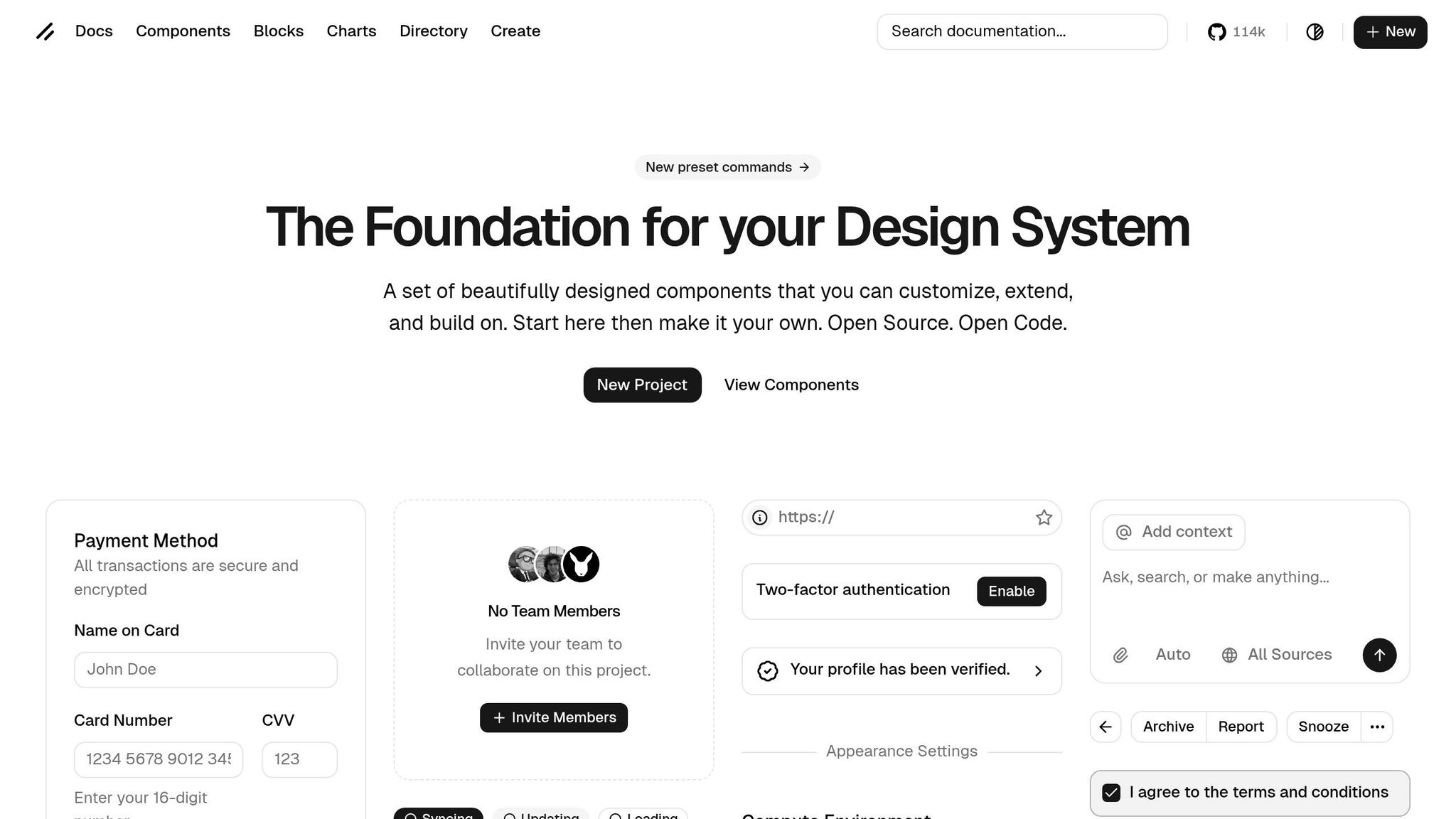
Shadcn/ui components are ready to use right out of the box. Open the component panel in UXPin, and you’ll find buttons, forms, cards, dialogs, and more, all sourced from the shadcn/ui library.
By 2026, the best practice is to treat shadcn/ui as source code rather than a dependency. This approach gives you full control over the API, allowing you to manage breaking changes internally. UXPin supports this by providing access to each component’s properties and styles, so you can customize them to align with your brand while preserving the underlying code integrity.
If you’re looking for ideas, shadcnspace.com is a great resource for production-ready patterns and prebuilt layouts. You can replicate these patterns in UXPin using Forge or by manually dragging components onto the canvas and customizing them.
The design landscape in 2026 emphasizes block-based design. As Gupta points out:
In 2026, component reuse isn’t about buttons – it’s about blocks.
Instead of piecing together individual buttons and inputs, the focus shifts to larger compositions like dashboard cards, feature grids, or full authentication forms. UXPin’s Merge technology supports this shift by letting you save and reuse these blocks across projects, ensuring consistency and speeding up your workflow.
With shadcn/ui blocks ready to go and fully customizable, you’re equipped to create polished, production-ready designs in no time.
How to Build UX with GPT-4.1 and shadcn/ui in UXPin Merge
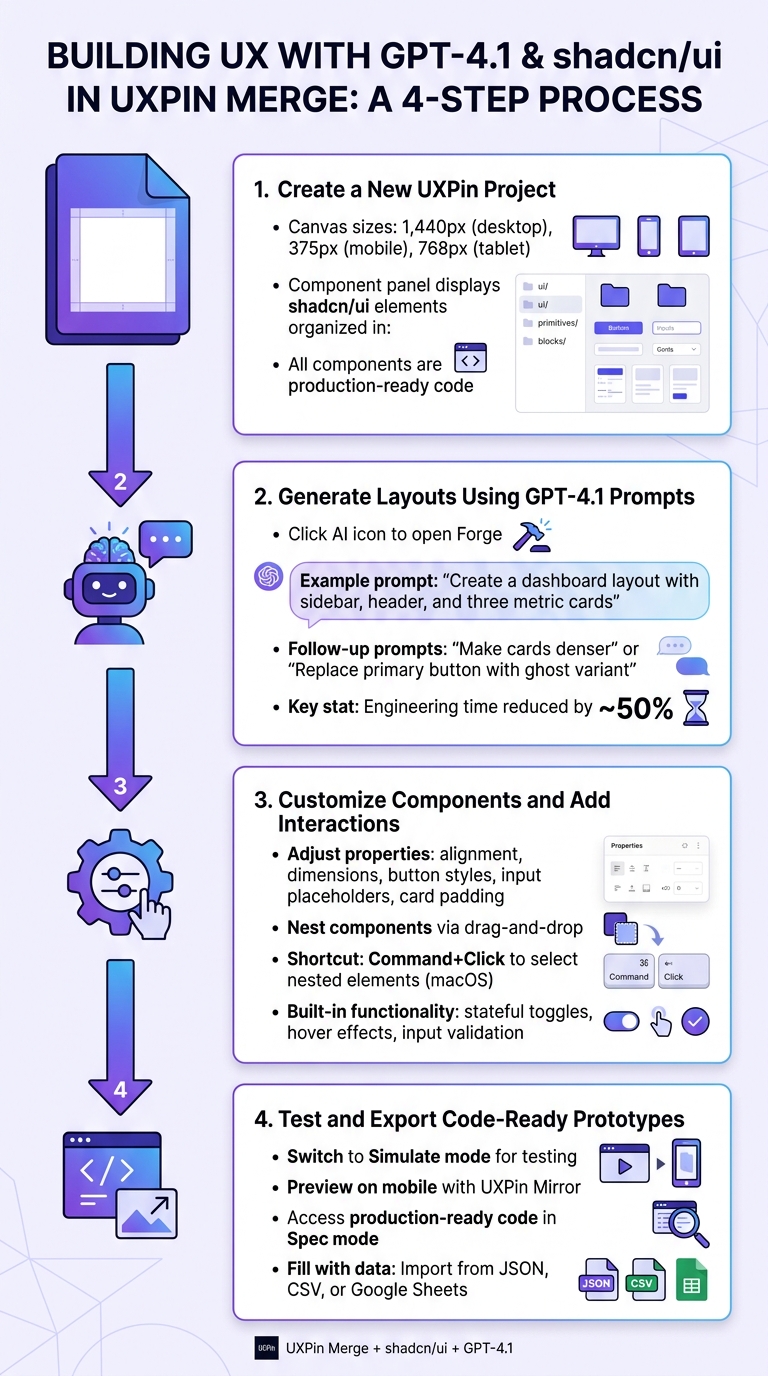
4-Step Process to Build UX with GPT-4.1 and shadcn/ui in UXPin Merge
Ready to create a polished UX that’s both functional and developer-friendly? This guide walks you through combining Forge’s AI tools and shadcn/ui’s ready-to-use components in UXPin Merge. The result? Prototypes that developers can implement directly, no rebuilding required.
Step 1: Create a New UXPin Project
Start by logging into UXPin and clicking "New Project." Choose a canvas size – 1,440px for desktop, 375px for mobile, or 768px for tablet. These presets ensure your design adapts seamlessly across devices. You can switch between these sizes anytime using the responsive width setting in the Properties panel.
Once your project opens, the component panel on the left will display all available shadcn/ui elements. These include buttons, forms, cards, dialogs, and more, neatly categorized into groups like ui/, primitives/, and blocks/. The best part? Every shadcn/ui component is built with production-ready code.
Now, it’s time to bring GPT-4.1 into the mix for layout generation.
Step 2: Generate Layouts Using GPT-4.1 Prompts
Click the AI icon to open Forge, then type a prompt describing the layout you want. For example: "Create a dashboard layout with a sidebar, header, and three metric cards showing revenue, users, and conversion rate."
Forge will use your shadcn/ui component library to generate a layout that’s production-ready. Want to tweak the design? Add follow-up prompts like, "Make the cards denser" or "Replace the primary button with a ghost variant." The AI Helper ensures these adjustments don’t disrupt the structure of your design.
Larry Sawyer, Lead UX Designer, noted:
When I used UXPin Merge, our engineering time was reduced by around 50%.
With your layout set, you’re ready to customize and add interactions.
Step 3: Customize Components and Add Interactions
Click on any component in your layout to open the Properties panel. Here, you can adjust alignment, dimensions, and specific component properties like button styles, input placeholders, or card padding.
For complex layouts, nest components by dragging and dropping them into one another. For example, place a button or rating component inside a card to replicate React’s component structure. On macOS, use Command+Click to select deeply nested elements quickly, or double-click for direct access.
Because Merge uses real React components, all shadcn/ui elements retain their built-in functionality. That includes stateful toggles, hover effects, and input validation – saving you time and effort.
Once your design feels complete, it’s time to test and prepare for developer handoff with Merge.
Step 4: Test and Export Code-Ready Prototypes
Switch to Simulate mode to test your prototype’s interactivity. Preview your design on mobile devices using UXPin Mirror, and when everything is ready, access production-ready code in Spec mode. Developers can copy this code directly into their projects – no need for additional translation or rebuilding.
Need real data for your components? Use the "fill with data" feature to import datasets from JSON, CSV, or Google Sheets, ensuring your prototype mirrors real-world scenarios.
Benefits of Using GPT-4.1 and shadcn/ui in UXPin Merge
Faster Design-to-Code Workflow
With production-ready React components, designers can create interfaces that developers can directly implement in their projects. This eliminates unnecessary steps and reduces confusion during handoffs.
shadcn/ui components retain their full functionality, including interactive features like toggles, hover effects, and input validation. What you see and test in UXPin is exactly what gets deployed.
This seamless integration paves the way for even more efficiency when paired with AI tools.
AI-Driven Efficiency with Forge
Forge operates entirely within your approved design system. When tasked with creating elements like dashboards or forms, Forge exclusively uses shadcn/ui components that are pre-tested and ready for production. This eliminates the need to redo work caused by incompatible AI-generated suggestions.
The result? Consistent visuals across all screens. Forge adheres to pre-approved constraints, removing the need to clean up generic wireframes manually.
These benefits only grow as team sizes increase, ensuring scalable efficiency.
Scalable Design Systems for Large Teams
For larger teams, design drift can be a common challenge. Merge addresses this by maintaining a centralized, synchronized design system that automatically updates across all projects. This ensures continuous alignment between design and development.
shadcn/ui offers a flexible and accessible component library, including features like two-factor authentication modules, price range sliders, and appearance settings. These components can be customized and themed to suit your brand. By linking font styles and colors to secondary brand variables, you can quickly test new themes or implement brand-wide updates without tedious manual adjustments. This makes it easy to apply changes across entire projects efficiently.
Common Challenges and How to Fix Them
While combining GPT-4.1 with shadcn/ui can simplify workflows, there are a few challenges you might encounter during implementation – and ways to address them effectively.
Keeping Design and Code Aligned
When working with UXPin Merge, components reflect production-ready code, ensuring that your designs stay consistent. If you’re using a shadcn/ui component, the Properties panel will display its specific customization options. This allows you to confirm that GPT-4.1’s suggested attributes align with the component’s available props. You can also switch to Spec Mode to review layouts against technical requirements. Need more details? Click the information icon in the Properties panel for direct access to the official component documentation. This makes it easy to compare AI-generated designs with the library’s standards.
To dive deeper into nested elements, use Command+Click (on macOS) to select child components. If AI-generated layouts don’t quite match your design system’s rules, tools like "Distribute on Grid" or alignment options in the Properties panel can help you fine-tune the positioning. These steps not only fix immediate issues but also help you craft more precise AI prompts moving forward.
Writing Better AI Prompts
Because GPT-4.1 interprets instructions literally, clarity is key. Francisco Reveriano, an AI Developer, emphasizes this point:
GPT-4.1 is quite literal. Vague instructions lead to vague results. Be absolutely clear about your desired outcome.
To get the best results, structure your prompts with a clear hierarchy. Start by listing rules, steps, and the desired outcome. Adding multiple examples can help eliminate ambiguity. For more complex UI layouts, ask GPT-4.1 to "think step-by-step" or create a plan before generating a component arrangement. Reveriano also suggests:
Place important rules or guidelines before and after the large block of context, or at the very least, place them before. This helps the model stay focused on the core task.
Additionally, specify details like your target audience, tone, and any elements to avoid. By doing this, you minimize errors and make troubleshooting much easier.
Debugging Interactive Prototypes in UXPin
Interactive prototypes in UXPin maintain component states during previews, which is helpful for verifying alignment. If GPT-4.1 generates elements in the wrong order, use the Layers panel to reorganize component hierarchies. To ensure everything works across devices, test your prototypes on real hardware using UXPin Mirror. This step ensures responsive designs with properly ordered components.
Testing with real content is another game-changer. Use the "Fill with Data" feature to load real JSON or CSV data into shadcn/ui components. This helps you see how components perform under real-world conditions instead of relying on placeholder text. These strategies bridge the gap between your prototypes and production-ready designs.
Conclusion
With the precision and efficiency outlined earlier, GPT-4.1 combined with shadcn/ui in UXPin Merge is reshaping UX design workflows. By leveraging AI-powered layout generation and code-ready prototypes, this integration enables design handoffs that are up to 70% faster while creating prototypes that align 90% more closely with production-ready code.
A key part of this process is UXPin’s Forge AI, which ensures that all layouts are generated exclusively from your approved design system components. As UXPin’s CTO highlighted during a 2026 webinar:
"GPT-4.1 + Merge isn’t just faster – it’s the future of collaborative UX where design thinks in code."
This method eliminates issues like hallucinated designs and mismatched components, producing prototypes that developers can use directly. With shadcn/ui’s impressive 45,000+ GitHub stars and UXPin’s highly rated platform, these tools are both reliable and well-regarded in the industry.
Ready to streamline your workflow? Visit uxpin.com/merge to try UXPin Merge for free, import shadcn/ui, and create your first AI-powered prototype in under 30 minutes.
FAQs
Can I use my own React component library with Merge?
Absolutely! You can integrate your own React component library, including options like shadcn/ui, with UXPin Merge. This feature allows you to directly import components into prototypes, creating live, code-backed designs.
Merge also supports custom libraries and offers tools like Git integration for syncing. This ensures a smooth design-to-development workflow, keeping your design system and development perfectly aligned.
How do I make Forge follow my design system rules?
To keep Forge aligned with your design system rules in UXPin, you can use AI-generated layouts paired with shadcn/ui and UXPin Merge. Start by generating React-based UI layouts through Claude Sonnet, then integrate these layouts with UXPin Merge. This allows you to visually edit and test your designs while maintaining consistency. The pre-integrated components from shadcn/ui simplify the process, ensuring every element adheres to your design standards throughout prototyping and development.
How do developers get the code from my prototypes?
Developers can now streamline their workflow by exporting clean JSX code directly from prototypes using UXPin Merge. With the help of Claude Haiku 4.5, you simply describe your design requirements in natural language prompts. It then generates React component layouts that sync seamlessly with your codebase through Merge. This process removes the need for the typical design-to-code handoff, delivering production-ready React code in no time.

