Want faster, more accurate UX design? Combine Claude Sonnet 4.5, MUI, and UXPin Merge for a streamlined workflow. Here’s how these tools simplify the process:
- Claude Sonnet 4.5: An AI assistant that generates user flows, layouts, and UX copy tailored to U.S. standards.
- MUI: A React component library with prebuilt, accessible components for scalable enterprise interfaces.
- UXPin Merge: A design tool that integrates real, coded MUI components, ensuring designs match production-ready code.
This trio eliminates inefficiencies like mismatched design-to-development handoffs, speeds up iteration, and ensures consistency across teams. Follow this guide to set up and use these tools effectively for your next project.
Setting Up Claude Sonnet 4.5 and MUI in UXPin Merge
What US-Based Product Teams Need Before Starting
MUI is already integrated into UXPin, so you can skip the hassle of importing or configuring it from scratch. Even better, you don’t need a separate Claude API account. UXPin’s AI assistant, Forge, is built right into the canvas, ready to assist with AI-driven design tasks.
If you’re working with custom MUI libraries, you’ll need to connect them using Git, Storybook, or npm integration. To get started, make sure you have a UXPin account with Merge access – available on the Growth or Enterprise plans (uxpin.com/pricing) – and ensure your developers have the component repository prepared for sharing.
"When I used UXPin Merge, our engineering time was reduced by around 50%." – Larry Sawyer, Lead UX Designer
Once these prerequisites are met, you’re ready to connect your MUI libraries and start designing with UXPin Merge.
Connecting MUI Libraries to UXPin Merge
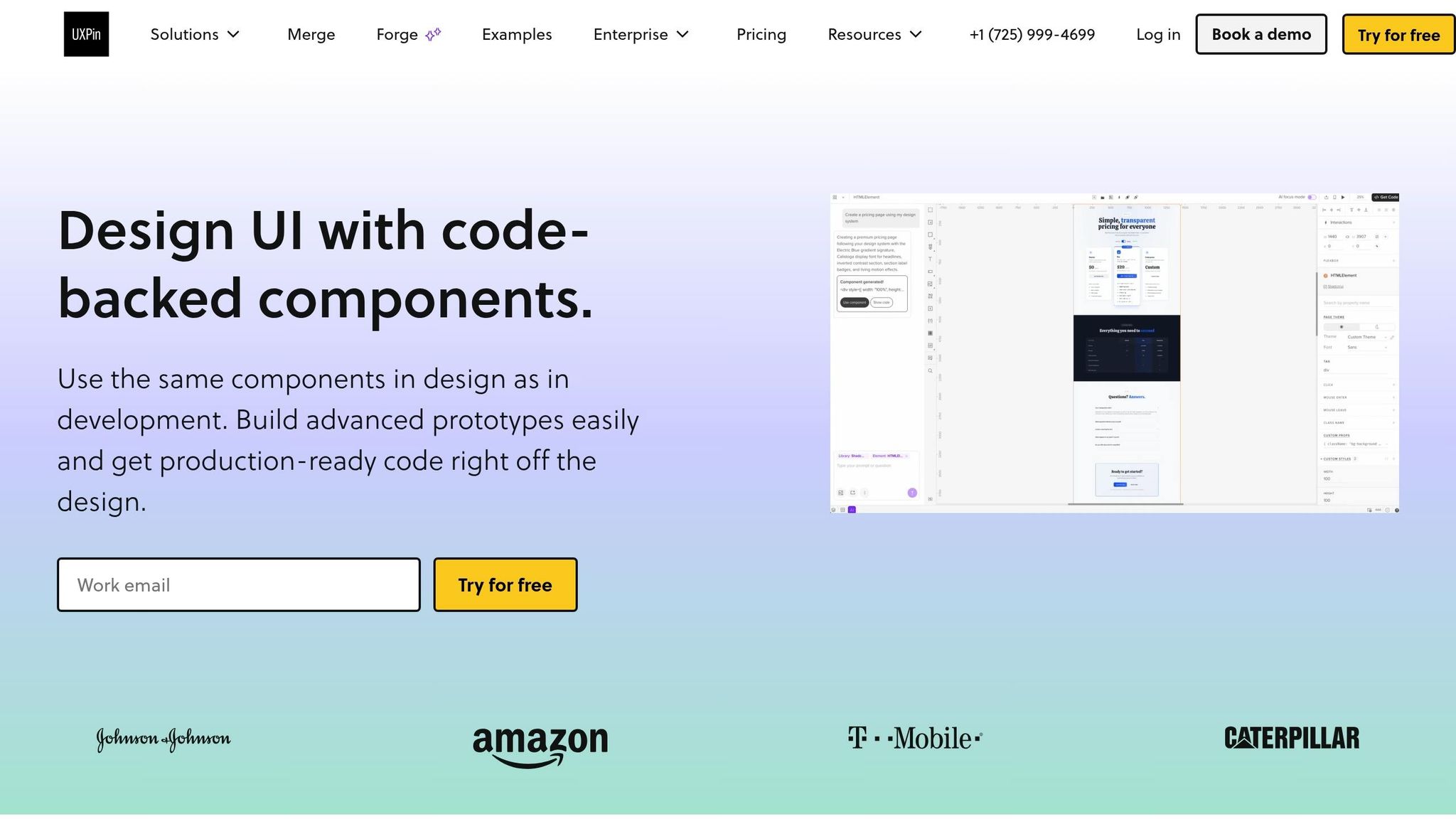
With your UXPin account set up and your repository ready, you can connect your MUI libraries – whether you’re using the standard version or a custom one.
For teams using the standard MUI library, there’s no setup required. It’s already built into UXPin. You can immediately drag and drop components like Button, TextField, Grid, and Drawer onto your canvas, complete with props and variants.
For custom MUI libraries, enterprise teams often rely on Git integration. Start by cloning your MUI-Merge repository, running yarn install to set up dependencies, and using yarn run uxpin:test to preview how the components behave in UXPin before syncing. Once connected, any updates your developers make to the repository will automatically sync in UXPin – no need for manual re-imports.
Before diving into your design session, check the COMPONENT-STATUS.md file in your custom library repository. This file will confirm whether the components you need are marked as "Completed." UXPin currently supports over 90 interactive MUI components, ranging from layout tools like Box and Stack to more advanced options like Table and Badge.
Once your components are synced, you can set up your workspace for smooth collaboration.
Organizing Your Workspace for Large Teams
With your components integrated, it’s time to structure your workspace for seamless teamwork. Erica Rider, a UX Architect, shared how syncing their design system with UXPin Merge allowed just three designers to support 60 products and over 1,000 developers. Achieving that level of efficiency requires clear roles and governance.
Use roles and permissions (available on the Growth plan and above) to control who can edit component libraries versus who can only use them. Assign ownership of the library to a small group of design system leads, while giving the rest of the team read-only access. This approach prevents accidental changes to shared components and ensures everyone works with the same approved set. For added accountability, Git integration offers a built-in audit trail, so you can track every change and its purpose.
sbb-itb-f6354c6
Designing UX Flows with Claude Sonnet 4.5 and MUI
How to Write Effective Prompts for Claude Sonnet 4.5
The quality of Claude’s output depends heavily on how clearly you frame your prompts. Vague instructions will lead to generic UX suggestions, while detailed prompts produce actionable layouts you can directly implement.
Start by outlining the essentials: user type, goals, platform, and constraints. For instance, you might say: "Design a UX flow for a B2B SaaS invoicing dashboard used by finance managers at mid-size US companies. Desktop-first at 1,440px, responsive to 768px. Use only MUI components. Role-based access: admin, manager, and read-only viewer." This level of detail sets the stage for precise outputs.
Include US-specific formatting rules in your prompt to ensure consistency in field labels, placeholders, and table columns. For example, specify formats like $1,234.56 for currency, MM/DD/YYYY for dates, 12-hour time with AM/PM, and comma-separated thousands. When Claude knows these rules upfront, it incorporates them into helper text, validation messages, and column headers, reducing the need for localization fixes later.
Finally, request a structured output format. Ask for screen flows, component layouts, and state descriptions. This ensures you get detailed, ready-to-use guidance for building with MUI components in tools like UXPin.
Using MUI Patterns to Shape Layouts and Components
After crafting a clear prompt, guide Claude to use specific MUI components rather than general UI ideas. The distinction is crucial. Saying "a navigation sidebar" is too vague. Instead, go for something like: "Drawer with List and ListItemButton components, persistent on md and above, hidden behind a burger menu on sm." This specificity makes the output actionable.
Encourage Claude to name MUI components and describe their props. For example, a prompt for an analytics dashboard might result in a layout featuring a top-level AppBar with a Toolbar, a persistent Drawer for navigation, and a Grid container with spacing={2}. This container could hold three Card components, each set to lg={4}, collapsing to md={6} on tablets and xs={12} on mobile. With this level of detail, you can easily translate the design into UXPin Merge.
When it comes to responsive layouts, ask Claude to align with MUI’s standard breakpoints (xs, sm, md, lg, xl) and use the 12-column Grid system. Specify column spans and layout shifts at each breakpoint. This ensures the design matches MUI’s rendering, reducing the need for adjustments during implementation.
Once you’ve got a detailed layout, the next step is refining and validating the output.
Reviewing and Refining AI-Generated UX
Claude’s initial designs are a starting point, not the final product. Before you transition the output into UXPin Merge, review it against a checklist of key requirements for enterprise-grade UX.
Common areas needing attention include missing states and incomplete role logic. Check that the design accounts for all states – loading, empty, and error. These are often overlooked in the first draft. Also, ensure role-based views are properly differentiated. For example, an admin’s interface should clearly differ from what a read-only viewer sees. If these distinctions are missing, refine your prompt to include explicit role constraints.
Accessibility is another critical factor. Review the design to ensure form fields have clear labels, interactive elements meet contrast standards, and keyboard navigation is supported. While MUI components handle many accessibility features by default, the overall structure proposed by Claude – such as how dialogs are triggered, how errors are displayed, and how focus moves – still requires human oversight. Each review cycle should address gaps, refine broad ideas, and re-prompt Claude as needed until the design is ready for prototyping. For more guidance on scaling these workflows, explore these enterprise UX resources.
UXPin Merge Tutorial: Prototyping an App with MUI – (4/5)
Building Code-Backed Prototypes in UXPin Merge
Once your designs are polished, the next step is turning them into interactive, code-backed prototypes. This is where UXPin Merge truly shines. It allows you to build prototypes using the exact same React components your engineering team uses in production, ensuring seamless collaboration and consistency.
Placing and Configuring MUI Components in UXPin Merge
With MUI already integrated into UXPin, adding components is straightforward. Open the component panel, search for the MUI component recommended by Claude – like DataGrid or DatePicker – and drag it onto the canvas. From there, the property panel on the right lets you adjust props directly, just as a developer would in code.
What makes this process stand out is how the prototypes behave. Interactive elements, such as a Select dropdown or a Checkbox, work exactly as they would in the final product. This eliminates the need for developers to translate static designs into functional code, saving time and reducing errors.
"It used to take us two to three months just to do the design. Now, with UXPin Merge, teams can design, test, and deliver products in the same timeframe." – Erica Rider, UX Architect and Design Leader
By following Claude’s specifications for prop values, you ensure that your prototypes align perfectly with what the engineering team will build. This level of precision reinforces the iterative workflow and keeps the design process efficient.
Using Forge AI Inside UXPin
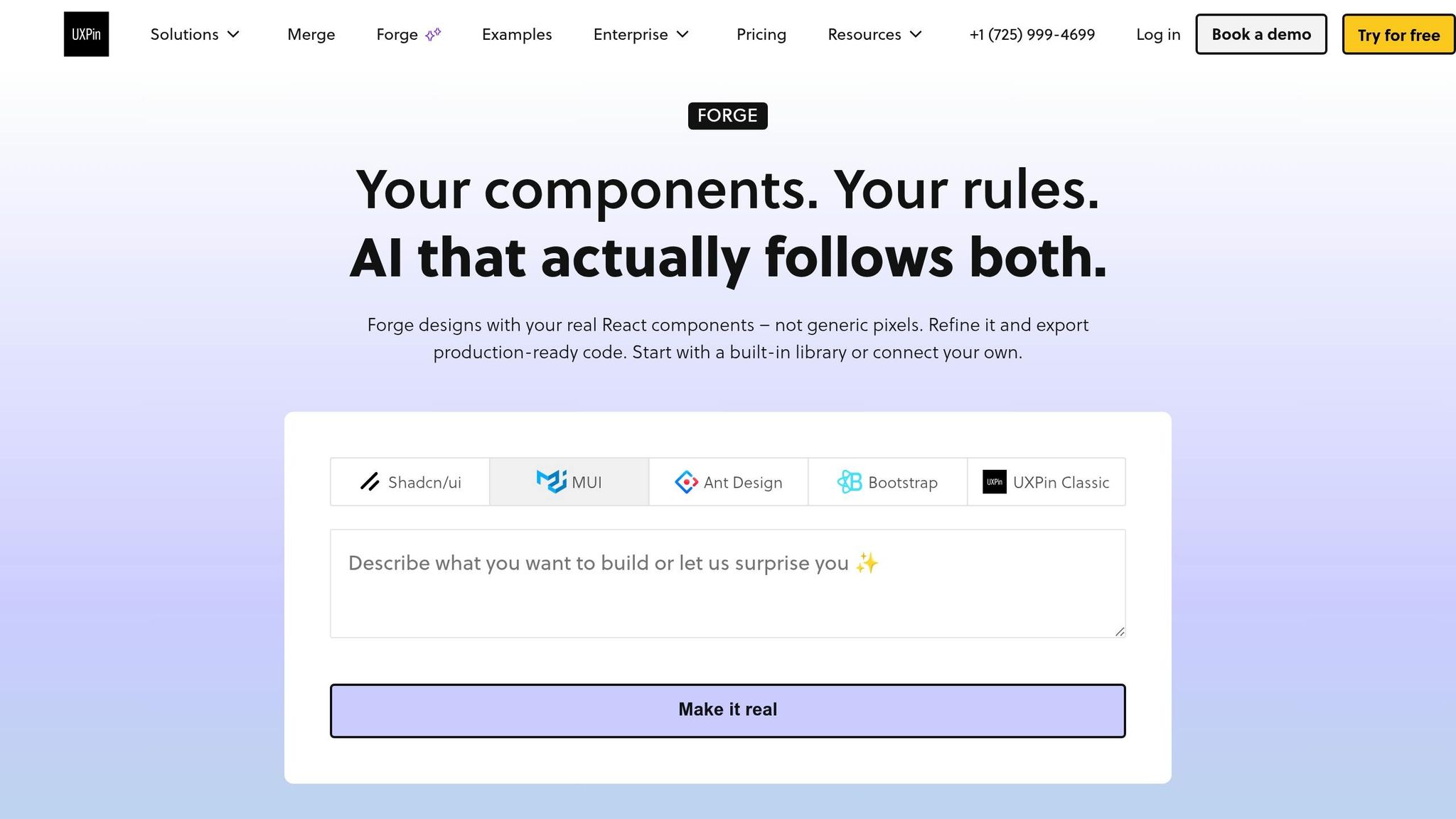
As you move from design to prototype, Forge AI simplifies layout adjustments directly in UXPin. Need to tweak a layout or create a new screen variation? UXPin’s built-in AI assistant, Forge, can handle it right on the canvas. There’s no need for a separate Claude account or external tools. Forge operates within your MUI design system, ensuring all suggested components are pre-approved and ready for development.
This feature is especially handy during stakeholder reviews. If feedback highlights a missing state or a layout issue on a specific device, Forge can rework that section using MUI components. You won’t need to rebuild or switch tools, and the result stays consistent with your design system. This approach minimizes rogue components and reduces the potential for developer rework.
Adding Interactions and Logic to MUI Prototypes
Once your components are placed and configured, you can add interactions using UXPin’s logic tools. Bind variables and conditional interactions, and link events – like clicks or form submissions – to trigger state changes.
Since MUI components in Merge are React-powered, complex interactions like filtering rows in a DataGrid or advancing steps in a Stepper work natively. There’s no need for manual scripting. This means your prototypes don’t just look real – they act real. They’re fully testable with users, providing actionable feedback before production even begins.
Iterating and Delivering Production-Ready UX
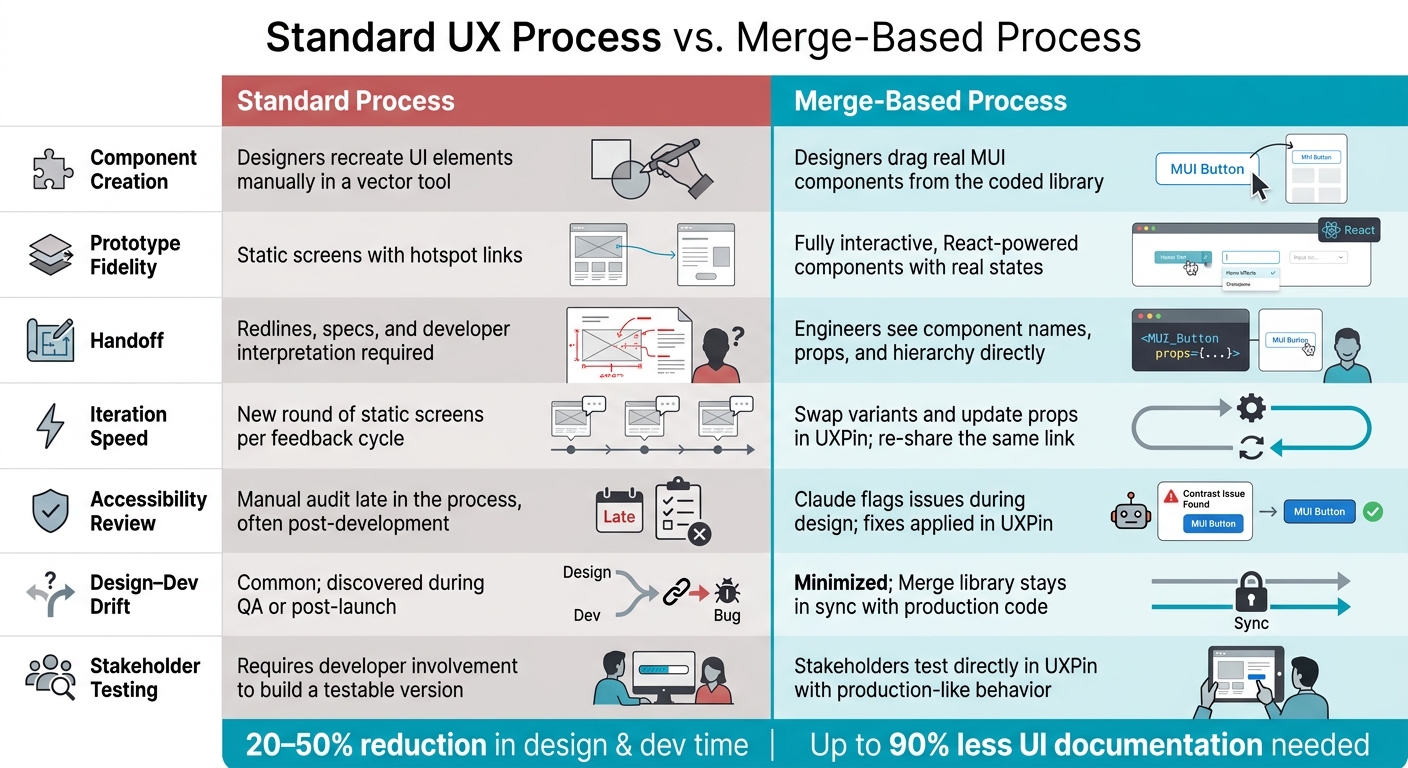
Standard UX Process vs. Merge-Based Process: Side-by-Side Comparison
Prototypes are a great starting point, but production-ready designs demand a deeper collaboration between designers, engineers, and stakeholders. This is where tools like Claude Sonnet 4.5, MUI, and UXPin Merge shine, streamlining the process and reducing friction.
Aligning Designs with Engineering Teams
One of the biggest challenges during handoff is not missing specs – it’s mismatched components. When designers use components that don’t exist in the production codebase, engineers are forced to improvise, which often leads to inconsistencies.
With UXPin Merge, this issue is addressed at its core. The MUI components in your design canvas are the same ones engineers use in production, significantly narrowing the gap between design and development. However, keeping everything aligned requires a bit of process.
- Start with a component audit. Before each release cycle, verify that the npm package version, theme settings, and custom wrappers in your UXPin Merge library align with production. Any discrepancies caught early can prevent QA headaches later on.
- Set up regular design system syncs. A biweekly or monthly check-in between design and engineering teams ensures updates to components or deprecated variants are reflected in UXPin Merge before the next sprint. A simple changelog maintained by the engineering team – highlighting "what changed for UX" – can give designers the insights they need without requiring them to sift through pull requests.
When it’s time for handoff, UXPin’s real component specs make life easier. Merge retains component names, props, and hierarchy, so engineers can directly map designs to MUI components without reverse-engineering static files. Adding quick notes to components in UXPin – for example, "Use PrimaryButton with color='primary' and size='large'" – helps clarify intent and ensures the right variant is used.
These steps lay the groundwork for iterative refinements using Claude Sonnet 4.5.
Using Claude Sonnet 4.5 for Iterative Design Improvements
Once the initial design is integrated, Claude Sonnet 4.5 becomes a powerful tool for refining and aligning prototypes with production standards. Stakeholder feedback and usability testing often generate a flood of raw notes, and Claude helps translate these into actionable design updates quickly.
Here’s how to make the most of it:
- Structure your prompts. Start with context, artifacts, and constraints before asking for suggestions. For example, describe the scenario ("You’re refining a B2B invoice management flow for U.S.-based finance teams"), share the current UXPin flow with details on MUI components and states, and define constraints like WCAG 2.1 AA compliance, U.S. currency formatting (e.g., $1,299.00), and MM/DD/YYYY date formats.
- Perform accessibility checks early. Use Claude’s guidance to identify accessibility issues during the design phase, reducing the risk of engineering rework or compliance concerns. Fix these directly in UXPin Merge by adjusting MUI props.
- refine microcopy and states. Claude can generate concise, U.S.-English copy for various states – success, error, warning, and empty – across MUI components. It can also tweak copy for role differentiation and ensure consistency in button labels, helper text, and error messages. These small details, while easy to overlook, make a big difference to users.
Workflow Comparison: Standard Process vs. Merge-Based Process
The table below highlights how the Merge-based process, enhanced by Claude, MUI, and UXPin Merge, improves UX development compared to traditional methods.
| Stage | Standard Design Process | Merge-Based Process (Claude + MUI + UXPin) |
|---|---|---|
| Component creation | Designers recreate UI elements manually in a vector tool | Designers drag real MUI components from the coded library |
| Prototype fidelity | Static screens with hotspot links | Fully interactive, React-powered components with real states |
| Handoff | Redlines, specs, and developer interpretation required | Engineers see component names, props, and hierarchy directly |
| Iteration speed | New round of static screens per feedback cycle | Swap variants and update props in UXPin; re-share the same link |
| Accessibility review | Manual audit late in the process, often post-development | Claude flags issues during design; fixes applied in UXPin |
| Design–dev drift | Common; discovered during QA or post-launch | Minimized; Merge library stays in sync with production code |
| Stakeholder testing | Requires developer involvement to build a testable version | Stakeholders test directly in UXPin with production-like behavior |
Conclusion: Faster UX Design with Claude Sonnet 4.5, MUI, and UXPin Merge
Key Benefits of AI-Assisted, Component-Driven UX
The real advantage of these tools comes from how seamlessly they integrate. Claude Sonnet 4.5 speeds up ideation and exploration in UX design. MUI offers a scalable framework of production-ready components. And UXPin Merge bridges the gap by connecting directly to the codebase, ensuring designers always work with components that can actually be built.
For enterprise teams, these efficiencies can make a huge difference. Seemingly minor issues – like recreating components, fixing handoff errors, or conducting accessibility audits late in the process – can quickly snowball when scaled across multiple teams. According to research from InVision’s Design Systems Handbook, teams leveraging mature component libraries can reduce design and development time for common UI by 20–50%. Meanwhile, UXPin’s internal data shows that Merge can cut UI documentation needs by up to 90%, as specifications are already embedded in the components themselves.
AI-driven UX design works best when paired with a robust design system. Claude Sonnet 4.5 shines when it helps teams iterate quickly within the boundaries of MUI’s production-ready components. It’s less effective when generating ideas that engineers later have to reverse-engineer. UXPin Merge ensures that AI-assisted designs stay grounded in what’s feasible to build.
Together, these tools don’t just simplify the design process – they also speed up delivery.
How to Get Started
Start with a single user flow – like onboarding, settings, or a dashboard – and test the workflow. Use Claude Sonnet 4.5 to refine or generate the UX direction, then build it using MUI components within UXPin Merge. Make sure to test the prototype against real-world product constraints before rolling out the approach to other areas.
Before scaling, evaluate your team’s design system maturity, engineering processes, and overall alignment. If your team already uses MUI and has established development standards, adopting this workflow should be straightforward. This approach is especially useful for larger product organizations where consistency and speed are critical.
To see how UXPin Merge can fit into your team’s workflow, check out uxpin.com/pricing or contact their enterprise team at sales@uxpin.com.
FAQs
Do I need my own Claude API account to use Claude in UXPin?
To use Claude in UXPin, you’ll need your own Claude API account. Start by generating an API key from the Anthropic console. Once you have the key, head to the Quick Tools panel in the UXPin Editor. Open the AI Component Creator settings, paste your API key there, and you’re all set to leverage Claude for your design tasks.
How do we connect our custom MUI component library to UXPin Merge?
To link your custom MUI component library with UXPin Merge, you have a few integration options: Git repositories (such as GitHub or GitLab), npm, or Storybook. Before starting, make sure you have Node.js installed and include a uxpin.config.js file in your setup. To verify the environment, you can run commands like npx uxpin-merge --disable-tunneling. Once the connection is established, use the Merge Component Manager to bring in your components and align their React props with the Properties Panel.
How can we keep our UXPin Merge MUI library in sync with production code?
To keep your MUI library aligned with your production code, link your Git repository to UXPin Merge. This connection ensures that the design components stay consistent with the code your development team uses.
For a more seamless process, you can automate updates by integrating a CI/CD tool like CircleCI or GitHub Actions. Configure it to execute the uxpin-merge push command whenever there are updates in your Git repository. Additionally, you can use the mui-theme-creator tool to create a ThemeOptions object, ensuring consistent theming between your design system and production environment.