What’s the Difference Between UXPin and Merge Technology?

Whats the difference between UXPin and Merge technology

You may wonder what the difference between UXPin and Merge is. And, which one is right for my design team?

To put it simply, UXPin is an all-in-one design software that covers the entire product design process together, including design handoff, while Merge is a technology that allow you to bring interactive components to UXPin and design prototypes using them.

Ultimately, Merge technology leads to a more collaborative and faster design process in which both designers and developers can share a single source of truth and create consistent UIs. Check more about UXPin Merge here.

Reach a new level of prototyping

Design with interactive components coming from your team’s design system.

Image-Based vs. Code-Based Design Tools

Before we get into UXPin and Merge, it’s important to understand the difference between image-based and code-based design tools. 

When designers hear code-based design tool, they assume it’s a developer tool or must learn code to use it–both are incorrect.

Code-based refers to how the tool renders what UX designers create on the canvas. Traditional image-based tools produce static vector graphics, whereas code-based tools render code.

Learn more about it: How to Turn Figma Designs into Interactive Prototypes?

get code mode

For the most part, designers won’t notice much difference when comparing the two interfaces, except that code-based tools generally have more options for interactivity.

For example, if you create an input field using an image-based tool, it’s just a block on the canvas. In UXPin, an input behaves like it would in the final product. When users click the input, a cursor appears, and they can enter text. With UXPin’s various features, designers can then:

  • Validate inputs
  • Check password criteria (i.e., letters, numbers, symbols, etc.)
  • Personalize welcome messages
  • Populate a user’s profile page

What is UXPin?

UXPin is an end-to-end code-based design tool for advanced prototyping and testing. Designers can build prototypes that accurately replicate final product interactions and functionality.

UXPin looks and feels like any other design tool but with features that enhance UX workflows, collaboration, prototyping, and testing

Some of those key features include:

  • Variables
  • Interactions and Conditional Interactions
  • Expressions
  • Auto Layout
  • Design Systems
  • Comments

Variables

Variables allow designers to capture data from input fields and use it elsewhere in the prototype. This example from our demo sign-up form demonstrates how you can capture a user’s email address to personalize the confirmation page.

https://twitter.com/uxpin/status/1589684680848470016

Interactions and Conditional Interactions

UXPin makes it easy to add Interactions to your prototypes with a few clicks. Designers have an extensive list of Triggers, Actions, and Animations that accurately mimic final product interactivity.

Conditional Interactions take interactivity to another level with if-then and if-else conditions–similar to what Javascript does for devs. 

Returning to our demo sign-up form, we see how you can use Conditional Interactions to present users with error messages if they leave the email and password fields blank. Only when the user meets the input’s conditions can they proceed to the confirmation page.

Expressions

Expressions take prototyping to the next level, allowing designers to create dynamic user experiences comparable to code. In our sign-up form prototype, we use Expressions to define the email and input field criteria:

  • Email: must have the @ symbol and domain extension (.com, .co.uk, etc.)
  • Password: must be longer than 8 characters

Designers can add as many Expressions to components and prototypes as they like, achieving results indistinguishable from code.

Auto Layout

Many design tools offer auto layout, but UXPin’s Auto Layout uses Flexbox naming and properties to create realistic expectations and improve designer/developer collaboration.

https://twitter.com/uxpin/status/1469130764071677953

Designers use Auto Layout to automatically resize, fit, distribute, and fill designs, eliminating the time-consuming task of doing this manually.

Further reading: Bringing Auto Layout to UXPin.

Design Systems

Design Systems allows designers to create a library of reusable components and share these across the organization. It’s a fantastic feature for building a design system from scratch, including documentation and permissions

UXPin automatically categorizes Design Systems into:

  • Colors
  • Typography
  • Assets
  • UI Patterns

The entire library appears in the left-hand sidebar, so designers simply drag and drop elements to build user interfaces.

UXPin also provides five Built-in Design Libraries, including OS, Material Design, Bootstrap, Foundation, and User Flows, so teams can build prototypes or MVPs fast to test ideas and hypotheses at every stage of the design process.

Comments

Comments allow design teams and stakeholders to collaborate, share feedback, assign tasks, and provide context within design projects and on prototype previews.

UXPin allows anyone to use the Comments on Preview feature, eliminating the need to purchase additional users like stakeholders and developers who don’t need access to UXPin’s canvas. Designers can password-protect designs, so only those authorized can view them.

What is UXPin used for?

Design teams use UXPin at every stage of the design process. While high-fidelity prototyping is UXPin’s strongest feature, its ready-made forms make it an excellent wireframing tool.

Here are some examples of where UXPin outperforms its image-based competitors:

  • Interactive prototyping
  • API integrations via IFTTT
  • Fast design iterations
  • Collaborating with design teams, engineers, and stakeholders
  • Smoother design handoffs
  • Building and scaling design systems from scratch

Further reading:

Ready to see what code-based design is all about? Sign up for a free trial to build your first interactive prototype with UXPin today!

What is UXPin Merge?

logo uxpin merge 1

UXPin Merge is a technology that syncs code components from a repository to UXPin’s design editor. Organizations can use Merge with open-source libraries or import their product’s design system.

Designers use these code components like building blocks, dragging and dropping to build user interfaces.

Merge components include properties defined by the design system, including interactions, states, colors, typography, sizing, etc. These properties appear in UXPin’s Properties Panel, where designers can make adjustments according to prototyping requirements.

properties panel code backed merge

You can change the color, size, variant, and add an icon using properties.

Merge pulls these properties from the repository and automatically syncs any changes. For example, if the design system team changes the primary color from blue to red, Merge will detect the update and notify design teams of the new release.

Version Control allows designers to choose when they want to switch to the latest release and can revert to early versions whenever they want.

Is There a Way to Test UXPin Merge?

Yes, you can test UXPin Merge on trial or you can enjoy its features on Merge AI plan that’s perfect when you want to use leverage popular open-source component libraries such as MUI, Ant Design, and Bootstrap without needing to start from scratch.

When you sign up for UXPin Merge, you gain access to three trial kits—MUI, Ant, and Bootstrap—giving you a starting point to experiment and create interactive prototypes using real React code.

trial kit

Each trial kit comes fully loaded with reference patterns and example components, such as cards, snack bars, and skeleton loaders, which you can use directly in your projects. Additionally, you can browse full layouts, like dashboards, to jumpstart your designs without the need to build from the ground up.

Here’s how UXPin Merge works:

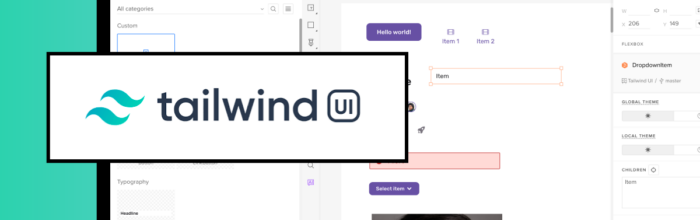
  1. Select a Library: Choose from built-in component libraries like MUI or even custom Tailwind UI components. Simply drag and drop these ready-made components into your design canvas.
  2. Edit Variants and Properties: Customize the components with real React code by toggling between different variants and modifying their properties. You’re not just working with static design assets but actual coded components that behave as they would in production.
  3. Use Custom Code: If you’re working with custom Tailwind UI components, you can paste code directly into UXPin to generate entire UI sections instantly. This feature allows you to skip designing components from scratch and speeds up your workflow by using existing code.
  4. AI-Powered Component Generation: UXPin Merge even integrates AI to help you create code-based components on the fly. For example, you can prompt the system to generate a “Persona Card,” and UXPin will create a fully functional Tailwind CSS-based component directly on the canvas.
  5. Effortless Developer Handoff: Once your design is complete, UXPin Merge makes it easy to hand off your work to developers. Share your prototype through a preview link, and developers can access the real JSX code, dependencies, and functions for each component. This ensures that developers receive production-ready code that they can immediately use in their environments.

With UXPin Merge, there’s no need to waste time recreating components for the design team or manually coding every element from scratch. Merge AI allows designers and developers to work more efficiently by tapping into the power of real React components, ensuring consistency between design and development from the very beginning.

How to Sync Your Design System With UXPin Merge

There are three ways to sync a design system with UXPin Merge:

uxpin merge component sync

These three integrations each serve different prototyping and team needs. The Git and Storybook integrations require technical knowledge to set up the components and repository for Merge. UXPin provides a boilerplate for engineers, and our technical team is on hand to guide the setup process.

Storybook is probably the best option for private design systems because engineers can build components in isolation, prototype, and test them before pushing them to UXPin for design teams.

The npm integration and Merge Component Manager give designers more control over the components and properties they want to import. Designers can follow the design system’s docs and don’t need engineers to import UI elements.

Key Benefits of UXPin Merge

Merge’s primary benefit is that it creates a single source of truth between design and development. Designers and engineers use the same component library from the same repository–creating a seamless design handoff process.

  1. Engineers simply import the component library. 
  2. Copy JSX changes UXPin produces from component properties. 
  3. And develop the final product according to the design team’s prototype.

This streamlined workflow creates many product development efficiencies, including:

  • Faster prototyping (PayPal scaled by 8X)
  • Faster time to market
  • No designing from scratch
  • Little to no front-end coding
  • No design drift
  • Reduced UX and front-end debt
  • Seamless handoffs with less communication and documentation
  • Flawless cohesion and consistency
  • Higher quality feedback from stakeholders
  • Meaningful, actionable results during testing
  • High-quality outcomes = better user experience

UXPin to Merge – The Scalable Design Solution

UXPin offers companies a scalable design solution with the tools and features to support your workflow at every stage of maturity.

design and development collaboration process product communication 1

UXPin Standard is an excellent solution for startups and companies who aren’t using a design system. Designers can build fully-functioning interactive prototypes and MVPs for accurate testing.

UXPin Standard also includes UXPin’s Design Systems feature, so designers can save and share product components, color palettes, typography, and assets.

Scaling With Merge

Whether you’re a fast-growing startup or multinational enterprise, Merge enables companies to scale design operations

FinTech giant PayPal and leading software developer Iress have both experienced enhanced workflow optimization and collaboration from switching to UXPin Merge.

At the enterprise level, Merge enables teams to move faster because they have a single source of truth across the entire product development team. There’s less friction and better collaboration because designers and engineers speak the same language while working within the same constraints.

design system components

What Merge designers use in UXPin to create a button or any other UI component is exactly the same button or what have you as which engineers pull from the repository to develop the final product.

We’ve also seen how Merge helps companies at the startup stages. Startup TeamPassword doesn’t have a UX team, so engineers use UXPin Merge for prototyping and testing. Because Merge creates a drag-and-drop environment, the learning curve is significantly reduced compared to traditional design tools.

TeamPassword’s engineers use components they’ve programmed to build prototypes in UXPin, so they can test, make changes, and iterate fast!

Take your prototyping and testing to the next level with the power of Merge. Visit our Merge page for more details and how to request access.

The Practical Guide to Empathy Maps: 10-Minute User Personas

Emapthy Map - The definitive guide

Where does the empathy map come in?

UX designers know better than anyone — it’s what’s inside that counts. As in, the user’s thoughts and feelings, and how those affect what they say and do.

When created correctly, empathy maps serve as the perfect lean user persona:

  • They quickly visualize user needs (especially to non-designers)
  • They fit perfectly into a Lean UX workflow as a starting point for user knowledge (you’ll build more as you prototype and test)
  • Because they’re quick to create, they’re easy to iterate as you revise assumptions based on real data
  • They prime stakeholders for your design ideas since they’ve thought beyond their own experiences
Empathy Map Guide - 1

Photo credit: “How to Use Persona Empathy Mapping.” Nikki Knox (UX Magazine).

That’s what this article is about: a clear-cut, all-inclusive guide on empathy maps, answering why, when, and how to use them.

Let’s get started.

UXPin as a comprehensive design tool that facilitates empathetic design decisions by enabling real-time collaboration and feedback. With UXPin, teams can seamlessly integrate empathy maps into their design process, ensuring that user insights are effectively translated into actionable design solutions. Try UXPin for free.

Build advanced prototypes

Design better products with States, Variables, Auto Layout and more.

Try UXPin

What Are Empathy Maps?

An empathy map in UX design is a collaborative tool that helps teams better understand and visualize the user’s perspective. It typically consists of four quadrants that explore what a user thinks, feels, says, and does. By filling out these sections, designers can develop a deeper understanding of user motivations, pain points, and behaviors, which helps guide more user-centered product decisions.

Empathy maps are especially useful during the early stages of the design process to align teams on user insights and drive empathetic design solutions.

When to Use Empathy Maps

Empathy maps are most useful at the beginning of the design process.

Try to complete empathy maps before the product requirements, but after the initial user research. Product strategy is about solving problems, and empathy maps shed light on which problems to solve, and how. This also makes them a great tool for redesigns as well.

Creating empathy map - UXPin

When done well, empathy maps create a “UX domino effect” that affects the entire project. Empathy maps affect the product requirements, which affect the product strategy, which affects the wireframes, mockups, prototypes, etc.

However, empathy maps work better if they’re drawn from real data, so they should be made after user research like user interviews. But in a pinch, empathy maps can still be built on your existing knowledge and stakeholder feedback. Quick basic empathy maps offer valuable insight in any meeting — hence the “10-minute persona” nickname.

Empathy Map Format

A common UX empathy map is divided into four quadrants, outlining notes on four different aspects of the user’s internal experience. The quadrants can vary based on needs and preferences, but almost always contain:

  • Thoughts — Quotes of what the user is thinking, i.e., “I wonder if there’s an example?” or “I hope this doesn’t take long.”
  • Feelings — The user’s emotional state, i.e. “is confused by the navigation and blames themselves.”
  • Actions — The user’s behaviors, whether in general or in response to a specific instigator, i.e., “returns to the home page every time they don’t know where to go.”
Empathy Map Guide - UXPin

Photo credit: “Adapting empathy maps for UX design.” Paul Boag (boagworld).

Some common variants include:

  • Sights — Where the user’s eyes go, i.e., “loves the colorful mascot.”
  • Quotes — Things the user says, similar to thoughts. Can be pulled word-for-word from user interviews, or based on existing knowledge.
  • Influences — What the user has heard from third parties that might influence how they act, i.e., “They say this is easier to use than Photoshop.”

In addition, at the bottom in some empty space, it’s always a good idea to include:

  • Problems (“Pains”) — Any obstacles worth considering, i.e., an unfamiliarity with technology, or a short attention span.
  • Goals (“Gains”) — What the user hopes to accomplish, i.e., complete the task within 5 minutes.  

Alternatively, you can summarize the above two areas by filling in the simple statement, “The user needs a way to ________________ because ________________.” Pay attention to the second blank, since user motivation is the real raw material for feature ideas.

Last, you may want to leave a space for general notes, such as the type of device the user is accessing your product from.

Optionally, it may help to include a picture of the user to make the document feel more real.

Empathy Map – The Creation Process 

It’s important to note that empathy maps can be created for a general understanding, or for specific tasks and situations. Broad empathy maps are more useful as quick user personas because they are not based on a single user scenario. If you can spare the time, you could create several task-based empathy maps to feed into more detailed personas.

Empathy Map - creation process

For example, if you’re working on a web app redesign and notice users having difficulty logging in, you can center around the user’s mind as they complete (or ignore) this task. But this information is most relevant to this particular context (logging in). You won’t understand why a user would want to use your web app in the first place.

Let’s examine how to create a broad empathy map as a 10-minute user persona. Before you start the exercise, you will need at least basic understanding of your user segments (e.g. Sally the College Student, Sean the Young Professional).   

1. Find a whiteboard, a large flip chart, or print out this free template.

2. Set aside 30 minutes to 1 hour for the session.

3. Invite the core product team members: product manager, developers, marketers, and of course other designers.

4. Ask a broad question to help unpack everyone’s thoughts and assumptions, e.g. “Why would somebody buy a new iPhone?”

5. Set aside sheets of paper or space on the whiteboard according to the user segments (e.g. one for Sally, one for Sean).

6. Hand out sticky notes and encourage everyone to write down their thoughts regarding each of the empathy map’s four quadrants.

7. Review the completed empathy map and discuss any patterns and outliers.

As you might expect, sometimes it’s difficult to get the creative juices flowing and/or really pinpoint the issues at hand. If your team is stuck, Demian Farnworth of the Copyblogger recommends a moderator posing questions like these to help team members better visualize their users:

  • What environment are the users in when using your product?
  • Are they having fun, or do they want to get it over with?
  • What’s their life like outside of using the product?
  • What kind of day are they having?

If all else fails, try a bit of role-playing, where one person “plays” the user, and ask them questions or play the role of the product, eliciting responses.

At the end of the session, wrap up what was learned. Did anyone’s opinions change? Is there a better direction to go with the product design? Were any of the responses based on data, or pure assumption? These answers are partly why you made an empathy map in the first place.

Remember that the benefit of empathy maps are their convenience. They’re designed to be a quick collaborative exercise rather than exhaustively thorough. You’ll gather more important insights once you’ve started prototyping and testing your designs with at least 5 users.

What to Do With Finished Empathy Maps

While a large part of empathy maps’ utility are the process of making them, they are still quite useful as documentation.

Share the results of the empathy map with anyone on the product team who wasn’t able to join the exercise. Executive stakeholders, too, might be interested in the more actionable takeaways from the exercise — although you should explain the bottom line upfront, and the reasoning afterward.

Emapthy Map with UXPin

If you happen to be using UXPin, you can also upload a picture of the empathy map into your UX project so that others can comment on it as needed.

Next Steps

While broad empathy maps aren’t the most thorough personas, they certainly help everyone think more like a user while checking their own assumptions. Certainly not a bad result for a single 30-60 minute workshop.

If you’re looking for a way to integrate empathy maps into your UX design process seamlessly, consider using UXPin. It offers powerful collaboration tools that allow teams to work together in real-time, making it easier to incorporate user insights into your designs. With UXPin’s interactive prototyping and design system features, you can bring empathy-driven design to life while maintaining consistency and functionality. Try UXPin for free.

Aspect Ratios in UX/UI Design: A Complete Guide

Aspect ratios

Image-rich content drives website engagement, and making sure those images display properly is a crucial part of good UX design. Whether you’re working with photographs, illustrations, or video, an image that’s stretched, squashed, or poorly cropped makes a poor impression for on-site visitors and affects their overall experience on the site.

Determining aspect ratios for optimal viewing on all kinds of devices can be both a chore and a challenge for designers, but today’s responsive design tools and an array of free aspect ratio calculators can make sure that images and video files are displayed in the best light everywhere.

Designing a website or app full of images? Create prototypes of it with UXPin! It’s an end-to-end solution that will cover your full design process and it doesn’t require any plugins for design handoff. See how easy it is. Sign up for a free trial.

Build advanced prototypes

Design better products with States, Variables, Auto Layout and more.

Try UXPin

What is Aspect Ratio?

In the most basic way, aspect ratio is the relationship between an image’s width and height.  Because aspect ratio reflects an image’s proportions, not its size, the aspect ratio remains the same regardless of size. For example, a square image has an aspect ratio of 1:1, since its height and width are the same. That ratio will hold no matter how large the image is. An image that’s 320x320px will have the same aspect ratio as one that’s 1080x1080px – 1:1.

For images that are not square- that is, horizontal or vertical rectangles of various sizes… Aspect ratio can vary. Common aspect ratios used in photography, video, and other image-based design work include 4:3, 3:2 or 16:9, the basic ratio for many widescreen devices such as televisions and desktop computers. 

Although the aspect ratio of an image comes from the relationship of its height and width, multiple subsets of this ratio also help to define image proportions.  

Pixel aspect ratio

Pixel aspect ratio (PAR) refers to the proportion of the individual pixels that make up an image.  Pixels are typically square, which results in a pixel aspect ratio of 1:1. But images that are optimized for certain types of displays can also have rectangular pixels with an aspect ratio of 4:3 or similar.  

Display aspect ratio

Display aspect ratio (DAR) is the most relevant kind of aspect ratio for designers, and it’s the one that’s most commonly associated with the general term.  As the name suggests, display aspect ratio refers to the proportions of an image as it appears on screens of various kinds.  

Some devices, such as cameras and televisions, have a fixed DAR, so for images to display well on these devices, they need to be optimized for their particular aspect ratio. For example, a typical display aspect ratio for widescreen video to be displayed on a monitor or television screen is 16:9. When images with a different aspect ratio are displayed on these devices, they appear distorted.  Digital SLR camera sensors also have a fixed display aspect ratio, which controls how images captured by the camera will be saved and displayed.  

Storage aspect ratio

Storage aspect ratio (SAR) is an aspect ratio formula that pertains specifically to encoded digital video files. SAR refers to the width and height relationship in video frame size, and it needs to be consistent across all individual frames in order for the complete video to display properly. In a commonly used formula, SAR x PAR = DAR for most widescreen videos.

Aspect Ratios Affect UI/UX Design

Aspect ratios play an important part in any kind of project that involves capturing and displaying photographs, videos, or other kinds of image-based files in the correct way.  For photographers, the camera’s fixed aspect ratio can have a considerable impact on composing a photograph as well as displaying it later on other devices. And for videographers and anyone working with slideshows, animations, and other motion projects, aspect ratio is a key factor for correct display on widescreen and mobile devices.

The shift to responsive web design, which ensures that content displays properly across all devices, helps to resolve a number of problems with setting aspect ratios for individual images.  But even in these environments, problems can arise, such as when an image can’t be adjusted for display without compromising either its content or its quality.  A simple example is when a square image with a 1:1 aspect ratio needs to fit into a rectangular box on a website page. To accommodate varying image size requirements, proportions, as well as size, may have to be adjusted.

In an increasingly image-driven digital world, videos and images that look even slightly out of proportion contribute to a visitor’s negative impression of a website – and those that are clearly forced into the wrong configurations can even interfere with a site’s usability.  

Poorly proportioned product images or a user guide video that’s too stretched to see clearly can affect both a visitor’s willingness and their ability to use the site.  Designers, developers and anyone working with images will need to know how aspect ratios work and how to manipulate them for the best visual effect.  To streamline the process, a number of aspect ratio calculators, both free and paid, have popped up on the web.

Aspect Ratio Best Practices for Responsive Design

In responsive design, maintaining the correct aspect ratio for images, videos, and UI elements is critical to ensure that your content looks clean and professional across different screen sizes. A well-maintained aspect ratio not only preserves the integrity of your visuals but also enhances the user experience by preventing distortion and awkward cropping on various devices. Here are the best practices to follow when dealing with aspect ratios in responsive design:

1. Use CSS for Maintaining Aspect Ratio

CSS provides tools that make it easy to ensure consistent aspect ratios across different viewports. For instance, the aspect-ratio property (introduced in CSS Level 4) allows you to define the aspect ratio for containers, images, or videos, helping you maintain the correct proportions regardless of screen size. Before this property was widely supported, developers often used the padding-top trick (where padding percentage is based on the width) to preserve the ratio of containers or media elements.

2. Maintain Aspect Ratio for Key Media Elements

Images, videos, and interactive elements are key to a user’s experience, so it’s essential that they are not distorted or cropped when viewed on different devices. Stretching or squishing images can lead to unprofessional-looking designs and frustrate users, especially if the distortion impacts how users interact with visual content.

By preserving the correct aspect ratio, your images and videos will maintain their intended dimensions and scale properly with the screen size. To achieve this, make sure that media queries in your CSS accommodate different viewports while keeping the aspect ratio intact.

3. Use Responsive Images for Performance Optimization

Performance plays a significant role in responsive design, especially on mobile devices where slower connections are common. Using responsive images is key to balancing performance with visual quality. You can use the srcset attribute in your HTML, which provides different image resolutions based on the user’s screen size.

4. Test Across Devices

One of the core principles of responsive design is thorough testing across different devices. What looks great on a desktop might be misaligned on a mobile phone if the aspect ratio isn’t preserved. Use tools like Chrome Developer Tools or online responsive design testers to emulate different devices and screen sizes.

For images and videos with fixed aspect ratios (like 16:9 or 4:3), ensure that the design adapts well across all screen sizes without distortion. Ensure that all dynamic resizing respects the original proportions.

5. Handle Aspect Ratios in Fluid Layouts

Responsive design often involves fluid layouts, where elements resize dynamically based on the screen width. In these cases, setting the aspect ratio is essential to prevent issues like images and containers becoming too narrow or tall. By using percentage-based widths and heights, you can ensure that your content scales properly without disrupting its aspect ratio.

For example, a 16:9 video container might be scaled down to fit a mobile screen, but it should always retain the 16:9 ratio, no matter how much the overall layout changes. Fluid layouts combined with flexible aspect ratios ensure that your design remains consistent and visually appealing on all devices.

Aspect Ratio Calculators

It’s certainly possible to calculate an image’s aspect ratio and resize it manually with the help of some simple mathematics.  But that becomes tedious when dealing with many images from multiple sources. With the help of one of the many online aspect ratio calculators, though, you can determine the optimal aspect ratio for any image in a number of different formats, allowing designers to fully optimize each image for optimal viewing.

To use a basic aspect ratio calculator, you’ll need to know the image resolution in pixels and select the type of environment where the image will appear, such as HDTV.  The calculator then returns the result as an optimal aspect ratio. This can be especially helpful for video editing, where the video might include slides or images of varying sizes from different sources.  

Tools for Aspect Ratios in UX/UI

Other image management tools can also help with getting the aspect ratio right. Image editors such as Photoshop and Canva provide templates designed with optimal aspect ratios in mind, suitable for use in typical situations such as designing website banners, headlines, or social media profiles.  Most standard video editing software also allows users to determine and adjust aspect ratios of images to be included as individual frames in the video.  

Correctly proportioned images that display well and perform properly are a powerful tool for businesses of all kinds. Getting aspect ratios right makes images look good wherever they’re displayed.  Whether you’re selling a product, offering a service, creating an online course or something else, photographs, illustrations or video can attract visitors and keep them engaged.  

UXPin’s features make it easy to make sure images are sized and proportioned correctly. With Image Fill, you can choose from a variety of settings that allow you to adjust image size or crop the image while preserving its aspect ratio for perfect positioning.

UXPin can help bring designers and developers together for faster, better product development. Sign up for for a free trial today.

What Are Design Tokens?

design tokens - what are they?

The design system revolution of the last decade has brought with it all sorts of tools and strategies to enhance product development workflows.

Design tokens are one of those tools many design systems, including Google’s Material Design 3 and MUI, have adopted to make UI elements easier to implement, manage, and update.

Announcement: UXPin’s design tokens for colors are in beta! Sign up to get notified when they will be officially released: Design tokens in UXPin.

Optimize your design operations across the entire organizations. Use UXPin Merge, a revolutionary design technology for helping teams use React components in design and development. Learn more about Merge.

Reach a new level of prototyping

Design with interactive components coming from your team’s design system.

What is a Design Token?

Design tokens contain UI data like colors, fonts, spacing, animations, assets, etc. for styling and building cross-platform user interfaces. Instead of hard-coding static values for every operating system, a design token contains multiple formats, allowing front-end developers to use the same variable, whether they’re building an iOS or Android, and even web application.

One of the challenges with cross-platform product development is that operating systems use different style properties and formats. For example, UXPin’s website uses yellow for CTAs. The hex code for this yellow is #FCC821, which you can represent in several ways:

  • RGB (CSS): rgb(252, 200, 33)
  • RGBA: rgba(252, 200, 33, 1)
  • Octal (Android/Flutter): 77144041

Instead of using these static properties, designers and engineers reference a token like “uxpin.cta.primary,” representing all four color codes. The color will always be the same regardless of the platform or programming language.

Design tokens within CSS

To implement design tokens in CSS, they are often converted into CSS variables (also known as custom properties). CSS variables allow you to define reusable values that can be applied throughout your stylesheet, making it easier to maintain and update styles consistently.

Example of Design Tokens as CSS Variables

/* Define Design Tokens as CSS Variables */
:root {
  --color-primary: #007bff;
  --color-secondary: #6c757d;
  --font-size-base: 16px;
  --font-family-base: 'Arial, sans-serif';
  --spacing-small: 8px;
  --spacing-medium: 16px;
}

/* Applying Design Tokens in CSS */
body {
  font-size: var(--font-size-base);
  font-family: var(--font-family-base);
  color: var(--color-primary);
  padding: var(--spacing-medium);
}

button {
  background-color: var(--color-primary);
  color: var(--color-secondary);
  padding: var(--spacing-small) var(--spacing-medium);
}

Here’s a section you can add to your blog post about Design Tokens within CSS:


Design Tokens within CSS

Design tokens are a crucial part of modern design systems, helping to maintain consistency and scalability across digital products. When used within CSS, design tokens ensure that your styles are cohesive and easy to manage, allowing for a more efficient and streamlined development process.

What are Design Tokens?

Design tokens are the smallest, repeatable elements of a design system that store visual properties such as colors, typography, spacing, and shadows. They act as a bridge between design and code, providing a single source of truth that can be used across various platforms and technologies.

Using Design Tokens in CSS

To implement design tokens in CSS, they are often converted into CSS variables (also known as custom properties). CSS variables allow you to define reusable values that can be applied throughout your stylesheet, making it easier to maintain and update styles consistently.

Example of Design Tokens as CSS Variables

/* Define Design Tokens as CSS Variables */
:root {
  --color-primary: #007bff;
  --color-secondary: #6c757d;
  --font-size-base: 16px;
  --font-family-base: 'Arial, sans-serif';
  --spacing-small: 8px;
  --spacing-medium: 16px;
}

/* Applying Design Tokens in CSS */
body {
  font-size: var(--font-size-base);
  font-family: var(--font-family-base);
  color: var(--color-primary);
  padding: var(--spacing-medium);
}

button {
  background-color: var(--color-primary);
  color: var(--color-secondary);
  padding: var(--spacing-small) var(--spacing-medium);
}

In this example, design tokens for colors, typography, and spacing are defined as CSS variables. These tokens are then applied throughout the CSS to style elements consistently. If you need to update a style, such as changing the primary color, you only need to update the variable definition, and the change will automatically apply everywhere the token is used.

Types of Design Tokens

Organizations use these design tokens for many style properties, including color palette, size, spacing, assets, and drop shadows, to name a few. When we’re at it – here are the primary types of design tokens:

  1. Color Tokens: Define the color palette used in a design system. Examples include primary colors, secondary colors, background colors, text colors, border colors, etc.
    • Examples:
      • color-primary: #007bff
      • color-background: #f8f9fa
  2. Typography Tokens: Specify text-related properties. These include font families, font sizes, line heights, letter spacing, and font weights.
    • Examples:
      • font-family-body: 'Roboto', sans-serif
      • font-size-heading: 24px
  3. Spacing Tokens: Govern the spacing system, including margins, paddings, and gaps. They ensure consistent spacing throughout the design.
    • Examples:
      • spacing-small: 4px
      • spacing-large: 16px
  4. Sizing Tokens: Define sizes for components and elements. These can include widths, heights, and maximum and minimum sizes.
    • Examples:
      • size-button-height: 48px
      • size-avatar-small: 32px
  5. Border Tokens: Specify border properties, such as width, style, and radius.
    • Examples:
      • border-width-thin: 1px
      • border-radius-medium: 8px
  6. Shadow Tokens: Describe the shadow effects used in the design system, including color, offset, blur, and spread.
    • Examples:
      • shadow-small: 0 1px 2px rgba(0, 0, 0, 0.1)
      • shadow-large: 0 4px 8px rgba(0, 0, 0, 0.2)
  7. Opacity Tokens: Define the opacity levels for elements.
    • Examples:
      • opacity-low: 0.3
      • opacity-high: 0.9
  8. Breakpoints Tokens: Specify the breakpoints for responsive design, dictating how the design adapts to different screen sizes.
    • Examples:
      • breakpoint-mobile: 480px
      • breakpoint-desktop: 1024px
  9. Duration Tokens: Govern the timing of animations and transitions.
    • Examples:
      • duration-short: 200ms
      • duration-long: 600ms
  10. Easing Tokens: Define the easing functions for animations and transitions.
    • Examples:
      • easing-in-out: cubic-bezier(0.4, 0, 0.2, 1)
      • easing-bounce: cubic-bezier(0.68, -0.55, 0.27, 1.55)

Where did Design Tokens Come from?

It is said that design tokens were pioneered by Salesforce. In a 2014 article published in Salesforce Designer, Salesforce UX VP Sönke Rohde described how the company uses design tokens to apply the same design principles across multiple platforms and software.

screens prototyping

“At Salesforce, we face this very challenge, and we came up with an agnostic solution: we define our design in a single location and use a system to cascade it down to all platforms. We call it our Single Source of Truth. It’s basically a set of JSON files which contain name-value pairs describing our design tokens.” excerpt from Living Design System by Sönke Rohde.

Instead of using static style properties, engineers reference the design token, which pulls the correct value, depending on the platform, from a JSON file. To automate this process, Salesforce developed Theo“an abstraction for transforming and formatting design tokens.”

What is the Difference between Atomic Design and Tokens?

Atomic design and design tokens are both concepts used in design systems, but they address different aspects of design consistency and scalability.

Atomic design is a methodology for creating design systems developed by Brad Frost. It breaks down user interfaces into smaller, reusable components called atoms, molecules, organisms, templates, and pages (in ascending order of complexity). Atoms are the basic building blocks like buttons, input fields, icons, etc. Molecules are combinations of atoms, organisms are combinations of molecules, and so on.

Design tokens are a set of variables that define design properties such as colors, typography, spacing, etc., in a design system. They are abstract representations of visual design decisions. Rather than hardcoding specific values (like a hex code for a color) directly into UI components, design tokens provide a centralized way to manage and update design properties across an entire design system.

Design tokens deal with the abstraction and management of design properties. They abstract design decisions into variables, allowing for easier maintenance, scalability, and consistency. They provide a single source of truth for design-related values.

3 Design Tokens Examples

Here are three examples of design tokens for typography. These tokens help ensure that typography styles are consistent across different components and platforms.

Design Token Example #1: Font Family

{
  "font-family": {
    "base": "Roboto, Arial, sans-serif",
    "heading": "Montserrat, Arial, sans-serif",
    "monospace": "'Courier New', Courier, monospace"
  }
}

Design Token Example #2: Font Size

{
  "font-size": {
    "base": "16px",
    "small": "14px",
    "large": "24px",
    "heading": {
      "h1": "32px",
      "h2": "28px",
      "h3": "24px"
    }
  }
}

Design Token Example #3: Line Hight

{
  "line-height": {
    "base": "1.5",
    "tight": "1.25",
    "loose": "1.75",
    "heading": {
      "h1": "1.2",
      "h2": "1.3",
      "h3": "1.4"
    }
  }
}

Are Design Tokens Right for You?

Google’s Material Design 3 documentation offers a list of scenarios where design tokens are most helpful:

  • You use a design system for more than one platform or product
  • You want an easy way to maintain and update your product’s styles
  • You plan to update your product design or build new products and features

Material Design also lists two instances where design tokens might be “less helpful:”

  • You don’t plan to change your product in the next few years
  • Your product does not have a design system

Benefits of Using Design Tokens

We’ve identified three key benefits to using design tokens.

1. Having a Single Source of Truth

Design tokens are most beneficial for creating a single source of truth–which is what drove Salesforce to start using them. Everyone must speak the same design language when multiple product teams, engineers, and UX designers work on the same product.

Design tokens allow teams to speak the same language, no matter their role, platform, programming language, or responsibilities.

2. Maintaining UI Consistency

UI consistency is a significant challenge when designing at scale. It’s not uncommon for designers to accidentally use slightly different sizing, brand colors, and spacing for a single product! These inconsistencies cause usability issues, increasing engineering and UX debt with every release.

code design developer

Design tokens eliminate these inconsistencies so that every designer uses the same styles and properties–another single source of truth benefit!

3. Getting Flexibility to Scale

Design tokens give products and design systems flexibility to make changes and scale. If teams need to add platform-specific properties, they simply update the design token.

For example, Android uses octal color codes instead of HEX or RGB. To adapt a design system to accommodate Android, the DS team can add octal codes to each design token to maintain a single source of truth.

scaling process up 1

These tokens allow engineers to deliver new projects significantly faster with fewer errors or inconsistencies.

This flexibility is also helpful when making changes. For example, if a product changes its typeface from Montserrat to Roboto, the team only has to update the typography token to implement a product-wide change.

How to define a design token structure

While there are no rules for defining your design token structure, this example from Amazon’s Style Dictionary makes the most sense. Many organizations use a similar format for their design tokens.

Amazon’s Style Dictionary uses a hierarchical design token structure:

  1. Category (color, time, line-height, size, asset, content, etc.)
  2. Type
  3. Item
  4. Sub-Item
  5. State

If we wanted to create a design token for a primary active button using this structure, it might look like color_background_button_primary_active or perhaps shortened color-bg-btn-primary-active. This token will contain every type of color code necessary for cross-platform implementation.

The key to a design token structure is consistency. It must use a predictable naming convention so users can easily find tokens and scale the system.

Architecting Tokens with Options and Decisions

UX expert and founder of eightshapes, Nathan Curtis, wrote an excellent article on architecting tokens. Nathan says the first step is to segment your design tokens into Options (or choices) and Decisions.

  • Options: Creates the base token values. Tokens define what Style Dictionary describes above as categories–color, time, asset, content, etc.
  • Decisions: Decisions use your Options to create properties for components. For example, interactive color, background color, text color, etc.

The benefit of this system is that if you want to change your white to a different shade, replacing the HEX code under the color Option will automatically sync to every design token and associated UI element. 

Nathan’s methodology also makes it easy to scale because you simply use your Options to create more Decisions. You can read Nathan’s full article for detailed instructions on architecting tokens.

Tips on Design Token Naming Conventions

Naming conventions are a crucial aspect of any design system, ensuring clarity, consistency, and ease of use across design and development teams. A well-thought-out naming convention helps communicate the purpose and function of design tokens, components, and styles, making it easier for team members to understand and use the system effectively. Here are some tips for creating effective naming conventions for your design system:

1. Be Descriptive and Concise

Names should clearly describe the element’s purpose or function without being overly verbose. Aim for a balance between specificity and brevity to ensure names are easy to read and understand.

Example:

  • Use color-primary instead of main-blue-color.

2. Use Consistent Patterns

Establish a consistent naming pattern or structure that applies across all elements in your design system. This uniformity helps users quickly recognize the type of element they are working with and understand its role in the system.

Example:

  • Use a pattern like [category]-[modifier], such as color-primary, spacing-small, or font-heading-large.

3. Avoid Ambiguity

Names should be clear and unambiguous, avoiding terms that could be interpreted in multiple ways. This helps prevent confusion and ensures that everyone on the team understands what each token or component represents.

Example:

  • Instead of button-color, use button-background-color to clarify that the token refers to the button’s background color, not its text or border.

4. Reflect the Design Intent

Names should reflect the design intent rather than specific values. This approach allows for more flexibility and scalability, as the underlying values can change without requiring renaming.

Example:

  • Use spacing-medium instead of spacing-16px. This way, if you decide to change the medium spacing from 16px to 20px, you don’t have to rename the token.

5. Align with Your Brand and Language

Ensure that your naming conventions align with your brand’s voice and the terminology used within your organization. This alignment creates a cohesive experience for both the design and development teams and ensures consistency in communication.

Example:

  • If your brand uses specific terminology for sizes (e.g., compact, regular, spacious), incorporate these terms into your token names, like spacing-compact or button-size-regular.

6. Include Context When Necessary

When tokens or components could be used in multiple contexts, include contextual information in the name to clarify their use. This is particularly important for tokens that might have different values or meanings depending on the context.

Example:

  • Use card-background-color instead of just background-color to specify that the token is for card components.

7. Use Common Abbreviations Sparingly

While abbreviations can save space, overusing them can make your names cryptic and harder to understand. Use common abbreviations where they add clarity and avoid using less common or internal jargon that might confuse new team members.

Example:

  • bg for background is a common abbreviation and widely understood, so bg-color-primary is acceptable. However, avoid using abbreviations like clr for color.

8. Document Naming Conventions

Document your naming conventions and provide examples in your design system documentation. This helps ensure that everyone on your team understands the rules and follows them consistently.

Example Documentation Excerpt:

  • “All color tokens should follow the pattern color-[modifier], where [modifier] describes the usage (e.g., primary, secondary, error). Example: color-primary, color-error.”

9. Plan for Scalability

As your design system evolves, new components and tokens will be added. Choose naming conventions that can easily accommodate growth and changes without requiring extensive renaming or restructuring.

Example:

  • Instead of naming a token button-small, which might be limiting, use button-size-small to leave room for adding other size-related tokens, like button-size-large.

How Design Tokens Work in Practice

In an informative article, Design Tokens for Dummies, Louis Chenais outlines a typical design change workflow with vs. without design tokens.

idea 1

The Traditional Workflow–Without Design Tokens

  1. Designer updates a style in a design tool
  2. Designer documents the changes for the design handoff
  3. Engineer updates the component’s properties (CSS, LESS, SASS, etc.)
  4. The design team confirms the changes during quality assurance (QA)

There are several problems with this workflow:

  • It creates more work and attention to detail during the design handoff.
  • It’s prone to errors and miscommunication.
  • Creates more tickets, thus increasing technical debt.
  • It costs unnecessary time and money making the changes and fixing any corresponding errors.

The Design Token Way

  1. Designer updates a syle in a design tool.
  2. A design tokens generator updates a centralized repository creating platform-specific files (JSON/YAML).
  3. Engineers pull the new repo, add any new tokens, and automatically update the project’s styles.

Using design tokens reduces documentation for design handoffs and saves programming time for engineers. This automated system significantly reduces human error, streamlining the development and QA process.

A Single Source of Truth With UXPin Merge

As digital products get more complex, designers and engineers must find solutions to integrate workflows–a problem UXPin has solved with our revolutionary Merge technology.

Merge allows you to import a component library from a repository to UXPin’s design editor so designers can use the same UI elements engineers use to develop the final product.

process direction 1

Merge components have the same fidelity and functionality as those in the repository. The design system team can use React props (or Args for our Storybook integration) to restrict changes or provide designers with the flexibility to make design decisions.

Whenever engineers make changes to the repository, they automatically sync to UXPin, notifying designers of the update. Merge comes with version control, allowing designers to switch to an earlier version–helpful for updating older projects.

Take your product development to new heights and create a single source of truth with UXPin Merge. Visit our Merge page for more information and details to request access.

Design System Documentation in 9 Easy Steps

Design systems provide you with a complete set of standards to enhance and manage your design efforts – from beginning to end. But in order to build and maintain a functional design system, first, you’ll have to commit time and effort before enjoying the benefits of a well-oiled design machine.

Looking for a design system management tool? UXPin Merge is a technology for bringing design library’s components to UXPin and using them in prototyping. Read more about UXPin Merge.

Reach a new level of prototyping

Design with interactive components coming from your team’s design system.

What is design system documentation? 

Design system documentation is a comprehensive guide on using a design system. It contains UI elements, components, and design language together with an explanation of how to use them. It helps share, consume, and execute these rules. This ultimately helps designers and developers to model their efforts around delivering a more predictable UI.

Design system documentation plays a crucial role in facilitating the adoption and implementation of a design system. It helps ensure consistency, efficiency, and predictability in UI design and development efforts, ultimately leading to a better user experience across products and platforms.

Two types of structuring design system documentation

A typical design system comprises a component library encompassing UI design elements and other components along with workflows. Design systems thus work to unify pattern libraries and style guides into a single cohesive experience.

Task-specific design system documentation

According to Heidi Adkisson, Principal UX Designer & Partner at Blink UX, while there are many different design documentation variants, some of the more task-specific types include:

  • User Stories – allow designers to base their approach on the user needs perspective.
  • Screen Flow Diagrams – are great for showing how a user might navigate between screens. 
  • Use Cases – offer longer, more objective narratives which hold enormous benefits down the line. 
  • Page-Level Documentation – describes an overview of a page’s function, purpose, and instructions for demos. 
  • Scenario Narratives – outline descriptive narratives around how to perform specific tasks. 

Structural design system documentation

Other design documentation types related to docs from a structural perspective and often include:

  • Object Model – which provides a structural view of a system.
  • Architecture Map – communicates how the app or site is structured in general.
  • Standardized Components – talk about standardized elements which are shared across the system. 
  • System Vocabulary – lists the specific words, phrases, and other relevant system-specific language. 
  • Navigational Framework – describes menu items, navigation elements, and control mechanisms. 

Why do you need to document your design system? 

Design documentation is today an essential component of any design system. From providing context to describing team coordination efforts and maintaining a clear record of the system’s component library, component documentation is fundamental to successful design. 

Design system documentation was once considered “non-critical” and was often overlooked. Without ever being exposed to the potential of design system documentation, stakeholders had no idea of the value that documentation could bring. 

Following the emergence of Google’s Material Design, it quickly became clear that design documentation was critical. Most design documentation consisted of disorganized notes and bullet points, leaving most of the vital information out of the system. Material Design changed all that, adding the necessary structure and warranting the need to document.

Documenting a design system comes with a raft of benefits as well:

  • It provides a vision for the team to buy into – By creating design documentation that focuses on people, instead of black and white technical directives, you’re able to establish a clear vision that teams can refer back to when they lose focus. 
  •  It gives the design system a clear, material structure – By keeping ahold of processes, designers and developers can better rely on a plan which has been laid out in front of them, instead of existing as an idea or general objective. 
  •  It helps you to save resources – A good, high-quality document design infrastructure will save on costly trial-and-error mistakes, allow teams to optimize their time and effort, and ensure that reusable design patterns get recorded and later replicated. 
  •  It drives engagement and satisfaction – Big projects can take a hefty toll on teams. Effective design documentation gives them something real to work towards – something they can count on when the going gets tough. 
  •  It improves efficiency and productivity – With everything the team needs documented and made available, things get done faster, while keeping everyone on the same page. 

Without effective design documentation, successfully designing and delivering a product to market is near-impossible. Design system documentation has become essential by providing the rationale behind specific design decisions and helping users understand and interact with the model. 

9 steps to creating design system documentation

Step 1: Understand who is going to use the documentation

The very first step in design system documentation is to kick things off by looking at the market you’re doing all this work for – your users. Without understanding what they want, you’ll likely get your design goals and results very wrong. 

Think about categorizing your documentation as a product and your team as the consumers of that product. Focus on who will be using this documentation, what you’ll need to include to give them the context they’re looking for and how to structure it in a way that it’ll be easy to consume. 

Step 2: Outline the documentation needs of each component

Next, you’ll need to establish an outline covering the needs of each component and should include design guidelines on:

  • Patterns
  • Code snippets
  • Colours
  • Images
  • Fonts 
  • ADA compliance guidelines and more.

Component documentation should consider the needs of your organization first and foremost before considering the outline in the context of other design elements. 

Step 3: Create a style guide

Style guides help to establish the basis for the visual presentations of the documentation and offer a guideline for the visual and content elements of a design system. Style guides begin by looking at the other design documentation elements and describe the colors, logo prominence, and overall language tone. Ultimately, they serve as the template for others to use.  

Step 4: Create a reusable template that you can share with your team

Then, you’ll need to draft a template your team can reuse over and over while sharing it with one another. Having a recyclable documentation template saves your team time, keeps things consistent and ensures that everyone understands what they’re looking at.

When sharing your documentation files, make sure they’re accessible to all team members while maintaining security standards. If your file is password-protected, you can remove PDF password restrictions to make sharing easier without compromising the integrity of your design system.

Step 5: Develop a single source of truth

Establishing, articulating, and documenting a single source of truth is probably one of the most important product design components. This universally approved agreement centers on everything your design team will be working on. From icons and color schemes to type scales and buttons – if everyone knows and understands what things need to look like, things will flow far more smoothly. 

Start either with basic design components, found in your component library – created with tools like UXPin – or commence with the development phase, with React components defining the origins. UXPin, for example, allows you to ensure consistency throughout the company with UXPin Merge’s design system versioning. 

Keep creating a single source of truth for your team to design from when working on projects. UXPin Merge offers a design system versioning, allowing you to optimize your single source of truth design approach and to manage code-driven prototyping with it. With tools like UXPin, you can make use of baked-in open-source libraries or import your own design system via Git, Storybook or NPM integration.

Step 6: Include a starter’s kit

Design kits are a sometimes-overlooked component of good design system documentation. However, these necessary resources represent the “starting point” elements that are so essential for good user experience. Starter kits are the perfect onboarding tools and are flexible enough to range from step-by-step guidelines to advanced user manuals.   

Step 7: Collect feedback

Feedback lets you know when a design system is working well, and when it isn’t. Some organizations, for example, limit their feedback collection mechanisms to GitHub issues, creating challenges for designers and less-technical role players in giving their thoughts. 

Alternative feedback collection methods like website feedback boxes on documentation sites allow users to describe and submit the issue. A streamlined feedback channel without the need to open a GitHub issue allows anyone looking to provide any feedback the ability to do so quickly and via the documentation platform.

Step 8: Distribute the responsibility

Documenting can be a labor-intensive task for which people aren’t always willing to volunteer. But sharing its importance with the team helps them to understand the value of taking care of it. Instead of burdening one person with this challenge, consider sharing the responsibility of doing so across the team. This way, you’ll get a variety of insights as well as make the task easier to accomplish. 

Step 9: Update it regularly

Design systems need to be maintained, kept clean, and relevant. Continually keep an eye on identifying potential problem areas, reducing discrepancies, and streamlining the number of active systems. 

A good example here would be to establish a single source of truth for your React story code examples for your documentation site and design system components, updated regularly to ensure they align with each other. 

UXPin also boasts a regular update feature. Whenever making changes to a master component from a design system, UXPin allows you to update it in the system immediately, ensuring everything stays completely aligned.

Design System Documentation Template

Here is a template that you can use when writing your own design system documentation. Use it as a reference.

1. Introduction

  • Overview: Provide a brief introduction to your design system. Explain its purpose, key goals, and the value it brings to your organization.
  • Principles: List the core principles or guidelines that underpin your design system. These might include consistency, accessibility, responsiveness, and scalability.

2. Getting Started

  • Quick Start Guide: Include a step-by-step guide on how to get started with the design system. This should cover how to access the system, what tools or resources are needed, and any initial setup required.
  • Installation: Provide detailed instructions for installing any necessary software or dependencies, including commands for installing packages or setting up development environments.
  • Contributing: Outline the process for contributing to the design system. This might include a guide on submitting changes, creating new components, or reporting issues.

3. Design Tokens

  • What are Design Tokens?: Briefly explain what design tokens are and why they are important. Design tokens are the visual design atoms of the design system — specifically, they are named entities that store visual design attributes.
  • Token Categories: List and describe the different categories of design tokens used in your design system. Common categories might include color, typography, spacing, and shadows.
  • Usage Guidelines: Provide guidelines on how to use design tokens in both design and code. Include examples for clarity.

4. UI Kit

  • Color: Document your color palette, including primary, secondary, and tertiary colors. Include color codes and usage examples for background, text, and UI elements.
  • Typography: Define your typography styles, including font families, sizes, weights, and line heights. Provide examples of how to apply these styles in various contexts.
  • Spacing: Detail your spacing system, including values for margins, padding, and grid spacing. Provide examples of consistent spacing usage.
  • Icons and Imagery: Describe the guidelines for using icons and imagery within the design system. Include icon libraries, image dimensions, and file formats.

5. UI Components

  • Component Library: List all available UI components, such as buttons, forms, modals, and navigation elements. Provide a brief description of each component.
  • Component Usage: For each component, include the following details:
    • Description: A brief explanation of the component and its purpose.
    • Anatomy: A breakdown of the component’s structure, including any variants or states.
    • Usage Guidelines: Best practices for when and how to use the component effectively.
    • Code Examples: Include code snippets in HTML, CSS, and JavaScript (or React, Angular, etc.) to demonstrate how to implement the component.
    • Accessibility Considerations: Guidelines for ensuring the component is accessible to all users, including keyboard navigation, screen reader support, and contrast ratios.

6. Patterns

  • Design Patterns: Document common design patterns used across your product or website. Examples might include forms, navigation, authentication flows, or error handling.
  • Pattern Usage: For each pattern, provide a description, usage guidelines, and code examples. Explain how patterns can be combined with components to create a cohesive user experience.

7. Brand Guidelines

  • Voice and Tone: Outline the brand’s voice and tone, including guidelines for writing style, terminology, and messaging.
  • Logo Usage: Provide rules for logo usage, including minimum sizes, clear space requirements, and acceptable variations.
  • Brand Assets: Include links to downloadable brand assets, such as logos, fonts, and color palettes.

8. Accessibility

  • Accessibility Standards: Detail the accessibility standards your design system adheres to, such as WCAG (Web Content Accessibility Guidelines).
  • Best Practices: Provide guidelines for creating accessible designs and components, including considerations for screen readers, keyboard navigation, and color contrast.
  • Testing Tools: Recommend tools and techniques for testing accessibility in both design and development.

9. Changelog

  • Versioning: Explain your versioning system and how changes to the design system are documented.
  • Recent Updates: Include a log of recent changes, updates, and additions to the design system. Provide links to specific updates or new components for easy reference.

10. Resources

  • Tools and Plugins: List any tools or plugins that support your design system, such as Figma libraries, Sketch files, or browser extensions.
  • Training and Tutorials: Provide links to training materials, tutorials, or webinars that help users understand and use the design system effectively.
  • Support and Community: Include information on how to get support, report issues, or connect with other users of the design system.

Build Prototypes with your Design System

A sound design system needs to be supported by clear, unambiguous component documentation that enriches your component library and revolves around a single source of truth. 

As a general good practice rule – documentation is everything. It keeps track of progress, milestones, wins, and losses, lets you go back, review and learn, and – most importantly – allows people to understand and follow the design system itself. 

Do you need to ensure that your design system is being implemented? UXPin with Merge technology allows you to use UI components from your design system in prototyping. Simply import them to UXPin, drag and drop them in design editor and create consistent prototypes that look like a finished product. Read more about UXPin Merge.

These Storybook Examples Will Inspire Your Component Library

Browse these Storybook examples min

Now that UXPin has a Storybook integration that breaks down design-dev inconsistencies and makes it easier than ever to manage your UI components library, you might want to take some time to look at Storybook examples.

Plenty of world-renowned websites use Storybook. Look at some of the best Storybook examples that you can use as inspiration for developing your digital products.

Take UI components directly from Storybook and import them to UXPin. Design interactive and visually stunning layouts without extensive design skills. Discover UXPin Merge.

Design UI with code-backed components.

Use the same components in design as in development. Keep UI consistency at scale.

What is Storybook?

Storybook is an open-source tool for developing UI components in isolation for React, Vue, Angular, and other frameworks. It allows developers to build, test, and document components in a standalone environment outside of the main application, promoting better modularity and reusability.

It enhances the efficiency of UI development by providing a focused environment for creating, testing, and documenting UI components, making it easier for developers to build consistent and robust user interfaces.

BBC iPlayer Web

BBC Storybook example

BBC iPlayer Web switched to Storybook when it needed more custom components. Preview their Storybook here: BBC iPlayer Storybook.

A growing number of movie and television show producers now have streaming platforms that let people watch specific content when they like. BBC iPlayer Web makes it incredibly easy for viewers to find specific types of content by title, category, or topic.

When the streaming service started, it built its back end with Node.js. It didn’t take long, though, before the development team decided to make the migration to React. React components were an obvious improvement as the platform grew.

Around 2019, though, the team realized that its approach didn’t work as well as expected. The UX professionals and developers didn’t have a common language that helped them work toward goals. They also found it difficult to locate the components they needed to add content and update the website’s appearance.

Ultimately, the BBC iPlayer Web team realized that they were spending way too much time maintaining their component library.

Storybook became a significant tool that helped them address these problems.

BBC iPlayer Web has a public design system, so you can look at it to learn a few tricks and find inspiration when you feel stuck on a project.

The design system includes everything from iconography to navigation.

Spend some time browsing BBC iPlayer’s Storybook example. Then, visit the website. You will immediately see how the designers and developers combined components to create a tool that works exceptionally well for viewers.

bbc storybook example 2 min

Related reading: Top 9 Design System Examples

The Guardian

guardian storybook

The Guardian publishes a tremendous number of articles daily. It’s often one of the first news outlets to report on breaking news. It also has frequent articles about sports, culture, and lifestyle topics. Considering that The Guardian covers events all over the world, it needs a fast, reliable way to turn written text into published web pages.

guardian storybook examples min

The Guardian Storybook components library (access the Guardian Storybook here) streamlines the design and publication process. Building the design system, however, must have taken quite a bit of time because it includes every component that the well-designed website could possibly need. It even features slightly different versions of designs. For example, the CaptionBlockComponent Story includes:

  • with defaults
  • PhotoEssay using html
  • when padded
  • with width limited
  • with credit
  • when overlayed

No matter what type of caption block the designers want to include, they just have to search the component library, choose the correct option, and add text for the specific story.

The design team even created multiple donut graphs to fit unique circumstances.

guardian storybook donut graphs min

Of course, The Guardian also maintains designs that help readers identify what type of content they’re reading.

A Review headline doesn’t look the same as a Photo Essay headline.

accessibile headlines with storybook min

Again, it took a lot of effort to build this Storybook design system. Now that The Guardian editors and publishers have it, though, they can quickly publish coherent content that keeps readers informed without misdirecting them.

Here’s a great video about The Guardian’s Storybook component library.

IBM‘s Carbon Design System in Storybook

ibm storybook example of component library

Carbon, the design system used by IBM, primarily gets used to build digital products with specific functions, such as adding files to a project, submitting reports, and tracking an activity’s progress. IBM uses Carbon for internal and external products, so you might recognize some of the components in the Storybook UI design system.

This Storybook example contains countless components. You’ll find everything from tabs to pagination. The company just wants to make sure that it has functional tools that share an aesthetic.

The components in Carbon’s design system also tend to have extensive Stories that let coders make subtle changes when necessary.

Even the Basic Checkbox component has 184 lines of JavaScript code in its Story.

carbon checkbox examples of storybook min
example of storybook story min

A significant advantage of using Storybook is that designers and developers can see how components respond to interactions.

Three interactions with the select button:

interactions storybook min

The designer or developer can see all of these interactions result from within the same environment. They don’t need to export it to a prototyping app or add it to a designing app. The interactions happen right there to save time and meet expectations.

Salesforce Lightning Design System for React

Storybook example

You can also find a Storybook with components of one of the best design systems – Salesforce Lightning. This design system is based in React, a JavaScript library, which is commonly used for building user interfaces. React is a popular front-end library developed by Facebook that allows developers to create interactive and dynamic UI components.

When we talk about React in the context of design systems, it usually means using React to implement the components and design guidelines provided by the design system.

By leveraging the Salesforce Design System, developers and designers can create applications that not only look great but also provide a consistent and intuitive user experience, ultimately leading to increased user satisfaction and productivity. Additionally, adherence to the design system ensures compatibility and seamless integration with other Salesforce products and services.

Salesforce Lightning Design System was created to be framework agnostic, yet it is still compatible with other front-end frameworks, and developers have the flexibility to choose the technology stack that best suits their needs and preferences.

This Storybook example is based on React and it has UI components such as a data table, checkbox, button, card, carousel, and more.

Audi UI React

Audi Storybook Example

Another React-based Storybook is a design system by Audi. Crafted with precision, the Audi Design System serves as the ultimate beacon of truth for our global teams dedicated to crafting Audi’s finest offerings.

Audi Storybook components example

From insightful Getting Started guides to indispensable Core Components, this Storybook example empowers every team member, ensuring a unified approach across all Audi products worldwide. The Audi Design System embodies the essence of precision, innovation, and seamless collaboration that the design team at Audi chose as its defining qualities.

It sets the standard for design systems in the automotive industry and beyond. Check out its Storybook to see for yourself. It has navigational, input, text, and many other useful components.

FAQ

1. What is Storybook used for?

Storybook is an open-source tool used for developing, testing, and documenting UI components in isolation. It provides a sandbox environment where developers can create and showcase components independently from the main application. This helps in building components that are reusable, consistent, and well-documented.

Storybook is particularly useful in the development of design systems and component libraries, as it allows developers to visualize and interact with components outside the context of the application, ensuring they function correctly and look as expected. It also supports a range of add-ons for accessibility, responsive design, and performance testing, making it a versatile tool for front-end development.

2. What are some advanced Storybook examples?

Advanced Storybook examples demonstrate the tool’s capability to handle more complex scenarios and enhance the development experience. Here are a few examples:

  • Component Interactions: Using Storybook’s Controls add-on, you can create interactive components that respond to user input directly in the Storybook UI. This is useful for testing props and states dynamically.
  • Composite Components: Showcase components that are composed of multiple child components, such as a form with inputs, buttons, and validation messages. This helps in understanding how components work together in a real-world context.
  • Data Fetching and Mocking: Demonstrate how components behave with data fetching by using tools like MSW (Mock Service Worker) to mock API requests within Storybook. This is particularly useful for testing components that depend on external data sources.
  • Theming and Styling: Create stories that demonstrate how components adapt to different themes or styles. This is especially useful for design systems that support dark and light modes or multiple branding themes.
  • Accessibility Testing: Use the a11y add-on to automatically check for accessibility issues in your components and display the results directly in Storybook. This ensures your components are usable for all users, including those with disabilities.

3. What are public Storybooks?

Public Storybooks are Storybook instances that are accessible to the public over the internet. They are typically hosted on platforms like GitHub Pages, Netlify, or Vercel, allowing anyone to view and interact with the documented UI components. Public Storybooks are often used by companies and open-source projects to showcase their component libraries or design systems, providing developers and designers with a comprehensive reference for how each component should look and behave.

By sharing a public Storybook, teams can improve collaboration, provide clear documentation, and promote consistency across different projects. Public Storybooks are also valuable for onboarding new team members and for providing external contributors or users with insights into the UI components available within a project.

4. What is the difference between Storybook for React and Storybook for Angular?

Storybook is a versatile tool that supports multiple frameworks, including React and Angular, but the way it integrates and functions with each framework can differ slightly due to the inherent differences between React and Angular themselves.

Nevertheless, the core purpose of Storybook remains the same across both frameworks: to provide a powerful environment for developing, testing, and documenting UI components in isolation. Both Storybook for React and Storybook for Angular offer robust features that cater to the unique needs of their respective frameworks, ensuring that developers can maintain a consistent and efficient workflow.

5. How can I use Storybook with UXPin Merge?

Using Storybook with UXPin Merge allows you to import your React components directly from Storybook into UXPin, enabling a seamless integration between design and development. This integration ensures that designers are working with the exact same components that developers are using in production, leading to more accurate and efficient design processes. Here’s how you can use Storybook with UXPin Merge:

  1. Set Up Storybook: Ensure that your React components are documented and organized in Storybook. You should have a well-structured Storybook instance with all the components you want to use in UXPin.
  2. Sync Components: Integrate Storybook with UXPin and use UI components in your UXPin design projects, allowing designers to drag and drop components into their prototypes while maintaining full functionality and interactivity.
  3. Design and Iterate: With the components imported from Storybook, designers can create high-fidelity prototypes in UXPin that are consistent with the development environment. This integration helps streamline the design-to-development workflow, reducing the risk of inconsistencies and ensuring that both teams are aligned.

Using Storybook with UXPin Merge is a powerful way to bridge the gap between design and development, ensuring that your UI components are consistent, reusable, and accurately represented across all stages of product development.

Try UXPin Merge and Storybook integration for fast prototyping

Use Storybook components to build interactive prototypes 8.6x faster than with vector-based tools like Figma. Import them to UXPin via our integration with Storybook and build products quickly. UXPin Merge’s Storybook integration lets you import your components within one minute. It doesn’t even require any technical knowledge, especially when you maintain a public Storybook design system. Discover UXPin Merge.

React Best Practices – A 10-Point Guide

React best practices

React, the popular JavaScript library for building user interfaces, has revolutionized web development. Most of you are no stranger to its power and flexibility. But, how can you elevate your React game and ensure your projects are easy to maintain and scale? That’s where this article with React best practices comes into play.

In this guide, we’ll delve into ten essential React best practices to help you create efficient, maintainable, and error-free code. From mastering React components to employing the latest techniques, we’ll equip you with the knowledge you need to excel in building new features for your React projects.

Are you about to design a React app? You don’t need a designer to make it happen! Drag and drop React components from top open-source libraries like MUI, Fluent UI to build responsive layouts in minutes. Discover UXPin Merge.

Design UI with code-backed components.

Use the same components in design as in development. Keep UI consistency at scale.

10 React Best Practices

Master Component Nesting and the Parent-Child Relationships

The first React best practice that we recommend implementing is practicing nesting and parent-child relationship.

If you’ve been building React applications for a while, you’re no stranger to component nesting. But have you ever explored just how deep this rabbit hole goes? Understanding the intricate parent-child relationships within React components is essential.

Parent components, also known as container components, are at the top of the component hierarchy in React. They act as the guardians of state and serve as the glue that binds together smaller components called child components. While child components handle specific functionalities or UI elements, parent components manage the overall structure and data flow of your application.

Example of Parent and Child Components in React

To better understand parent-child relationships, let’s look at a simple example involving a parent component called ParentComponent and a child component called ChildComponent.

ParentComponent.jsx

import React, { useState } from 'react';
import ChildComponent from './ChildComponent';

const ParentComponent = () => {
  const [message, setMessage] = useState('Hello from Parent!');

  const handleChildClick = () => {
    setMessage('Child component clicked!');
  };

  return (
    <div>
      <h1>{message}</h1>
      {/* Passing handleChildClick as a prop to ChildComponent */}
      <ChildComponent onButtonClick={handleChildClick} />
    </div>
  );
};

export default ParentComponent;

This is the parent or container component. It holds the state (message) and a function (handleChildClick) that updates this state. The state is used to manage the data that might be passed down to the child components or used within the parent component itself.

ChildComponent.jsx

import React from 'react';

const ChildComponent = ({ onButtonClick }) => {
  return (
    <div>
      <button onClick={onButtonClick}>Click Me</button>
    </div>
  );
};

export default ChildComponent;

This is the child component. It receives a function (onButtonClick) as a prop from the parent component. When the button in the ChildComponent is clicked, it calls this function, which in turn updates the state in the ParentComponent.

By diving deep into this structure, you gain the power to design applications that are not just functional but elegant in their architecture.

Optimize Re-Renders

In React, optimizing re-renders is crucial for enhancing performance. Two key components, PureComponent and React.memo, aid in this optimization process by preventing unnecessary re-renders.

Both PureComponent and React.memo are powerful tools for optimizing re-renders in React applications. While they differ in their implementation—PureComponent for class components and React.memo for functional components—they both aim to prevent unnecessary re-renders by efficiently comparing props and state. Understanding their nuances and considering the nature of your data can significantly contribute to a smoother and more performant React application.

Using PureComponent

PureComponent is a class component that comes with a built-in shouldComponentUpdate method, automatically performing a shallow comparison of props and state before deciding to re-render. If there’s no change detected in the props or state, it prevents the component from re-rendering, thus optimizing performance.

However, it’s important to note that PureComponent performs a shallow comparison, so for deeply nested data structures or complex objects, it might not efficiently detect changes, potentially leading to unexpected re-renders.

Using React.memo

React.memo is a higher-order component (HOC) in functional components, offering similar optimization capabilities. It works by memoizing the rendered output of a component based on its props. When the component is re-rendered, React.memo compares the previous and new props. If they remain the same, it avoids re-rendering, optimizing performance.

Like PureComponent, React.memo also uses a shallow comparison, so caution is necessary when dealing with deeply nested objects or complex data structures to ensure accurate optimization.

Master Prop Drilling and Context API

Prop drilling is a common technique in React. But to truly master it, you need to explore the nuances. Learn how to pass data efficiently between deeply nested components without making your code unwieldy. And when it comes to state management, don’t stop at basic state or prop passing – take the leap into the world of Context API. Unlock its potential to streamline state management and make your codebase more elegant and maintainable.

Employ React Hooks

React hooks have changed the game when it comes to managing state and side effects in functional components. As an experienced software developer, you should embrace this modern approach.

useState

Use case: for managing component state

While class components have been the traditional home for managing state, functional components with hooks have proven to be more concise and readable. The useState hook is your gateway to efficient state management. It allows you to declare state variables and set their initial values, all within the function body. Gone are the days of constructor methods and this.setState() calls.

With useState, you not only simplify your code but also gain a deeper understanding of the state’s lifecycle, ensuring that your components behave predictably. Whether you’re working on a small project or a large-scale application, the useState hook becomes your go-to tool for handling component state.

useEffect

Use case: for handling side effects, like data fetching and DOM manipulation

Managing side effects, such as data fetching and DOM manipulation, is a fundamental part of many React applications. The useEffect hook provides an elegant solution to this common challenge. It allows you to perform these actions within your functional components without compromising on readability or maintainability.

Dive into the power of useEffect by understanding its lifecycle and dependencies. With it, you can orchestrate a symphony of asynchronous requests and fine-tuned updates, ensuring that your application responds seamlessly to user interactions. As an experienced developer, your ability to wield useEffect effectively is your ticket to crafting smooth, responsive user experiences.

useContext and useReducer

Use case: to simplify complex state management

For complex state management, React hooks like useContext and useReducer offer a lifeline. These hooks simplify the management of shared state and the handling of intricate application logic.

useContext empowers you to access context values from a higher-level component without the need for prop drilling. This results in cleaner, more maintainable code. As an experienced developer, you can harness the full potential of useContext to create a more intuitive and collaborative development process.

When faced with complex state transitions, useReducer comes to the rescue. It streamlines state updates and provides a structured approach to managing more intricate application logic. By implementing useReducer, you enhance your ability to manage complex state flows and improve the predictability and reliability of your applications.

Maintain a Consistent Code Style

In the world of React development, code consistency stands as a guiding principle that experienced developers understand is not to be taken lightly. Whether you’re working on a solo project or collaborating within a team, adhering to a uniform code style is more than just a best practice – it’s a cornerstone of efficient collaboration and enhanced code readability.

Why is Code Consistency Important in React?

Imagine you’re part of a team working on a complex React project. In this scenario, code consistency acts as the unifying force that keeps everyone on the same page. It ensures that no matter who is working on which part of the codebase, the overall structure and formatting remain consistent.

As your React project grows, consistent coding standards facilitate easier maintenance and debugging. It means you can confidently navigate through the codebase, swiftly locate issues, and make changes without constantly adjusting to different coding styles.

Embrace Automation with Prettier and ESLint

For the experienced developer, two indispensable tools come to the forefront: Prettier and ESLint. These tools automate the process of code formatting and style checking, respectively. Prettier, with its ability to automatically format your code, eliminates the need for debates on code formatting during code reviews. It’s your virtual code stylist, ensuring that your code looks clean and polished.

ESLint, on the other hand, is your code quality guardian. It enforces coding standards, identifies potential issues, and helps maintain a consistent coding style. These tools work in harmony to not only enhance your code quality but also make the entire development process more streamlined.

Establish Coding Standards for Consistency

In a team environment, the establishment and enforcement of coding standards are paramount. Experienced developers recognize that creating and adhering to a set of coding guidelines is a fundamental aspect of maintaining consistency throughout the project.

These standards encompass everything from naming conventions for component names and indentation to how to handle comments and spacing. It’s a collective agreement that ensures all team members are speaking the same coding language.

Keep a Clear Folder Structure

Complexity often goes hand in hand with the number of components involved. As a seasoned developer, you understand that managing numerous components within your project requires a systematic approach. The cornerstone of this approach lies in a well-structured component hierarchy, which greatly enhances the manageability of your codebase.

Clear Folder Structure for Improved Organization

The first step in achieving a well-organized React project is to define a clear folder structure. Picture your project as a library, and these folders as neatly arranged bookshelves. Each folder serves as a dedicated space for specific categories of components, ensuring that you can swiftly locate and keep clean code.

Within these folders, the grouping of related components is where the magic happens. By categorizing your components logically, you create an easily navigable code landscape. This approach allows you to access, modify, and extend different parts of your React project with ease, even when dealing with a multitude of React components. This systematic grouping not only simplifies your component management but also provides a clear framework for your development team, promoting effective collaboration.

Component Management for Large-Scale Applications

Now, consider the impact of this organization, especially in the context of large-scale applications. With a well-structured component hierarchy and a clear folder structure, you can seamlessly handle the complexities of expansive projects. The ability to maintain, troubleshoot, and scale your application becomes not just achievable but straightforward.

For the experienced developer, the practice of organizing components isn’t a mere technicality; it’s a strategic move. It’s a commitment to efficient code management and collaboration within your team. By maintaining an organized component hierarchy and implementing a systematic folder structure, you’re ensuring that your complex React projects are not just functional but also elegantly structured and highly maintainable.

Agree on Naming Conventions

Consistency in naming conventions is more than just a formality in React development – it’s the keystone of code readability and collaboration. To ensure your React projects are easy to understand and work on, follow the naming guidelines listed below.

Explore Common Naming Conventions

Start by exploring the most prevalent naming conventions used in the React community. Commonly, you’ll encounter conventions for components, variables, and files. Understanding these conventions provides a foundation for creating code that others can easily comprehend.

Learn When and How to Use Different Casing Styles

Naming conventions often involve casing styles, including camelCase, PascalCase, and kebab-case. Each of these styles has a distinct purpose and use case. Dive into when and how to employ each style:

  • camelCase: Typically used for variable and function names. It starts with a lowercase letter and uses uppercase for subsequent words (e.g., myVariableName).
  • PascalCase: Commonly used for naming React components and classes. It starts with an uppercase letter and capitalizes the first letter of each subsequent word (e.g., MyComponent).
  • kebab-case: Frequently used for file and directory names. It employs hyphens to separate words (e.g., my-component.js).

Prioritize Self-Explanatory Names for Clarity

While adhering to conventions is essential, it’s equally crucial to prioritize names that convey the purpose and function of the component, variable, or file. The goal is to make your code as self-explanatory as possible, reducing the need for extensive comments or documentation.

Optimize Component Loading

In the dynamic realm of React development, performance optimization is key, and lazy loading emerges as a valuable technique to achieve just that. Lazy loading, a concept that experienced developers embrace, involves deferring the loading of components until they’re actually needed. This approach holds a myriad of benefits for React applications, from improved initial load times to efficient resource allocation.

Experienced React developers recognize that one of the primary advantages of lazy loading is its ability to optimize initial load times. By loading only the most critical components required for the initial view, your application can start faster and provide users with a more responsive experience. This strategic resource allocation ensures that your application conserves bandwidth and minimizes the initial page load, particularly beneficial for applications with extensive component hierarchies.

To implement lazy loading in your React applications, the combination of React’s Suspense and React.lazy() proves to be a powerful duo. By suspending the rendering of specific components until they’re actually needed, you can significantly enhance the efficiency of your application, reducing the load on the client-side and improving the overall user experience. As a seasoned developer, incorporating lazy loading into your React projects is a step toward building applications that are not just functional but exceptionally responsive and resource-efficient, catering to the demands of modern web development.

Make Use of Functional Components

Functional components have gained prominence in React development. They have numerous advantages over class components.

Class components, which were the conventional way of building React applications, can become verbose and harder to follow as a project grows. They often require more boilerplate code, making it challenging to quickly grasp the core functionality of a component.

In contrast, functional components with hooks offer a cleaner and more straightforward approach. Learn when and how to refactor class components into functional components. Also, choose the right component type based on your project requirements.

Set up Error Boundaries

Handling errors gracefully is essential for creating robust applications. Experienced frontend developers understand that while preventing errors is ideal, preparing for them is equally essential. This preparation involves exploring the concept of error boundaries in React, a practice that not only safeguards your application from unexpected crashes but also ensures a seamless user experience.

To begin, delving into the realm of error boundaries is crucial. It involves understanding the architecture of React components that can gracefully intercept errors and prevent them from affecting the entire application. This level of control allows you to implement error boundaries strategically, enhancing your application’s stability.

Experienced developers recognize that this process involves wrapping specific components or sections of your application in error boundary components. By doing so, you gain the ability to capture and handle errors gracefully, preventing them from cascading throughout the entire application and potentially crashing it.

As you progress in your React development journey, implementing error boundaries in various components becomes second nature. These boundaries act as safety nets, ensuring that even if an error occurs, your application can continue to function and provide valuable feedback to users. Beyond safeguarding your application, well-implemented error boundaries offer valuable insights into the root causes of errors, enabling you to troubleshoot and fine-tune your code for even greater reliability. This approach extends to not only the React code itself but also to other crucial elements of your application, such as CSS and JavaScript, ensuring a comprehensive and robust solution.

What are other React tips?

Here’s a list of lesser-known React tips that can help improve your development workflow and code quality:

  1. Use React Fragments for Cleaner JSX:
    • React Fragments (<React.Fragment> or the shorthand <>...</>) allow you to group multiple elements without adding extra nodes to the DOM. They are useful for rendering lists or components without unnecessary wrapper divs.
  2. Use Memoization for Expensive Calculations:
    • React provides the React.memo() higher-order component and useMemo() hook for memoizing the results of expensive calculations. This can improve performance by preventing unnecessary re-renders of components.
  3. Avoid Arrow Functions in JSX Props:
    • Avoid using arrow functions directly in JSX props, as this can create a new function instance on each render. Instead, define the function outside of the render method and pass it as a prop.
  4. Use the React DevTools Extension:
    • Install the React DevTools browser extension for Chrome or Firefox. It provides a set of debugging tools specifically designed for React applications, allowing you to inspect component hierarchies, view props and state, and analyze performance.
  5. Use Conditional Rendering with Null or Fragment:
    • Instead of using ternary operators for conditional rendering, you can use null or React Fragments to conditionally render components. This can result in cleaner and more readable code.
  6. Optimize Component Re-renders with PureComponent:
    • Use React’s PureComponent class for components that only re-render when their props or state change. PureComponent performs a shallow comparison of props and state to determine if a re-render is necessary, potentially improving performance.
  7. Avoid Using Index as Key in Lists:
    • Avoid using the array index as the key prop when rendering lists of components. Instead, use a unique identifier from your data, such as an ID or slug. Using the index as a key can lead to unexpected behavior when reordering or modifying the list.
  8. Use React.forwardRef for Higher-Order Components:
    • When creating higher-order components that need to pass refs to their wrapped components, use the React.forwardRef() function. This allows the higher-order component to forward refs to the underlying DOM elements.
  9. Leverage Context API for Global State Management:
    • Instead of using prop drilling to pass data down through multiple layers of components, consider using React’s Context API for global state management. Context allows you to share data across components without explicitly passing props.
  10. Use React.memo() for Functional Components:
    • Similar to PureComponent for class components, React.memo() can be used to memoize functional components and prevent unnecessary re-renders. Wrap your functional components with React.memo() to optimize performance.

Build React Applications with our Best Practices

By deepening your understanding of React components, employing hooks, maintaining code consistency, and following best practices, you’ll be better equipped to tackle any React project with confidence. Combine these practices with a well-structured component hierarchy, naming conventions, lazy loading, functional components, and error boundaries, and you’ll be well on your way to becoming a React virtuoso.

Ready to build apps with React? Before you jump into development, create your app’s layout with UXPin Merge, a drag-and-drop UI builder that will help you design a responsive layout 10x faster. Discover UXPin Merge.

7 Great Design System Management Tools 

design system tools

Design system tools help drive adoption while making it easier to scale and maintain. With so many options on the market, how do you know which one is right for your product?

Having worked with design tools for over a decade, we’ve put together seven of the best design system tools–including solutions for both: designers and engineers.

Bring a component library from your design system to UXPin and enjoy the interactivity of component-driven prototyping. Your own components are easier to maintain, keep in sync, and share with devs as a single source of truth for design and code. Request access to UXPin Merge.

Reach a new level of prototyping

Design with interactive components coming from your team’s design system.

UXPin

UXPin allows you to create and manage design systems directly within the platform. You can set up your design guidelines, resources, and documentation early in a project, which helps maintain consistency and ensures that everyone on the team is aligned.

The Design Systems tab in UXPin’s dashboard is the central hub where all your design systems are created and stored. This centralization simplifies access and management, making it easy for teams to work with design systems efficiently.

  • Flexibility in Creation: UXPin supports creating design systems from scratch or using existing libraries. This flexibility allows teams to either start fresh or build upon a foundation of pre-existing assets, accelerating the design process.
  • Drag-and-Drop Simplicity: Designers can simply drag and drop the design system’s components and assets to start building layouts, with no need for external files or plugins. With everything integrated inside UXPin, teams achieve maximum consistency and efficiency without needing to leave the tool to access design system documentation.
design system management tool uxpin

A well-organized design system includes various resources like colors, typography, assets, and UI patterns. UXPin excels at managing these resources by providing specific sections for each:

  • Colors and Typography: UXPin allows designers to easily add colors by typing HEX codes, importing from a website URL, or linking directly to CSS files. Similarly, text styles can be managed directly from the editor, making it easy to maintain consistent typography across all projects.
  • Assets and UI Patterns: Designers can upload images, icons, and other assets in various formats, including SVG. UXPin’s UI patterns feature allows designers to create reusable components and add them to the design system anytime, ensuring that all design elements are consistent and reusable.
  • Link to documentation: UXPin also makes it easy to link to external documentation for engineers, like a component library hosted in Storybook. This documentation is accessible through UXPin’s Spec mode, where developers can easily access properties such as colors, typography, CSS code, and the component’s origin.

As your design system matures, upgrade to UXPin Merge–a technology that lets you sync a design system from a repository to UXPin’s editor so designers can build layouts using fully functional code components.

With Merge, designers and engineers use the same components, thus creating a single source of truth for your design system. Any updates to the repository automatically sync to UXPin’s editor, notifying designers of the new version.

Teams can use UXPin’s Version Control to switch between different versions of the design system. They also have the freedom to use different versions for each project or prototype.

Zeroheight

Zeroheight is a hub for hosting your design system documentation to share across the organization. Unlike UXPin, where designers can draw components directly from the library, Zeroheight lets you host design files that team members must download and install.

zeroheight is one of the best design system management tools

The platform does, however, allow you to embed your design system’s components from Storybook with code snippets.

Zeroheight offers a standard dashboard layout for your design system, similar to Lightning, Polaris, Stacks, and others, with main navigation on the left and a table of contents to the right. This familiar layout helps with onboarding, allowing teams to navigate the design system to find what they need.

You can store all of your design system’s assets in Zeroheight, and the DS team can embed YouTube, Vimeo, Loom, or Google Drive videos for tutorials and explainers.

Supernova

Supernova is an excellent alternative to Zeroheight with a similar layout and features but slightly more functionality.

One of Supernova’s best features is the ability to automatically “convert design data into code or assets for any tech stack.” You can also include starter templates for developers in your product’s formats, like iOS, Android, React, Angular, Flutter, and others, ensuring engineers always have the correct code and assets at the beginning of every project.

Zrzut ekranu 2022 04 8 o 14.29.59

Supernova’s VSCode extension syncs your design system to the popular IDE, so developers have everything they need in one place. You can also sync Supernova to popular design tools so designers don’t have to download and import files.

Storybook

Storybook is a popular tool for engineers who want to build and store UI components in isolation. Storybook also integrates with other design and development tools.

One of those tools is UXPin. With Merge’s Storybook integration, you can sync your library to UXPin’s editor so that designers can access the same components–creating a single source of truth.

A sandbox environment inside Storybook makes it easy for engineers to focus on individual UI components, including states and interactions. The dashboard layout allows you to organize and categorize your Storybook component library, so it’s easy to find what you need.

Zrzut ekranu 2022 04 8 o 14.32.28

Storybook is a collaborative tool allowing you to review new components with teams and stakeholders to get input and sign-off before publishing. The Chromatic add-on lets you automate visual testing across browsers and gather feedback from QA teams.

Storybook automatically creates basic documentation for each UI component, which you can edit to include your design system’s guidelines, usage, principles, and more.

Storybook is an open-source tool, and it’s free to use. Simply follow the comprehensive documentation to get started. Check out these best practices and Storybook examples for inspiration.

Pattern Lab

Pattern Lab is an open-source front-end environment for building, viewing, testing, and showcasing your design system’s UI components. The platform uses Brad Front’s Atomic Design principles that “stitches together UI components” to build patterns and templates.

Zrzut ekranu 2022 04 8 o 14.33.16

You can build components in Handlebars or Twigs markup and use a separate JSON file to create variations. Pattern Lab automatically categorizes your elements and displays them in a dashboard-style UI. 

Users can inspect each element from the dashboard to view the markup and HTML language with CSS classes. You can also include documentation for each component to give users more information and context.

If you’re building a custom design system management tool, Pattern Lab provides an excellent starting environment for you to customize.

Adobe XD

Out of the box Adobe XD doesn’t provide features for managing a design system, but it does integrate with design system tools like Zeroheight, Frontify, Zeplin, and others.

Like UXPin, designers can share component libraries and assets from your design system–albeit without the context and instructions of documentation and style guides.

The problem with using Adobe XD for mature design systems, is you have separate components for design and development, one code-based and the other image-based for designers to use in XD. You also need additional tools and plugins to sync and manage your design system and deal with design system contribution.

Design System Manager – InVision

Until 2024, Design System Manager (DSM) from InVision was another popular design system management tool. DSM looked and functioned very similar to Supernova or Zeroheight with a clear dashboard layout and intuitive navigation.

DSM synced to InVision’s design tool, so teams could drag components from the design system to build layouts. Like UXPin Merge, it kept design systems unified.

Sadly, InVision is no longer available. It was shutdown in January 2024. If you are looking for a compelling alternative, we recommend you try UXPin Merge.

design system manager from invision

What to Look for in a Design System Management Tool?

design system 1

Your design system tool must provide a good user experience for your designers and engineers. Here are some essentials to look for when choosing design system management tools.

Version Control

Versioning is a crucial feature every design system must have. Version control creates a new file for every design system release so that teams can switch between versions. Some of the benefits of design system version control include:

  • Allows teams to update to the latest design system release when they’re ready–preventing interruptions to workflows
  • Allows teams to work on the same file simultaneously
  • Track changes over time
  • Informs teams of what’s in each release
  • The ability to switch between versions
  • Helps with fault finding

Read more about versioning: Version Control for Design – Is it Worth it?

Style Guide

Most design systems start as style guides (usually PDF) that designers use to design components and UIs. A style guide provides context and instructions for a design system’s patterns and components–for example, color HEX codes, typography scales, usage, dos and don’ts, etc.

Component Storage

Component examples are most helpful for developers because they’re interactive and include code snippets. This is important because it allows engineers to see exactly how the component is supposed to work.

Asset Storage

It’s important to keep all of your design system assets (logos, images, etc.) with your component library and documentation so everything is in one place.

Documentation & Guidelines

Documentation is the core of every design system. This documentation provides users with principles and guidelines to design products, including:

Feedback

Every design system must be open to feedback and suggestions. This communication is also crucial for flagging bugs or errors. Including a contact page or comment form in your design system allows teams to submit feedback.

Which Design System Management Tool Will You Choose?

It’s your turn now. Pick a design system tool that fits your needs. Test every tool that we compared here and see which one you like best. To speed up interactive prototyping, scale design operations, and boost collaboration, try Merge. Read more about UXPin Merge.

What are Interactive Components? Bring your Prototypes to Life in UXPin

Interactive Components Bring your Prototypes to Life

Interactions are vital for prototyping because they provide usability participants and stakeholders with a realistic user experience. The problem many designers have is building interactive components is time-consuming, and the results are underwhelming in most design tools.

Discover component-driven prototyping with UXPin Merge and how you can use interactive components to create fully functional prototypes to enhance cross-functional collaboration and user testing. Visit our Merge page for more details and how to request access to this revolutionary UX design technology.

Reach a new level of prototyping

Design with interactive components coming from your team’s design system.

What are Interactive Components?

Interactive components (or interactive elements) are reusable UI elements from a design system and include interactivity by default. This interactivity is a game-changer for designers who usually work with UI kits and have to add interactions for every project.

design system components

Design teams can set interactions, states, and other animations to create immersive prototypes that accurately represent the final product.

Interactive Components Benefits

Here are several benefits of interactive components.

1. Fewer Artboards

Traditionally, creating interactions using a design tool required multiple artboards to achieve basic functionality. Designers can achieve the same results with a single artboard using interactive components.

2. Faster Time to Market

Creating fewer artboards means less design work for designers, and interactive components are reusable, so designers only have to set interactions once–saving significant time during the design process.

designops efficiency speed optimal

Once engineers are familiar with the approved components, the design handoff process is much easier, saving further time on project delivery.

The result of all these time savings?faster time to market.

3. Increased Consistency

UI kits increase design consistency, but they still leave some ambiguity regarding interactions. Designers must set these interactions themselves, leading to errors and inconsistencies–especially if the project doesn’t specify interactivity guidelines!

Interactive components have interactivity “baked in,” so everyone has the same states, microinteractions, and animations. These baked-in interactions increase consistency while enhancing efficiency because designers have fewer setup tasks and errors to fix.

4. Better Testing and Feedback

User and stakeholder feedback is crucial for design projects. This feedback drives decision-making to deliver user-centered products that align with business goals.

Most design tools lack the fidelity and functionality to perform simple interactions engineers achieve with a few lines of code. Interactive components make it easier to replicate code functionality, resulting in immersive, realistic prototypes for usability testing and stakeholders.

5. Increase Design System Adoption

One of the DS team’s jobs is evangelizing the design system to increase adoption. Interactive components are a powerful tool in design system evangelism because they create efficient workflows for product development teams, thus increasing the likelihood of adoption.

design prototyping collaboration interaction

6. Scaling Design

At UXPin, we’ve seen how component-driven prototyping and interactive components help scale design. Our favorite example is how PayPal used UXPin Merge to scale its design process without hiring new staff.

Connecting Merge to interactive components hosted in a repository allowed PayPal’s product teams (with little or no UX/design tool experience) to complete 90% of design projects 8X faster than skilled UX designers previously could.

Interactive components made the design process more accessible to non-designers because they reduced the learning curve significantly.

PayPal’s UX team built an interactive component library, including layouts and templates, and used React props to set design system constraints. Product teams simply drag and drop to build prototypes for usability testing and design handoffs.

Interactive components allow orgs to give more UX responsibilities to non-designers, like product teams (or engineers in the case of another UXPin Merge user, TeamPassword), thus scaling design with growing the UX team.

You can create interactions depending on the conditions like click, hover etc. on the ready components!

How to Incorporate Interactive Components in UXPin Prototypes?

To incorporate interactive components into your product prototypes, there are many steps you can take. Make sure that forms can actually be filled out; boxes can be checked; and links can be clicked on.

Make as many components of your design actually workable as you can; this allows users to have the experience of trying to use the product, and it can give you some insight into how your product works and how people will (or want to) use it.

Using Interactive Components in UXPin

Since the first release of UXPin more than a decade ago, interactive components have been core to our design tool, providing designers with a solution to build prototypes that accurately replicate the final product experience.

UXPin has four powerful features to create interactive components:

  • States: Create multiple state variants, each with different properties and interactions for a single component.
  • Variables: Capture user input data and use it to create personalized, dynamic user experiences.
  • Expressions: Javascript-like functions to create complex components and advanced functionality–no code required!
  • Conditional Interactions: Set if-then and if-else conditions based on user interactions to create dynamic prototypes with multiple outcomes to accurately replicate the final product experience.

One helpful strategy is including pre-built components (called “forms” at UXPin)  that you can easily drag and drop in our platform. (No need to design these from scratch!) 

Advanced Component Customization with UXPin

In UXPin, components are not just static design elements; they offer advanced customization capabilities that enable designers to create dynamic, interactive prototypes.

Unlike traditional static components, UXPin components can be enhanced with multiple states, conditional logic, and even real data integration. This flexibility allows designers to create high-fidelity prototypes that closely mimic the functionality of the final product.

  • Multiple States: Each component in UXPin can have multiple states (e.g., default, hover, active), which can be easily switched within the prototype. This feature allows designers to showcase different interactions and user flows without needing to create separate screens for each variation.
  • Conditional Logic: UXPin allows components to change dynamically based on user actions or predefined conditions. For example, a form component can display error messages or success notifications based on the user’s input, providing a realistic preview of the user experience.
  • Data Integration: Components in UXPin can integrate with live data, making them highly functional for testing and development. By connecting components to real data sources, designers can create prototypes that behave like real applications, enhancing the accuracy and effectiveness of usability testing.

4 Examples of Interactive Components in UXPin

Here are some interactive component examples from our examples page to see how you can start. For now, let’s see what you can do with states, variables, expressions, and conditional logic.

Example 1: Button

Example 2: Input and text area 

input and text area

Example 3: Radio button 

Example 4: An interactive sign-up form

→ Download a ready .uxp file to import into your UXPin account. 

Want to create one by yourself? Here’s a tutorial. 

Interactive Components in UXPin Merge

Merge takes component-driven prototyping and interactive components to another level. Instead of designers building components in UXPin, Merge imports a design system library from a repository.

These Merge UI elements are truly interactive components because behind them is code from a front-end framework like React, Vue, Angular, etc. You can import your organization’s design system or use an open-source library.

Designers don’t ever have to see or write code to use Merge components; they only work with the visual elements to build fully functioning prototypes. They also have access to component properties via UXPin’s Properties Panel to make changes within the design system’s constraints.

Learn more about Merge and how to request access.

Designing with Merge Interactive Components

logo uxpin merge

Step 1: Grab Components From the Design System

There are three ways to import interactive components into UXPin using Merge:

Imported Merge components appear in UXPin’s Design System Libraries in the left sidebar. Designers click or drag the UI elements they need from the sidebar to appear on the canvas. They can also use multiple design systems and UXPin elements and even combine them to create new components which they can save as Patterns.

Step 2: Make Changes

When designers click on a Merge component, its properties appear in the righthand Properties Panel. Those with technical skills can switch to JSX and adjust the code directly–a flexible workspace to match your preferred workflow.

Step 3: Share and Test

Designers can use Preview and Share for usability testing or when sharing prototypes with stakeholders. UXPin’s Comments feature allows teams and stakeholders to collaborate on prototypes and assign comments for team members to action.

design and development collaboration process product communication 1

Step 4: Design Handoff

Preview and Share also features Spec Mode, where engineers can inspect elements and click on Merge components to view and copy JSX changes. Designers can also include prototype documentation with annotations explaining each element and user interface.

Check out Design Handoff: What it Looks Like with UXPin Merge for a short tutorial.

Interactive Components UXPin Merge vs. Figma

Here’s a quick overview of how Figma’s interactive components feature compares to UXPin Merge components.

Single Source of Truth

Figma’s interactive components allow designers to replicate some fundamental interactions. However, organizations must still manage two design systems–one UI kit for designers in Figma and a separate component library hosted in a repository.

The problem with this workflow is it requires additional resources to manage and update two systems while increasing the likelihood of errors.

design system library components 1 1

With Merge, design teams and engineers pull components from the same repository. Designers see visual elements, and engineers use the code behind them. Any changes to the repository automatically sync to UXPin and notify all teams of the update. Designers can also use Version Control to switch between different design system versions.

Fully Interactive

Figma’s interactive components aim to mimic code, whereas code powers Merge, giving design teams fully interactive UI elements.

With Figma’s interactive components, you’re essentially creating states. With Merge, you get complex functionality like real date pickers, data tables, graphs, inputs, responsive design, and much more!

Smoother Design Handoffs and Cross-Functional Collaboration

Design handoffs are seamless, almost non-existent when using Merge because designers and engineers use the same component library. Design teams can’t make changes outside of properties set by the design system, so there are no surprises for engineers.

Merge significantly reduces development time because engineers can copy/paste production-ready code from the repository and grab component props from UXPin to begin front-end development.

process direction 1

Figma’s components are vector-based artboards. Although many plugins convert Figma design files to code, it’s rarely usable, and engineers must still re-program it to meet their product’s format and structure.

In summary, Merge is a code-based technology that syncs design and development to form a single source of truth. Figma’s interactive components offer basic functionality (mostly state variants) that reduces the number of artboards designers use to create interactions.

Use our Figma plugin to copy Figma designs into UXPin. Reach higher interactivity of prototyping.

Bridging Design and Development with UXPin Merge

One of the standout features of UXPin is its Merge technology, which bridges the gap between design and development by allowing designers to use actual code components within their prototypes. This feature ensures that the components in UXPin are the same as those in production, maintaining consistency and reducing the risk of discrepancies between the design and the final product.

  • Code-Based Components: With UXPin Merge, designers can import coded components from a repository (like GitHub) and use them directly in their design projects. These components are not just visual representations; they are the actual components that will be used in the final product, complete with all the functionality and interactivity defined by the development team.
  • Single Source of Truth: By using code-based components, UXPin ensures that there is a single source of truth for both designers and developers. This approach eliminates the need for redundant handoffs and rework, as any changes made in the design are immediately reflected in the code, and vice versa. This seamless integration fosters better collaboration and streamlines the product development process.

How to Get Started Prototyping With UXPin Merge

Ready to get started with component-driven prototyping in UXPin using Merge? You have two options:

  • Open-source libraries: Open-source libraries are best for teams who lack an active dev support or they just want to get some basic understanding of how they can work with components before comitting to them.
  • Private design systems: If you’d like to sync your product’s private design system to UXPin, visit our Merge page to request access, and one of UXPin’s technical staff will contact you to help with onboarding.

Components in Figma vs UXPin (+ Other Design Tools)

components in figma min

Components are a fundamental aspect of modern UI design tools, enabling designers to create reusable elements that maintain consistency across projects.

While both UXPin and Figma offer robust component systems, they have distinct differences in functionality, flexibility, and integration with other tools. This post will explore these differences, helping you decide which platform might be better suited for your design needs.

Optimize design-to-development handoff, create prototypes that are full of interactive UI components, such as input fields, clickable menus, and sortable data tables. Simplify design with UXPin Merge. Discover UXPin Merge.

Reach a new level of prototyping

Design with interactive components coming from your team’s design system.

What are Components in Figma?

Figma’s documentation states, “Components are elements you can reuse across your designs. They help to create and manage consistent designs across projects.” Designers create Figma components using shapes, icons, images, text, and even other components. These components are vector-based, visual representations of the coded UI components engineers use to develop the final product.

Understanding vector-based design elements

While Figma’s vector-based are aesthetically accurate, their static nature means they’re graphical representations rather than functional UI elements or design patterns.

Most image-based or vector-based design tools have this limitation. Designers can make things look beautiful, but they can’t accurately replicate the experience. The platform renders vector graphics that cannot handle live data.

Improved workflow, not output

Figma’s Config 2023 releases make it easier for designers to build semi-interactive prototypes and components, but little has changed on the user testing end. Figma’s components still render the same; the company has just simplified the workflow.

Instead of using multiple frames to create interactivity, designers can apply the interactions, like state changes, directly to the components. While this is a massive step forward for simplifying designer workflows, it doesn’t change the tool’s vector-based limitations.

How Can You Use Components in Figma?

Here’s how Figma handles components:

  1. Flexible and Easy-to-Use Components:
    • Component Variants: Figma introduced a feature called Component Variants, which allows designers to group similar components (like different button styles) into a single parent component. This simplifies the component library and makes it easier to manage and switch between different variations.
    • Nested Components: Figma supports nested components, where a component can be used within another component. This feature is particularly useful for creating complex UI elements that are built from smaller, reusable components.
  2. Instance Overrides and Detachment:
    • Overrides: Figma allows for overrides in component instances. Designers can change text, colors, and other properties without affecting the master component. This flexibility is crucial for customizing components to fit different use cases without breaking the overall design consistency.
    • Detaching Instances: Figma allows you to detach an instance from its master component, effectively converting it into a standalone element. This feature provides greater flexibility but comes at the cost of losing automatic updates from the master component.
  3. Collaboration and Real-Time Editing:
    • Real-Time Collaboration: Figma’s biggest strength is its collaboration capabilities. Multiple team members can work on the same file simultaneously, seeing each other’s changes in real-time. This feature is ideal for teams working in fast-paced environments or needing to collaborate closely on design projects.
    • Comments and Feedback: Figma includes built-in tools for commenting and feedback, making it easy for teams to discuss changes directly within the design file. This helps streamline the design review process and keeps all feedback centralized.

What are Components in UXPin–and how are they different?

The principle of UXPin components is the same as Figma, but instead of working with static images, UXPin renders HTML, CSS, and Javascript behind the scenes, giving designers greater fidelity and functionality to play with. When combined, UXPin components enable design teams to create fully interactive prototypes.

For example, designers can program any form field to mimic code-like functionality. Using text components, they can capture a username and password at registration and ask the user to use those same credentials to sign in, accurately replicating a sign-up flow.

Understanding interactive prototypes

Interactive prototypes closely mimic the final product by responding to user engagement like clicks/taps, swipes, scrolls, inputs, etc. These prototypes enhance testing because designers can present stakeholders and test participants with an authentic user experience.

There are two ways to create fully interactive prototypes:

  • Using code–requires engineering input
  • Using a code-based design tool–no engineering input

This code-based approach allows designers to create components like dropdown menus, accordions, image carousels, and other complex UI patterns.

How Can You Use Components in UXPin?

Here’s how UXPin handles components:

  1. Dynamic, High-Fidelity Components:
    • Interactivity and States: UXPin allows you to create interactive components with multiple states, which can simulate real user interactions. For example, a button component can have hover, active, and disabled states, which are easily switchable within the prototype.
    • Conditional Logic: UXPin supports conditional interactions, meaning components can change based on user input or specific conditions. This feature is particularly useful for creating dynamic and interactive prototypes that mimic real-world applications.
    • Live Data Integration: UXPin components can integrate live data, making them highly functional for testing and development. This capability allows designers to connect components to real data sources, enhancing the fidelity of the prototype.
  2. Code-Based Components with UXPin Merge:
    • Merge Technology: One of the standout features of UXPin is its Merge technology, which allows designers to import coded components from a repository (such as a GitHub repository). This means the components in UXPin can be the actual production-ready code, ensuring consistency between design and development.
    • Single Source of Truth: With Merge, there’s a single source of truth between designers and developers. Components behave exactly as they would in the final product, allowing for seamless handoffs and reducing the risk of design inconsistencies.
  3. Component Instances and Overrides:
    • Editing Flexibility: In UXPin, component instances (copies of the original component) can have overridden properties, such as text or color, without affecting the master component. However, updates to the master component will propagate to all instances unless specific properties have been overridden.
    • Design System Integration: UXPin supports comprehensive design systems, which can include components, patterns, and documentation. This makes it easy to maintain a cohesive and consistent design language across projects.

Key Differences Between UXPin and Figma Components

Both UXPin and Figma offer powerful component systems, but they cater to different needs and workflows. UXPin is ideal for teams that require high-fidelity prototypes and a seamless transition from design to development, while Figma is perfect for collaborative design work with a focus on quick iterations and feedback. Understanding these differences can help you choose the right tool for your specific project needs.

  • Interactivity and Prototyping: UXPin excels in creating high-fidelity, interactive prototypes with conditional logic and live data integration, making it ideal for projects that require detailed user testing and development-ready components. Figma, on the other hand, is better suited for quick iterations and real-time collaboration, with less focus on prototyping complex interactions.
  • Code Integration: UXPin’s Merge technology provides a direct link between design and development, allowing for production-ready components to be used in design. This is a unique feature not present in Figma, which focuses more on design collaboration rather than integrating with code.
  • Design System Management: Both tools support design systems, but UXPin offers more robust features for integrating and maintaining a single source of truth across design and development. Figma’s design system tools are excellent for managing visual assets and components but lack the depth of integration with development workflows that UXPin provides.
  • Collaboration: Figma is unparalleled in its collaboration features, allowing multiple designers to work simultaneously in a shared environment. UXPin offers collaboration features but is more focused on the transition from design to development, making it a stronger choice for teams looking to integrate their design system closely with their codebase.

Merging Design and Development

UXPin’s proprietary Merge technology allows organizations to sync a design system from a repository to UXPin so that designers can use interactive components in the design process. Merge gives designers all the powers of code without writing or seeing a single line.

While the setup requires some engineering input and technical expertise, once this initial process is complete, Merge automatically syncs updates to UXPin, and notifies design teams of the new release.

You can import any kind of component, pattern, or page template using Merge, including graphs, data tables, date pickers, video/audio players, dashboards, and more.

UXPin Merge vs. Figma Dev Mode

Figma’s Dev Mode allows engineers to inspect elements from a technical perspective, including CSS and front-end code. Figma automatically generates this generic code in a design-to-code workflow. While this code is helpful, it’s not production-ready and, in most cases, redundant because it won’t align with every product’s syntax and programming practices. 

UXPin Merge works the opposite way in a code-to-design workflow: sending visual components from a repository rather than generating generic code from the design tool. The Merge components designers use in UXPin are exactly the same as those devs use for front-end development. Component properties, including interactivity, sync to UXPin, so designers never have to set these up or make adjustments.

This Merge workflow eliminates design drift and reduces technical debt because designers and engineers work with the same UI library within the same constraints, creating a single source of truth across the organization.

Comparing UXPin Merge & Figma Components

We’ll use two identical Material Design button components to illustrate the differences between Figma and Merge. We’re using Material Design 2’s UI kit in Figma and imported MUI’s React components into UXPin using Merge–MUI uses Material Design as a foundation for its React component library.

We’ve dragged a component from each UI library onto the canvas without applying any changes. 

Figma:

UXPin:

You’ll notice the UXPin component is interactive by default, with hover and click interactions defined in the repository. The Merge component is fully interactive because it’s an actual code component rather than a graphical representation.

The Figma component is not interactive by default because it’s essentially an image. Designers must set these interactions up in the design tool before prototyping. They must also share lots of supporting documentation and component variations at design handoff so engineers understand what to build.

Spec Mode vs. Dev Mode

Merge’s Spec Mode is also very different from Figma’s Dev Mode. Dev Mode allows designers to inspect elements with suggested CSS and other code–which we’ve already established is not production ready. Designers must also share each Figma component’s variants, interactions, animations, triggers, etc.

UXPin only displays the Merge component’s JSX properties (spacing, typography, size, etc.) for the prototype’s default or initial state. Developers already have the same UI library, which they import into their project from the same repository to start development. They simply copy/paste the JSX code from UXPin and apply it to the relevant component in their IDE.

Developers don’t need additional documentation detailing each component’s interactions, triggers, etc., because the design system team has already defined these properties in the repository. These baked-in constraints mean designers can’t change a component’s interactivity, whereas, in Figma, they can detach a component instance from its master component and change its properties.

Prototyping in Figma vs. Prototyping in UXPin

For the most part, the design environment, tools, and workflow is similar in Figma and UXPin. The differences are following.

Frames vs. pages

One of the biggest differences is Figma follows a frame and artboard workflow, while UXPin uses pages with a separate canvas for each screen. Designers can visualize the pages on a single screen as they would in Figma using UXPin’s Overview.

Adding interactivity

Figma’s Prototype feature allows designers to add basic interactivity with limited user actions. Config 2023 releases make it easier to change component states using Variables, but these are still far from the code-like experience necessary for accurate testing.

UXPin’s Interactions include many user triggers and actions for desktop and mobile prototyping. As Merge components are interactive by default, designers focus primarily on navigational interactions like page transitions and popups, allowing for faster designing and iterating.

Testing scope

Due to Figma’s lack of fidelity and functionality, designers are limited by what they can test using the platform. Design teams often use plugins, integrations, or other tools to increase prototyping scope, which increases costs, time, and other resources.

With UXPin Merge, designers can build fully interactive prototypes indistinguishable from the final product without plugins or integrations. They can also use APIs to connect to external services, significantly increasing testing scope. These advanced prototypes allow designers to collect meaningful insights during testing to make accurate design decisions for better product outcomes.

Ready to experience the benefits and ease of working with a code-to-design workflow? Visit our Merge page for more details and how to request access to this revolutionary technology.

Creating a Design System in UXPin – The 3-Minute Guide

3 Minute Design System Guide

In 2016, we did an intense user research campaign. After 40+ interviews with design and engineering leaders and a survey of 3,100+ designers and developers, we concluded traditional design tools aren’t good enough to serve modern product development.

Workflows are too fragmented, disconnected, and unfocused. Design system tools must be a complete hub for design and development. 

We summarized our findings with three simple rules for our first release of UXPin Design Systems:

  • Dynamic environment, not static documentation
  • An actionable system, not a reference document
  • Facilitate a connection between design and development, not just a library of design patterns

With these principles in mind, we released the first design system platform on June 13th, 2017.

UXPin’s Design System Libraries support various stages of design system maturity. The final stage is syncing design and development to create a fully integrated system where designers and engineers share one component library—a single source of truth.

UXPin Merge allows you to import code components from your design system’s repository as visual design elements. Designers can use these components to build prototypes using a simple drag-and-drop workflow. Merge components render on UXPin’s canvas exactly as they do in the repository, enabling designers to create fully functioning prototypes indistinguishable from the final product. Request access to UXPin Merge.

Reach a new level of prototyping

Design with interactive components coming from your team’s design system.

How to Create a Design System in UXPin

To begin, open the Design Systems tab in the top bar of your UXPin dashboard. Here, you can create a new design system or view existing ones. Let’s start by clicking the “Create Design System” button.

You can build a design system in two ways:

  • Using an Existing Library: UXPin provides pre-built libraries that you can use as a foundation.
  • Starting from Scratch: For this tutorial, we’ll start with a blank slate by clicking “Create from Scratch.”

Note: All examples here are created within UXPin, but UXPin Design Systems also support Sketch and Figma imports.

Create a Library of Styles

A solid design system begins with the most prevalent design elements—text styles and color palettes. UXPin lets you pull these directly from your design projects and save them in a shared Design Systems Library, which acts as an actionable toolkit for your product’s design system.

Adding Colors and Text Styles

To add colors or text styles, select the relevant layers in Sketch or UXPin. UXPin will automatically pull the styling and add it to your system. These styles stay synced with the library in UXPin or Sketch, making your system dynamic and up-to-date.

  • Typography: Text styles can be added directly from the Editor, allowing you to maintain a consistent typography system across all designs.
  • Colors: Add colors by typing their HEX code and pressing “Enter,” importing colors from a website URL, or linking directly to a CSS file. This ensures that all color palettes are centralized and easy to update.

Create a Library of Assets

Next, save your graphic design assets and share them alongside your colors and text styles—such as logos, approved stock photos, or icon libraries. These assets can be stored in the Design Systems Library, providing your entire team with easy access to a centralized design toolkit.

Assets: Upload images and icons in various formats, including SVG. This makes it easy to maintain a library of all design assets that can be reused across different projects.

Create an Actionable Library of Patterns

Design patterns are essential components and elements in your design system. In UXPin, you can create, save, and share these patterns, including those imported from Sketch. You can also add interactivity and animations, enabling designers to reuse these patterns without starting from scratch for each new project.

UI Patterns: These are reusable components and elements designed and prototyped in UXPin. Add them to your design system to ensure consistency and streamline the design process.

Generate a System and Keep it in Sync

Having a library of shared assets is an excellent first step, but it’s not enough to solve the problem of scaling software development.

Most solutions stop here and don’t move toward development. We’ve decided to go all the way.

In UXPin Design Systems, all the colors, text styles, assets, and patterns become a living system with one click. When you add new patterns, text styles, assets, or colors, UXPin automatically updates your design system and generates documentation. These changes are immediately available to all team members and stakeholders.

Add Documentation for Developers

Once you’ve built your system, you can add documentation, including code snippets for patterns and components. Developers can view this documentation with prototypes and mockups, keeping style guides, assets, and instructions in one platform for smoother, faster design handoffs.

Make Documentation Actionable

Design system documentation shouldn’t just be a reference document. It must be where the action is – inside the design projects.

With UXPin, your design system documentation follows your projects.

When you deliver a new release, UXPin automatically generates documentation from the product’s design system, including markup, imports, names of Javascript components, etc

Scaling Design Systems With UXPin Merge

UXPin’s Design System Libraries take you from stage one to three in design system maturity. The final stage is syncing design and development to create a fully integrated design system where designers and engineers share one component library–a single source of truth.

And that’s where UXPin Merge comes in.

Merge imports code components from your design system’s repository as visual design elements designers can use to build prototypes using a simple drag-and-drop workflow.

Merge components render on UXPin’s canvas exactly as they do in the repository, allowing designers to build fully functioning prototypes indistinguishable from code.

This high degree of fidelity and code-like functionality enables design teams to get meaningful, actionable feedback from usability testing and stakeholders who can interact and engage with prototypes as they would the final product.

Single source of truth

Merge also significantly enhances the product development process by centralizing the design system’s management and distribution from a single repository–no more managing UI kits and a component library with separate instructions and documentation to maintain.

Any changes to the repository automatically sync to UXPin, notifying teams of the update. With UXPin’s Version Control, designers can choose which projects to update and even revert to earlier design system releases when needed.

Teams can use Merge Design System Documentation or Storybook’s Docs (for Merge Storybook Integration) to manage documentation for all team members, simplifying one of the most time-consuming governance and maintenance procedures.

Scaling and streamlining with Patterns

UXPin’s Patterns enable design teams to create new patterns and templates by combining Merge components. They can use elements from the design system or combine components from other design systems.

UXPin’s Patterns are also helpful for saving multiple versions or states of a component, template, or screen, allowing designers to swap out and try different variations during testing or feedback sessions with stakeholders. These “on-the-fly” changes allow designers to iterate faster and maximize valuable testing time.

Final Thoughts

To recap, setting up a design system in UXPin involves:

  • Creating and organizing design elements like colors, typography, assets, and UI patterns.
  • Documenting each element with descriptions, code, and links.
  • Using the Spec mode to inspect elements and ensure consistent implementation across your project.
  • Scaling and syncing design and development with UXPin Merge to maintain a single source of truth.

By following this guide, you’ll be able to create, manage, and scale a comprehensive design system that supports your team from design to development. Visit our Merge page and explore how UXPin can transform your design workflow today! Request access to UXPin Merge.

How to Create an App out of a Website

How to Create a Website oout of an App (1)

Turning a website into an application involves adapting and extending the functionalities and design of the website to fit the framework and user expectations of a mobile, desktop or web app. Let’s see how to make website an app, when is the right time to do so, and which websites became apps.

Design on-brand and responsive UI with UXPin Merge, a drag-and-drop UI builder for creating production-ready interfaces with React components. Build mobile, web or desktop apps, cross-platform experiences, and other digital products with the same components. Try UXPin Merge for free.

Design UI with code-backed components.

Use the same components in design as in development. Keep UI consistency at scale.

What does it mean to create an app out of a website?

An app created on top of an existing, popular website is a software application designed for desktop, web or mobile devices (such as smartphones and iPads) that extends and enhances the functionalities, user experience, and accessibility of the original website.

This type of app leverages the established user base and features of the website, offering a more optimized, intuitive, and interactive interface.

It typically includes capabilities like offline access, push notifications, and seamless integration with device-specific features (e.g., GPS, camera, biometrics), providing users with a more engaging and convenient way to access the same services and content available on the website.

7 examples of turning a website into an app

  • Online Newspaper: A native app can offer push notifications for breaking news, offline reading capabilities, and a more personalized user experience.
  • E-Commerce Site: An app can provide a more streamlined shopping experience, with features like notifications for deals, easier access to purchase history, and better integration with mobile payment systems.
  • Recipe website: An app can provide instant access to recipes. The app can offer personalized recommendations, AI support, and a vibrant community where app users can share their culinary creations and exchange tips.
  • Event Management and Ticketing: An app can enhance user experience by offering easy access to event schedules, ticket purchases, and real-time updates through integrated event management software. Users can receive notifications about upcoming events, access their tickets offline, and get personalized recommendations for future events.
  • Social Network: Transforming a social networking site into an app can enhance user engagement through push notifications, real-time messaging, and better integration with device features like the camera and contacts.
  • Educational Platform: An app can facilitate better learning experiences with offline access to content, interactive quizzes, and real-time collaboration tools. Features like push notifications can remind users about upcoming classes or assignments.
  • Travel and Hospitality: A travel app can offer real-time updates on bookings, flight statuses, and itineraries. It can also provide offline access to essential travel information, personalized recommendations, and integration with maps for navigation.

Why should you convert a website into an app?

The decision to transform a website into an app should be based on several key factors and the specific goals of your business and users.

High Mobile Traffic

If your website attracts a significant portion of its traffic from mobile devices, it might be the right time to develop an app. Mobile apps can offer a superior user experience compared to mobile websites by providing improved performance, more intuitive navigation, and better accessibility.

As users increasingly rely on their smartphones for online activities, having an iOS or Android app ensures that your content and services are optimized for mobile usage, leading to higher user satisfaction and retention.

User Engagement and Retention Needs

Increasing user engagement and retention rates is crucial for the success of any online app. Apps can significantly boost these metrics by offering personalized experiences and direct communication through push notifications.

Additionally, apps can provide offline access to content, ensuring that users can engage with your services even without an internet connection. This consistent and personalized interaction helps build a loyal app user base.

Enhanced User Experience Requirements

Some features and functionalities are more seamlessly integrated into mobile platforms than web environments. If your website relies on device-specific capabilities such as GPS, camera access, or offline functionality, transitioning to a mobile app can be beneficial.

Apps can utilize these features more effectively, resulting in a more intuitive and seamless user experience that leverages the full potential of mobile devices.

Frequent User Interaction

For websites where users frequently interact for updates, transactions, or communications, an app can provide a more streamlined and efficient experience.

Whether it’s a social media platform, e-commerce site, or news outlet, apps offer faster access and real-time updates through push notifications. This immediate and smooth interaction can significantly enhance user satisfaction and convenience.

Improved Performance and Speed

If your website suffers from performance issues or slow load times on mobile devices, developing an app can be a viable solution. Desktop or mobile apps generally offer better performance due to local storage, caching, and optimized code, which leads to quicker load times and a smoother user experience. This performance boost can be crucial in retaining users who might otherwise be frustrated by slow website interactions.

Competitive Advantage

In a competitive market, having a mobile app can give you an edge over competitors who do not offer one. If your competitors have apps and it provides them with a competitive advantage, developing your own app becomes essential to stay relevant. An app can help attract more users, meet market expectations, and offer a modern, convenient way for users to engage with your brand.

Advanced Features

Websites that offer or plan to offer advanced features such as augmented reality, complex animations, or real-time functionalities can benefit from being transformed into mobile or website apps.

Apps are better suited to handle these advanced features and can deliver a more engaging and interactive user experience. This capability can be particularly important for businesses looking to innovate and provide cutting-edge services.

User Feedback

Listening to user feedback is vital for any business. If users are requesting a web, desktop or mobile app or expressing dissatisfaction with the current web experience, it’s a clear indicator that developing an app should be a priority.

Addressing user feedback by offering a new app can significantly improve user satisfaction and loyalty, demonstrating that you value and respond to their needs.

Brand Loyalty and Marketing

Mobile apps can strengthen brand loyalty and provide a direct marketing channel to your users. Through push notifications, apps allow you to communicate directly with users, informing them about updates, offers, and important events. This direct line of communication that a webpage can’t compete with helps keep your brand top-of-mind and enhances customer loyalty by providing timely and relevant information.

Monetization Opportunities

If there are potential monetization opportunities through in-app purchases, subscriptions, or ads, developing an app can be a strategic move. Apps can offer more effective and varied monetization strategies compared to websites, allowing you to tap into new revenue streams. This can be particularly beneficial for businesses looking to diversify their income sources and maximize profitability.

How can you make a website into an app?

Initial Analysis and Planning

To begin transforming your website into an app, start by defining clear objectives. Determine the primary goals, such as improving user engagement, offering offline access, or enhancing the overall user experience. Next, analyze your existing website to evaluate its core functionalities, user interface, and user experience.

Don’t forget to devote some time to understanding app users. Conduct user research through surveys, interviews, and analytics to gather insights into what users expect from the app and identify any pain points in the current web experience.

Remember that apps require additional design, such as creating an app icon, home screen or a nav bar placed on the bottom or the top of the app.

Choosing the Type of App

Decide on the type of app that best suits your needs. If you opt for a native app, you’ll be developing specifically for iOS (using Swift or Objective-C) or Android (using Java or Kotlin), which offers the best performance and access to all device features but requires separate codebases and higher development costs.

Alternatively, a cross-platform app, developed with frameworks like React Native, Flutter, or Xamarin, allows for a single codebase for both platforms, reducing development costs. Although cross-platform apps may have slightly less performance compared to native apps, they are a cost-effective solution. Working with a Flutter development agency can help implement this cross-platform approach effectively.

Another option is a Progressive Web App (PWA), which enhances your website to provide app-like experiences without the need for app store distribution and can work offline, though with limited access to device features.

Design Phase

In the design phase, create prototypes to visualize the app’s user interface and user experience. The best tool to do that is UXPin Merge which allows you to build UI fast using pre-made React or Tailwind UI components. With this, you can create an app’s interface super fast and without having to waste time on translating design to code — your design is code by default. Just check out our responsive dashboard tutorial to see how UXPin Merge speeds up design.

Validate your design decisions by conducting usability testing, gather feedback, and then, iterate on the design to ensure that you’re providing a good user experience.

App Development Phase

Set up your development environment by installing the necessary development tools and frameworks based on your chosen app type. Ensure version control with tools like Git. Begin frontend development by implementing the UI using appropriate frameworks, such as React Native or Flutter, ensuring the app is responsive and works well on various screen sizes.

For mobile app backend development, connect the app to your existing website’s backend API or create new API endpoints if needed. Implement core features by translating essential website functionalities to the app and adding mobile-specific functionalities like push notifications, offline access, and device integration (e.g., camera, GPS).

Testing Phase

Conduct thorough testing to ensure the app functions correctly and provides a seamless user experience. Perform functional testing to check that all features work as intended, using tools like Appium, XCTest, or Espresso.

Conduct usability testing to ensure the app is intuitive and user-friendly. Optimize for speed and responsiveness through performance testing on multiple devices and operating systems. Ensure data security and privacy by conducting security testing, including penetration testing and vulnerability assessments.

Deployment Phase

Prepare for the app launch by setting up app store accounts on the Apple App Store and Google Play Store. Create app store listings with compelling descriptions, screenshots, and promotional materials.

Conduct beta testing by releasing the app to a group of beta testers for final feedback, using platforms like TestFlight for iOS and Google Play Console for Android. Once ready, submit the app to the iOS App store for iPhones or Google Store for Android devices and plan a marketing campaign to promote the app.

Post-Launch Phase

After launching, monitor the app’s performance using analytics tools to track user behavior and app metrics. Keep an eye on app store reviews and ratings to gather user feedback. Regularly update the app to fix bugs, improve performance, and add new features.

Transform your website into an app fast

Design is crucial in transforming a website into an app because it directly impacts user experience and engagement. A well-designed app reduce user frustration and increase overall satisfaction and makes the transition from website to an app seamless and risk-free.

Create app designs with UXPin Merge. Drag and drop coded components to build stunning UI without compromising on quality. Bring your coded design system elements or use pre-built ones and design experiences that make your design shine. Try UXPin Merge for free.

Tailwind Best Practices to Follow in 2024

Tailwind Best Practices

Most front-end developers constantly seek ways to streamline our workflows and craft responsive, aesthetically pleasing websites. Tailwind CSS, with its utility-first approach, has emerged as a powerful tool to do just that – build website interfaces. If you’re looking to optimize your use of Tailwind, you’ve come to the right place. In this article, we’ll explore Tailwind best practices to help you harness the full potential of this utility-first CSS framework.

Bridge the gap between design and development by using fully coded Tailwind components in design. Use UXPin Merge with a built-in Tailwind UI library and empower your team to create consistent, high-quality user interfaces faster than ever before. Make it easier to collaborate, iterate, and innovate. Try UXPin Merge today and see how it can transform your Tailwind development process. Request access now.

Design UI with code-backed components.

Use the same components in design as in development. Keep UI consistency at scale.

What is Tailwind CSS?

Before diving into the best practices, let’s briefly discuss what Tailwind CSS is. Tailwind is a utility-first CSS framework that allows you to design directly in your markup by using classes. Unlike traditional CSS frameworks, which provide pre-designed components, Tailwind gives you low-level utility classes, such as flex, pt-4, text-center, and grid, enabling you to build custom designs without writing any CSS.

Why Tailwind CSS?

1. Flexibility and Customization

Tailwind offers unparalleled flexibility. You aren’t constrained by predefined styles and can customize your user interface to match the design specifications of your project.

2. Rapid Development

With Tailwind, you can build UIs faster. The framework’s utility classes allow for quick iterations and tweaks, enabling you to see changes in real-time as you code.

3. Maintainable Codebase

Using Tailwind leads to a more maintainable codebase. With a consistent set of utility classes, your styles remain clear and predictable, which is especially useful in large projects with multiple contributors.

Best Practices for Using Tailwind CSS

1. Leverage Tailwind’s PurgeCSS

One of the most common concerns with Tailwind is the potential for bloat due to the large number of utility classes. However, by configuring PurgeCSS, you can automatically remove unused CSS, reducing the final file size and improving performance. Tailwind makes it easy to integrate PurgeCSS into your build process:

module.exports = {
  purge: ['./src/**/*.html', './src/**/*.js'],
  // other configurations...
};

By specifying the files where your classes are used, PurgeCSS will strip out any unused styles, ensuring your CSS is as lean as possible.

2. Use Tailwind’s Configuration File

Tailwind’s configuration file (tailwind.config.js) is your best friend when it comes to customizing your design system. This file allows you to extend the default theme, add new utility classes, and even define custom screens and breakpoints.

For example, you can add custom colors to your theme:

module.exports = {
  theme: {
    extend: {
      colors: {
        brand: {
          light: '#3fbaeb',
          DEFAULT: '#0fa9e6',
          dark: '#0c87b8',
        },
      },
    },
  },
};

This not only keeps your code DRY (Don’t Repeat Yourself) but also ensures consistency across your project.

3. Adopt a Mobile-First Approach

Tailwind encourages a mobile-first design methodology, which is an industry standard in modern web development. By default, Tailwind’s breakpoints are designed with mobile-first in mind:

<div class="text-center sm:text-left md:text-right">
  <!-- Your content here -->
</div>

In this example, the text is centered by default, left-aligned on small screens (sm), and right-aligned on medium screens (md). This approach ensures that your design adapts gracefully to different screen sizes.

4. Utilize Tailwind UI

To save even more time, consider integrating Tailwind UI, a library of pre-designed components built with Tailwind CSS. Tailwind UI provides a robust set of components, from navigation bars to form elements, which you can easily integrate into your project.

<div class="bg-gray-50">
  <div class="max-w-7xl mx-auto p-4 sm:p-6 lg:p-8">
    <!-- Tailwind UI component here -->
  </div>
</div>

Tailwind UI not only accelerates development but also ensures that your designs adhere to best practices in accessibility and responsiveness.

Try a built-in Tailwind UI library in UXPin Merge, a drag-and-drop design tool that helps you visualize UI with code-backed components that engineers use in production. If you can’t see a component in UXPin, you can use Custom Component and paste in the code from the Tailwind UI website or generate one with AI Component Creator. Try it for free

5. Optimize for Performance

Even with PurgeCSS, it’s essential to keep an eye on performance. Tailwind CSS can lead to an excessive number of classes in your markup. While this is generally not an issue, it’s good practice to use reusable components and minimize redundancy.

Moreover, consider using the @apply directive to create reusable styles within your CSS:

.btn-blue {
  @apply bg-blue-500 text-white font-bold py-2 px-4 rounded;
}

This approach reduces repetition in your HTML and keeps your codebase cleaner.

6. Stay Organized with Components

As your project grows, it’s crucial to maintain an organized codebase. Tailwind’s utility classes can lead to cluttered HTML if not managed properly. Grouping related classes together and using semantic class names can make your code more readable:

<button class="btn btn-blue">
  Click me
</button>

In this example, btn and btn-blue are reusable classes that encapsulate specific styles. This method enhances readability and simplifies future updates.

7. Integrate with a Design System

To get the most out of Tailwind CSS, integrate it with a design system. Tailwind’s utility-first approach aligns well with modern design systems, allowing you to create a consistent and scalable UI. This integration helps bridge the gap between designers and developers, ensuring that both are on the same page.

Common Pitfalls and How to Avoid Them

1. Overuse of Utility Classes

While utility classes are powerful, overusing them can lead to verbose and cluttered HTML. Strive for balance by using Tailwind’s @apply directive in your CSS to avoid repetitive code.

2. Ignoring Accessibility

Accessibility should never be an afterthought. Tailwind’s documentation provides guidance on how to build accessible UIs, but it’s your responsibility to implement these practices. Use appropriate ARIA attributes, and always consider users with disabilities.

3. Not Taking Advantage of the Full Ecosystem

Tailwind CSS is part of a larger ecosystem that includes Tailwind UI, Headless UI, and third-party plugins. Ignoring these resources can slow down your development process. Explore and integrate these tools to maximize your efficiency.

Conclusion

Tailwind CSS is a powerful framework that, when used correctly, can significantly enhance your front-end development workflow. By following the best practices outlined in this article—such as leveraging PurgeCSS, customizing the configuration file, and adopting a mobile-first approach—you can build responsive, maintainable, and scalable websites with ease.

Don’t forget to explore Tailwind UI for pre-built components that can save you time and ensure that your designs are both beautiful and functional. Tailwind’s utility-first approach might require a shift in mindset, but once mastered, it will become an indispensable part of your development toolkit.

As you refine your Tailwind CSS skills, why not take your front-end development to the next level with UXPin Merge? UXPin Merge allows you to use Tailwind UI components and create a unified design environment where design and development are perfectly aligned.

Imagine designing with real Tailwind components, complete with all the responsiveness and interactivity built in. No more static mockups or handoffs—just a seamless workflow where your designs are as close to the final product as possible. UXPin Merge ensures that what you design is exactly what you’ll get in production, saving time and reducing errors. Request access to UXPin Merge.

UXPin Merge Course Review – What People Think

UXPin Merge tutorial Review

Code-to-design tech seems daunting to you? Don’t worry. We created a mini-series in which Rachel, a skilled teacher of frontend courses, shows you how to design an interface with our code-to-design technology – UXPin Merge. This blog post will provide you with an exhaustive review of this tutorial series, breaking down its strengths and key takeaways.

Follow along the tutorial. UXPin Merge is a technology for designing with code-backed components to ensure fast handoff, product development, and more accurate user testing results. Build your first prototype today. Try UXPin Merge for free.

Design UI with code-backed components.

Use the same components in design as in development. Keep UI consistency at scale.

Where Can I Find UXPin Merge Tutorial?

The full mini-course is available to you on YouTube. Here’s the full playlist that contains five videos.

The videos cover the following topics:

  • Exploring the Power of UXPin Merge: Introduction (Video 1)
  • Exploring the Power of UXPin: A Deep Dive into UI Design (Video 2)
  • The Magic of UXPin Merge with MUI Components (Video 3)
  • Designing an Employee Portal Using MUI Components (Video 4)
  • How to Seamlessly Transition from Design to Development (Video 5)

What is UXPin Merge Tutorial about?

The UXPin Merge Tutorial mini-course on YouTube is specifically created for developers and designers eager to get a grasp on using UXPin Merge effectively. Over a series of short, concise videos, the course aims to cover the essential aspects of setting up your React component library, integrating it into UXPin, and leveraging its full potential for both design and development.

Course Overview

The UXPin Merge Tutorial Mini-Course on YouTube promises to be a concise yet informative guide tailored towards developers. The course is segmented into bite-sized videos, making it easier to digest each concept. Let’s break down what each segment covers.

The course begins with a comprehensive guide on setting up your environment. This is a crucial step, especially for those who are new to UXPin Merge. The tutorial walks you through installing the necessary software, setting up your UXPin account, and integrating it with your Git repository.

What stands out in this segment is the instructor’s detailed, step-by-step approach, ensuring that no one is left behind.

The instructor takes care to explain not just the “how” but also the “why,” setting a solid groundwork for the course.

Understanding the Basics of UXPin Merge

The course delves into the basics of UXPin Merge. This segment begins with a brief introduction of what Merge is and why it’s beneficial for React developers. It then transitions into a hands-on tutorial about using code-backed components, based on built-in MUI components that UXPin offers on trial.

Using Design Editor

Rachel goes through the ins-and-outs of UXPin’s editor to help you understand how to use the tool. She describes all the panels, tools, and features that are available to you at first glance. It’s a perfect introduction to those of you who are unfamiliar with design tools.

She explains how to change the canvas size, how to access documentation, and prep your workspace.

Using React Components

The tutorial shows you how to use built-in MUI components within UXPin. Unlike other prototyping tools, UXPin uploaded fully functional components from MUI library, so you can be sure that what you put on the canvas, you get in development.

Some functionalities that Rachel went through:

  • Dragging and Dropping – placing components onto the design canvas.
  • Nesting Components – creating more complex components out of those available.
  • State Management – changing component states such as hover, active, and disabled.
  • Accessing Documentation – the course help you move between MUI docs and UXPin.

What about Advanced Integration Techniques?

There are also more advanced integration techniques that the course didn’t touch upon. This is where many developers will find the real value, as it explores how to leverage UXPin Merge for complex projects. UXPin Merge also allows you to bring React components from Git repository or via npm, and even importing Storybook components if that’s what you use in development.

What about Collaboration Features?

One of UXPin Merge’s standout features is its collaboration capability. Thie course fails to discuss:

  • Shared Workspaces: Setting up shared workspaces for team collaboration.
  • Version Control: Tracking changes and reverting to previous versions if needed.
  • Feedback Loop: Commenting and providing feedback directly within the UXPin interface.

This would be useful for teams, as it expounds on how UXPin Merge can streamline the collaborative aspect of design and development.

Practical Examples and Hands-On Segments

Theory is crucial, but nothing beats hands-on practice. The mini-course includes several practical examples and hands-on segments where you can apply what you’ve learned. You’ll be guided on how to:

  • Visualize Components – Leverage UXPin’s interface to see MUI components in action.
  • Interactive Prototyping – Create interactive prototypes using drag-and-drop functionality in UXPin.
  • Handoff process – Taking design to code (or code to design to code in UXPin’s case.)

These examples are extremely beneficial, especially for those who learn best by doing.

Creating an Employee Portal UI Design

One of the mini-course sections walks you through creating an employee portal using your React components in UXPin. This is an excellent exercise, showcasing the power of combining functional components with UXPin’s prototyping capabilities.

5 Tips for Maximizing Your Learning

To get the most out of the UXPin Merge Tutorial Mini-Course, here are some tips and tricks compiled from the experiences of past learners.

Take Notes

As you go through each segment of the course, make it a habit to take notes. This will help you retain the information better and serve as a handy reference when you start implementing what you’ve learned.

Practice Alongside

While it might be tempting to binge-watch the entire series, it’s advisable to practice alongside the instructor. Set up your environment as you go, import your components, and try to build your prototypes. This hands-on approach will solidify your understanding. Try UXPin Merge for free.

Ask Questions

If you find yourself stuck at any point, don’t hesitate to ask questions. The YouTube comments section is a great place to engage with the instructor and other learners.

Revisit Difficult Sections

If you find certain sections particularly challenging, don’t hesitate to revisit them. The beauty of online tutorials is that you can go over difficult concepts as many times as you need until they click.

Experiment

Once you’re comfortable with the basics, don’t be afraid to experiment. Try building different types of prototypes, customize your components, and explore the advanced features of UXPin Merge. The more you experiment, the more confident you’ll become in using the tool.

Is the UXPin Merge Tutorial Mini-Course Worth It?

After going through the UXPin Merge Tutorial mini-course, it’s clear that UXPin Merge is a powerful tool for bridging the gap between design and development. The tutorial is well-structured, informative, and provides hands-on experience that can significantly benefit any React developer looking to streamline their workflows.

Key Takeaways

  • Streamlined Workflow – The course shows how to integrate design and development effortlessly, reducing the friction typically involved in the handoff process.
  • Hands-On Learning – Practical examples and hands-on exercises make the learning experience highly engaging and effective.
  • Real-World Application – The skills you gain from this course are immediately applicable to real-world projects, enhancing both your productivity and collaboration capabilities.
  • Troubleshooting Help – The course’s in-depth coverage of common issues and troubleshooting tips ensures that you’re well-prepared to tackle any challenges that come your way.

If you’re a developer looking to make your design and development processes more seamless, the UXPin Merge Tutorial mini-course on YouTube is not just an introduction to a new tool; it’s a comprehensive guide that will reshape how you think about design and development collaboration.

Dive into the mini-course, experience the integration of design and development for yourself, and elevate your workflow to new heights. Try UXPin Merge for free.

Top 6 Figma Competitors that Product Teams Use

Top Figma Competitors

Figma is a powerful web-based design tool that has become designer’s favorite as it allows to create, collaborate on, and share user interface designs in real-time. Founded in 2012 by Dylan Field and Evan Wallace, Figma has grown to become one of the leading tools in the design industry due to its unique features and capabilities.

Although it offers a great collaborative design experience, Figma is not the best when it comes to interactive prototyping, design handoff, and code-based design. Let’s analyze Figma competitors and analyze what makes this design tool so popular.

Design fully functional prototypes with UXPin Merge. Use the same components in design as you do in development, and create prototypes that can be interacted with and tested with real users. See how. Try UXPin Merge for free.

Design UI with code-backed components.

Use the same components in design as in development. Keep UI consistency at scale.

What is Figma?

Figma is a web-based design tool that simplifies teamwork and UI design.

Figma’s focus on accessibility, powerful features, and collaborative capabilities has made it a preferred choice for designers and teams worldwide, transforming how digital products are designed and developed.

What is Figma used for?

Figma is best suited for designers with UI and UX design projects that require detailed, UI designs and robust collaboration features.

It is used for:

  • Brainstorming — Figma is a great tool for idea generation; it released a complimentary tool FigJam, where team members can create artboards and flowcharts during brainstorming sessions. An alternative to Figma for brainstorming is Miro.
  • Prototyping — Figma Figma enables designers to create high-fidelity, interactive prototypes with various transitions and animations​. Figma’s alternative for prototyping are UXPin or Axure.
  • UI design — Figma is praised for its design capabilities and it’s used to design the graphical user interfaces of websites, mobile apps, and other digital products. It provides design functionalities to create detailed, high-fidelity mockups. An alternative to Figma in UI design was InVision or Adobe XD. Now, it’s the tools that we will cover in this article.
  • Design system — Figma supports the creation and management of design systems, which are collections of design elements and guidelines that ensure consistency across a UI design. It also helps with version control. Figma’s alternative for design systems is Sketch or UXPin.
  • Graphic design — Figma provides robust vector editing tools that allow designers to create intricate illustrations and detailed vector graphics. Figma’s alternative for graphic design is Canva.
  • Wireframing — Figma is also used for creating wireframes, which are low-fidelity representations of a design’s structure and layout. Wireframes help designers plan the basic structure and flow of a user interface. An alternative for Figma for wireframing is UXPin, Balsamiq, and Axure.

How Figma came to be?

Figma’s backstory is rooted in the vision of its founders, Dylan Field and Evan Wallace, who sought to transform the design industry by creating a more collaborative and accessible tool. Founded in 2012, the idea for Figma emerged from their desire to overcome the limitations of traditional design software, which was often platform-specific and lacked real-time collaboration features. Field’s Thiel Fellowship provided the initial funding and mentorship necessary to bring their idea to life.

The official launch of Figma in 2016 marked a significant shift in the design landscape. As a browser-based tool, it allowed designers to work on any device with internet access, facilitating seamless collaboration akin to Google Docs. This innovation quickly garnered attention, leading to substantial venture capital investments and a growing user base. By 2021, Figma had reached a valuation of $10 billion, reflecting its widespread adoption and impact on the design community.

Figma’s success is also attributed to its focus on community and extensibility. The platform introduced features like plugins, FigJam for whiteboarding, and a vibrant community for sharing resources and ideas. Despite an attempted acquisition by Adobe in 2023, which was ultimately abandoned, Figma has remained independent and continues to innovate, aiming to democratize design and make powerful tools accessible to all designers​.

Figma in numbers

Here are the key numbers associated with Figma.

Why is Figma so popular?

Figma is a user-friendly design platforms that designers love because of at least 5 features.

  • Real-Time Collaboration: Multiple users can work on a single design file simultaneously, providing live feedback and making collaborative design seamless​. All it requires to work is an internet connection, as Figma is a web app.
  • Design Systems and Reusable Components: It supports the creation and management of design systems, ensuring consistency and efficiency in large-scale projects​​.
  • Comprehensive Toolset: Figma offers a wide array of design tools, from vector graphics and typography to layout and composition, all within an intuitive interface.
  • Community: Figma boasts a vibrant community where users can share templates, tips and plugins for streamlining the design process and reducing the learning curve.
  • Plugin Ecosystem: Figma has an extensive plugin ecosystem for integrating Figma with other tools, simplifying workflow and enhancing its functionality.

Top Figma competitors

  1. UXPin
  2. Moqups
  3. Framer
  4. Sketch
  5. Marvel
  6. Axure

UXPin

UXPin is a Figma alternative for advanced prototyping. While Figma is a vector-based design tool, UXPin is code-based, meaning that you can set up the most advanced interactions on the components level and then copy the code behind it to use in development. With UXPin, you can create clickable menus, data-rich tables, interactive forms, dynamic content, and more.

It’s an end-to-end design tool, so you don’t need plugins or extra seats to test or hand over the final prototype to development. The specs are available without extra seats. UXPin also helps teams set up code-based design system, keep version control, and collaborate by sharing the design with others for commenting or annotating.

UXPin is also known for its Merge technology. It’s a drag-and-drop technology for using fully coded React or Storybook components to design an interface. It’s perfect for teams with matured design systems (like Porsche) or engineer-driven companies who don’t have enough designers on their team.

Check out other articles that compare UXPin and Figma:

Moqups

Moqups is a wireframing tool for designing basic wireframes that look like paper prototypes, user flows and basic mockups – three essential steps in the design process. This is a well-loved alternative to Figma’s FigJam, their whiteboarding solution with amazing integrations with Jira and Confluence.

It’s a great collaboration tool that makes project management easy. With enterprise clients on board, such as Microsoft, Sony, Amazon, Moqups seem to be a perfect choice for teams who need a common workspace for brainstorming sessions. The tool is also great for working with freelancers on app or web design.

The tool also allows you to create templates for reuse and share across the team. It has an affordable pricing and works offline.

Framer

Framer is a compelling Figma competitor for web design. It helps create and publish websites without having to write code. It works in a drag-and-drop for creating a layout of blogs, landing pages, forms, and more.

It’s a great Figma alternative if you want to create a website that needs to be live fast. Framer is more than just a design tool. It helps you with SEO, performance, localization, and any other thing that’s in a web master’s scope of expertise.

It’s recently added AI feature that works like this — write a prompt, telling AI what kind of a website you’re building, and in return, get a ready-to-go site. It works like magic!

Framer isn’t great at prototyping because it’s main job is creating websites. It makes collaboration between designers, engineers, and product managers easy, yet if you need to create a high-fidelity prototype for user testing, try a tool like UXPin, Axure or Marvel.

Sketch

Sketch is a Figma competitor for teams that work on Macs — it’s a Mac app. It’s recently revamped it’s product to support interactions, design token export, and more things that make designer-developer handoff frictionless.

Sketch has been around since 2010 when designers used Photoshop to create mockups or wireframes. It’s a real dinosaur but it doesn’t seem like it. It’s a user-friendly prototyping tool that speeds up product development and a great Figma alternative. It has a version control, design system management and history that makes design process easier.

Marvel

Marvel advertises itself as a design tool that even non-designers can use. This might be appealing to small startups who look for a wireframing and mockup solution that everyone on the team can use. It’s used in finance and consulting markets as well as by companies such as BlaBlaCar or Stripe.

The prototyping tool doesn’t compare itself to Figma, but from its Marvel vs Invision landing page, we can learn that it’s a tool for advanced prototyping and design handoff that allows teams to build and handover their designs to the engineering team.

Marvel is praised for having a small learning curve and easy user interface, but the users complain that it is too basic to create advanced prototypes.

Like Figma, it works in artboard mode and it has vector editing tools that help you mimic user interactions to an extent. We recommend you to try Marvel as it has a free version that you may enjoy for creating basic screens.

Axure

Axure is an old-school prototyping tool that’s a great competitor to Figma when it comes to advanced prototyping. It supports interactions, such as conditions, triggers, and actions for creating a prototype that tests user experience. Those interactions can be tricky to set up as the learing curve is rather steep, but it’s all worth it.

Axure works in the cloud now, but it also has a MacOS and Windows apps for those of you who prefer work offline. It’s well loved by user experience designers, product managers, and business analysts at enterprise corporations, and design teams who require robust user feedback before implementing the design.

Which Figma competitor do you want to try?

There are many more Figma competitors on the market, but we decided to outline six of them that you may consider when looking for a Figma alternative or another tool to speed up your design process.

Some of well-loved tools have been sunsetted or they stopped getting new clients, such as Adobe XD (which was a part of Creative Cloud) or InVision that was great for design systems.

Framer is best for web design, Sketch is great for Mac users, Moqups and Marvel come in handy for smaller teams, while Axure and UXPin are great for robust prototyping when you need to use live data. Pick the one that fits your purpose.

If you want to use a prototyping tool that connects design and development, try UXPin Merge. Design production-ready prototypes that don’t need translation from design to code, because you work with coded components from the start. Try UXPin Merge.